
Connections Documentation
Connections is the text messaging side of Shepherding Tools. It holds the people who are not on your rolls yet, keeps a record of who agreed to hear from you, and sends the messages. This guide covers what it does today.
Connections is in beta. The messaging described here works and churches are using it, but the product is still moving. Screens have been renamed and merged more than once already, so a tab name in this guide may not match what you see. Two things in particular are not settled yet: there is no delivery confirmation, so "sent" means your carrier accepted the message rather than that it reached the handset, and there is no way to merge two contact records that turn out to be the same person. Both are described in full below. Nothing you enter is at risk. Beta means the shape of the product can change, not your data.
How do I…?
- Set up Connections, in order
- Add a contact by hand
- Archive, delete, or restore a contact
- Record SMS consent for somebody
- Send a message from the Inbox, or block a number
- Get told when somebody writes in
- Create a connect page and share its link
- Create a keyword
- Build a segment
- Build an automation
- Manage people already enrolled in an automation
- Write and send an announcement
- Set the hours automated messages can send
- Pause automated sending for a week
- Get a phone number
- Register with the carriers (10DLC)
- Give callers your office number
- Buy message credits
- Turn on auto-replenish
- Read the Charges report
- Move a visitor into full membership
Getting Started
Tracker holds your congregation. Connections holds everyone else: the visitor who filled in a card on Sunday, the man who texted a keyword off a banner, the family from the outreach event who have not decided anything yet. It gives your church its own phone number, a record of who has agreed to receive texts, and a way to follow up without anyone having to remember to.
Step 1 — Sign in
Go to shepherdingtools.com/connections and sign in with the same email and password you use for Tracker. Connections and Tracker share a login.
Step 2 — Find your way around
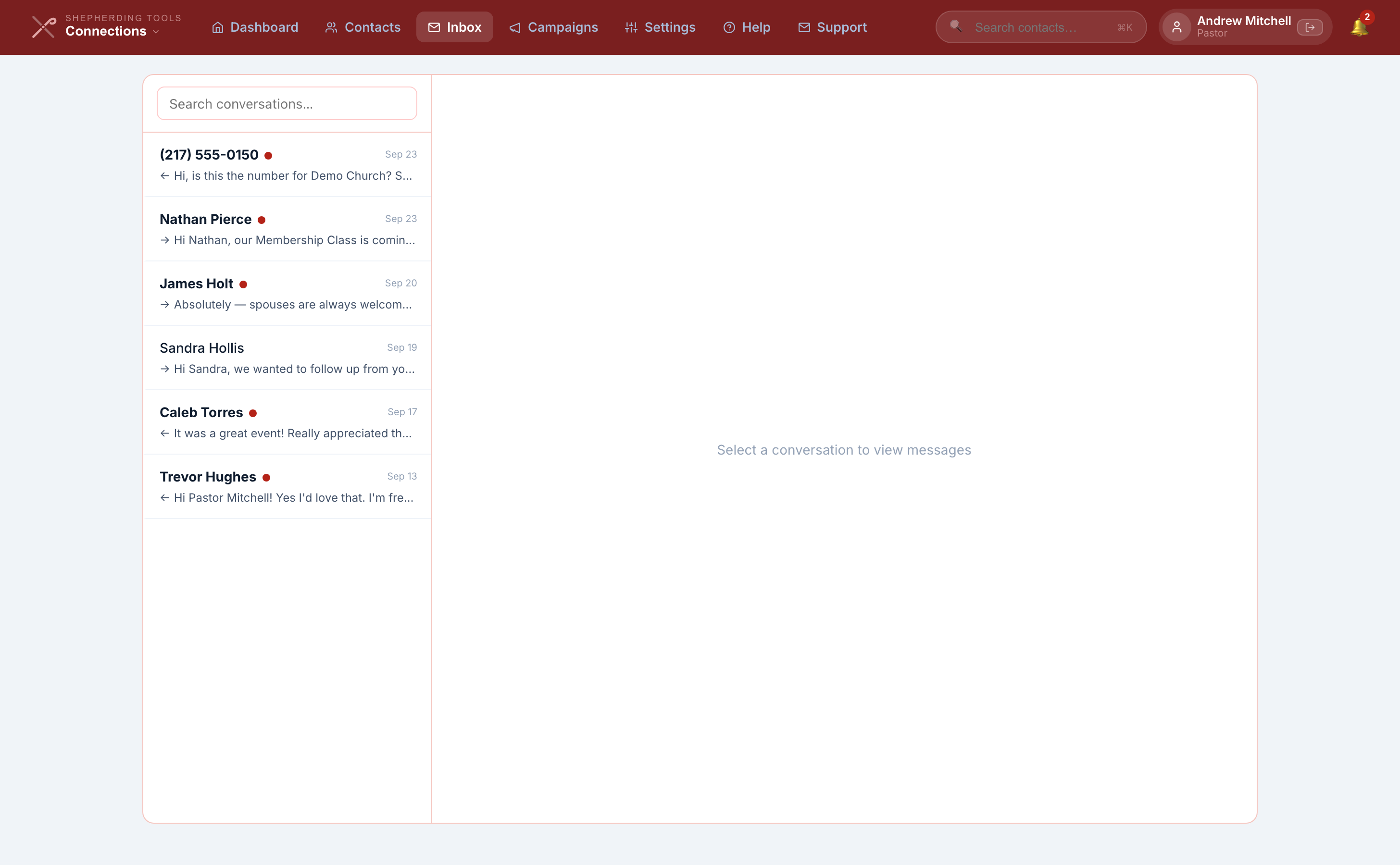
The top bar holds five places, plus a link out to support:
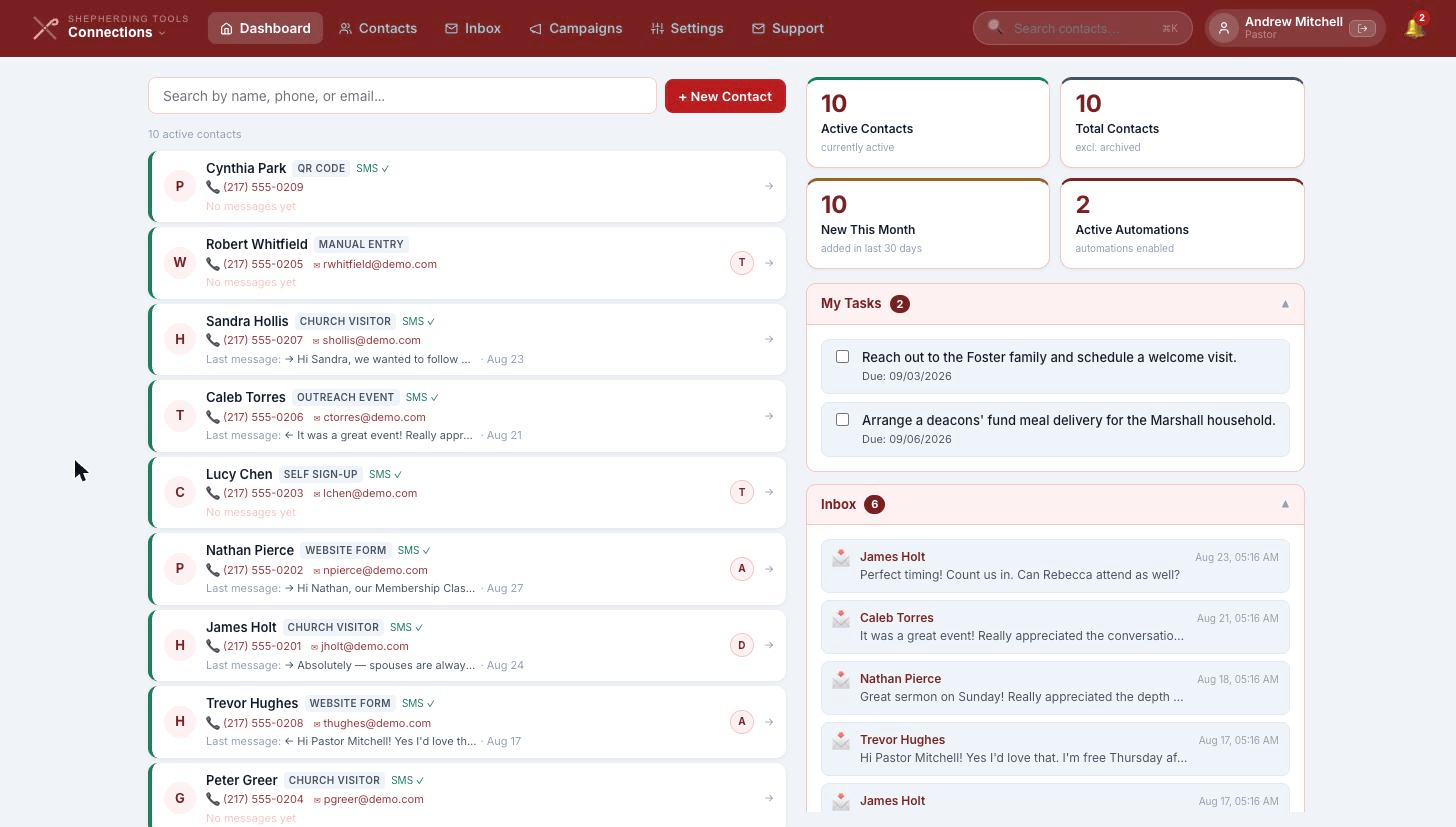
- Dashboard — recent contacts, pending tasks, the last messages that came in, and a few counts.
- Contacts — everyone Connections knows about. Click a name to open his profile.
- Inbox — two-way texting. Replies land here.
- Campaigns — four tabs: Automations, Keywords, Segments, Announcements.
- Settings — seven tabs: Team, Settings, Sending Rules, Connect Pages, SMS, Billing, Charges. Only administrators see this.
Step 3 — Decide who administers it
A pastor is an administrator automatically. Anyone else needs the Connections administrator box ticked on his row under Settings > Team. That box is a software permission and nothing more. It does not make him an elder, it does not give him access to Tracker, and it does not let him read pastoral notes he could not read before. The box is greyed out on your own row, so a church cannot lock itself out of its own team list.
Administrators are the only people who can send a message, create a contact, build an automation, or touch billing. Everyone else with Connections access can read and take notes.
Step 4 — Check what your plan includes
Contact management is on the free tier. Phone numbers and text messaging are not. If your church is on the Free Forever plan, Settings > SMS shows Phone & SMS Locked, and both ordering a number and buying credits are refused with a note about upgrading. Any paid Tracker plan turns both on, and we can also switch them on for a church we have agreed a custom arrangement with — ask us if that is your situation.
Step 5 — Set up, in order
The pieces depend on each other, so do them in this order:
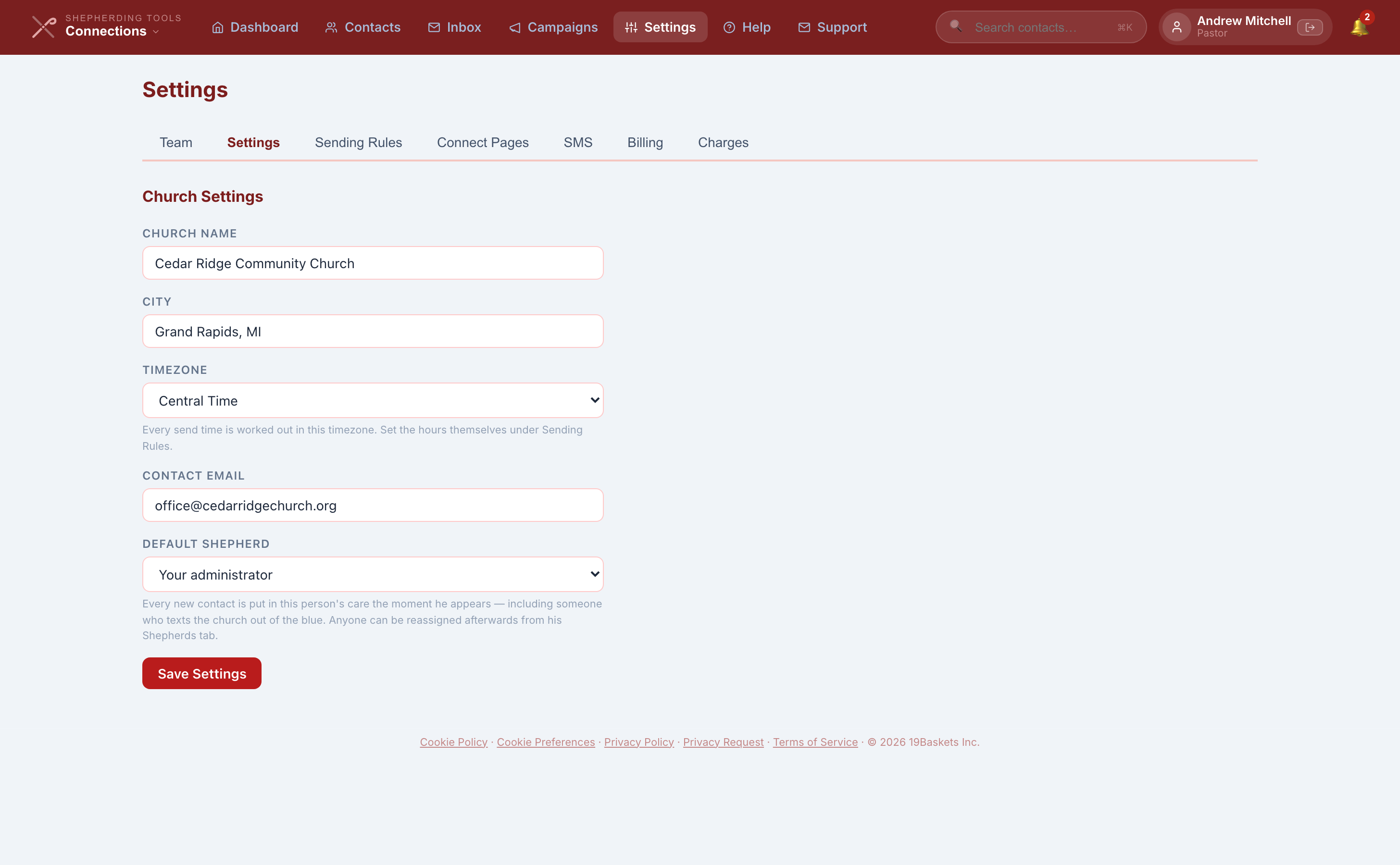
- Fill in your church name, city, timezone and contact email under Settings > Settings.
- Order a phone number under Settings > SMS.
- Build at least one connect page under Settings > Connect Pages. Carrier registration requires one.
- Register your brand and campaign with the carriers, on the same SMS tab.
- Add credits under Settings > Billing.
Registration with the carriers takes days, not minutes, and it is the step people forget to start. Do it first and build your connect pages and automations while it processes.
Item 1 has no walkthrough anywhere else in this guide, so here it is. Items 2 through 5 each have their own steps further down this page: see Get a phone number, Registering with the carriers, Create a connect page, and Buying credits.
- Click Settings in the top nav (administrators only), then the Settings tab.
- Fill in Church Name, City, and choose a Timezone.
- Fill in Contact Email.
- Optional: choose a Default Shepherd. He is who every new contact is assigned to when nobody picks one by hand, including a stranger who texts in cold. Leave it blank and a new contact falls back to your administrator.
- Click Save Settings.
You'll know it worked when the button reads Saved ✓ for a couple of seconds.
1. Contacts
A contact is one person Connections can reach. He is not a member, and Connections does not treat him as one.
Three ways a contact appears
- You add him. Click New Contact on the Contacts page or on the Dashboard.
- He texts a keyword to your church number. The contact is created for you.
- He fills in a connect page. Same thing, from a form instead of a text.
Every contact carries a source, which is just a label for where he came from: Manual Entry, Church Visitor, Outreach Event, Website Form, QR Code, or Self Sign-Up. You can filter an announcement by it later.
Add a contact by hand
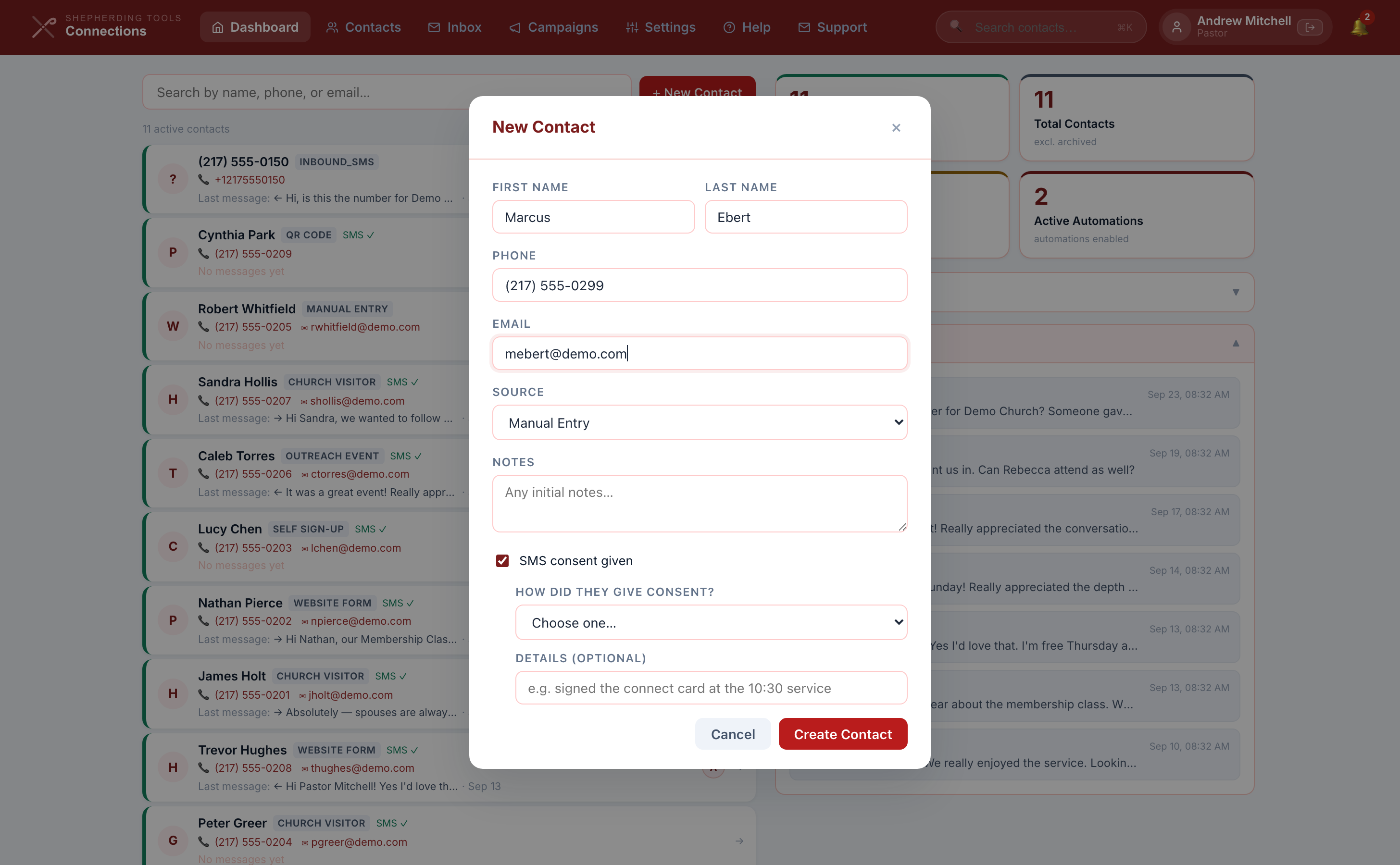
- Click Contacts in the top nav, then + New Contact (or + New Contact on the Dashboard).
- Fill in First Name, Last Name, Phone, Email. At least a name or a phone number is required.
- Choose a Source: Manual Entry, Church Visitor, Outreach Event, Website Form, QR Code, or Self Sign-Up.
- Optional Notes field.
- Tick SMS consent given if he has already agreed. This reveals How did they give consent? and an optional Details box.
- Click Create Contact.
You'll know it worked when the modal closes and the new contact appears at the top of the Contacts list.
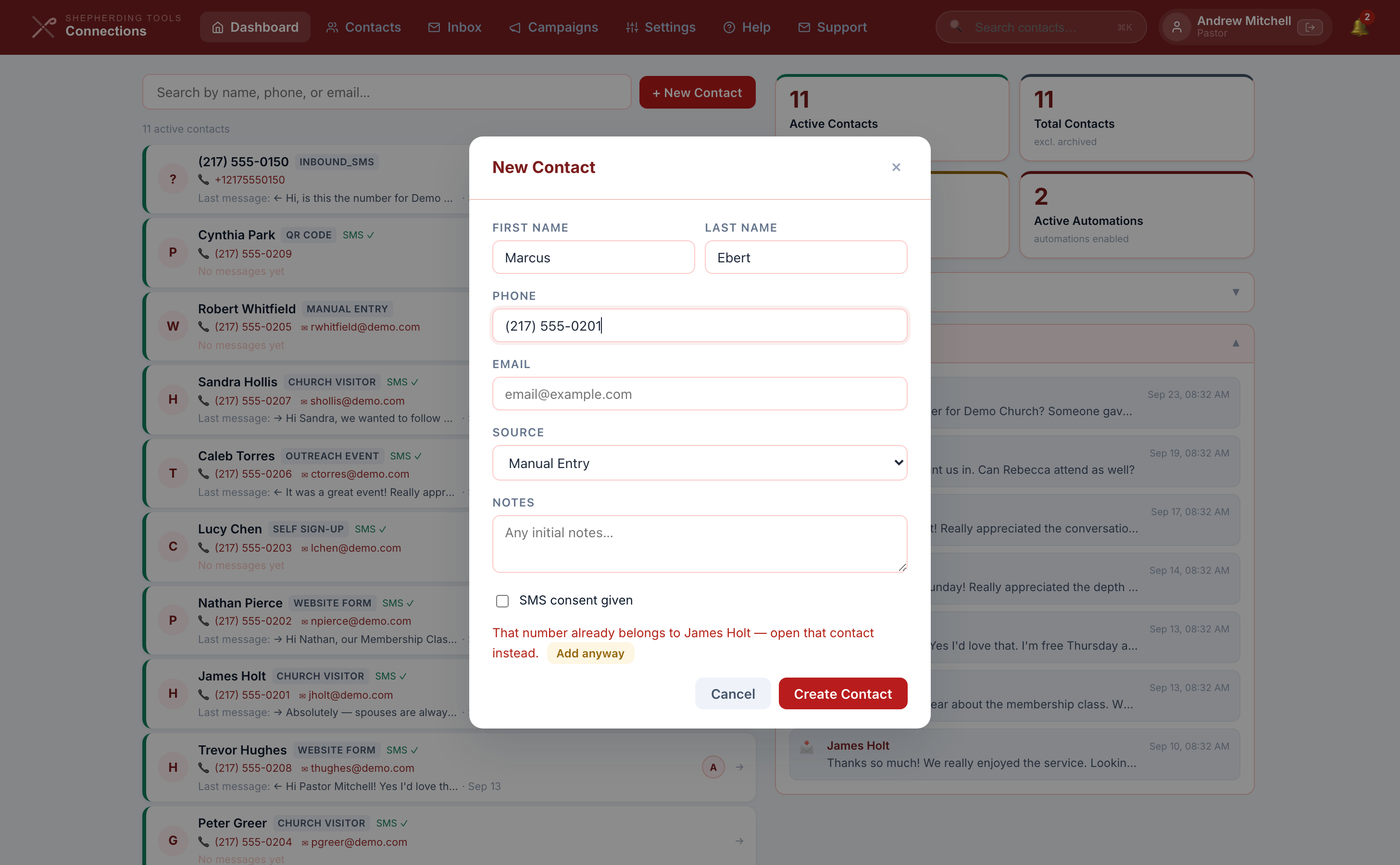
If the phone number already belongs to another contact, the form refuses with a warning naming who has it, and an Add anyway button appears beside the error. Two people can share one number on purpose — a husband and a son, say — but the app makes you choose that deliberately rather than creating a duplicate by accident.
A stranger who texts you first becomes a contact
Nobody has to click anything for this one. The moment an unrecognised number texts your church, Connections creates a contact for him automatically: phone number only, no name, and no SMS consent recorded. He is not linked to a Tracker household yet either — that only happens once somebody gives him a name.
You'll know it worked when he shows up in your Inbox and in Contacts, labelled by his phone number rather than a name. To give him a name, open his contact profile, click Edit, fill in First Name and Last Name, and click Save.
You can write back to him before he has a name or has consented to anything — replying to someone who wrote to you first is always allowed. He will not receive an automation or an announcement until he has consented, name or no name.
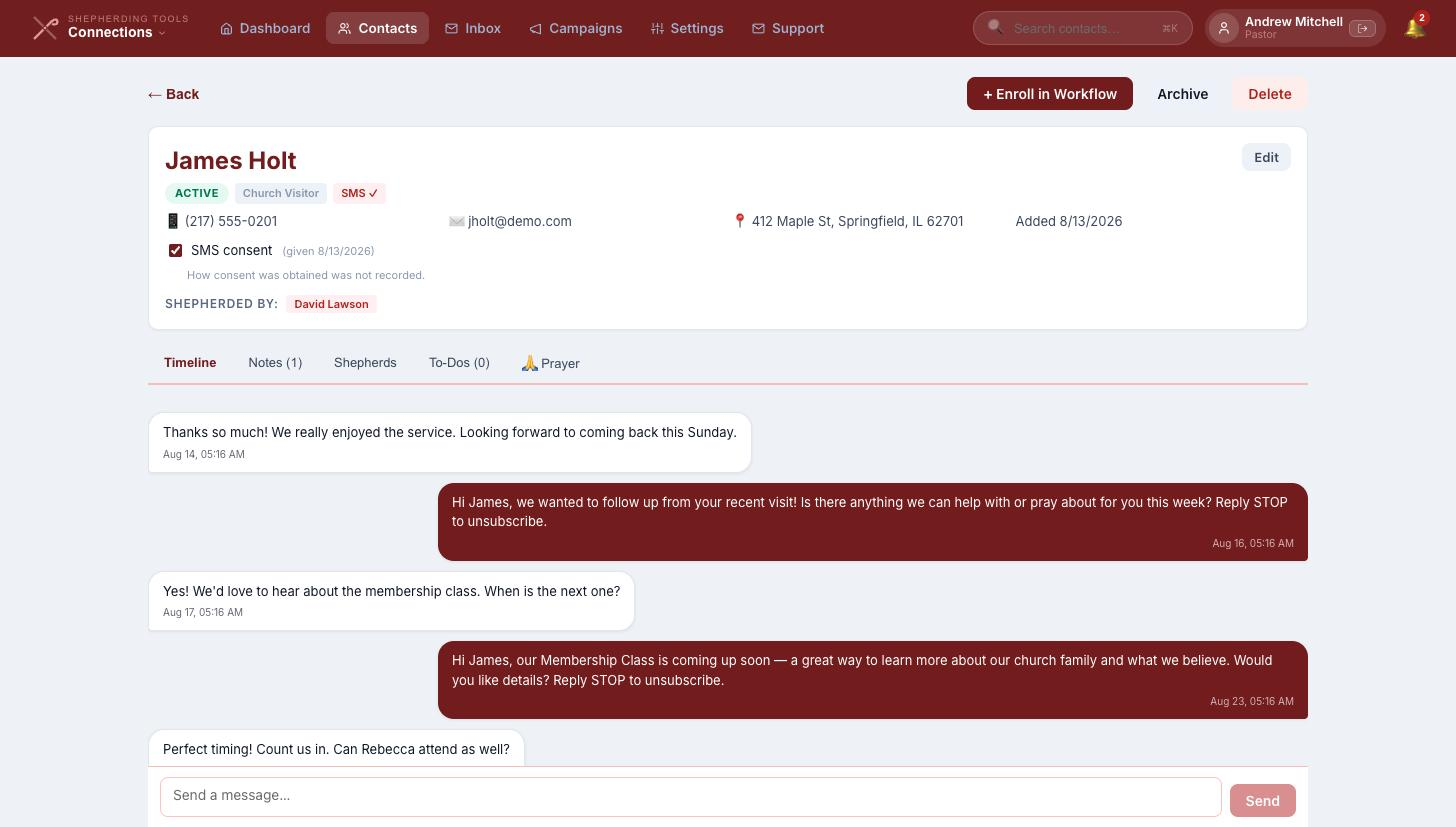
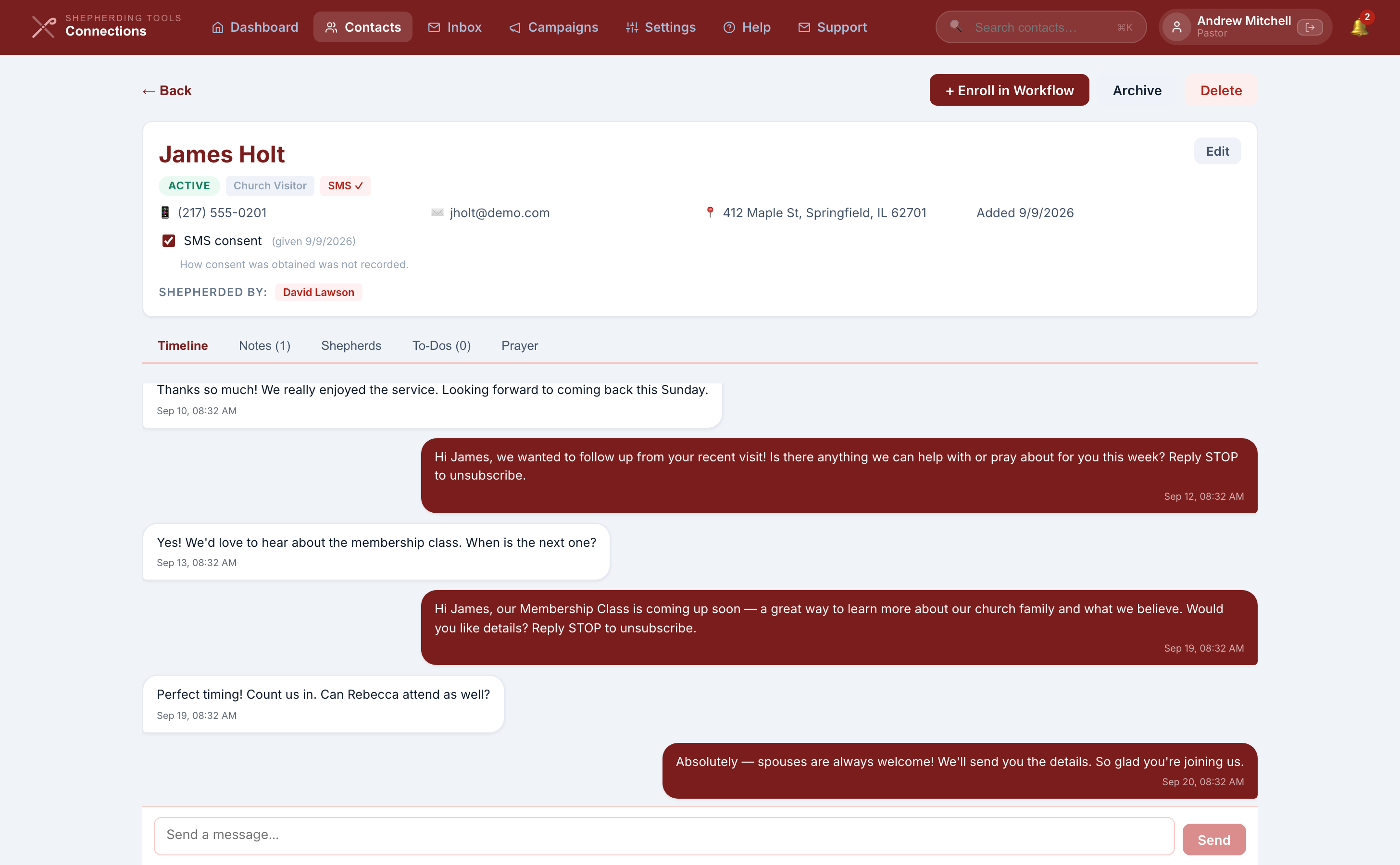
The contact profile
Click any contact to open his profile. Across the top: his name, his consent status, and a + Enroll in Workflow button, which opens a panel titled “Add to an Automation.” Below that, five tabs.
- Timeline — every message in and out, plus the automatic entries Connections writes for you when he opts in, opts out, or clicks a link.
- Notes — what you write about him, each with its own visibility.
- Shepherds — who is following this person up. The automation engine reads this when it needs to give somebody a task, and it decides who gets told when he writes in.
- To-Dos — open follow-up tasks.
- Prayer — the prayer requests on file for that household, filtered to what you are entitled to read. If you also use Prayer, click + Add Prayer Request here to add one, with the same title, details, visibility and urgent choices as in Tracker. It is saved in Prayer. If your church reviews requests before they appear, a note says it is waiting for approval and the approvers are told. This tab only appears once the contact is linked to a Tracker household, which happens on its own. See How this fits with Tracker.
Who can read a note
Every note carries one of four levels, chosen when you write it and shown as a badge afterwards:
- Only me — nobody else, including administrators.
- Pastors & Elders only
- All Officers — pastors, elders and deacons.
- Everyone — anyone in your church with Connections access.
Eligibility runs on ecclesiastical office alone. Being a Connections administrator does not qualify a man to read a note he could not otherwise read. The filtering happens on the server, so a restricted note is never sent to a browser that should not have it.
The Notes field on the contact's own details, the one that sits beside his phone number, is different from the notes on the Notes tab. It has no visibility setting, and everyone with contact access can read it. Put anything sensitive on the Notes tab, where you can set a level.
Archive, delete, and restore a contact
- Open the contact's profile. On desktop, Archive and Delete sit at the top right; on mobile, they're behind an Actions ▾ menu.
- Archive asks you to confirm ("They will be hidden from the active contacts list"), then returns you to the contacts list.
- Delete asks you to confirm with the exact stakes ("All messages, notes, and enrollments will be removed. This cannot be undone."), then returns you to the contacts list.
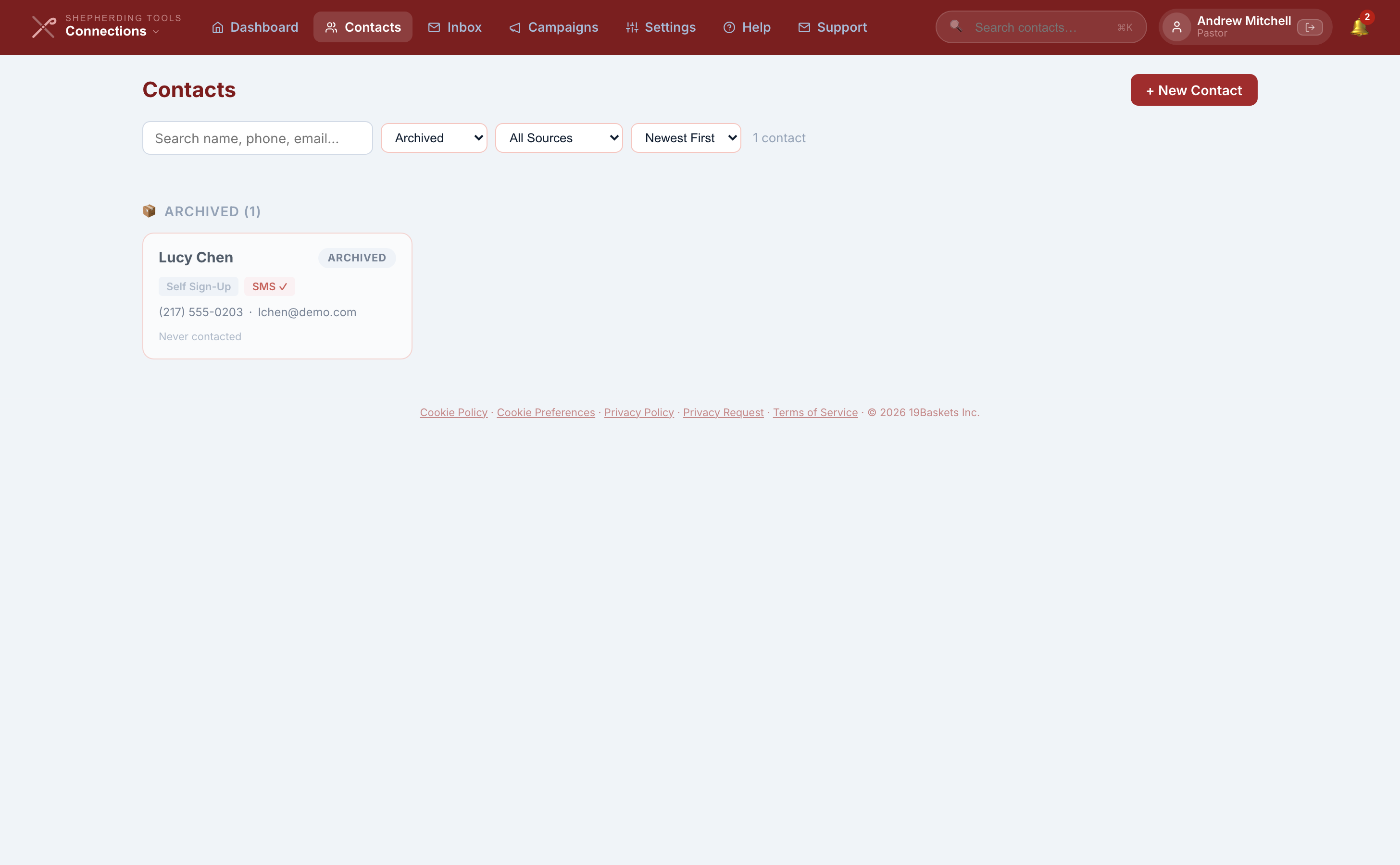
- To restore an archived contact: find him via Contacts > Status filter > Archived, open his profile, click Edit, change Status back to Active, and click Save. There is no dedicated "Restore" button; it is a status edit.
You'll know it worked when archived contacts show under a 📦 Archived section on the Contacts page once the status filter includes them, and restored contacts move back to the active list.
Set a contact's status to archived and he drops out of announcements, and any message series he was part of ends, while his history stays. Archiving is a full stop, the same as if he had texted STOP: bringing him back out of the archive does not restart a series, so add him to one again if you mean to. Deleting is different and it is permanent for the Connections record. His Tracker household is not deleted with him; it is archived, so the pastoral record survives an outreach decision. That is deliberate. Connections is not allowed to destroy anything in Tracker.
Two things it does not do
There is no spreadsheet import for contacts, and there is no way to merge two contacts who turn out to be the same person. If you find duplicates, write to support and we will sort them out at our end.
Duplicates were easier to create before August 2026, because a repeat connect-card submission was not matched against the existing record properly. Repeat submissions now match on the last ten digits of the phone number, then on email. Duplicates created before that fix are still there and still need a hand merge.
Adding a contact by hand on a number one of your contacts already has brings up a warning, and the message names who has it, so you can open that contact instead of starting a second one. The same check runs when you edit a contact's number. If the two really are different people — a husband and son sharing one mobile, say — choose Add anyway and the contact is created.
One thing to know before you do. When a text arrives from a number two of your contacts share, it lands on whichever of them you added first. Nothing is lost, but a reply from the son can appear in his father's conversation, so read the message rather than trusting the name above it.
2. SMS Consent
This is the part of Connections worth reading twice. Nobody is put on your announcements or automated messages unless his consent is on file. The check is not a warning you can click past. It runs on the server, on every message your church starts, whoever sent it and however it was triggered. If the consent record cannot be read for any reason, the message is refused rather than sent.
One thing works differently, and only in one direction. If somebody texts your church first, an officer can write back to him by hand in that conversation, even though he has not opted in. Answering a person who wrote to you is a different act from adding him to a list, and it does not add him to one. He stays out of your announcements and automations until he opts in properly.
The three ways consent is recorded
- He ticks the box on a connect page. Only a ticked box counts, and only when he has also given a phone number.
- He texts a keyword to your number, or texts START. Reaching out is itself the opt-in.
- You record it by hand on the contact form or the contact profile.
Recording consent for somebody else
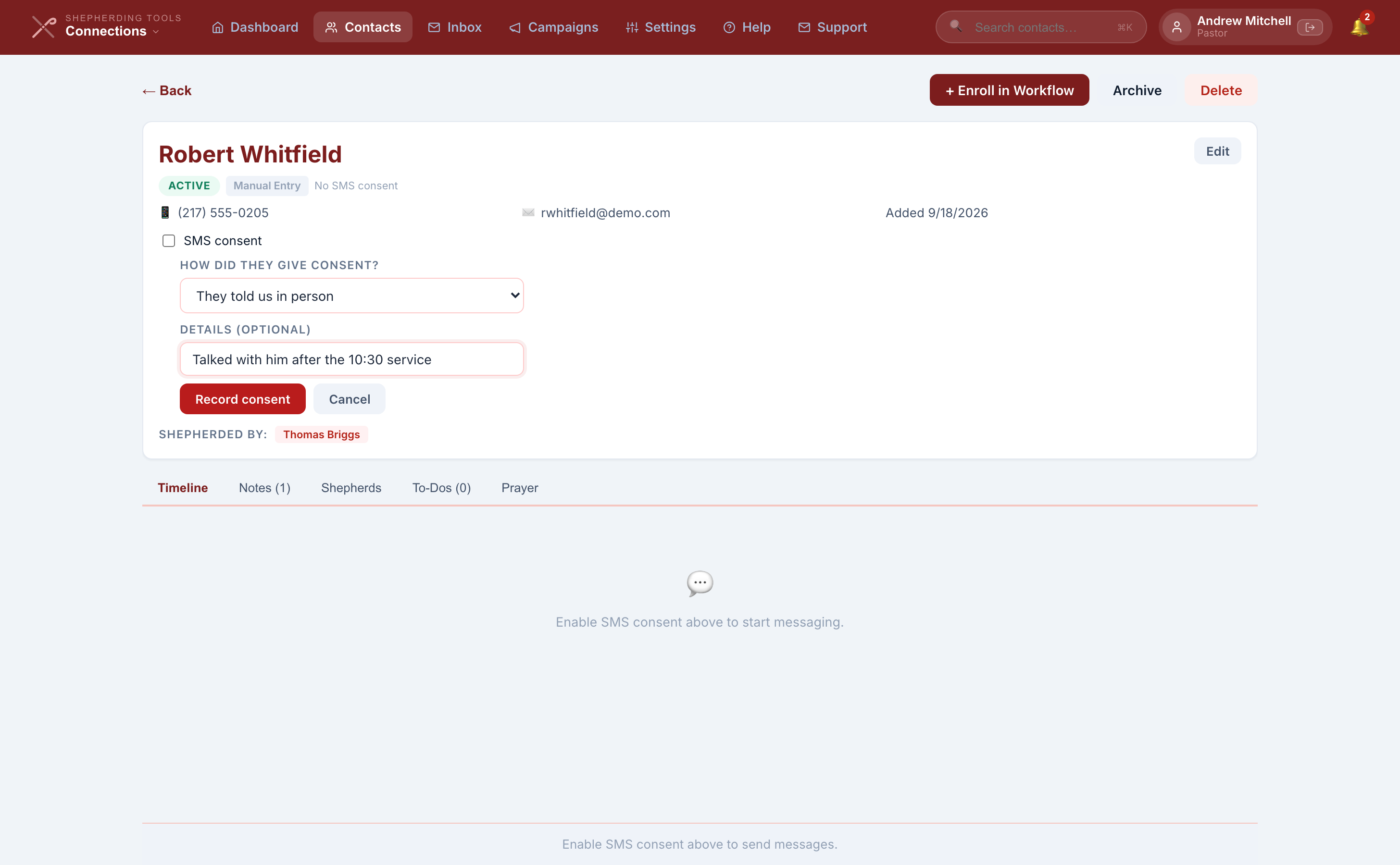
- Open the contact's profile and tap ▼ Details (always visible on desktop).
- Tick the SMS consent checkbox.
- Choose How did they give consent?: They texted us first, They told us in person, Paper form or connect card, or Web form or online sign-up.
- Optional Details box, for example "signed the connect card at the 10:30 service."
- Click Record consent.
You'll know it worked when the checkbox stays ticked, an "SMS ✓" tag appears near his name, and the date and how-obtained line show underneath.
Use the Details box. Something like "signed the connect card at the 10:30 service" is what you will want on file if a carrier ever asks your church to evidence consent, and the penalty for not being able to is losing the ability to text at all. The date is recorded automatically; the source is the part only you know. Contacts who consented before this requirement existed have no source recorded, left blank rather than filled in with a guess.
Unticking the box on the profile fires immediately, with no confirmation dialog (unlike Archive or Delete). It does the same work as him texting STOP: his active automations are cancelled and a note goes on his timeline.
STOP, START and HELP
These are carrier rules, not ours, and they are handled before anything else you have set up.
- STOP, STOPALL, UNSUBSCRIBE, CANCEL, END, QUIT, REVOKE, OPTOUT, OPT OUT — consent is switched off, every automation he is part of is cancelled, and a note goes on his timeline. We send no reply. The carrier sends its own confirmation.
- START, UNSTOP, YES, SUBSCRIBE — consent is restored, and he is put back into any repeating-cadence automation set to enrol people automatically that he still matches.
- HELP, INFO — he gets a short message naming your church and your contact email. This is the one message that goes out even to somebody who has opted out, because carrier rules require an answer to HELP.
Only those words, sent on their own, are read as opt-outs. A hyphen, extra spaces or a full stop after the word are fine: "Opt-out" and "Stop." both count. Somebody who texts "stop texting me" will be treated as having sent an ordinary reply, and it will land in your Inbox. Read your Inbox. When you see something like that, open his profile and untick his consent by hand.
Unticking consent in the app does the same work as a STOP text: active automations are cancelled and a note is written.
3. Inbox
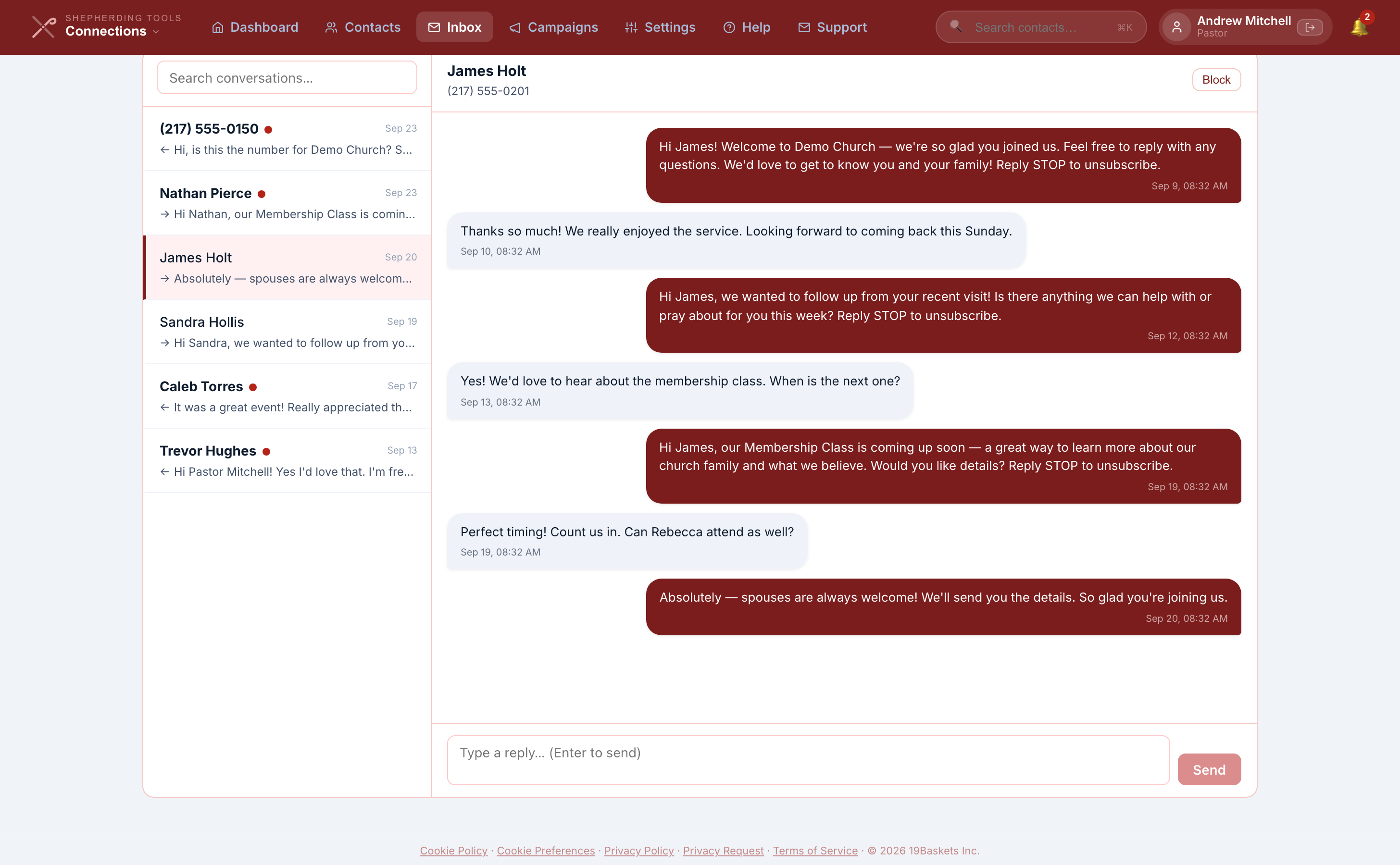
The Inbox is a normal texting conversation, one thread per contact. Anything sent to your church number arrives here, whether it was a reply to an automation or somebody writing in cold.
Sending a message by hand
- Click Inbox in the top nav.
- Click a conversation in the left list.
- If the compose box is visible, type and press Enter (or click Send).
The compose box appears when the person has given consent, or when he has texted you at least once before. If it is missing, the thread tells you why instead: either "This number isn't one of your contacts yet" or "This contact has not given SMS consent."
You'll know it worked when the message appears right-aligned in the thread immediately. Messages you send by hand are treated differently from automated ones in one respect: the Sending Rules never hold them back. No weekly cap, no cooldown, no duplicate check. They still need credits.
Any web address you type is replaced with a short tracking link before it goes out, so you can see whether he opened it. His first click is written onto his timeline.
Connections sends to United States and Canada numbers only. An international number is refused with a message saying so.
Block and Unblock sit in the same thread header. Block drops future messages from that number before they reach your Inbox, and keeps his history as it is. Blocked conversations are hidden from the list by default; tick Show blocked above the list to see them and unblock.
The Failed marker
A message marked ⚠ Failed did not leave. Either Connections refused it (no consent, no credits, no church number) or the carrier rejected it outright. Anything without that marker was accepted for sending. What that does and does not tell you is covered under What "sent" means.
Getting told when somebody writes in
Three ways, and they are set in two different places. Under Settings > Team, each person has two boxes: Notify by email when an assigned contact sends a message and Notify by SMS. Both are off unless somebody ticks them.
The third is a notification on your phone, and it is on unless you turn it off. It uses the same Push Notifications switch as the rest of Shepherding Tools, so one switch governs your phone across every part of the product. Most people flip it in My Settings, but it is also on your own row under Settings > Team, as Push notifications to the mobile app — useful if you administer Connections but not Tracker, since Connections has no My Settings screen of its own. It needs the Shepherding Tools app installed and nothing else. Tapping the notification opens the app on that conversation, so you can read what he wrote and answer without hunting for him.
All three go to whoever is listed on the contact’s Shepherds tab — and every new contact gets one automatically, so somebody hears about a person who texts your church even before anyone has been assigned by hand. Your church administrator is the default; you can name someone else in Settings. The phone notification arrives for every message, the way a text message does. Email and text notifications are held to one an hour for the same contact, so a long back-and-forth does not fill your inbox or spend your credits. The phone notification names the sender and quotes the opening of his message, so it reads like the text it is telling you about. Turn Show names in Connections text alerts off in My Settings and it goes back to naming nobody and quoting nothing. Nothing anyone texts your church is stored in the notification itself; the wording is read at the moment the alert is sent, so a message you delete is never quoted afterwards.
Assign a shepherd to a contact as soon as the contact exists. Without one, a reply sits in the Inbox until somebody happens to look.
4. Connect Pages
A connect page is a public form with its own web address. No login, nothing to install. It is what you put on a card, a banner, or the back of a bulletin.
Create a connect page and share its link
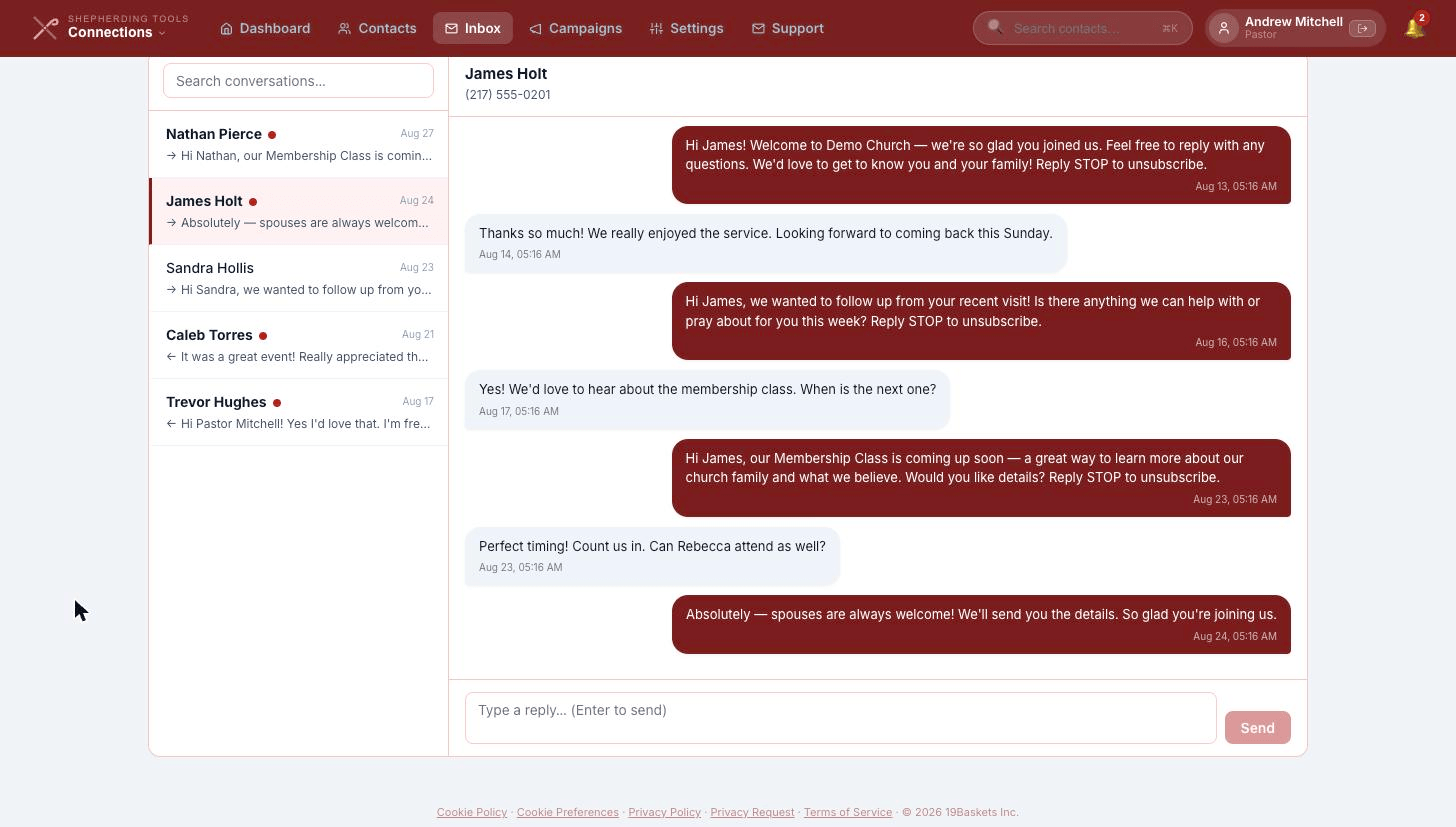
- Go to Settings > Connect Pages, click + New Page.
- Fill in Page Title (the URL slug fills in from it, or type your own URL Slug — letters, digits, hyphens only, fixed once created, because the address may already be printed on something).
- Optional Description.
- Three checkboxes: Enabled (whether the page accepts submissions at all), Require phone, Require email.
- Optional Confirmation SMS, sent to the visitor's phone after he submits. Leave it blank for the default.
- Optional Start this automation when the form is submitted dropdown.
- Tick which Interest Tags to Show on Form — your segments.
- Click Create Page.
- To share it: click QR Code beside the page in the list, then Download PNG.
You'll know it worked when the new page appears in the list with an Active badge and its live address as a clickable link. The finished address looks like shepherdingtools.com/connections/c/your-handle/easter-2026.
Connect pages need your church handle, which is set in Tracker. Until one is set, the tab says so and no public address exists.
Disable beside a page in the list turns it off without deleting it — useful once a 10DLC campaign has been built from it, since disabling it is one of the things that invalidates the registration.
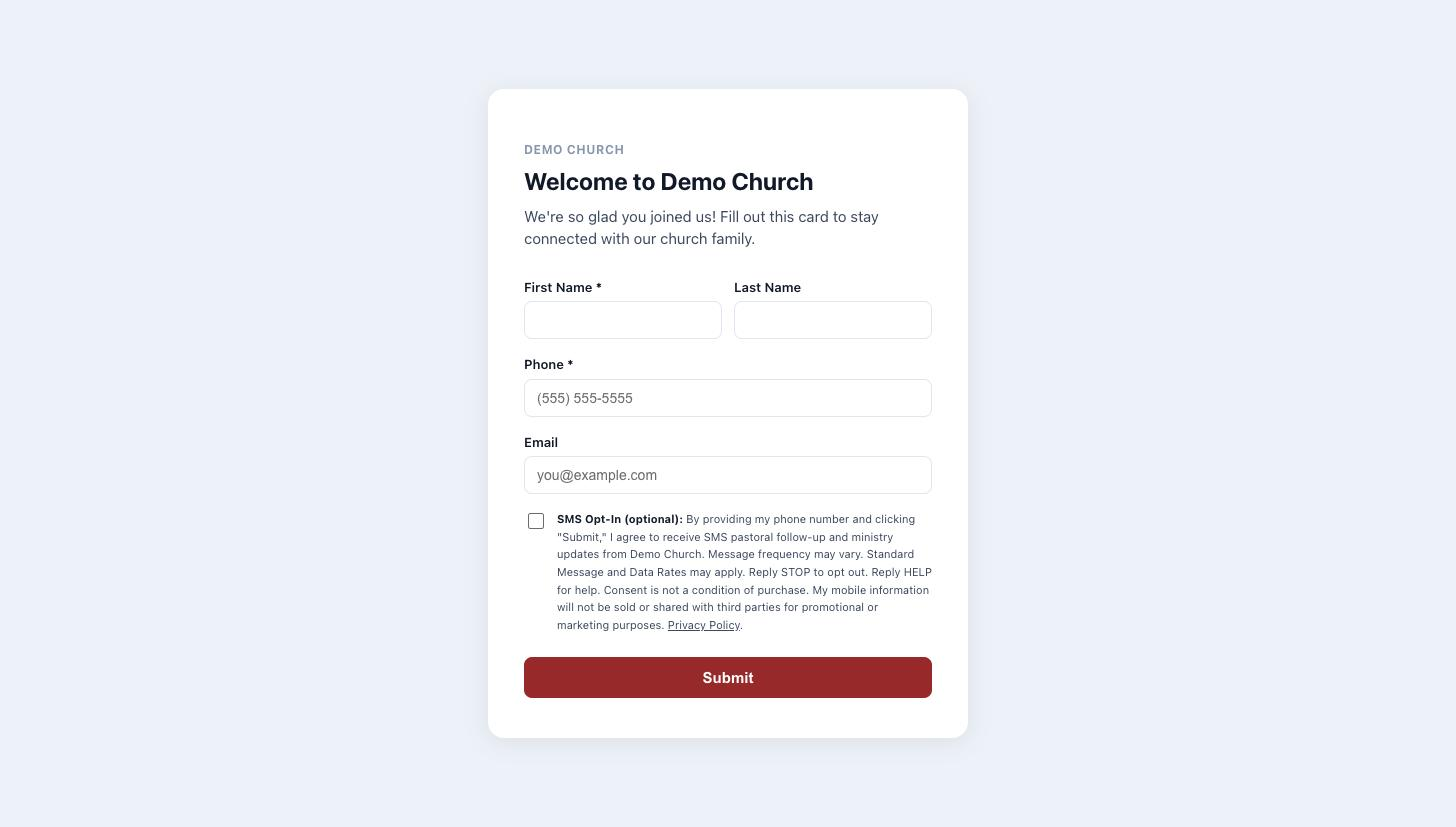
What the visitor fills in
First name, last name, phone, email, and whichever interest tags you chose to show. Then an SMS opt-in checkbox with fixed wording underneath it, covering message frequency, data rates, how to stop, and a promise that his number will not be sold. That wording is not editable. It is what carrier registration requires, and changing it would put your registration at risk.
The box is optional. He can send you his details without agreeing to texts, and if he does, you get the contact and no consent. Giving an email address does grant email consent.
Two other public pages you get
- A hosted privacy policy at
shepherdingtools.com/privacy/your-handle. Carrier registration requires a privacy policy at a real address, and this is the one we register on your behalf. - A printable visitor card at
shepherdingtools.com/visitor-card/your-handle, which links back to your privacy page.
If you change your church handle later, the old address keeps working. Every handle your church has ever held still resolves, so a card printed two years ago does not become a dead link.
Connect pages are rate-limited: ten submissions an hour from one internet connection, and five an hour from one phone number. That is there to stop a form being hammered, and ordinary Sunday traffic stays well underneath it.
5. Keywords
A keyword is a word somebody texts to your number to sign himself up. Put Text GOSPEL to (616) 555-0142 on a slide and the rest happens without anybody at church touching it.
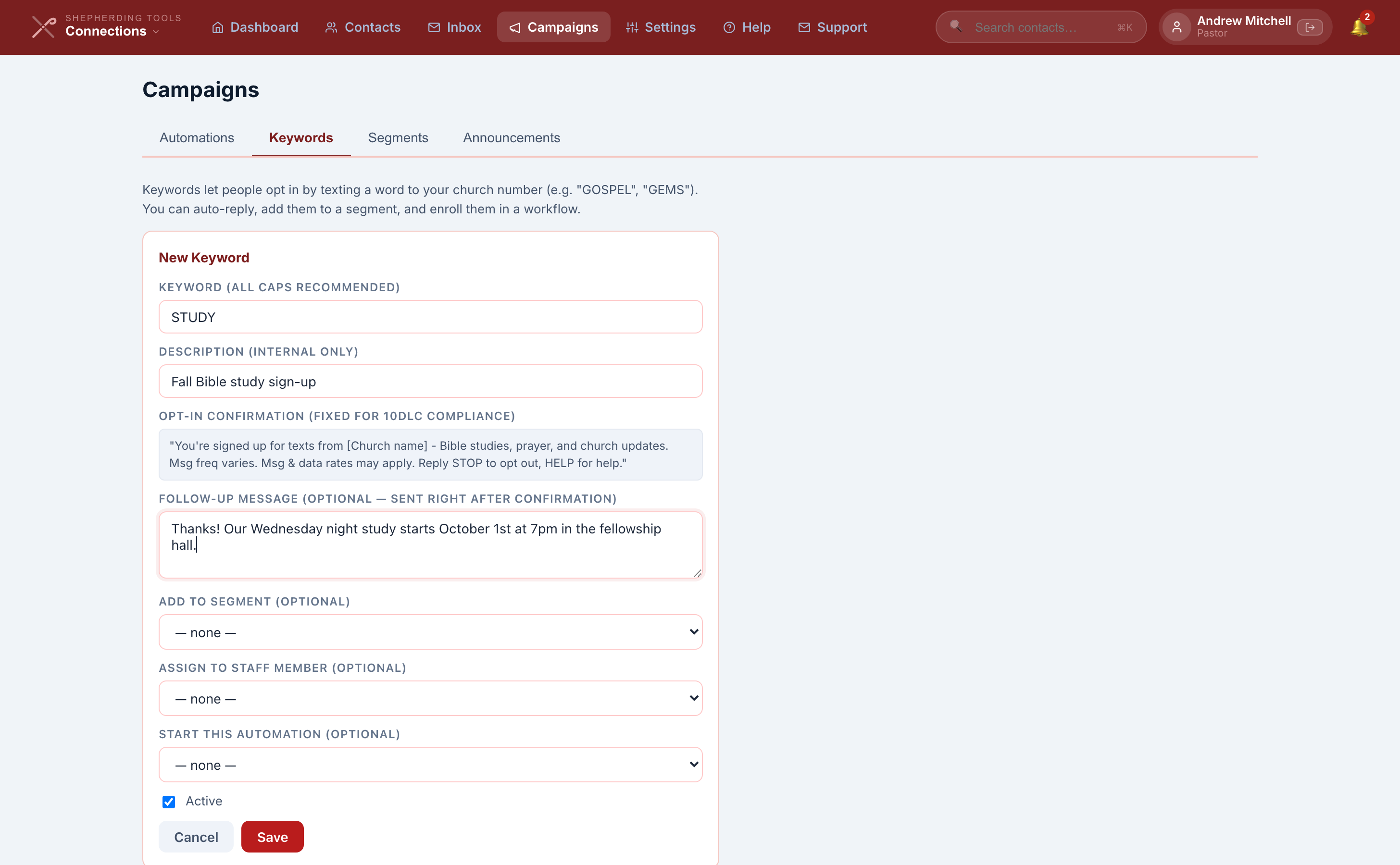
Create a keyword
- Go to Campaigns > Keywords, click + New Keyword.
- Keyword (all caps recommended).
- Description (internal only) — not shown to anyone who texts it.
- The Opt-in confirmation is shown to you read-only, in italics, fixed for carrier compliance and not editable. It names your church, says message frequency varies, mentions data rates, and explains STOP and HELP.
- Optional Follow-up message, sent right after the confirmation. This is where the real content goes, such as the first day of a reading plan.
- Optional Add to segment dropdown.
- Optional Assign to staff member dropdown.
- Optional Start this automation dropdown.
- Active checkbox (on by default).
- Click Save.
You'll know it worked when the keyword appears in the list below the form. Texting it to the church number now works immediately.
What happens when somebody texts it
If he is new, a contact is created with consent recorded and the confirmation goes out, followed by your follow-up message. If he already exists and has opted out, nothing is sent. He has to text START first. That is not us being cautious; a number that keeps texting somebody who opted out gets blocked by the carriers.
Matching is exact. GOSPEL works, and so does gospel, because case is ignored, but "send me GOSPEL" does not. Anything that is not a keyword is treated as a reply and lands in your Inbox.
6. Segments
A segment is a named group of contacts. Young families, Alpha course, Easter 2026, whatever you need.
Build a segment
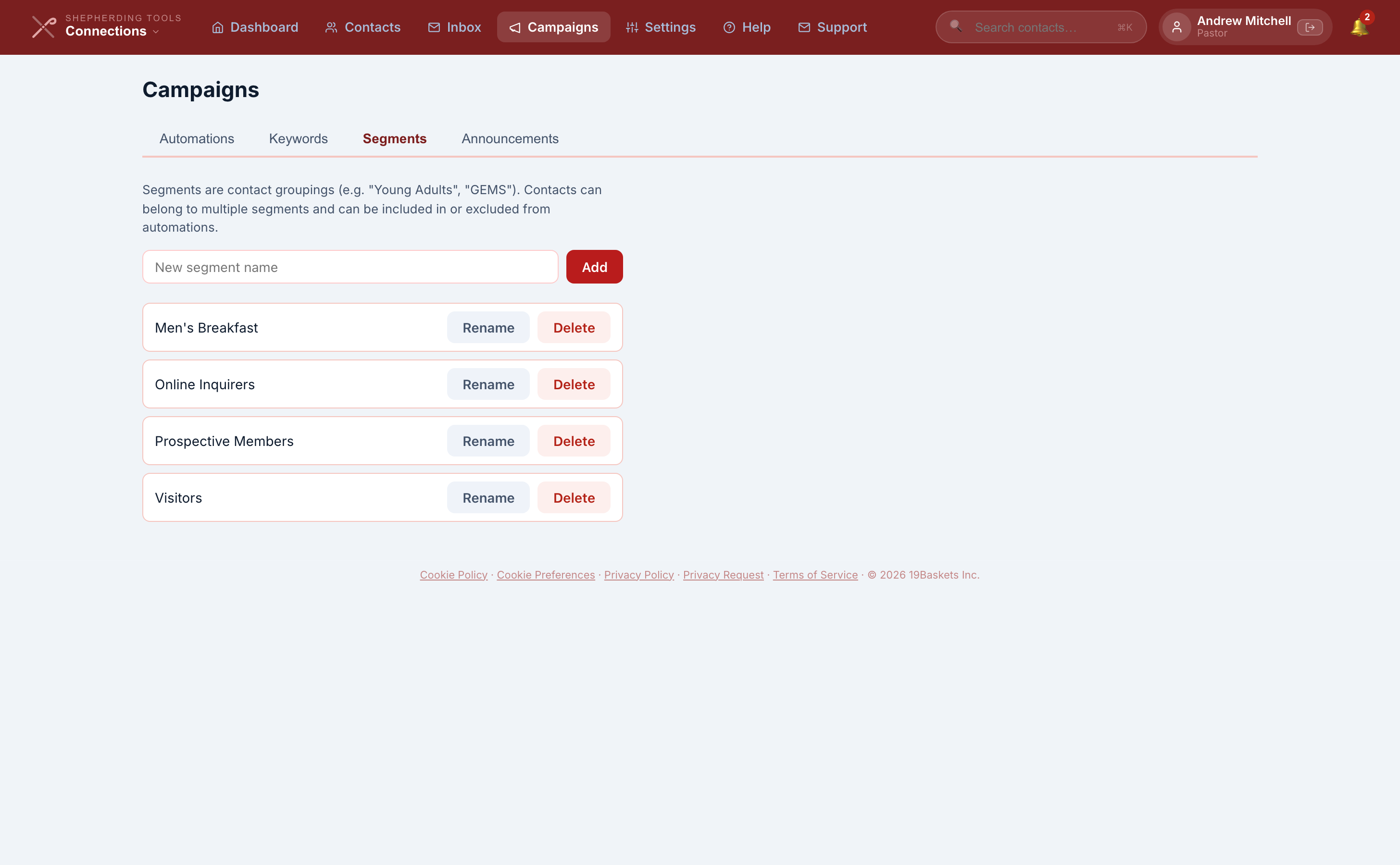
- Go to Campaigns > Segments.
- Type a name in the New segment name box.
- Click Add (or press Enter).
You'll know it worked when the segment appears in the list immediately, ready to be used on a keyword, a Connect page, an automation's audience, or an announcement's recipient filter.
Rename and Delete are on each row. Deleting a segment removes it from every contact currently carrying it, and the confirm dialog says so.
Contacts land in a segment four ways: you add them by hand, a keyword adds them, a visitor picks the matching interest tag on a connect page, or an automation step adds them. A contact can be in as many as you like.
Segments are then used to choose who an announcement goes to, and to decide who an automation enrols automatically.
7. Automations
An automation is a sequence of steps that runs against one contact over days or weeks. It is the difference between meaning to follow up with a visitor and actually doing it.
If you set Connections up before August 2026 you will remember three separate tabs called Automations, Drip Sequences and Series. They are now one Automations tab, and the two behaviours live on checkboxes inside each automation. Nothing you built stopped working and nothing changed how it behaves. The tabs merged. This is the sort of thing that happens in a beta, and it is why a screen name in this guide may not match what you see.
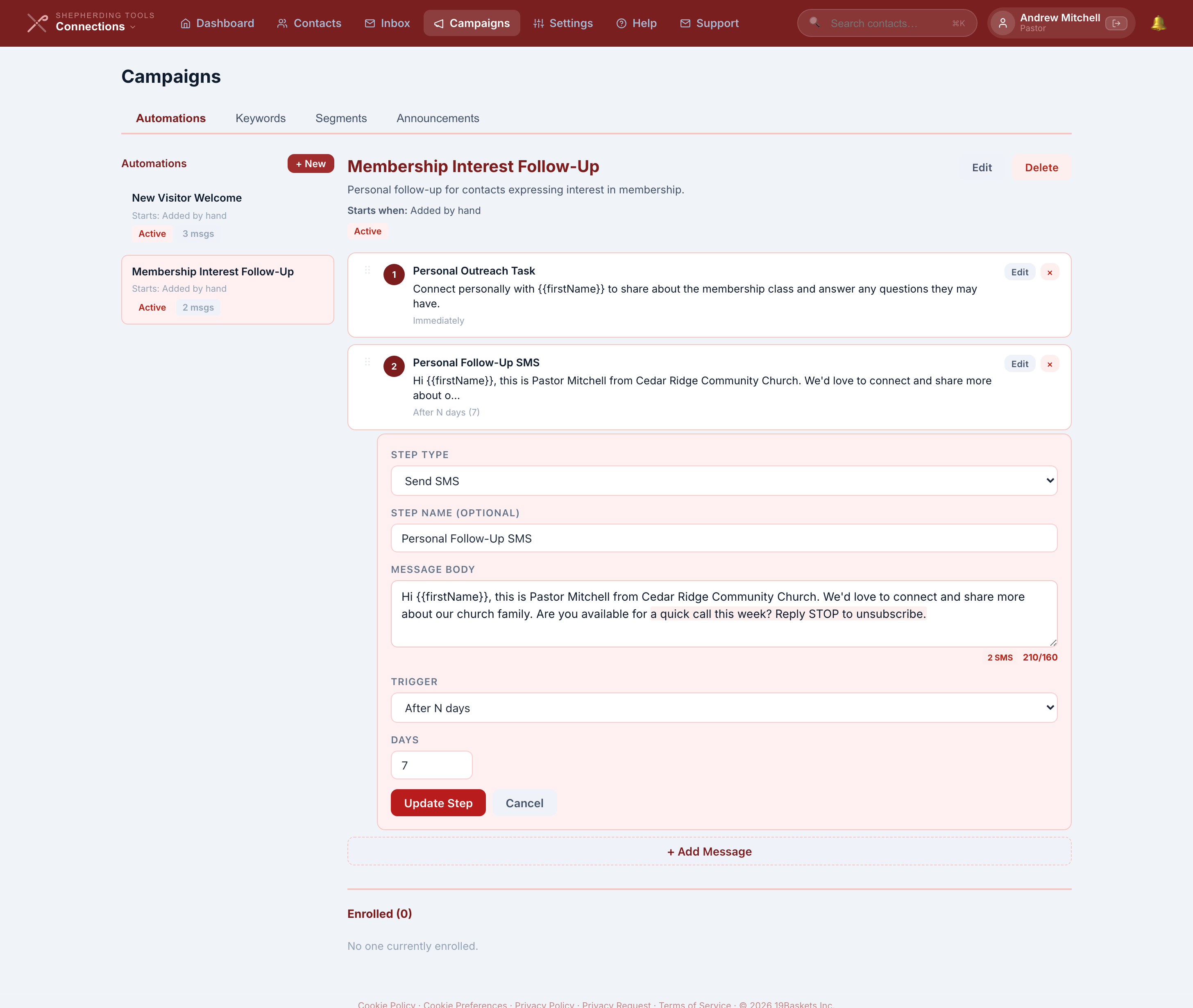
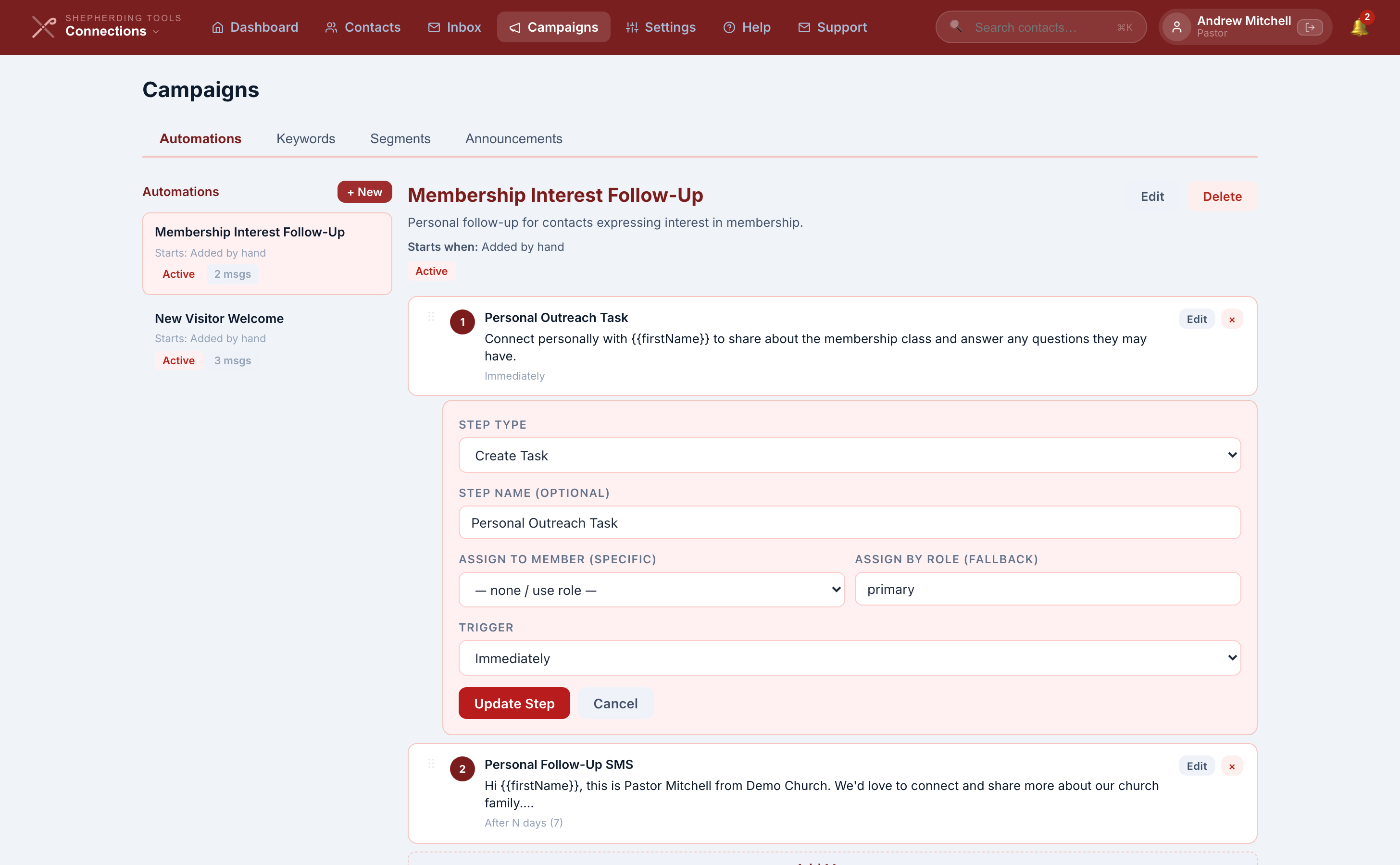
Build an automation — what each step type asks for
Each step has a type and a trigger that decides when it runs. The types:
- Send SMS and Send Email
- Create Task, Phone Call Prompt, In-Person Visit Prompt — these make a to-do for a person rather than sending anything
- Add Note and Assign to Team Member
- Update Status / Tag, which adds or removes a segment
- Wait / Delay and Branch (If/Then)
- Send Link, Send Form Link, SMS Opt-In Request, SMS Opt-Out Confirmation, End Workflow
- Every step starts with Step Type and an optional Step Name.
- Send SMS, Send Email, Send Link, Send Form Link, SMS Opt-In Request and SMS Opt-Out Confirmation all show a Message Body box. Use
{firstName}and{lastName}to personalise it. - Send Link and Send Form Link also ask for Link URL and Link Label.
- Branch (If/Then) asks for a Branch Condition — free text, for example "If reply contains… (YES, NO)." This is what makes a reply useful: it reads what he texted back and sends him down one of two paths, so "yes" and silence do not get the same follow-up.
- Create Task, Phone Call Prompt and In-Person Visit Prompt show a Task text box, plus Assign to member (specific) and Assign by role (fallback).
- Every step has a Trigger: Immediately, After previous step completes, After N hours, After N days, On specific day of week, On specific date, or When contact replies.
- Click Add Step (or Update Step).
If the automation is set to send on a repeating cadence or to keep sending during pause windows, the step editor is simpler: just a message and how many days after the previous one it goes out. The schedule replaces the per-step trigger entirely.
Getting people into an automation
- By hand, from + Enroll in Workflow on a contact profile.
- By keyword, if you named the automation on the keyword.
- By connect page, if you named it there.
- Automatically, by ticking Automatically enrol new contacts who match the audience below and choosing a segment. This is only offered on automations set to a repeating cadence.
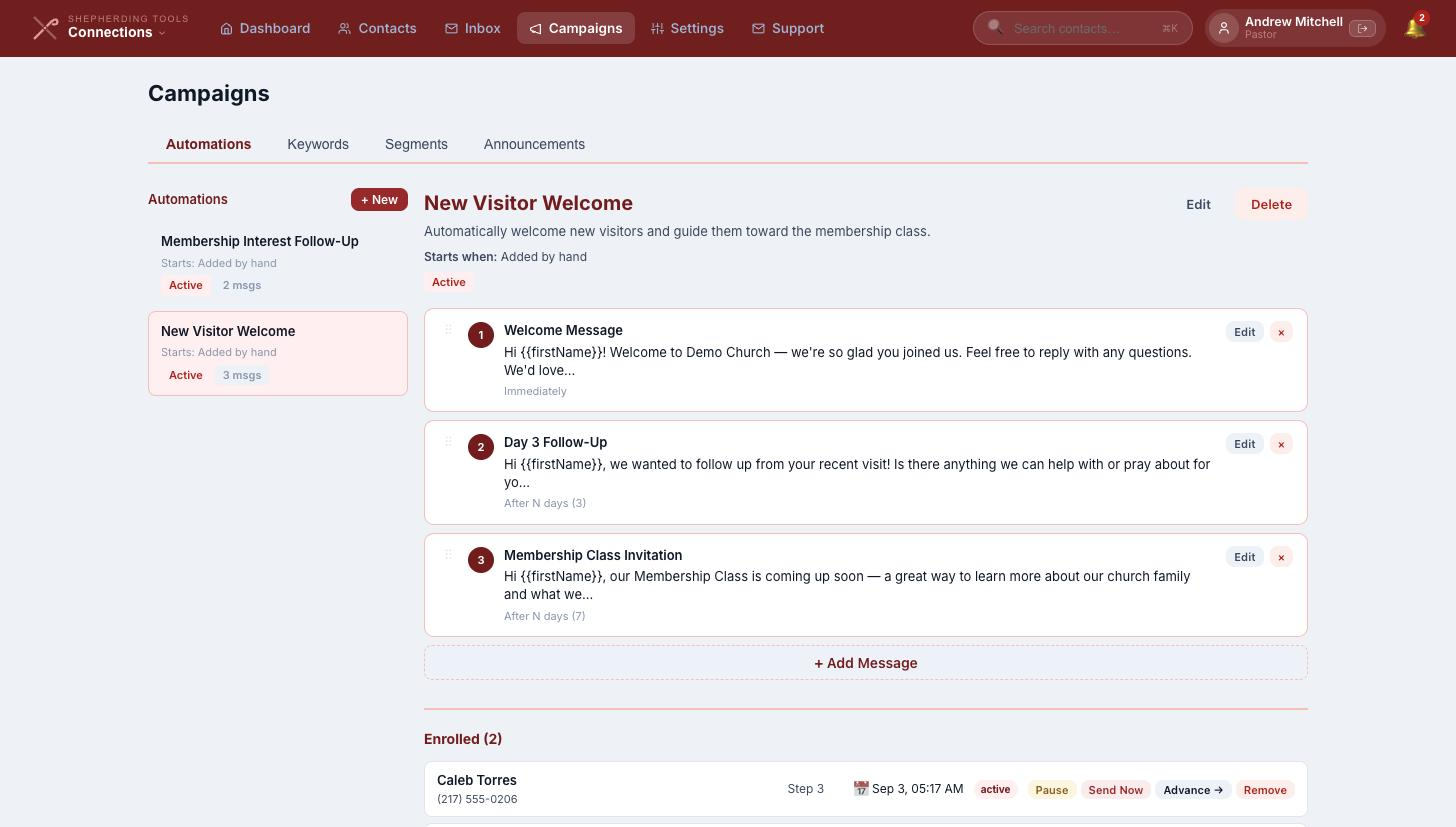
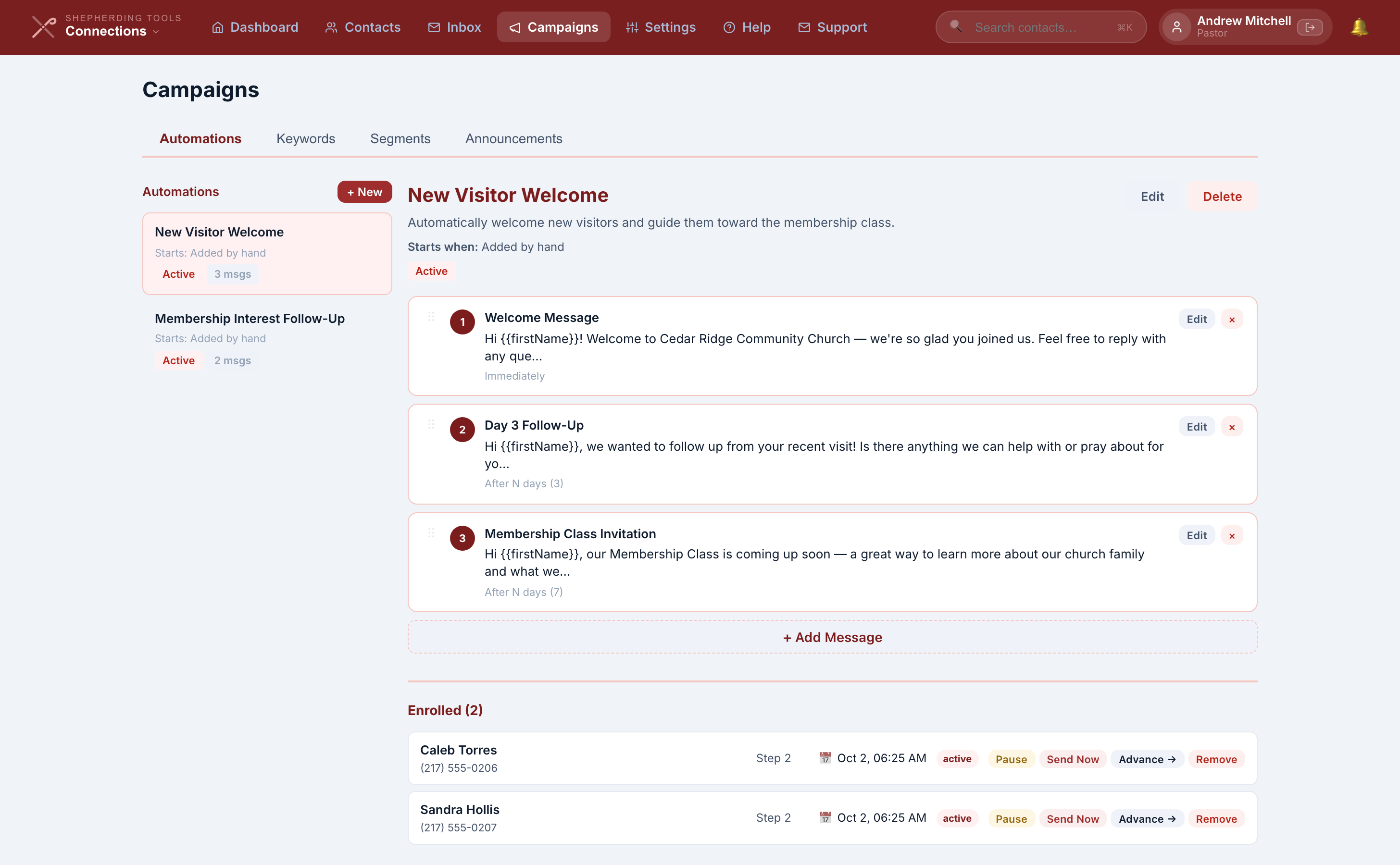
Manage people already enrolled
Open any automation and scroll to Enrolled (N) at the bottom. Each row shows his name and phone, which step he's on, when his next message goes out, and his status. Buttons on each row:
- Pause — stops him receiving anything further until resumed.
- Resume — restarts a paused enrollment.
- Send Now — sends his next scheduled message immediately (only shown when one is queued).
- Advance → — skips him straight to the next step without sending the current one.
- Remove — takes him out of the automation entirely (confirm dialog).
You'll know it worked when his row's status badge and next-send time update immediately.
Repeating cadence
Tick Send on a repeating cadence and the automation stops using the delay on each individual step and starts running on a fixed schedule instead: every so many days, on the weekdays you allow. This is the setting for a devotional series or a reading plan. Leave it off and each message waits the delay set on the message itself.
Sending through a pause
Tick Keep sending during pause windows for anything a person has explicitly signed up for and is waiting on. A pause window you set for Christmas week should stop your general outreach, but it should not stop day nine of a Bible study somebody asked for.
Being told when somebody opts in
Each automation has a Notify member on opt-in setting naming one person to email when a new contact joins through it. It is blank by default and there is no fallback. If nobody is named, nobody is told. This is the single most common reason a church says an opt-in went unnoticed, so set it when you build the automation.
What can stop a step from sending
An SMS step is skipped rather than sent when any of these is true:
- The contact has not consented, or has opted out. Opting out cancels the whole automation for him.
- His number is not a United States or Canada mobile number.
- The Sending Rules block it: weekly cap reached, cooldown not elapsed, or the same wording already went out in the last seven days.
- Your church has no phone number, or no credits.
Web addresses inside an automation message are replaced with a short link unique to that contact, so a click is recorded against him. A click can also add him to a segment, which is a tidy way to find out who is actually interested.
8. Announcements
An announcement is one message to a filtered list of contacts, sent once. Automations follow a person over time; an announcement is a single send to many people.
Writing one
Go to Campaigns > Announcements. Give it a name, which is internal and nobody else sees. Choose SMS or Email. Email announcements also take a subject line. Write the body, using {{firstName}}, {{lastName}} and {{sourceName}} where you want each person's own details. A counter under the box shows the character count and how many SMS segments the message will be split into, so you can see when a long message stops being one text.
Choosing who gets it
Filter by contact status (active, or everyone including archived), by source type, and by segment. A running count under the filters tells you roughly how many people match before you commit to anything.
The count of people who match the filter is not the count of people who will receive it. An SMS announcement only goes to contacts with SMS consent, and an email announcement only to those with email consent. A smaller number than you expected is almost always consent doing its job.
Scheduling and sending
Leave the schedule blank and Save Draft keeps it as a draft. A draft is never sent on its own, no matter how long it sits there. Set a date and time and Schedule queues it. Send Now starts it immediately.
The confirmation you see means the send has started, not that it has finished. Watch the status on the announcement list, which moves to sent once every recipient has been dealt with. Nobody is texted twice, even if a send is interrupted and picked up again.
Sending Rules apply to announcements, per recipient. If somebody has already had five automated messages this week, your announcement will skip him. And announcements do not shorten web addresses, so a link in an announcement goes out exactly as you typed it and clicks are not tracked.
9. Sending Rules
Everything that decides when an automated message goes out sits on one screen: Settings > Sending Rules. None of it touches messages you send by hand from the Inbox.
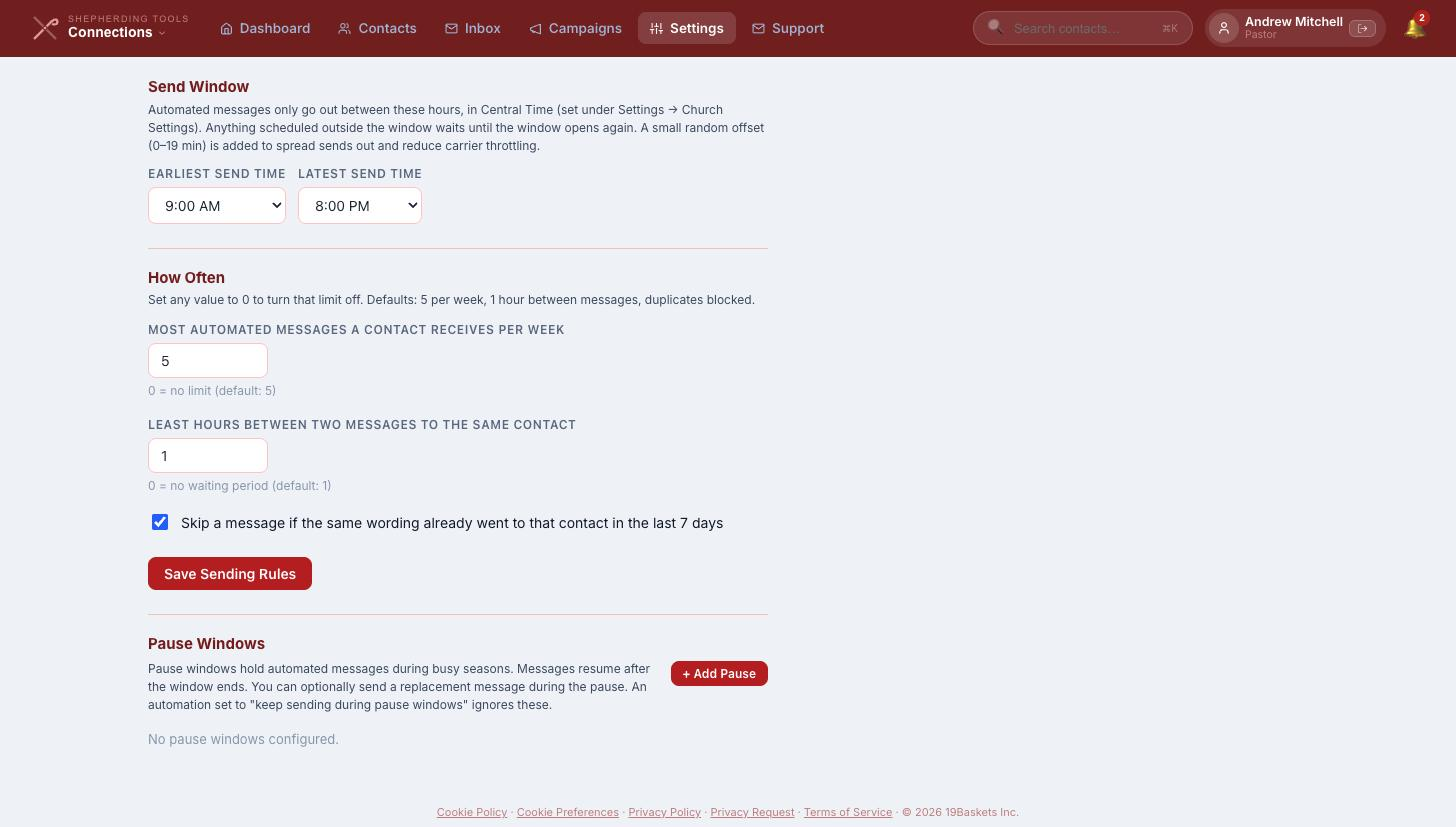
Send Window
- Go to Settings > Sending Rules.
- Under Send Window, choose an Earliest send time from the dropdown.
- Choose a Latest send time.
- Click Save Sending Rules.
You'll know it worked when the button briefly reads Saved ✓. If the latest time isn't after the earliest, a red line says so and the save is blocked.
Anything scheduled outside those hours waits until the window opens again. Connections adds a random offset of up to nineteen minutes to each send, which spreads a batch out and stops carriers treating it as a burst.
The timezone here comes from Settings > Settings. If that is wrong, your send window is wrong by the same number of hours, and messages meant for after breakfast can land in the middle of the night.
How Often
Same tab, same Save Sending Rules button as Send Window — both save together.
- Fill Most automated messages a contact receives per week (default five; 0 means no limit).
- Fill Least hours between two messages to the same contact (default one; 0 means no waiting period).
- Tick or untick Skip a message if the same wording already went to that contact in the last 7 days (on by default).
- Click Save Sending Rules.
Because messages are personalised with each person's name, the duplicate check catches genuine repeats rather than a template used twice.
Pause Windows — every field
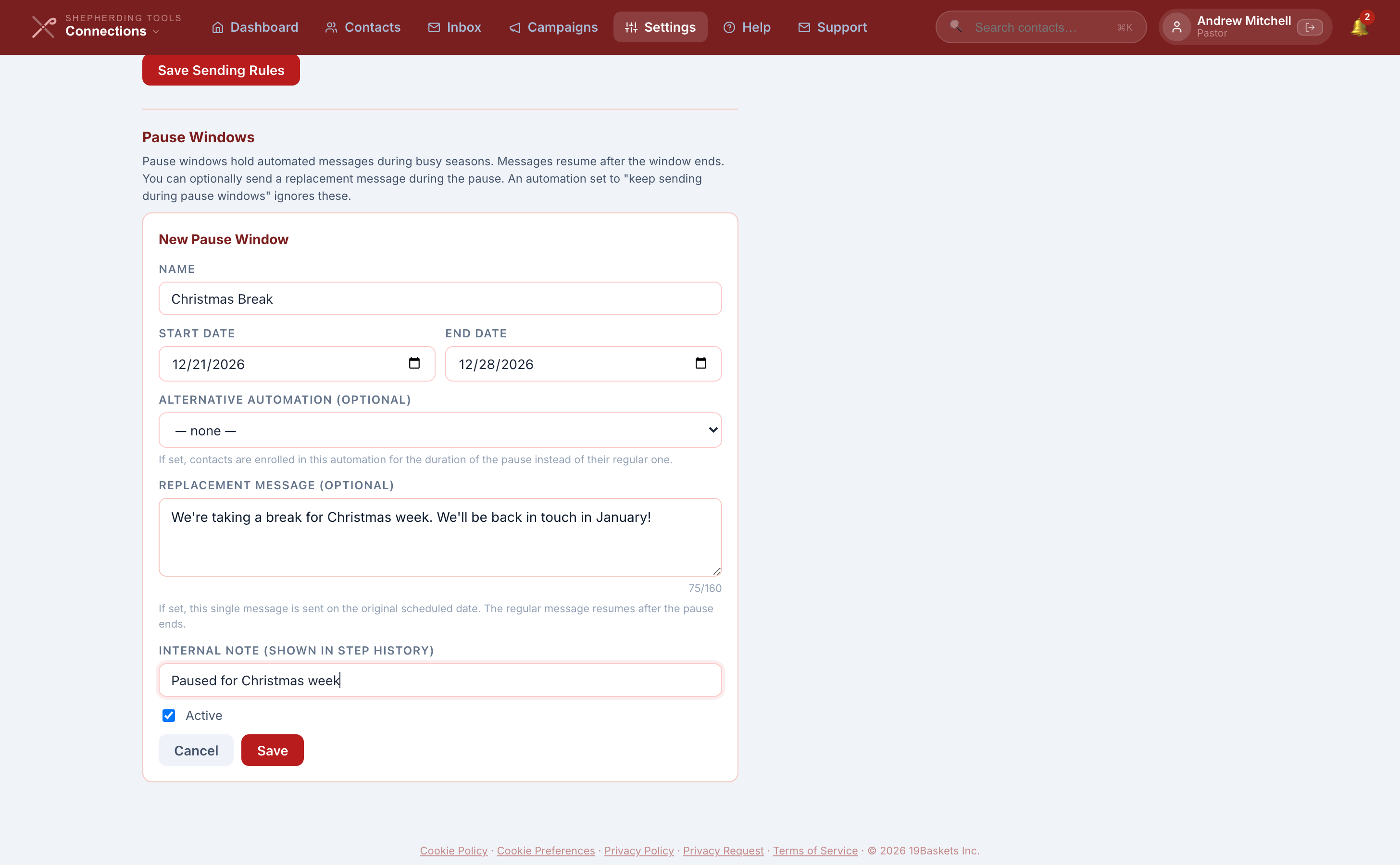
A pause window is a named date range where automated sending stops. Christmas week, a death in the congregation, a week the office is shut.
- On Settings > Sending Rules, scroll to Pause Windows, click + Add Pause.
- Name — for example "Christmas Break."
- Start date and End date.
- Optional Alternative automation — enrols contacts there instead for the duration.
- Optional Replacement message — a one-off SMS sent at the originally scheduled time instead of the regular message.
- Optional Internal note (shown in step history) — for your own records.
- Active checkbox.
- Click Save.
You'll know it worked when the pause window appears in the list with its date range. Edit and Delete are on each row. Anything that would have sent during the pause moves to the day after it ends. Automations with Keep sending during pause windows ticked ignore all of this.
10. Your Phone Number
Your church sends from its own number. Connections will not fall back to a shared one, which is why a church with no number configured cannot send anything at all rather than sending from an address nobody recognises.
Get a phone number
This needs a paid Tracker plan.
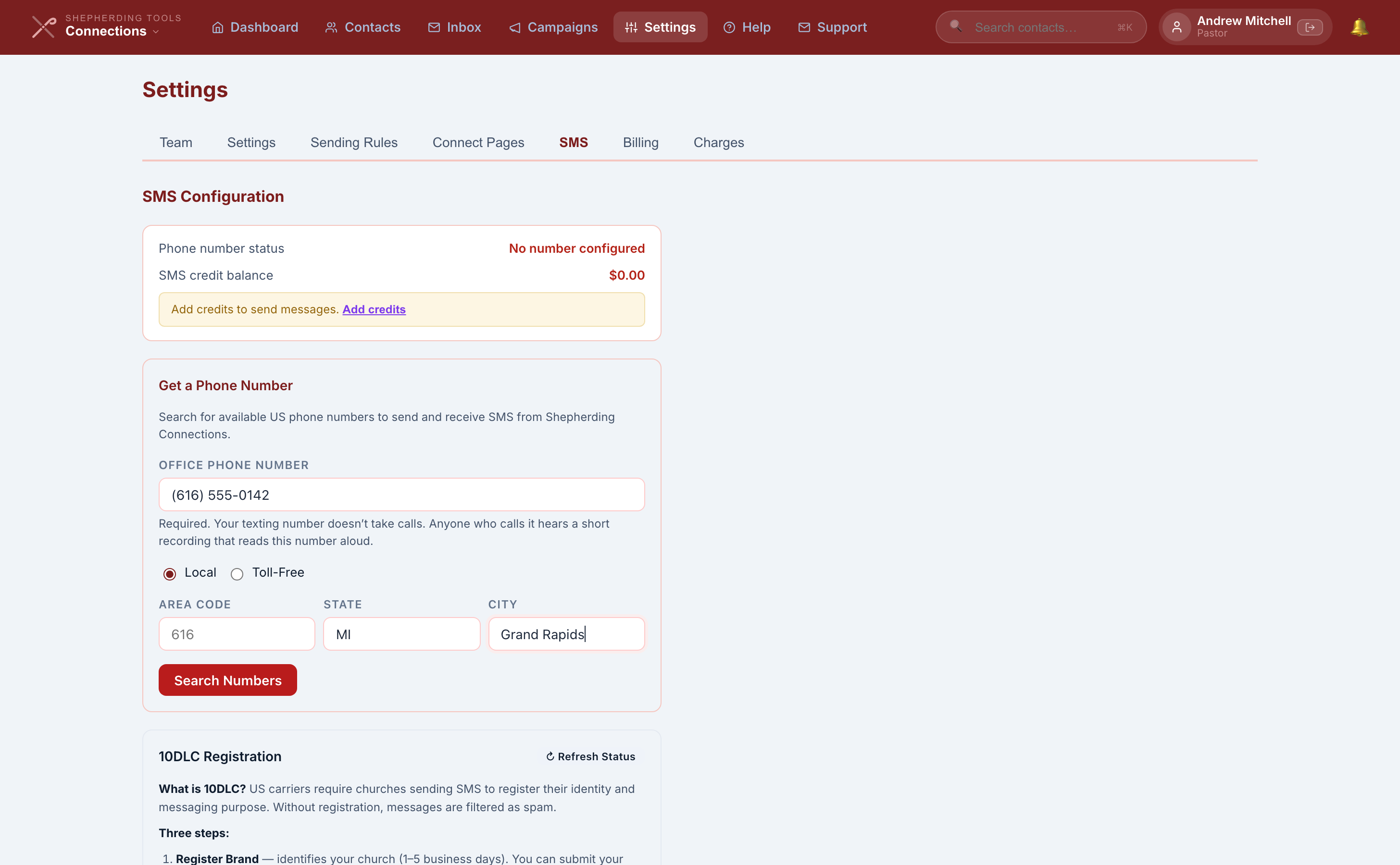
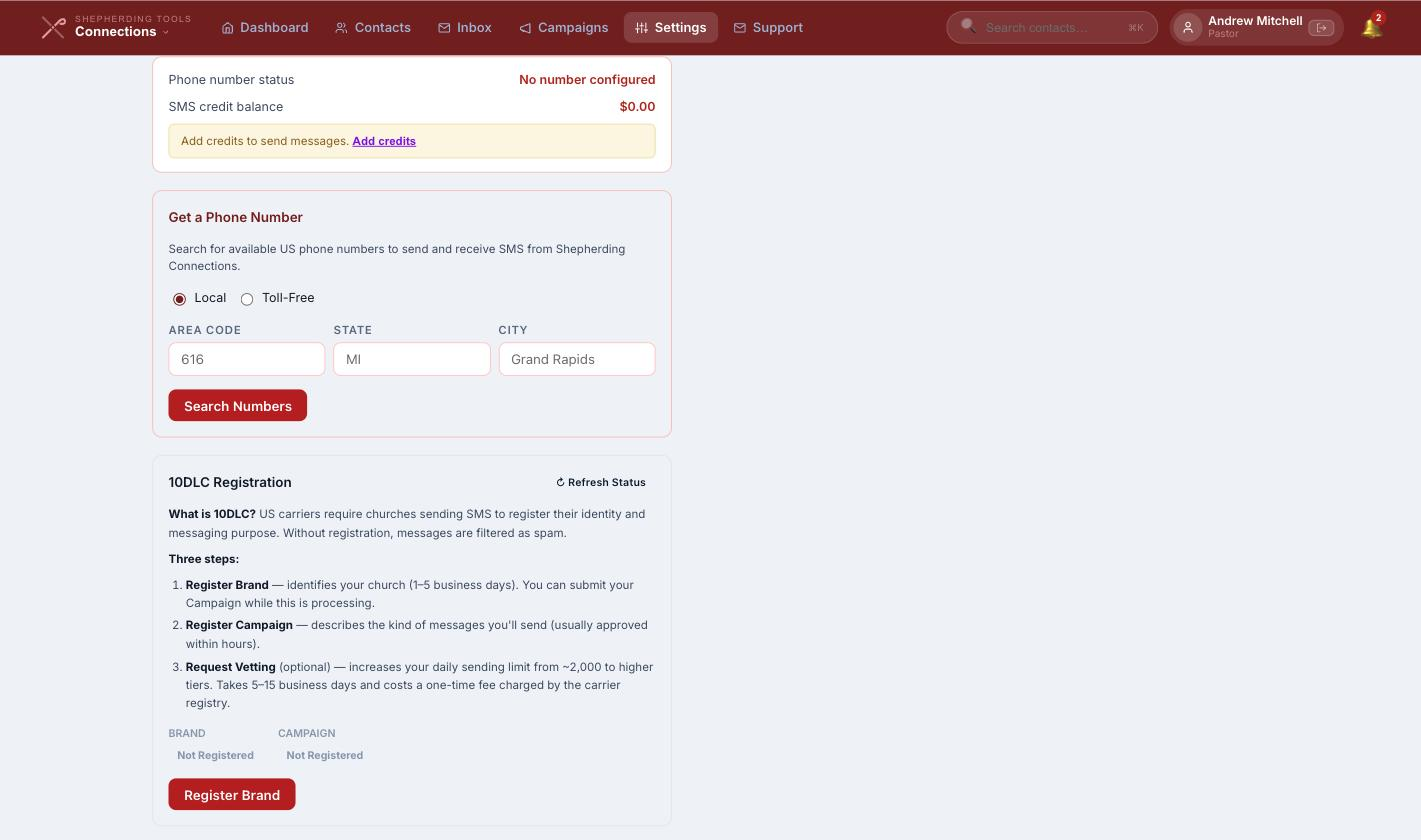
- Go to Settings > SMS.
- Enter your church office's number in Office phone number. It's required: anyone who calls your texting number hears it read aloud.
- Choose Local or Toll-Free.
- Fill in any of Area Code, State, or City — at least one is required.
- Click Search Numbers.
- Click Order beside the number you want. A confirmation dialog names the exact number before it commits.
You'll know it worked when the search results disappear and the phone number status card above shows Active with the new number. Replies to it arrive in your Inbox.
Once a number is ordered, changing it requires contacting support. There is no self-serve "change number."
Registering with the carriers, field by field
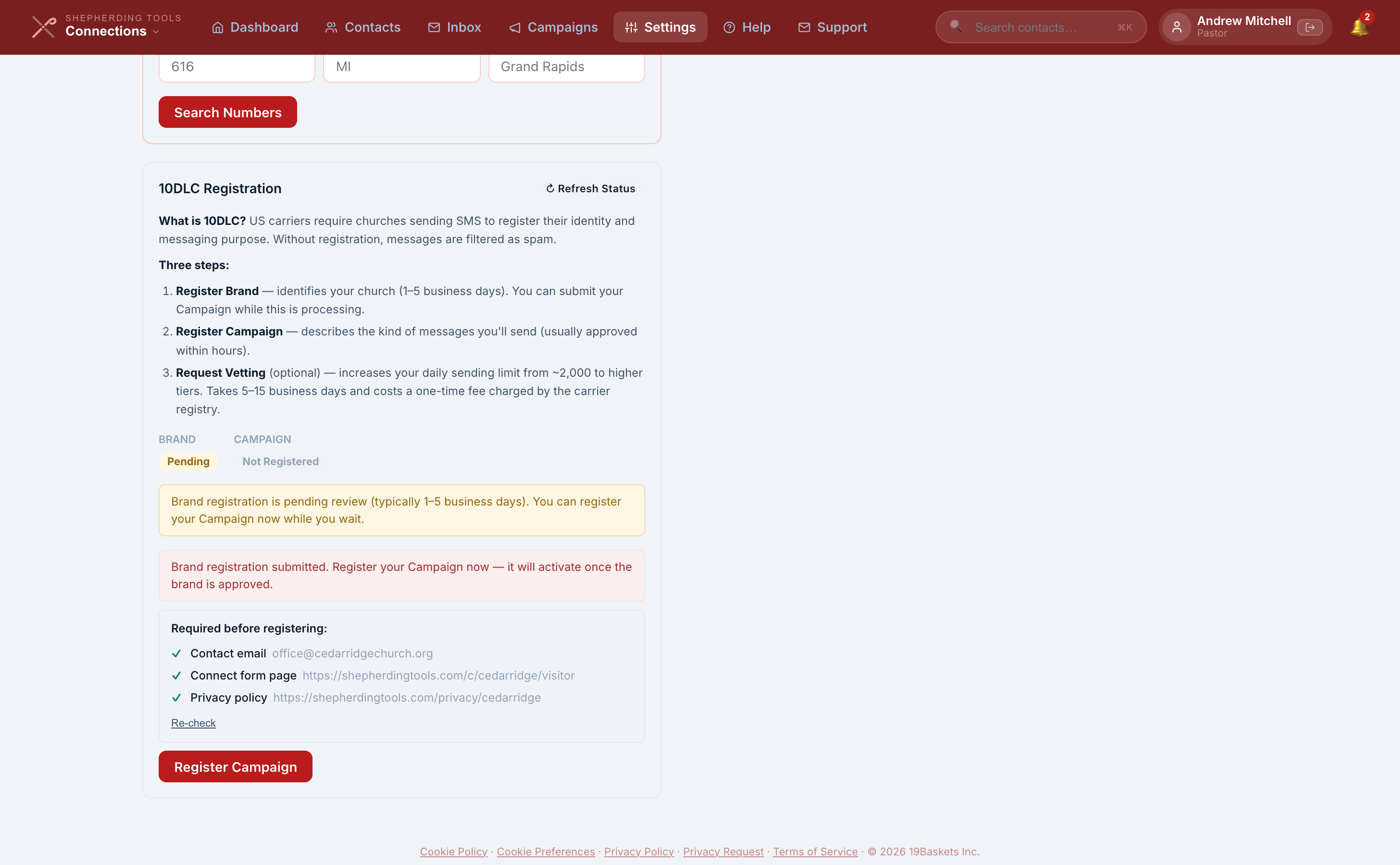
American carriers require every organisation sending texts from a local number to register. There are three parts, and the tab walks you through them in order.
Before you can click Register Campaign, the tab shows a checklist of three things: a Contact email set under Settings > Settings, at least one enabled Connect Page, and your privacy policy, which is generated for you automatically and always ready.
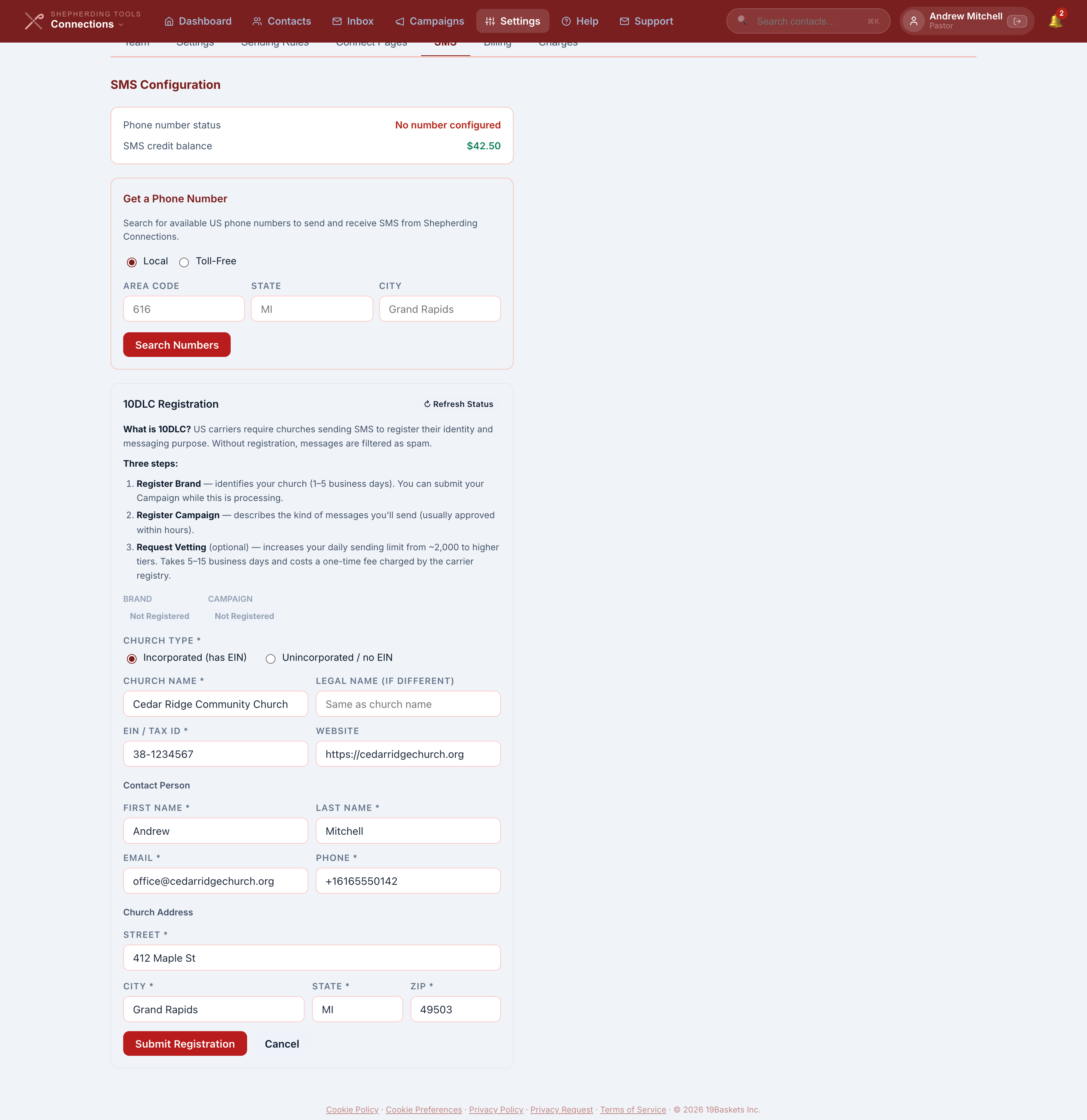
- Click Register Brand. Choose Church Type: "Incorporated (has EIN)" or "Unincorporated / no EIN."
- Fill in Church Name; if Incorporated, also Legal Name (if different) and EIN / Tax ID; and optional Website.
- Under Contact Person: First Name, Last Name, Email, Phone.
- Under Church Address (or Pastor's Address if Unincorporated): Street, City, State, ZIP.
- Click Submit Registration. Brand status shows Pending for one to five business days.
- Once the checklist above is satisfied, click Register Campaign. It is available while Brand is still pending, and activates once Brand is approved.
- Optional: once Brand is approved, click Request Vetting Upgrade to raise the roughly 2,000-a-day sending limit. Five to fifteen business days, no extra charge to your church.
You'll know it worked when both Brand and Campaign show a success badge, and a green banner reads "✓ 10DLC registration complete."
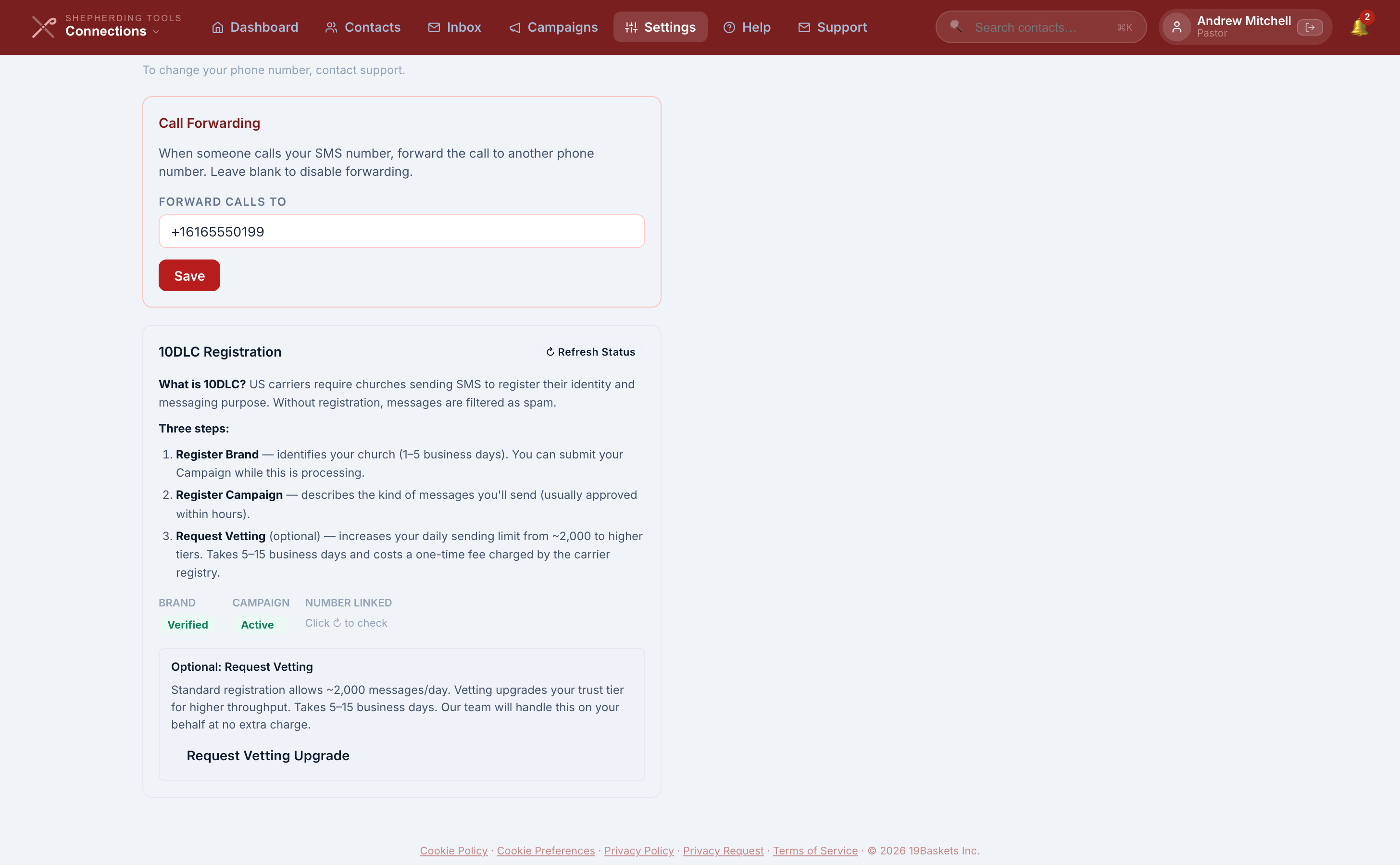
Register Brand
Identifies your church. One to five business days. If you have an EIN, use it; a church registered as a non-profit gets better terms from the carriers than a sole proprietor. You can submit the campaign while this is still processing.
Register Campaign
Describes the kind of messages you send. Usually approved within hours. It needs an approved brand, a contact email, and at least one enabled connect page, because the carriers want to see where people opt in.
Request Vetting (optional)
Raises your daily sending limit above the roughly 2,000 messages a day the standard tier allows. Five to fifteen business days and a one-time fee charged by the carrier registry. Most churches never need it.
The screen checks for an update once, when you first load the page. After that, nothing polls in the background: click ↻ Refresh Status any time to check again. Your hosted privacy page is generated and submitted for you.
Connections does not stop you sending before your campaign is approved, but the carriers can quietly filter or drop unregistered traffic. Those messages will show as sent at our end and never arrive. Wait for approval before you rely on it.
A registration is a snapshot of how your church was set up the day you submitted it. If you later rename the Connect Page it was built from, turn that page off, or change your church’s web address, what the carriers have on file no longer matches. Connections checks for that and shows a warning on the Settings > SMS tab saying what changed. Nothing is re-submitted to the carriers on its own, because that is a decision a person has to make: contact support and we will update the registration for you. Registrations submitted before we started recording this are not checked, so if yours is older and you have renamed anything since, ask support to take a look.
Calls to your texting number
Your texting number doesn't take calls. Anyone who calls it hears your office number read aloud, twice, and then the call ends. Nothing is transferred.
- Go to Settings > SMS. This panel only appears once a number is configured.
- Scroll to the Office Phone Number panel.
- Enter your church office's number in Office phone number.
- Click Save.
You'll know it worked when the confirmation reads “Saved. Callers will hear this number.”
The office number can't be left blank. You enter it when you order your texting number, and after that you can change it here but not remove it.

11. Message Credits
Messaging is paid for out of a credit balance, separately from your Tracker subscription. You buy credits, sends draw them down, and when the balance cannot cover one more message, sending stops.
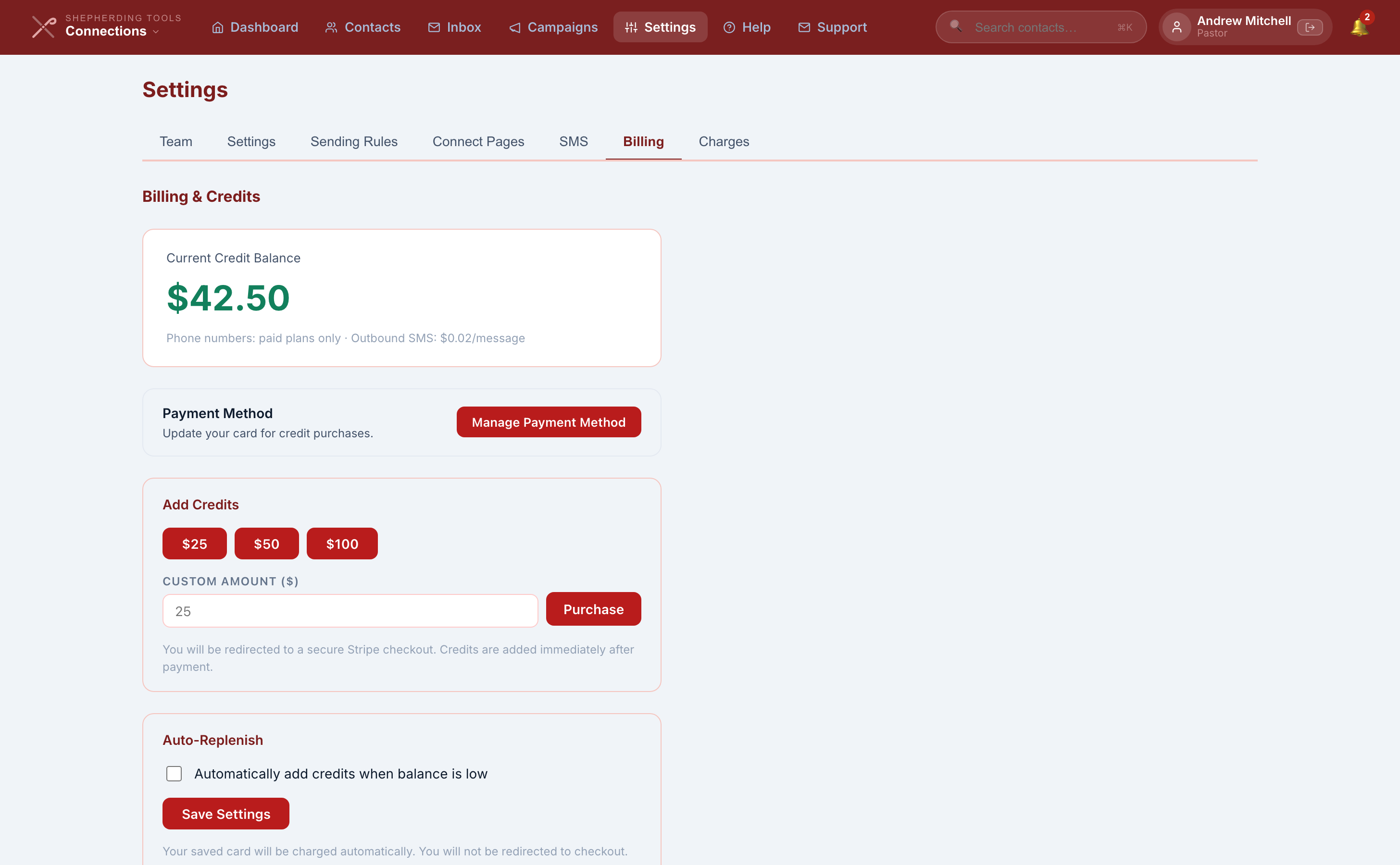
Buying credits
The rate is $0.02 per outbound SMS.
- Go to Settings > Billing.
- Under Add Credits, click $25, $50, or $100 — or type an amount ($25 minimum) into Custom Amount ($) and click Purchase.
- Complete payment on the Stripe Checkout page you're redirected to.
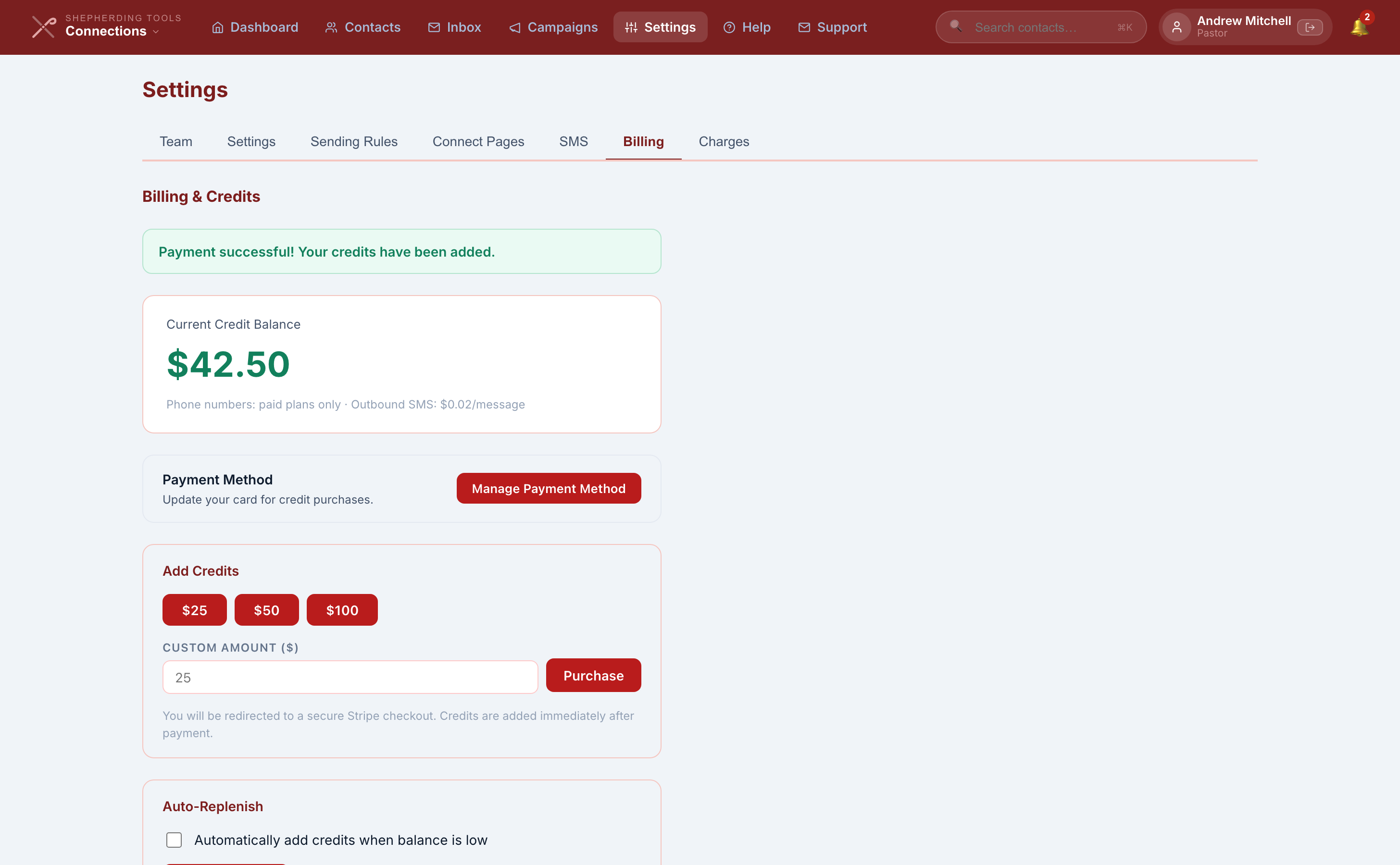
You'll know it worked when you land back on the Billing tab with a green "Payment successful! Your credits have been added." banner, and the balance card at the top updates. Your card is saved so you can turn on auto-replenish afterwards.
Auto-replenish
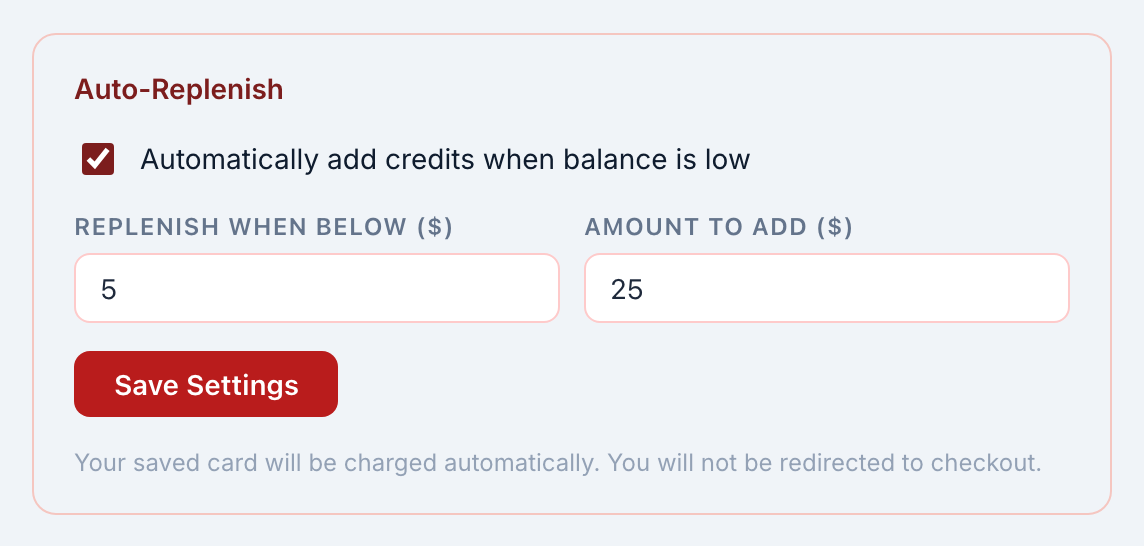
- Make at least one credit purchase first — Auto-Replenish is hidden until a card is on file.
- On Settings > Billing, under Auto-Replenish, tick Automatically add credits when balance is low.
- Fill Replenish when below ($).
- Fill Amount to add ($).
- Click Save Settings.
You'll know it worked when the word Saved. appears beside the button. Connections tops up on its own after a send takes you below the threshold. If the charge fails, nothing is retried and the balance simply stops being topped up, which is worth knowing when a card expires.
Running out
When the balance cannot cover a message, that message is refused and recorded as failed. Your administrators get a low-balance email, at most once a day so a busy automation does not fill anybody's inbox. Nothing is queued and re-sent later. A message refused for lack of credit does not go out once you top up. Send it again.
The Charges report
Go to Settings > Charges. Use the ← / → arrows to move one calendar month at a time — there is no date-range picker; it is always a single month. Click Print to print the report, because at some point a treasurer will ask.
What you see: Message Activity (daily sent, received and cost), Credit Transactions (every purchase and charge, with receipt links where a card was charged), and a Summary card at the bottom.
If your church is on the free plan
Contacts, notes and connect pages all work. Buying credits and ordering a number do not. If your church moves down to the free plan while still holding a phone number, that number keeps costing something to hold, and the monthly charge for it is drawn from whatever credits are left. Since you cannot buy more on the free plan, the balance only goes down. It appears on the Charges report like any other transaction. Tell us if you want the number released rather than held.
12. How This Fits With Tracker
Connections and Tracker are not two address books that have to be kept in step. Every contact you create in Connections is also a household in Tracker, created at the same moment, without anybody doing anything. Tracker's own documentation describes the same seam from its side, under Exempt households.
What Tracker does with him
He arrives marked exempt with the reason Connections, and carrying the date he first appeared. That marking is what keeps him in his place. An exempt household stays out of your contact coverage figures, out of the Assistant's shepherding queue, and out of Prayer entirely. Your officers can see he exists without him being counted as somebody an officer has failed to visit, and he is never prayed for alongside the congregation as though he were a member.
Tracker's People page has Connections people and Exempt filter chips that narrow the list down to exactly these households. There is no equivalent list inside Connections, so that is where to look for a roster of who has been visiting.
One record, not two
Correct a name, phone number, email or address in Connections and it changes in Tracker too. It is the same record read from two places. Anyone you list alongside him in Connections, a wife or children, arrives in the same Tracker household.
Family members flow one way. A name you fix on the Connections side reaches Tracker; a name fixed on a family member in Tracker does not travel back. The contact himself is fine either way.
When a visitor joins the church
Remove the exemption on his household in Tracker — see Exempt households for the steps. That is all. He starts counting in your coverage figures, he becomes visible to Prayer, and there is no second record to merge and nothing to re-type. This is the reason the two are wired together rather than kept apart.
Deleting a contact
Deleting a contact in Connections archives his Tracker household rather than deleting it. The record and its history stay, and Restore in Tracker brings it back. A household that has since become a real member of the church is left alone entirely.
13. What "Sent" Means
This is the clearest gap in the beta, so it is worth being blunt about. Connections cannot tell you whether a text arrived. Delivery confirmation is not built yet. It is on the list.
A message marked sent means our messaging provider accepted it and took responsibility for delivering it. That is most of the way there. What it does not mean is that the message reached a handset.
A message can be accepted and then quietly dropped for reasons nobody tells us about:
- The carrier filtered it as spam, which is most likely when the number is not registered yet.
- The handset has do-not-disturb or a block on it.
- The number was a landline, or no longer belongs to anybody.
In every one of those cases the message reads as sent in Connections with no error anywhere. The ⚠ Failed marker in the Inbox only covers what we refused outright or what the provider rejected on the spot.
If you genuinely need to know what happened to a particular message, write to support with the contact's name and roughly when it was sent. We can look it up at the provider. It is not something you can check yourself today, and pretending otherwise would be worse than saying so.
14. What It Does Not Do Yet
An honest list, so you can plan around it rather than discover it. None of these are faults to report; we already know.
- No delivery confirmation. Covered above.
- No merge for duplicate contacts. If the same person ends up on two contact records, there is no way to combine them into one. Deleting a record removes its message history along with it, so check which of the two holds the conversation before you remove anything. Ask us if you are not sure.
- No spreadsheet import. Contacts arrive one at a time, by keyword, or by connect page.
- United States and Canada only for SMS.
- No visitor list inside Connections. It is in Tracker, on the People page.
- Opt-in alerts are per automation. Nobody is emailed unless that automation names a person, and there is no church-wide fallback.
If one of these is blocking something you need to do, tell us. During a beta, what churches actually run into decides what gets built next.
Tips & Best Practices
- Start carrier registration on day one. It is the only step measured in days, and everything else waits on it.
- Fill in the consent detail box when you record consent by hand. "Signed the connect card at the 10:30 service" is what protects your church later.
- Name a person under Notify member on opt-in on every automation, or nobody finds out somebody signed up.
- Assign a shepherd to a contact the day he appears, so his reply reaches a human rather than sitting in the Inbox.
- Leave the default frequency limits alone for the first few months. Five messages a week is already more than most churches should send.
- Check your timezone under Settings > Settings before the first automation runs. A wrong timezone sends at the wrong hour and looks like a fault in the send window.
- Put a QR code for a connect page on your visitor card. It is the shortest path from a Sunday conversation to a follow-up that actually happens.