
Prayer Documentation
A complete guide to Shepherding Prayer — building rotating prayer plans, managing requests, using the daily email digest, and keeping your congregation's intercession organized.
How do I…?
- Log in
- Create my first prayer plan
- Turn on my daily email
- Mark a household as prayed
- Create a plan (Frequency, Church-Wide, District or Custom)
- Set my own pace on a shared plan
- Add households to a plan
- Add a request to a Daily, Weekly or Monthly plan
- Create a prayer request
- Post an update on a request
- Mark a request answered
- Edit, archive or delete a request
- Approve a request that's waiting
- Share the public request form
- Act on several requests at once
- Add a sub-request
- Answer or archive one sub-request
- Create a Prayer List
- Add requests to a Prayer List
- Set my own pace on a shared Prayer List
- Edit or delete a Prayer List
- Add someone to a Tracker list from inside Prayer
- Change when my daily email arrives
- Get the list as a phone notification
- Turn on Accountability Mode
- Skip my email on certain weekdays
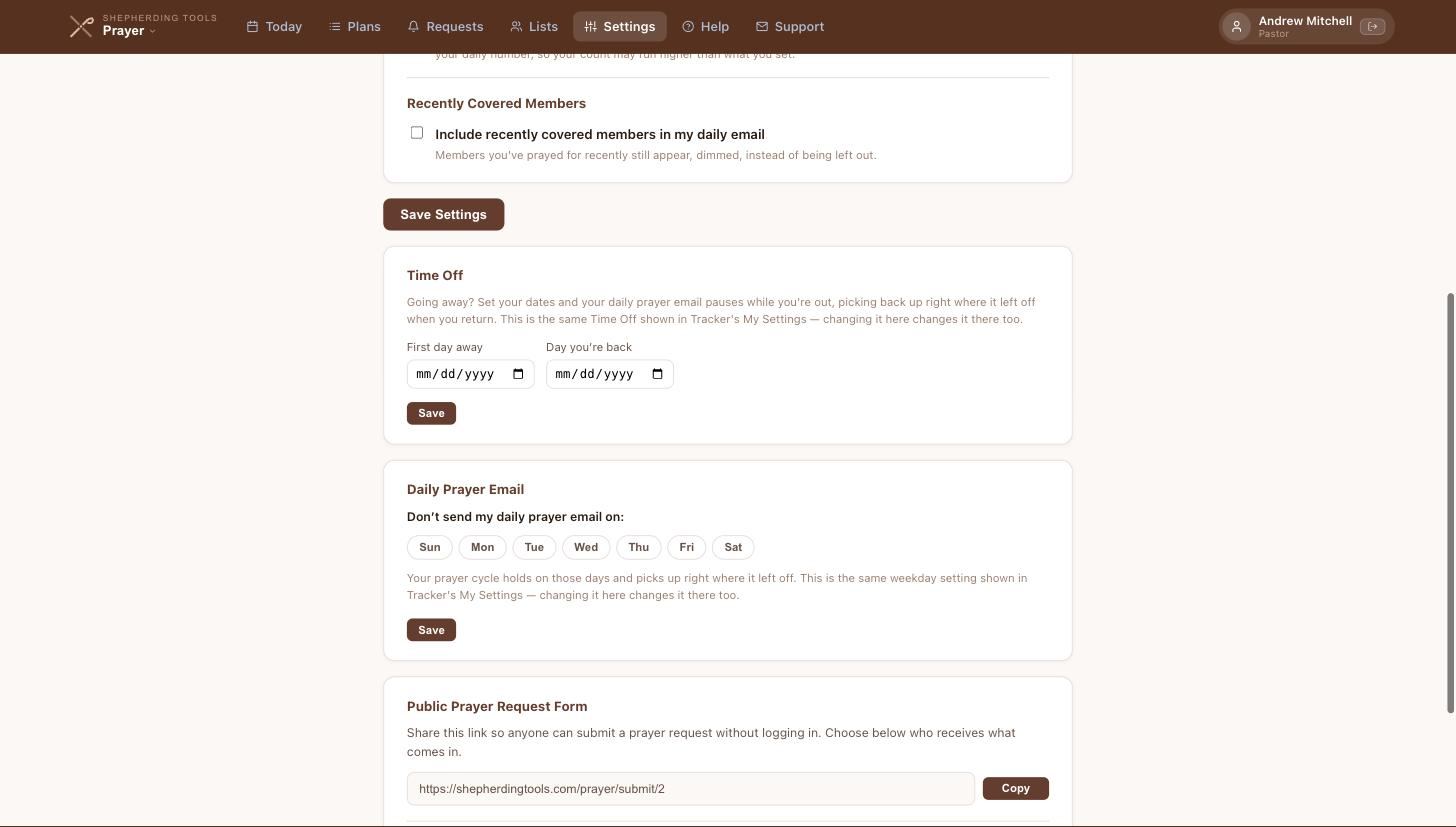
- Set Time Off
- Set up the Prayer Chain
- Add people to the chain
- Choose what goes out on the chain
- Try the chain before the congregation sees it
- Invite the congregation to the chain
- Let people ask to join the chain
- Send an urgent request to the chain
Getting Started
Shepherding Prayer helps church leaders pray systematically for their entire congregation without relying on memory. This guide gets you set up in five minutes.
Step 1 — Log in
- Go to your church's Prayer address, or click Prayer in the product switcher if you're already signed into Tracker.
- If you're not signed in, the login page opens.
- Sign in with your Tracker email and password. You land on the Today page.
Prayer and Tracker share a login, and signing in is covered in full on the account page.
Step 2 — Create your first prayer plan
Click Plans in the top navigation. The page is grouped into Frequency (Daily, Weekly and Monthly), Church-Wide (Congregational Prayer and Officers' Prayer), District Prayer if you have a district assigned to you, and Custom. On a Frequency card, click Set Up; the other cards say Create instead. For most users, a Monthly plan is a good starting point: it rotates through your entire congregation once a month.

Step 3 — Add households to your plan
After creating a plan, click Manage → to open its detail view. You can add households by searching for them by last name, or by linking the plan to a Tracker list that is already populated with your households. Linking to a Tracker list means the prayer plan stays in sync automatically as the Tracker list changes.
Step 4 — Check Today's list each morning
Click Today in the top navigation. You'll see the households scheduled for prayer today based on your plans. Click Prayed next to each household as you pray for them. The app remembers your progress, so if you get interrupted and come back later, your checked items are still marked.

Step 5 — Turn on your daily email
A new account starts with the daily email switched off, so this step is the one that makes it arrive. Nobody is enrolled in a daily email without asking for it.
- Click Settings in the top navigation.
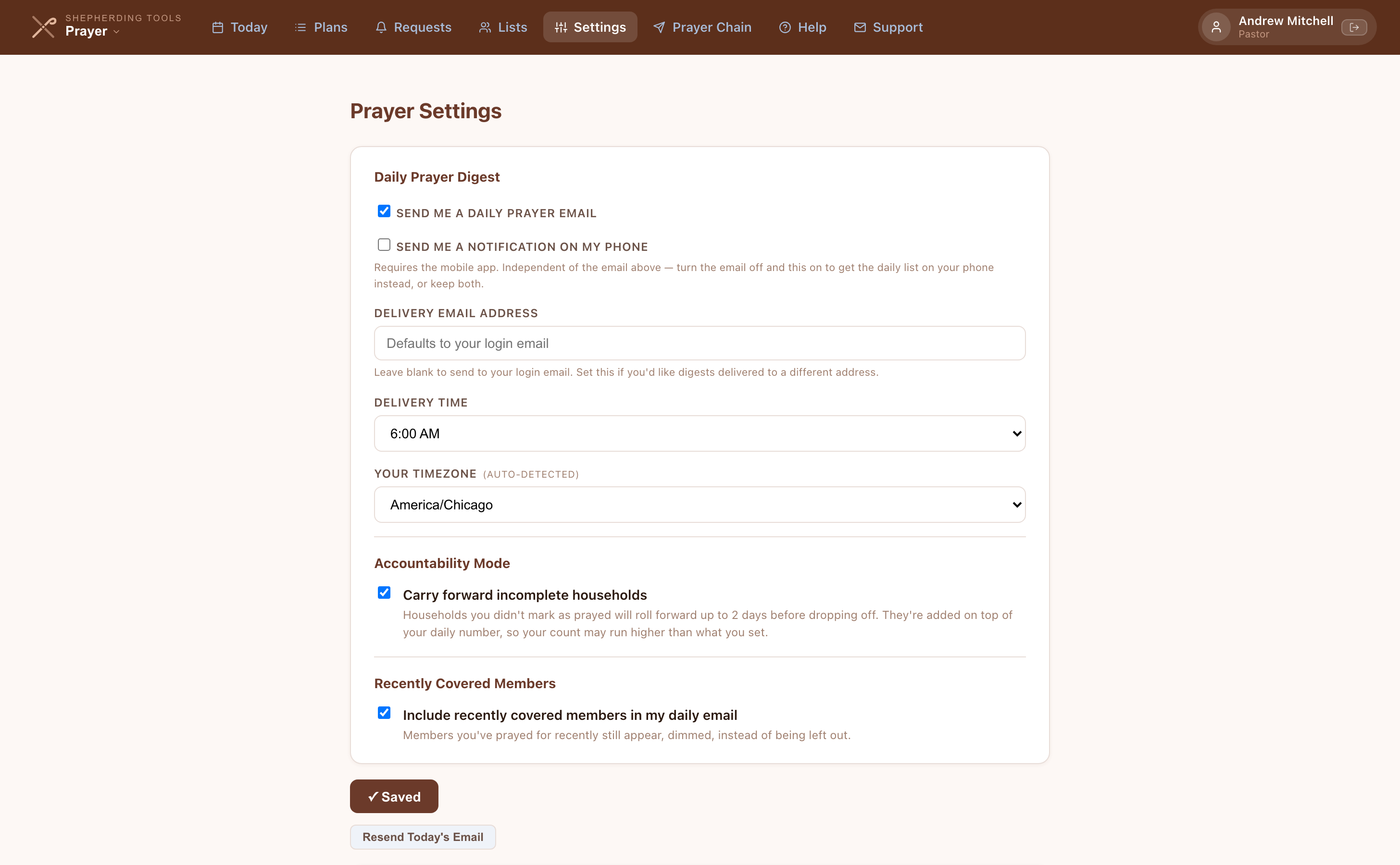
- Under Daily Prayer Digest, tick Send me a daily prayer email.
- Optionally type an address under Delivery email address to send digests somewhere other than your login email.
- Choose a Delivery time. New accounts start at 6:00 AM.
- Check that Your timezone is right. The app detects it on your first visit.
- Click Save Settings.
Tomorrow morning the digest arrives with that day's households and requests. You can pray through it in the email and click Mark all as prayed at the bottom, or open the app and tick items off one at a time.

Start with just one plan — a monthly cycle of your district or the whole congregation. You can always add more plans (daily devotional requests, officers prayer, etc.) once you've built the habit.
1. Today's Prayer List
The Today view is the heart of Shepherding Prayer. It assembles your personalized prayer list for the current day — combining households from all your active plans and any prayer requests scheduled for today.
What Appears in Today's List
- Urgent Prayer Requests — anything flagged urgent surfaces every day, at the top, until you pray for it. It never gets dimmed and it ignores the rotation.
- Households from your prayer plans — the app calculates which households are due today based on each plan's frequency settings (see Prayer Plans).
- Linked prayer requests — if a household has active prayer requests, they appear inline beneath the household name so you can pray specifically.
- Scheduled Prayers — standalone requests you've set to repeat, shown in their own section on the days their schedule falls due.
- Prayer request lists — curated collections of requests that appear on their scheduled frequency.
- Carried items — households held over from a previous day, marked with a small carried badge. These appear only if you have turned on Accountability Mode.
Marking Items as Prayed
Click the Prayed button next to any household or request. The item turns green and disappears from the active list (it's still recorded). Your progress is saved immediately — if you close the browser and return later, your checked items are still marked.
For prayer request lists, click Prayed for all to mark the entire list at once.
Some households arrive already dimmed, with a small badge reading prayed recently or covered by a request. That means you have already prayed for that family recently enough that the app is not asking again yet, usually because they sit on more than one of your plans. It counts as done for the day, and the Prayed button is still there if you want to pray for them anyway. Nothing is missing. The family comes back around on its next turn.
Your list follows only what you have prayed. When someone else marks a household or request as prayed, it stays on your list, and marking one yourself never takes it off anyone else's.

Carried Items
Carry-forward is off unless you switch it on. Open Settings and tick Carry forward incomplete households under Accountability Mode. After that, a household you don't mark as prayed reappears on the next day's list with a carried badge, and again the day after, then drops off. Carried households are added on top of your daily number, so some days run longer than the figure you set. See Accountability Mode.
Completion Screen
When nothing is left outstanding, Today replaces the list with a tick and "That's today's prayer closed." Underneath, one of two sentences tells you which kind of finish it was.
"You've prayed through today's entire list. Well done." means you worked through it yourself. "Everyone due today is already covered — you prayed for them recently enough." means the app had nobody to ask you about this morning. In that second case a link underneath offers to show the families already covered, and each of them still has a Prayed button if you want to pray for them anyway.
A different screen means something else entirely. If Today invites you to head over to the Plans page, you have no prayer plans set up yet.
2. Prayer Plans
Prayer Plans are the engine that drives Today's list. Each plan has a set of households (or other entries) and a frequency — determining how many households appear from that plan each day, and how quickly the plan cycles through them all.
Creating a Plan
The Plans page is divided into four groups. Each keeps its own reference below the steps for that group.
Frequency plan (Daily, Weekly or Monthly):
- Click Plans in the top navigation.
- On the Daily, Weekly or Monthly card, click Set Up.
- Optionally type a Plan Name. It defaults to "[Daily/Weekly/Monthly] Prayer Plan."
- Optionally choose a Tracker list under Link a Tracker List.
- Click Create [Daily/Weekly/Monthly] Plan.
Church-Wide plan (Congregational or Officers'): admin only.
- Click Plans, then on Congregational Prayer or Officers' Prayer, click Create.
- Choose Fixed (X/day) or Complete in N days and enter a number.
- Click Create Congregational Prayer or Create Officers' Prayer.
District plan: only shown if you have a district assigned to you.
- Click Plans and scroll to your district's card, then click Create.
- Choose Fixed (X/day) or Complete in N days and enter a number.
- Click Create [Your District] Prayer Plan.
"District" is the default word. If your church renamed districts (to "zones" or "regions," for instance), the app shows your church's own word here instead.
Custom plan:
- Click Plans, then + New Custom Plan.
- Type a Name.
- Choose Fixed (X/day) or Complete in N days and enter a number.
- Optionally search and add people under Add people now.
- Optionally choose a Tracker list to link under Link to a Tracker list.
- Click Create.
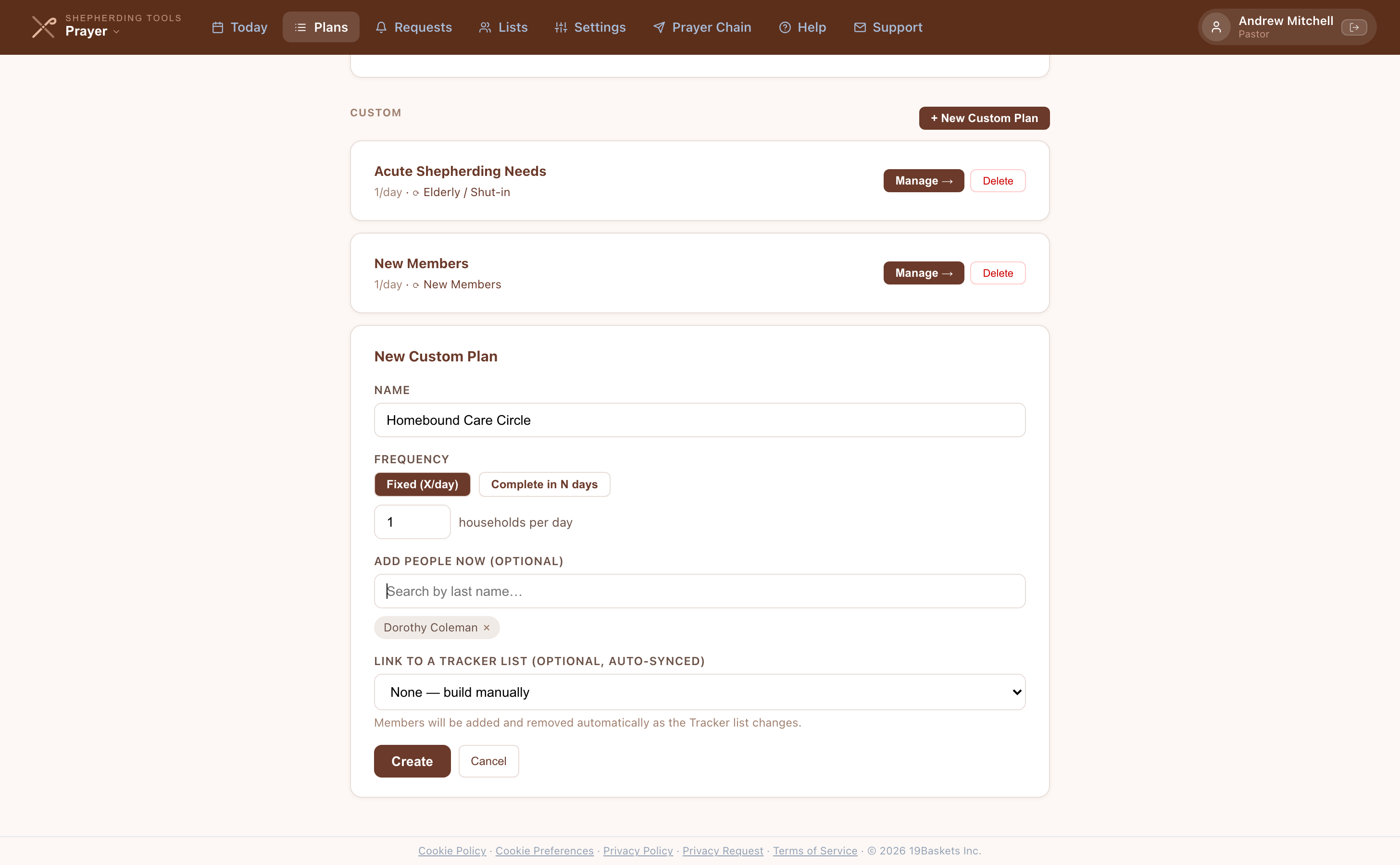
You'll know it worked when the new plan's detail view opens on its own, showing the Frequency card and an empty (or Tracker-populated) entry list underneath.
Frequency (Daily / Weekly / Monthly)
Personal plans that rotate through a list of households at a set pace. You can have one of each. The Daily plan prays for its people every day; Weekly rotates through everyone in a week; Monthly rotates through everyone in a month.
Church-Wide
Two plans auto-populated from Tracker. "Congregational Prayer" includes all active households. "Officers’ Prayer" includes pastors, elders and deacons. New households join both plans on their own, and a household you remove stays off until you add it back. You can also add others by hand (emeritus officers, for instance) and they stay on. Both cards are marked Admin only for anyone who cannot create them.
District Prayer
One card per officer, showing only the households in the district assigned to him in Tracker. It appears on the Plans page only if you have a district. If that district is later deleted in Tracker, the plan freezes rather than emptying, and the screen says so; nothing is removed while the district is missing.
Custom
Fully flexible plans you create yourself. Name them anything, set any frequency, and add any combination of households. Useful for special ministry groups, or any grouping that doesn't fit the preset types.
The District group has no section header above its card the way the other three groups do — that's the screen as it is, not a step you're missing.
Changing a Plan's Frequency
- Open a plan (click Manage → from the Plans index).
- Under Frequency, click Fixed (X/day) or Complete in N days.
- If Fixed, enter households per day. If Complete in N days, enter the number of days.
- Click Save.
You'll know it worked when a green ✓ Saved appears beside the button. Whichever mode you pick applies to everyone praying from that plan:
Fixed (X/day)
Pray for a fixed number of households each day from this plan, in order. As you reach the end of the list, it cycles back to the beginning. Good when you want predictable daily load regardless of how many households are on the list.
Complete in N days
Pray for every household on the list once within the number of days you set. The app works out how many to show each day, and that number can vary by one: 105 households over a 30-day cycle means three on some days and four on others. If your list is shorter than the cycle, some days will have nobody on them. That is the plan spreading a small list across a longer stretch, not a fault.

Your Pace on a Shared Plan
Congregational Prayer and Officers' Prayer are shared, and two officers rarely want to move through them at the same speed. A Your Pace card sits under the Frequency card on those two plans, and it changes nothing for anyone else praying from the same list.
- Open Congregational Prayer or Officers' Prayer.
- Under Your Pace, click Set your own pace.
- Choose Fixed (X/day) or Complete in N days.
- Enter your number. The card tells you how often you'll come back to the same household.
- Click Save.
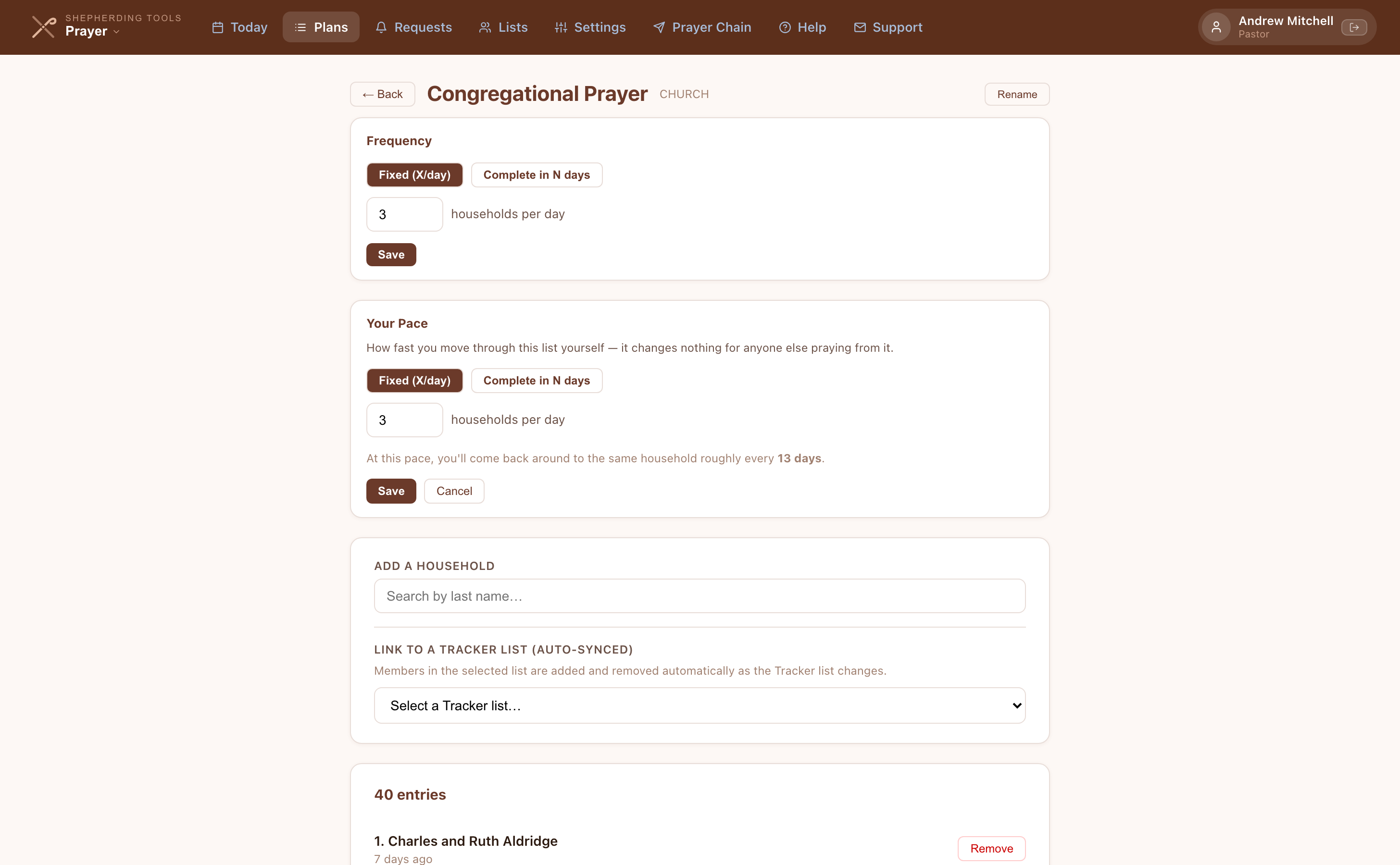
The card then reads "You're praying this list at your own pace," and names the list's own setting underneath so you can see both. To go back, click Use the list's own pace.
Your pace replaces the plan's setting for you; it is not combined with it. If you set Complete in 40 days on a plan the church runs at 5 a day, you get the 40-day rhythm and everyone else keeps theirs. Personal and custom plans have no Your Pace card, because the Frequency card above is already yours alone.
Adding Households to a Plan
Inside a plan's detail view, you can add households by searching, or by linking a Tracker list.
Search by last name:
- Open a plan (click Manage →).
- Under Add a household (or Add someone not in Tracker as an officer on the Officers' plan), type a last name in the search box.
- Click Add family next to the household, or click + next to an individual member's name to add just them.
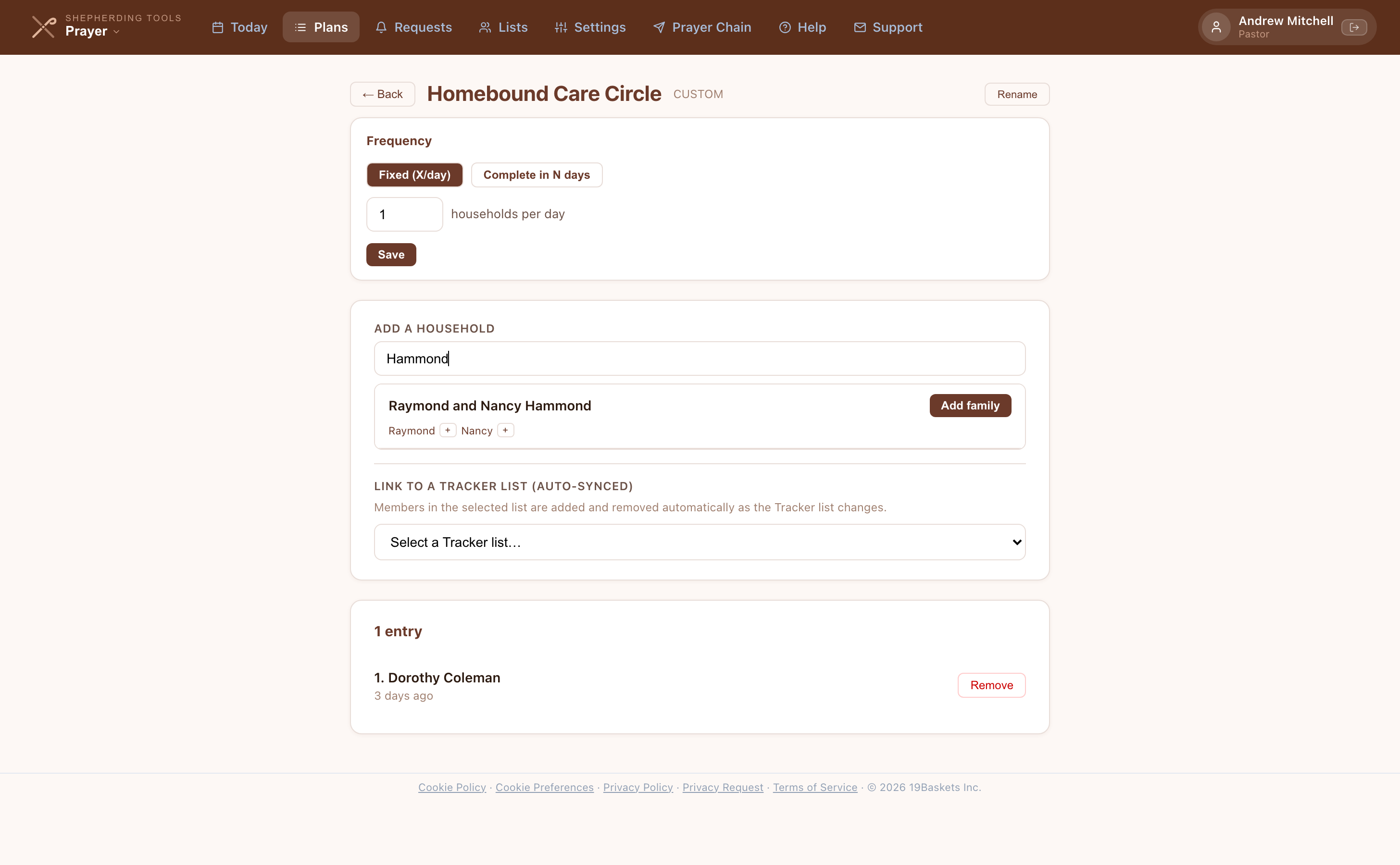
Link a Tracker list:
- Open a plan, scroll to Link to a Tracker list (auto-synced) (or Add another Tracker list if one is already linked).
- Choose a list from the dropdown.
You'll know it worked when the household (or Tracker list, marked with a ⟳ icon) appears in the N entries list below. Members are added and removed automatically as a linked Tracker list changes, and you can link more than one list to a plan.
If a linked list is deleted in Tracker, syncing stops and the plan's households are frozen. Nothing is removed. The plan shows a notice naming the missing list — remove the broken link, then link the plan to a Tracker list again to start syncing. A plan with several links freezes on the first one that goes missing, so nothing on that plan changes until the link is fixed. A list that still exists but has been emptied is different: that one empties the plan as usual.

Adding a Prayer Request to a Frequency Plan
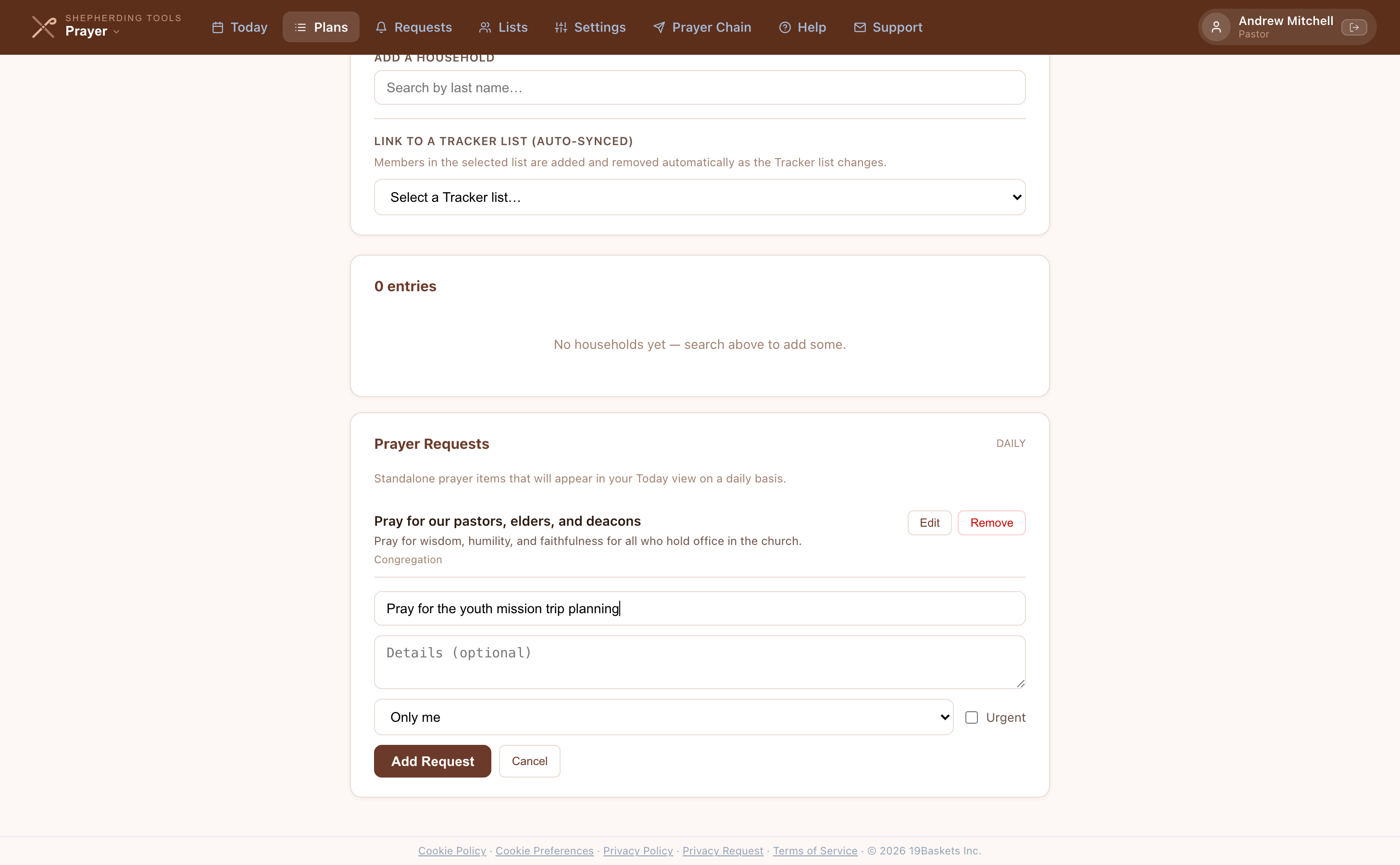
Plans with a Daily, Weekly, or Monthly frequency can also include standalone prayer requests that appear in Today's list on the same schedule as the plan. For example, a Weekly plan might include a request to pray for the Sunday sermon each week, separate from the household rotation.
- Open a Daily, Weekly, or Monthly plan.
- Scroll to Prayer Requests, click + Add Prayer Request.
- Type a title (required) and optional details.
- Choose Share with and optionally tick Urgent.
- Click Add Request.
You'll know it worked when the request appears in the list above the form. It shows under "Scheduled Prayers" in Today on this plan's schedule, not inline with a household.
Renaming and Deleting Plans
Inside any plan's detail view, click Rename to change the plan's name. To delete a plan, click the Delete button on the Plans index page. Deleting a plan removes it from Today's list going forward; it does not affect prayer history already recorded.
3. Prayer Requests
The Prayer Requests page is a central registry of specific prayer needs — from pastoral care situations to church-wide needs. Requests can be private to you, shared with officers, or open to the whole congregation.
Creating a Prayer Request
- Click Requests in the top navigation.
- Click + New Request.
- Type a Title (required).
- Optionally add Details, and a name under For (optional — name).
- Choose Share with (see the visibility table below).
- Choose a schedule under Pray for this… if it should repeat (see the schedule table below).
- Optionally tick Urgent.
- Optionally click End Date? and pick a date under Stop praying after.
- Optionally choose a list under Add to list (optional).
- Click Submit.
You'll know it worked when the new request appears at the top of the Active list and the form closes.


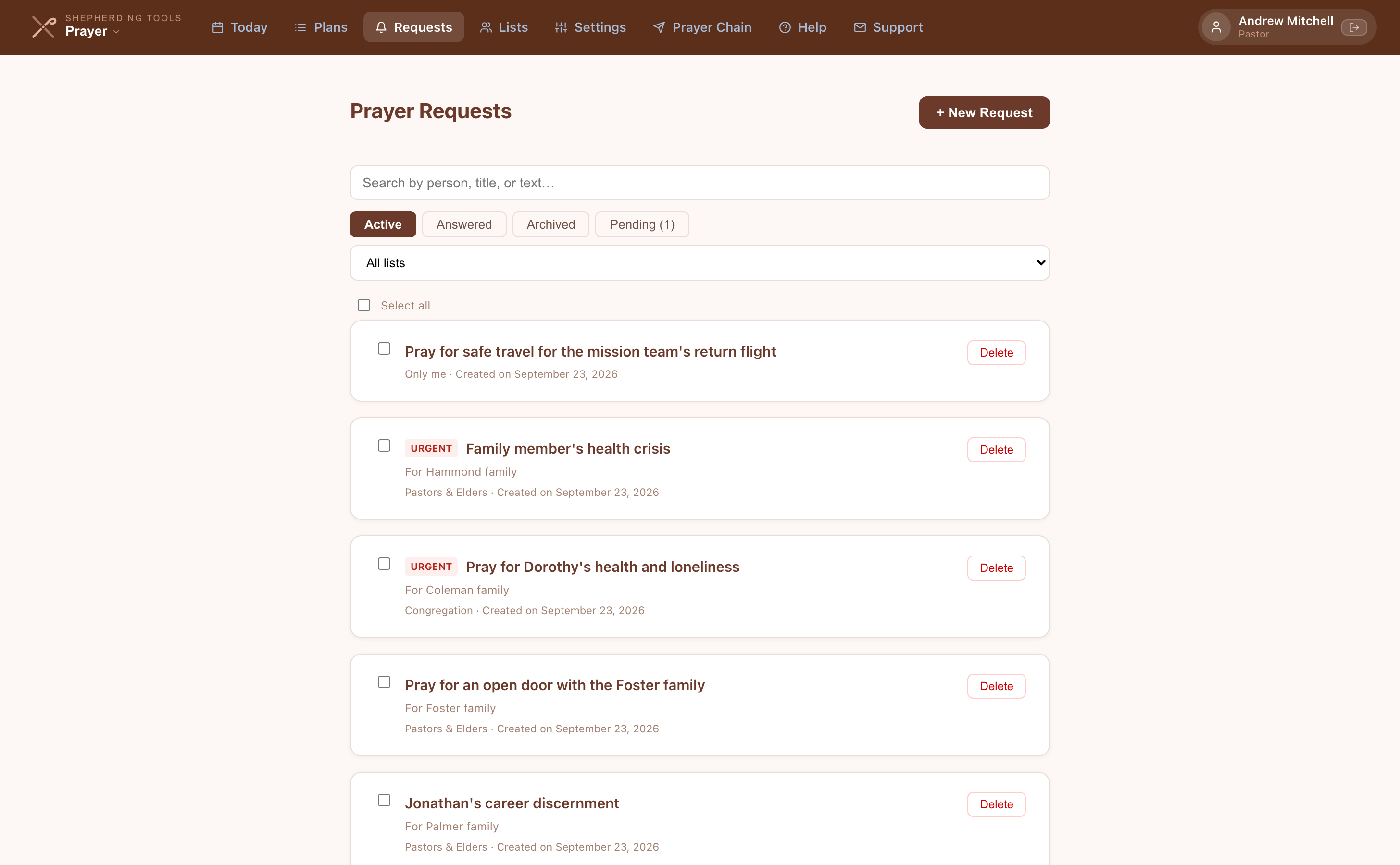
Each field, in full:
Title
A short, clear description of the request (e.g., "Pray for John Smith's surgery").
Details (optional)
Additional context, background, or specific things to pray for.
For (optional — name)
The person this request is about, typed as free text. This form does not link a household. To tie a request to a family's pastoral record, raise it from that household's profile in Tracker instead.
Share with
Controls who can see this request. See Visibility Levels below.
Pray for this…
Optionally set the request to repeat in Today's list, independent of any prayer plan. See Repeating a Request below.
Urgent
Marks the request with an URGENT badge. Urgent requests appear at the top of Today's list every day until you pray for them, whatever the rotation says.
End Date?
A link, not a box. Click it to set a date after which the request archives itself. See Giving a Request an End Date below.
Add to list (optional)
Immediately add this request to an existing Prayer List.
Repeating a Request
The Pray for this… dropdown offers three choices, and the second and third work quite differently:
No recurring schedule
The request sits in the Requests page and appears in Today only when it is linked to a household on your plan, on a Prayer List, or flagged urgent.
Every so many days
Pick Daily, Weekly, Monthly, or Custom… and type a number of days. The request comes round on that interval.
Specific days of the week
Seven day buttons appear, Sunday through Saturday. Tap the days you want. The request appears on exactly those weekdays and no others.
Use Specific days of the week for anything tied to the church calendar. A request for the Sunday service belongs on Sunday, not every seventh day from whenever you happened to create it.
Giving a Request an End Date
Some requests have a natural finish: a surgery date, an exam week, a mission trip. Click End Date? on the new request form or the edit form, then pick a date under Stop praying after. Once that date has passed the request archives itself, and you will still find it under the Archived tab. Leave it empty to keep praying until you archive it yourself. To take it off again, click Remove end date.
Visibility Levels
Who can see a prayer request is controlled by the Share with setting. There are four:
Older requests may have been shared with a "Prayer Team" level, which no longer appears in the picker. Those requests reach the same people as Congregation and now read that way on screen. Nothing was widened; only the label was merged.
Posting Updates
- Open an active request you own or administer.
- Scroll to Add an update… and type your text.
- Click Post update.
You'll know it worked when the update appears in a new Updates section above the box, timestamped.
Only the request's owner or a church admin sees this box, and only while the request is active.
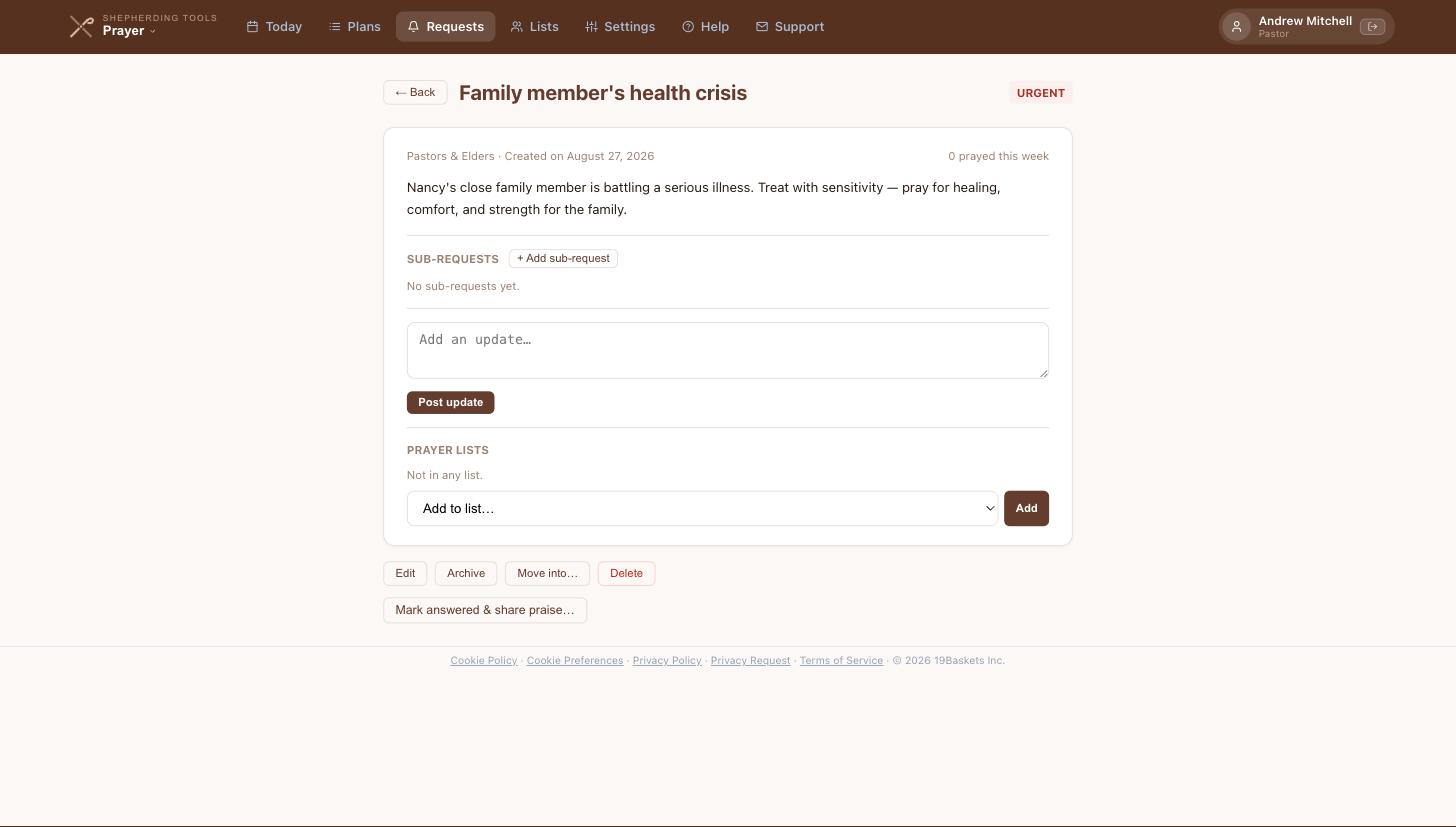
Marking a Request as Answered
- Open an active request you own or administer.
- Click Mark answered & share praise….
- Optionally write a Praise report (optional).
- If you wrote a praise report, choose who to notify under Email to (greyed out until you type something).
- Click Confirm answered.
You'll know it worked when the request moves to the Answered tab, where it stays as a testimony of God's faithfulness. Only the people you picked under Email to get an email — leave the praise report empty and the request is marked answered without emailing anyone.

Editing, Archiving, Restoring or Deleting a Request
- Open a request you own, or any request you administer (pastor/elder/deacon/superAdmin).
- Click Edit to change any field, Archive to move it off the active list, or Delete to remove it permanently.
- Deleting or archiving a request with sub-requests warns you first and names how many will go with it.
- From the Archived tab, click Restore to bring a request back to Active. If your church reviews requests before they appear and the request is visible beyond you, it goes to the approvers first, the same as a new request, and a note says it is waiting for approval. The same happens when you share a request with more people.
You'll know it worked when the request disappears from its old tab and reappears under the new status. A deleted request is gone from every list, including any Prayer Lists it belonged to.
Only the request's owner or a church admin sees these buttons at all. A request awaiting approval shows Approve/Decline instead — see below.
Requests That Wait for Approval
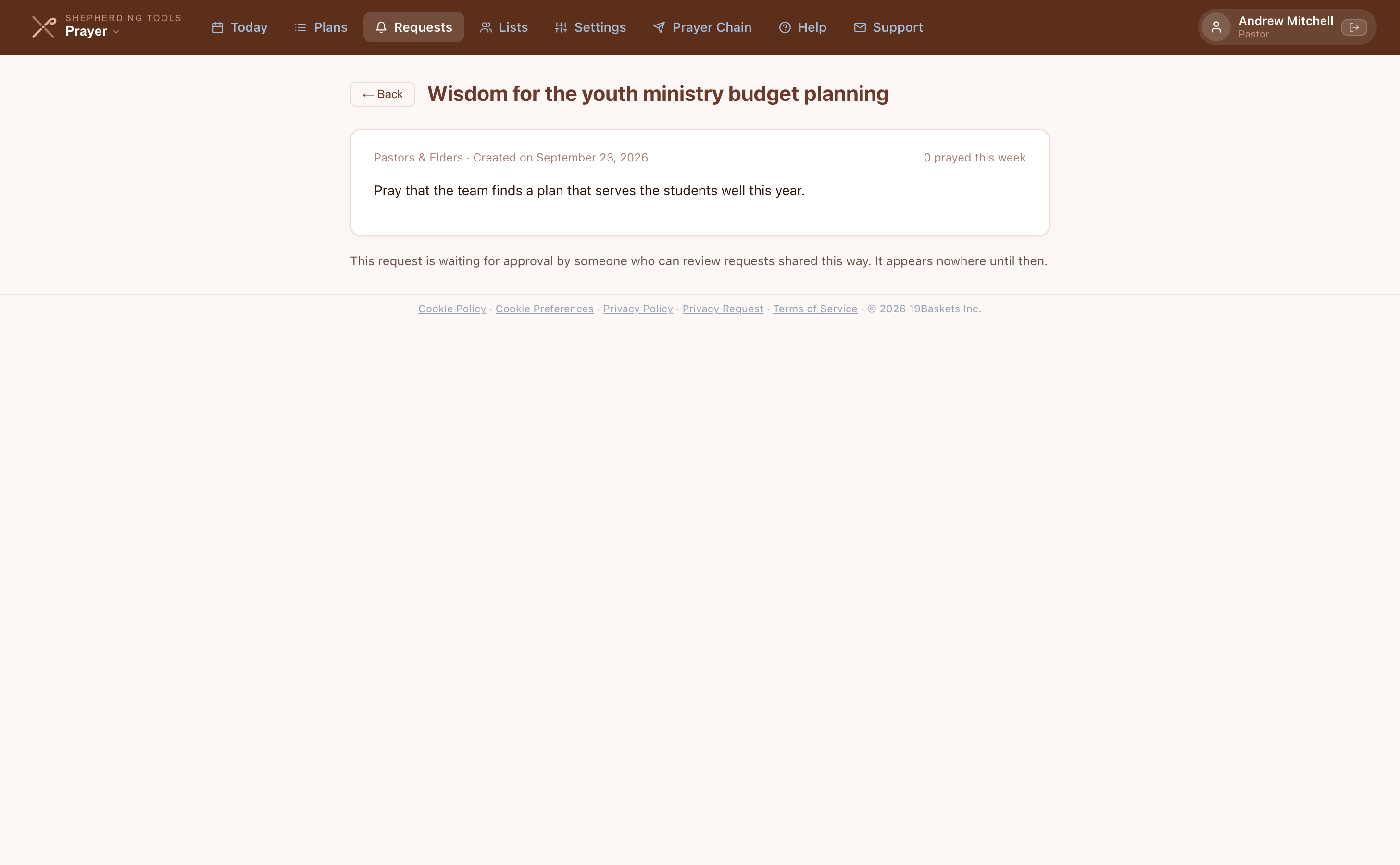
A request submitted by an ordinary member is held until someone releases it. While it is held it appears nowhere: not in anyone's daily email, not in anyone's Today list, not on any prayer plan. Only the person who submitted it and the people who can release it see it at all.
Nothing you file as an officer is ever held. The rule is short:
- Pastors, elders and deacons post straight through, with no wait.
- So does anyone given the Approve Prayer Requests permission in Tracker.
- An Only me request is never held. Nobody else can read it, so there is nothing to review.
- A sub-request is never held. It already carries the audience of the request it sits under.
The queue is split by audience, so a reviewer only ever reads what he could already read:
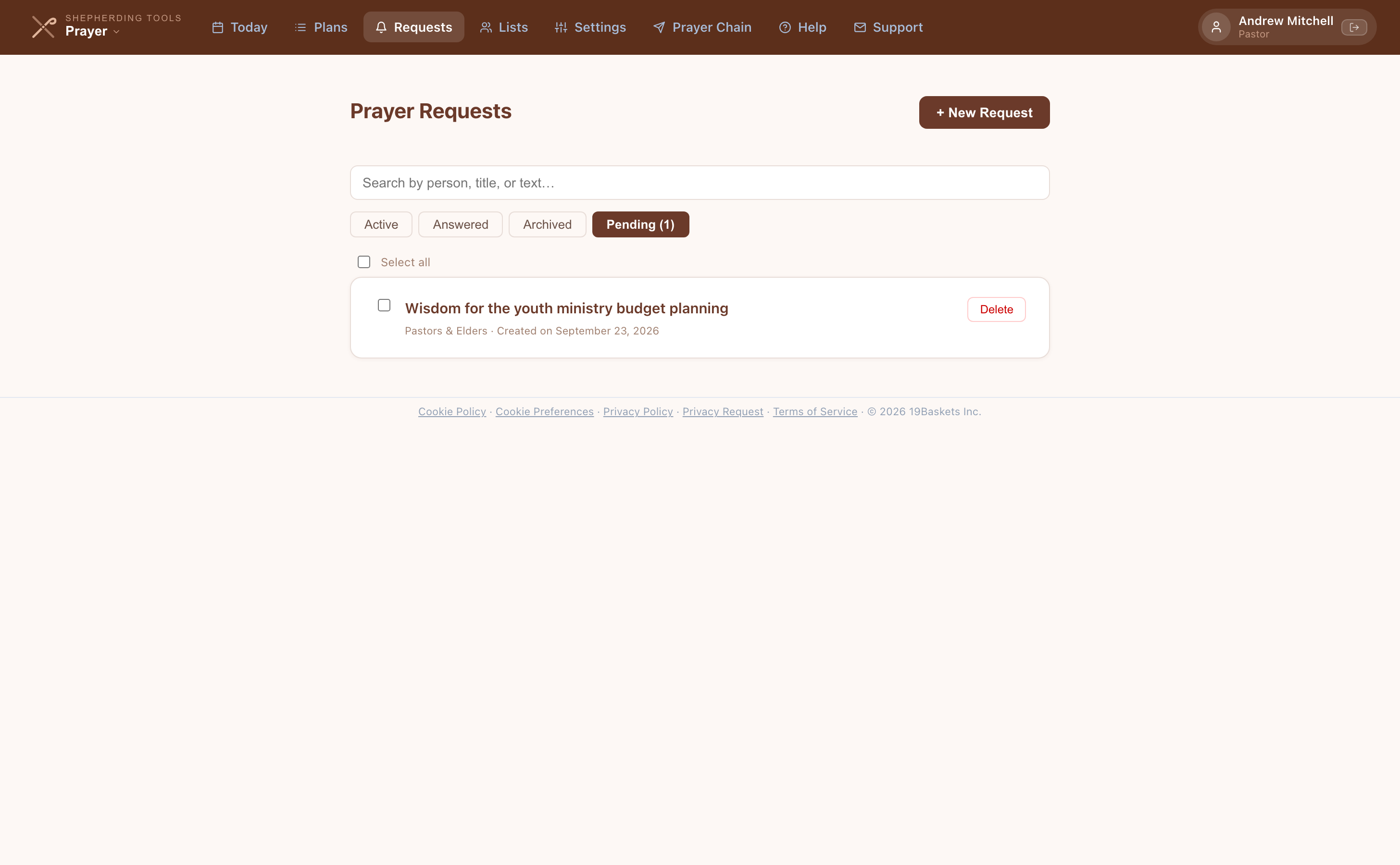
- Click Requests; a Pending tab with a count appears if anything is waiting for you.
- Click the Pending tab, then open the request.
- Click Approve to release it, or Decline to refuse it.
You'll know it worked when an approved request appears on its normal tab and starts showing up in Today, the digest and the chain. A declined one disappears — its author still sees it was declined. The count is of requests you personally can act on, so two officers can see different numbers, and the tab is hidden when there is nothing in it. Bulk selection is deliberately unavailable on this tab: approving is one request at a time.
If your church has nobody who could release a given audience, requests to that audience are not held at all — they go live immediately. A request nobody can approve would be lost rather than delayed, so the app does not create one.
Public Submissions
- Click Settings in the top navigation.
- Under Public Prayer Request Form (church admins only), click Copy to copy the link.
- Optionally type addresses under Send submissions to, separated by commas.
- Click Save.
You'll know it worked when the button reads ✓ Copied for 2 seconds — the link is now on your clipboard to paste into a bulletin, email, or website. This card doesn't appear at all for a non-admin user.
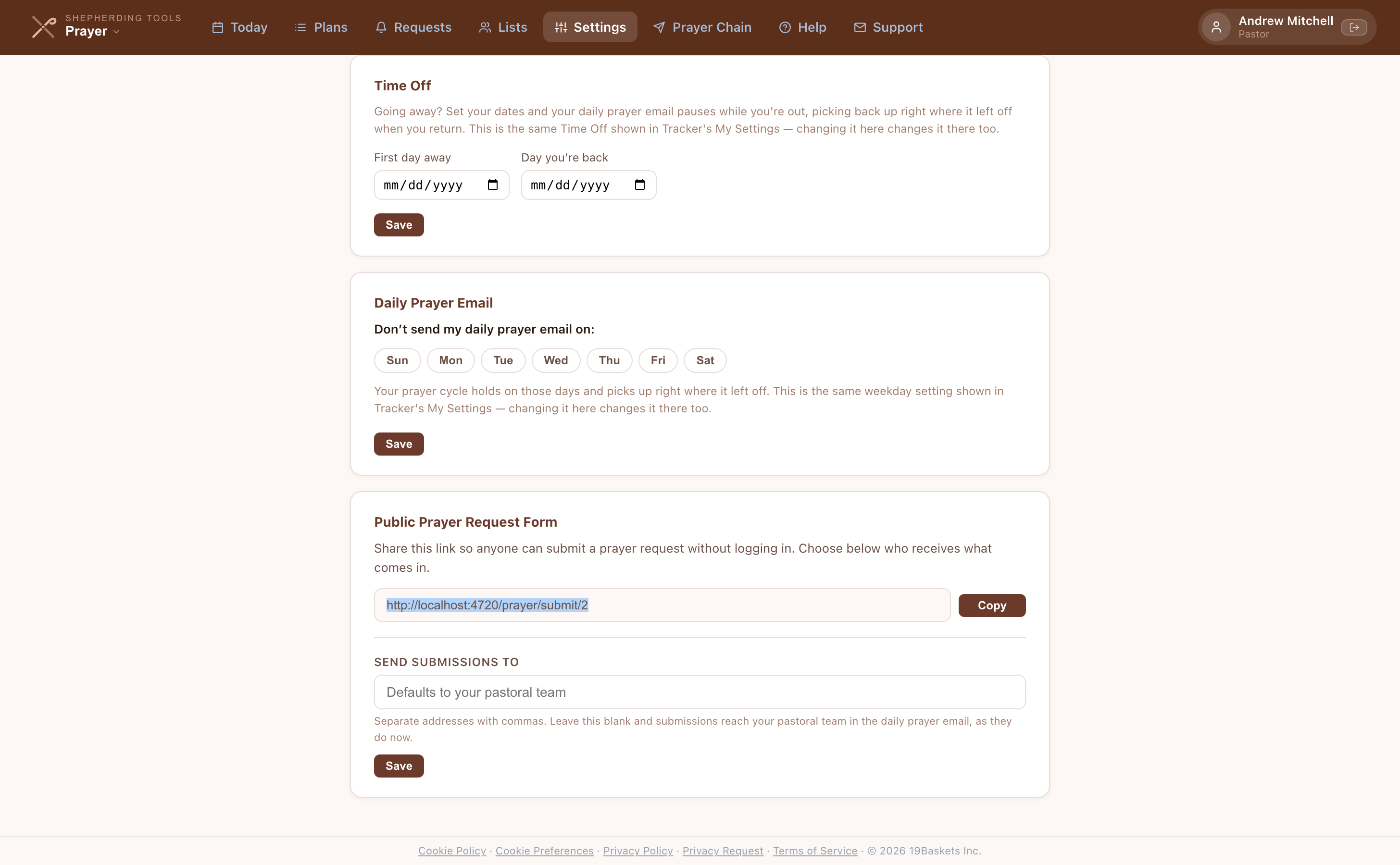
Submissions arrive shared with Pastors & Elders and carry the submitter's name and contact details. They wait for a pastor or elder to release them, exactly as described above. Notification is separate from release: Send submissions to addresses are emailed as soon as a request comes in, held or not. Leave it blank and the pastoral team meets the request in their daily digests once it is released.
Searching and Filtering
- Use the search bar to find requests by title, text, or name. A first name, a last name or both work, in any order, and a household is found by any of its members’ names.
- Use Sorted by to choose the order: urgent then newest, oldest first, by family name, most recent update, or longest without an update.
- Tick Group by family to see each household’s requests together under its name. Click a family heading to fold it away.
- Click No updates in 3 months to see only requests nobody has updated in three months, longest first. It is a quick way to check which ones still apply.
- Tick Include answered and archived to see every request in one list, each marked with its status.
- Use the Active / Answered / Archived tabs to switch between request states.
- A fourth Pending tab appears when requests are waiting for your approval.
- Use the list filter to show only requests on a specific Prayer List.
Bulk Actions
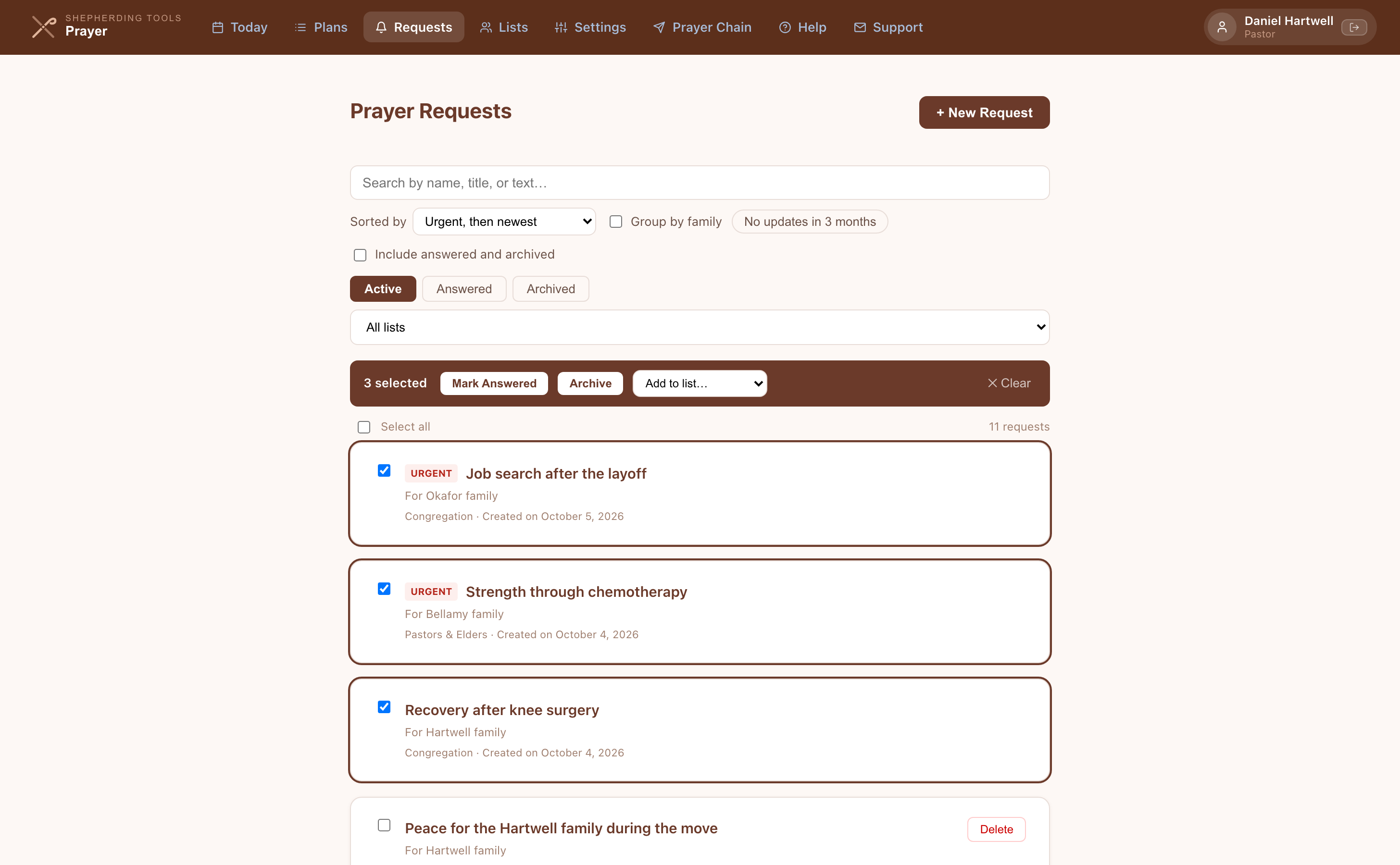
- Click the checkbox on one or more requests, or click Select all.
- A blue bar appears with the buttons that fit what you selected: Mark Answered, Archive, Restore, and — if you manage any Prayer List — an Add to list… picker. When answered and archived requests are mixed in, each button shows how many of your selection it will change.
- Click the button you want.
You'll know it worked when the selected requests leave the current tab (they moved to the new status) or, in a combined list, show their new status. Select all picks only the requests you can see, so a search or a folded family never pulls in a request you did not see.
4. Sub-requests
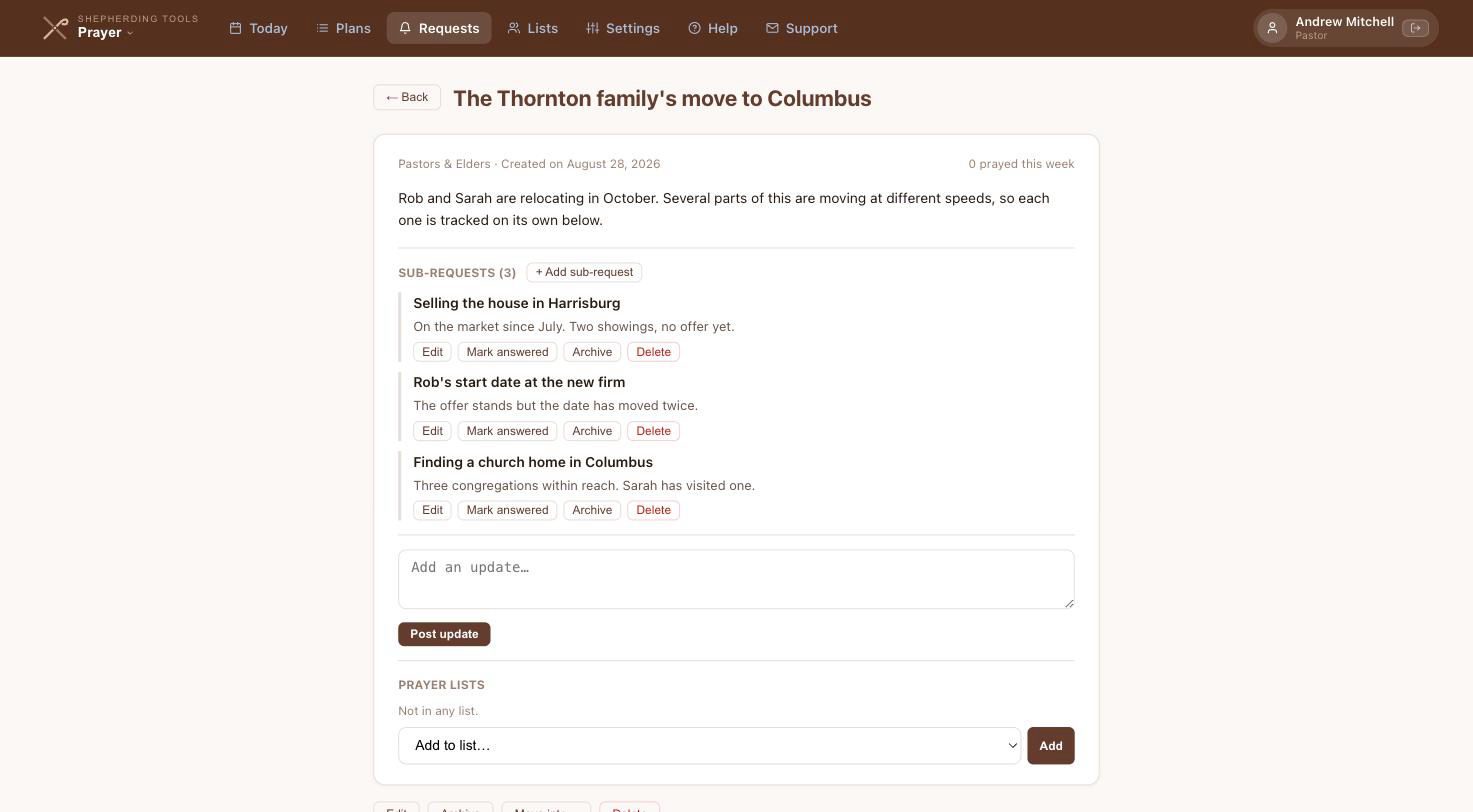
Some prayer needs are really several needs wearing one coat. A family moving house is a job, a sale, a school and a new congregation, and those four move at different speeds. Sub-requests let you keep them under one heading and still check them off one at a time.
Adding a sub-request
- Open the request.
- Under Sub-requests, click + Add sub-request.
- Type a title (required).
- Optionally add details and tick Urgent.
- Click Add.
You'll know it worked when the sub-request appears under the parent. The line above the title field already told you its inherited audience before you saved — that is not a setting you choose. A sub-request always takes the audience of the request it sits under, which is what keeps a private detail from surfacing on a wider list.
Filing a request you already have
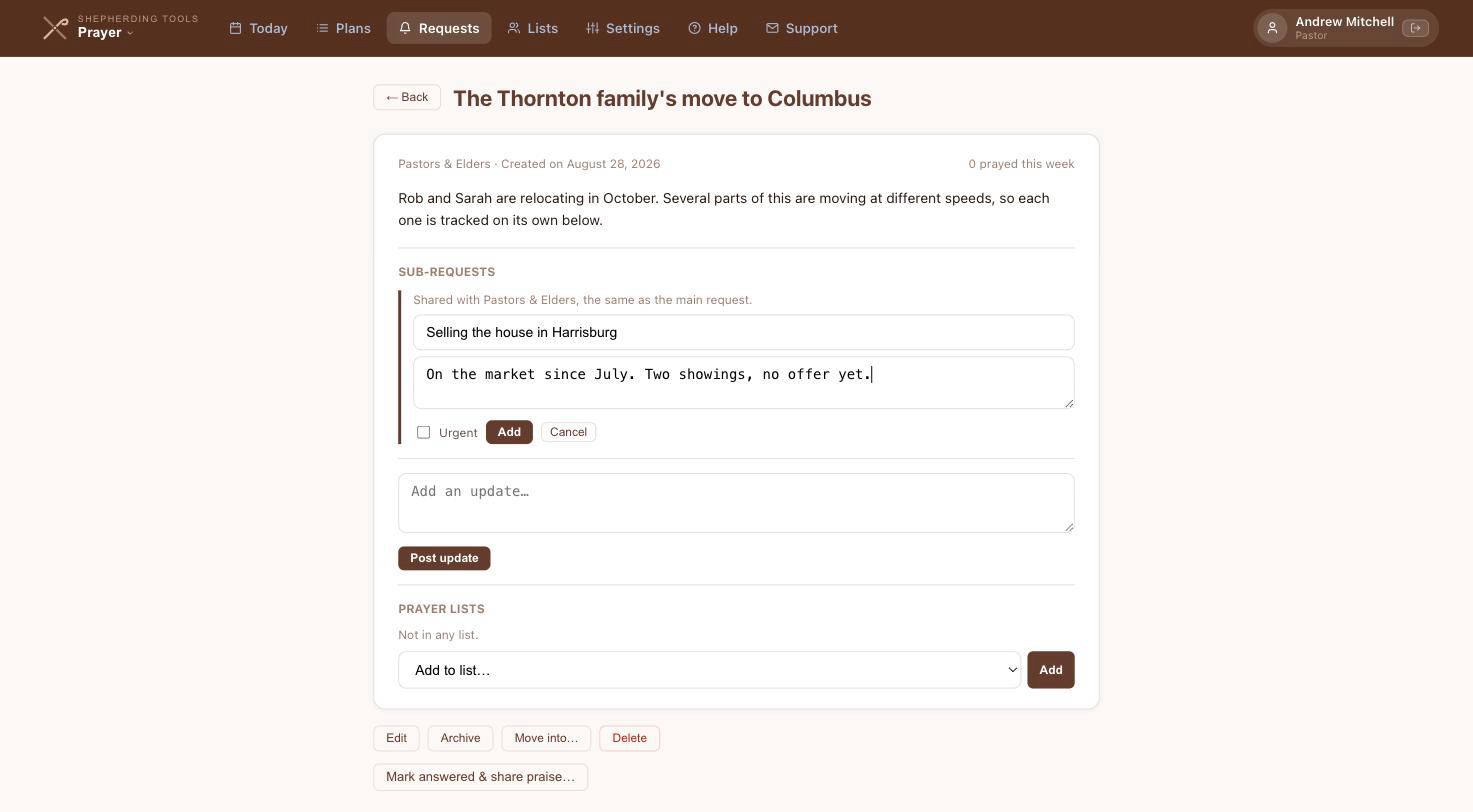
If the request already exists, you do not need to retype it. There are two ways to file it under another one, and they do the same thing:
- Drag its tile onto the tile of the request it belongs under, in the Requests list. The target tile highlights as you pass over it.
- Open it and click Move into…, then pick the request from the list. This is the keyboard route, and the one to use on a phone or tablet.
Either way you are asked to confirm first, because a drop onto the wrong neighbour is an easy mistake to make.
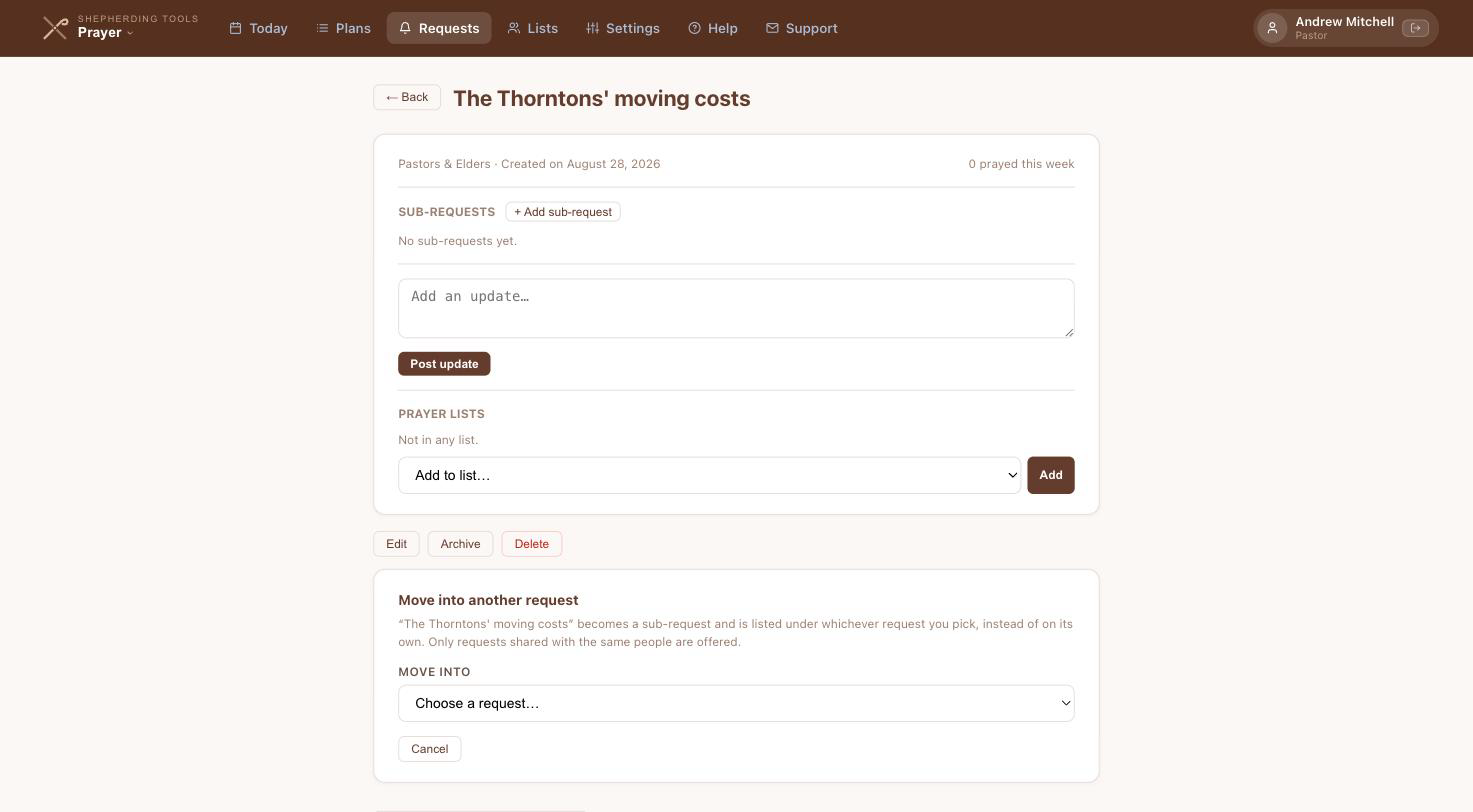
The picker offers fewer requests than you can see. Only requests shared with exactly the same people are eligible, because nesting must never change who can read something.
Moving one back out
Open the sub-request and click Move out to its own request. It returns to the main list with its updates and history intact. If your church holds submitted requests for approval and you are not an officer, the request you move out goes to the approval queue, the same as if you had just filed it — the screen says so when it happens.
What a sub-request cannot do
A sub-request is deliberately simpler than a request. It cannot:
- Hold sub-requests of its own. Nesting is one level deep.
- Be linked to a household. It belongs to whichever request it sits under.
- Carry its own repeating schedule. The parent carries the schedule.
- Have its own audience. It takes the parent’s.
It can have its own End Date, which archives that sub-request alone and leaves the rest of the request running.
Why a move is sometimes refused
When a request cannot be nested, the screen says which request is the problem and what to change. There are six reasons, and each one has a fix:
It is linked to a household
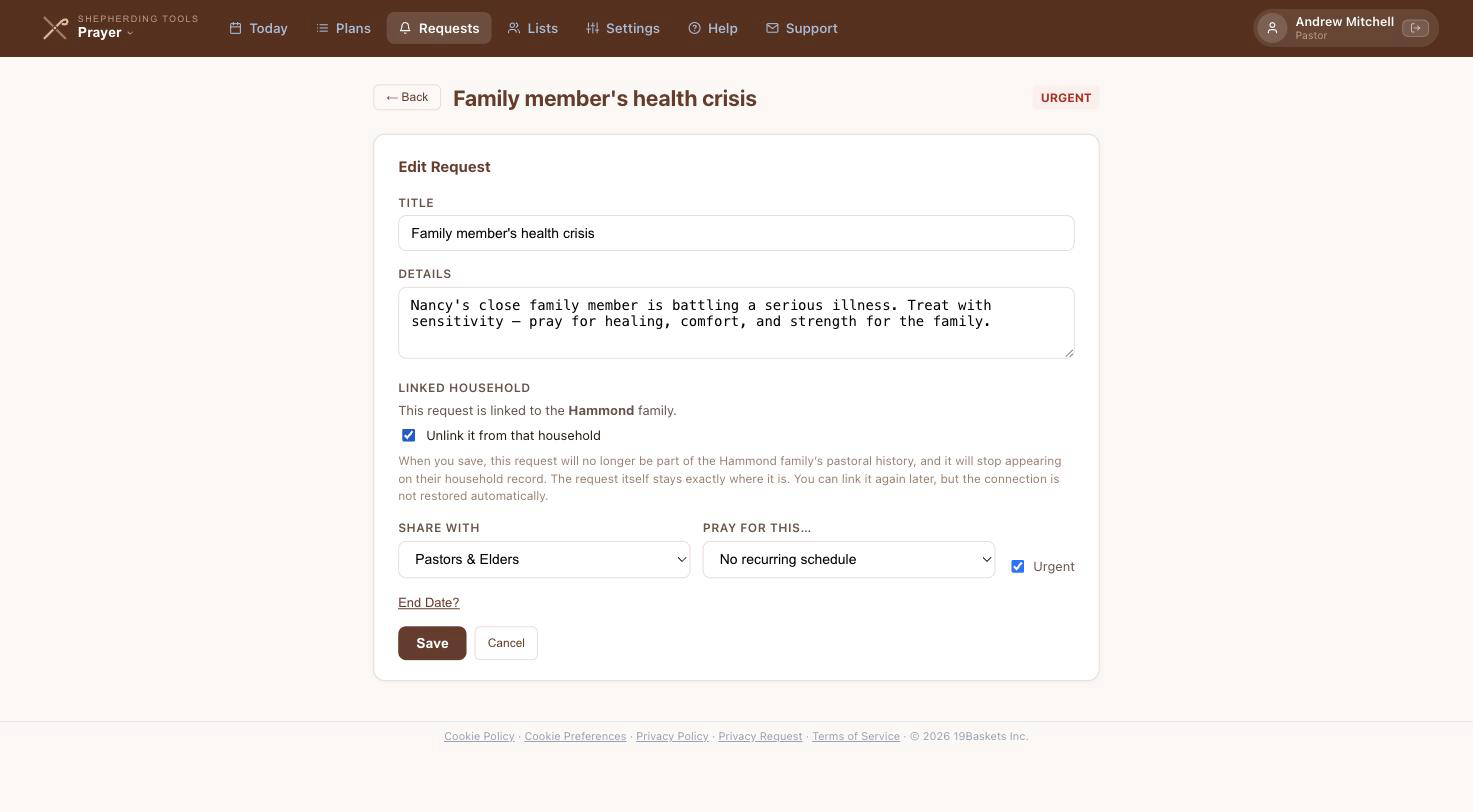
Edit it and tick "Unlink it from that household" first. Requests raised from a Tracker household profile always carry this link.
The audiences do not match
Change the request you are moving to the same Share with setting as its new parent.
It already has sub-requests
Nesting is one level deep. Move its own sub-requests elsewhere first.
It has a repeating schedule
Clear the schedule. A sub-request cannot carry one, and the schedule would never fire.
It is waiting for approval
Release it from the approval queue, then move it.
It is designated to the Prayer Chain
Remove the chain designation. A sub-request goes out to the chain with its parent, not on its own.
The first reason is the one people meet most often. Every request a pastor raises from a household in Tracker is linked to that household, so it will refuse to nest until you unlink it. Unlinking removes the request from that family’s pastoral history and from their household record; the request itself stays exactly where it is. You can link it again later.
Answering, archiving and deleting
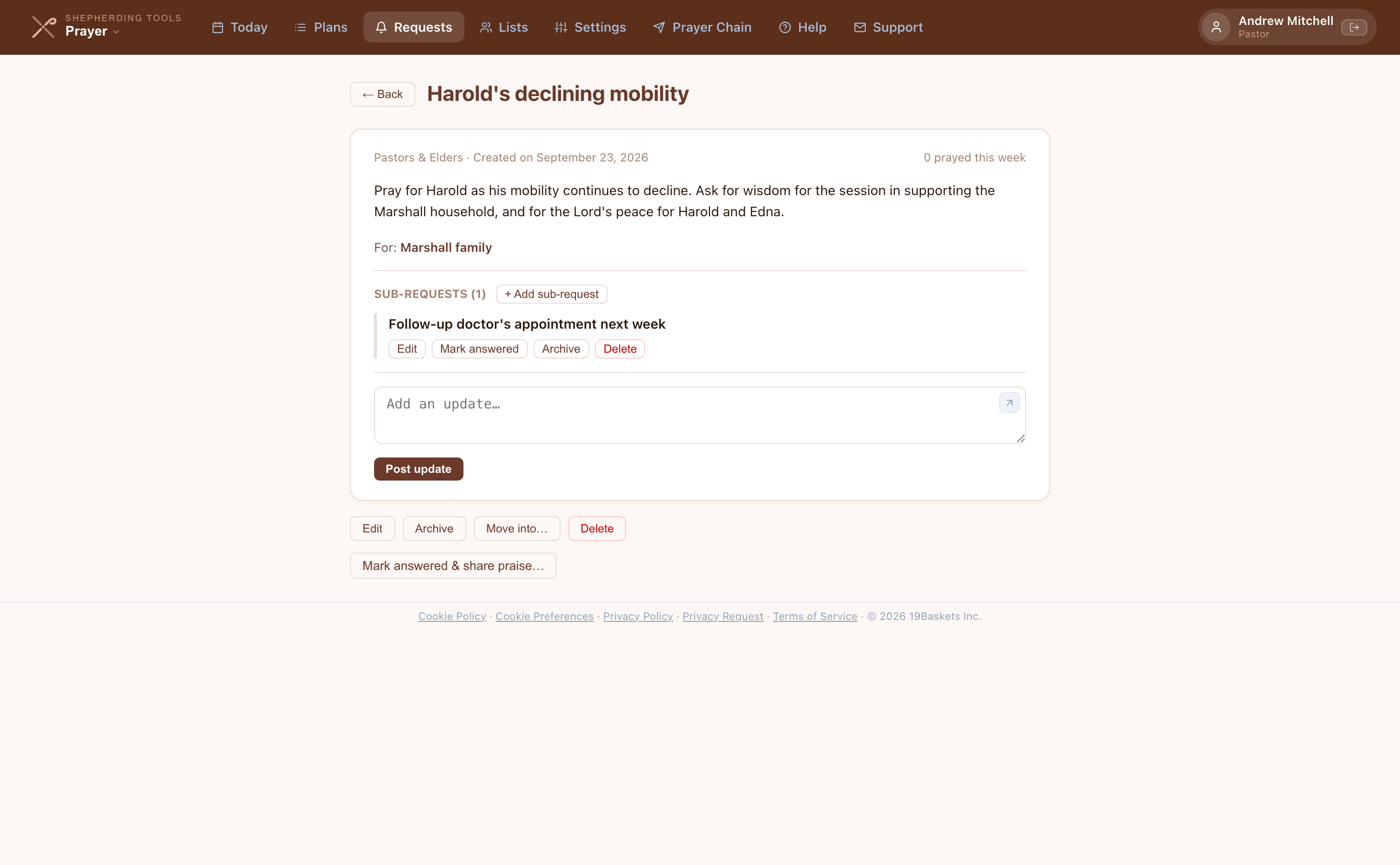
On a sub-request row, inside its parent's open detail view:
- Click Mark answered to answer just that sub-request, Archive to archive it alone, or Delete to remove it.
- To answer the whole parent instead, use Mark answered & share praise… at the bottom of the parent — its sub-requests stay open.
You'll know it worked when an answered or archived sub-request moves into a collapsed ▼ Show completed (N) group under the same parent.
Dragging a tile files one request under another. It does not reorder the Requests list. Reordering the list by hand is not something Prayer does today.
5. Prayer Lists
Prayer Lists (distinct from Prayer Plans) are curated collections of prayer requests grouped under a name. A list might be "Sunday Service Requests," "Missionary Partners," or "Elder Care Cases." Lists can be shared with different visibility groups, and can optionally be scheduled to appear in Today's prayer on a recurring basis.
Creating a Prayer List
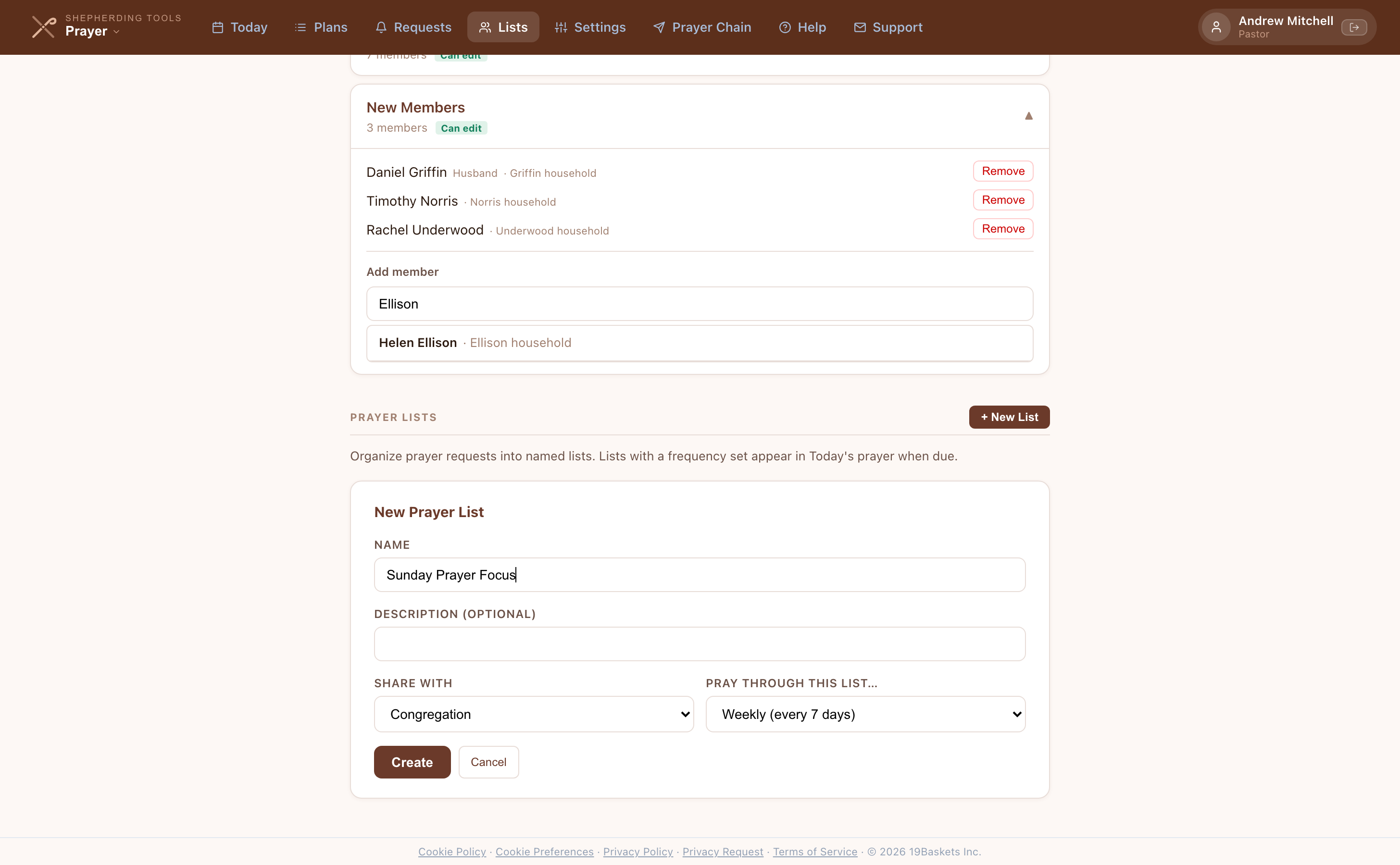
- Click Lists in the top navigation.
- Scroll to Prayer Lists, click + New List.
- Type a Name.
- Optionally add a Description.
- Choose Share with — the same four levels as an individual request.
- Optionally choose a frequency under Pray through this list… so the whole list appears in Today's prayer on that schedule — Daily, Weekly, Monthly, or Custom… with your own number of days.
- Click Create.
You'll know it worked when the new list appears under Prayer Lists, collapsed, with "0 requests."
Adding Requests to a List
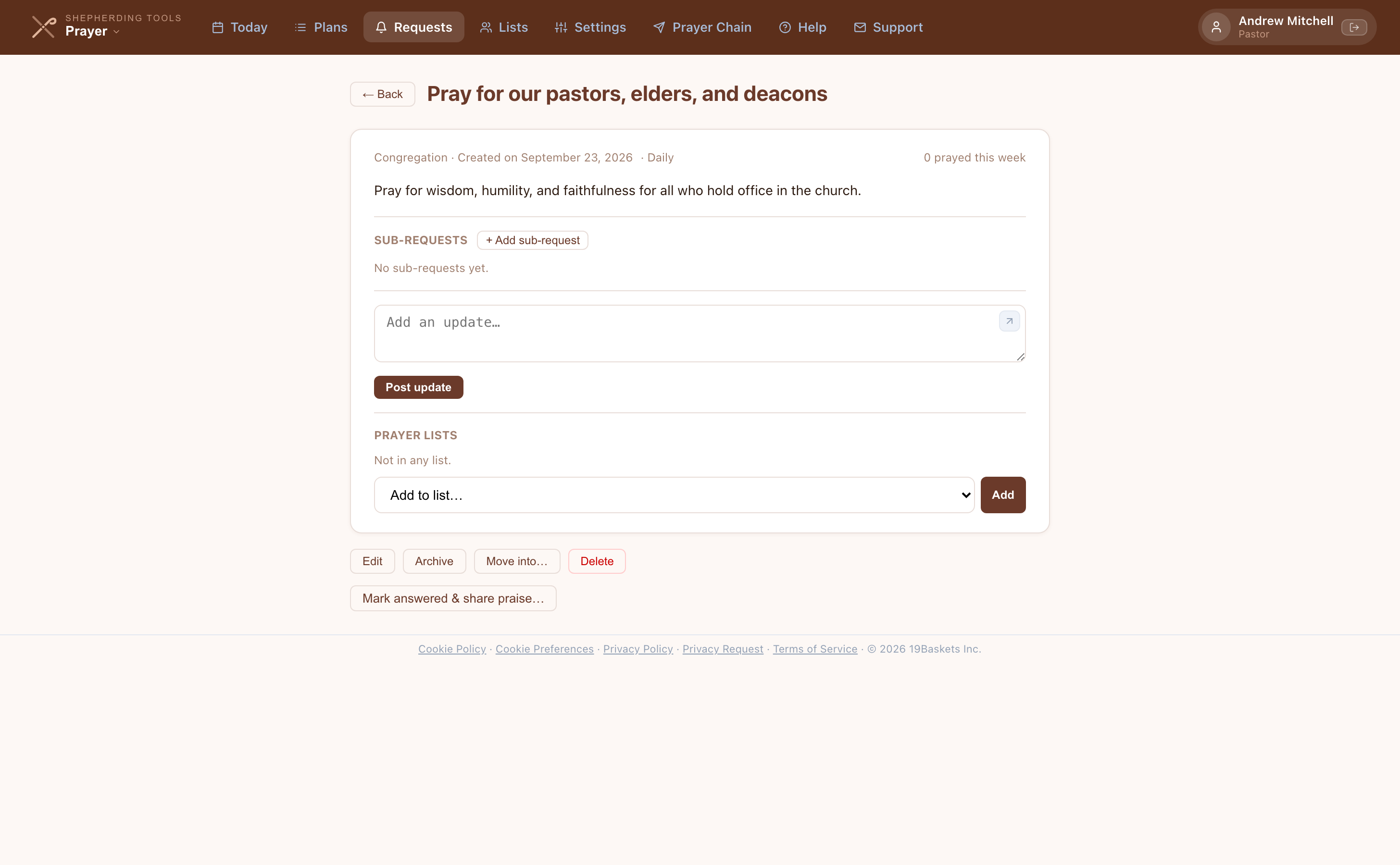
From a request's own page:
- Open the request.
- Scroll to Prayer Lists, choose a list under Add to list…, click Add.
From the Lists page:
- Click Lists, expand the target Prayer List.
- Click + Add Request.
- Optionally search, then click Add next to the request.
You'll know it worked when the request appears under the list, and its count updates.

Setting Your Own Pace on a Shared Prayer List
Two people are rarely ready to move through the same list at the same speed, and this control is otherwise invisible.
- Go to Lists, expand a Prayer List that has a frequency set and is not shared as "Only me."
- Under Your Pace, click Set your own pace.
- Choose Complete in N days or Fixed (X/day).
- Enter your number.
- Click Save.
You'll know it worked when the card reads "You're praying this list at your own pace — [your setting]," names roughly how often the same request comes back around, and still shows the list's own setting underneath. To go back, click Use the list's own pace.
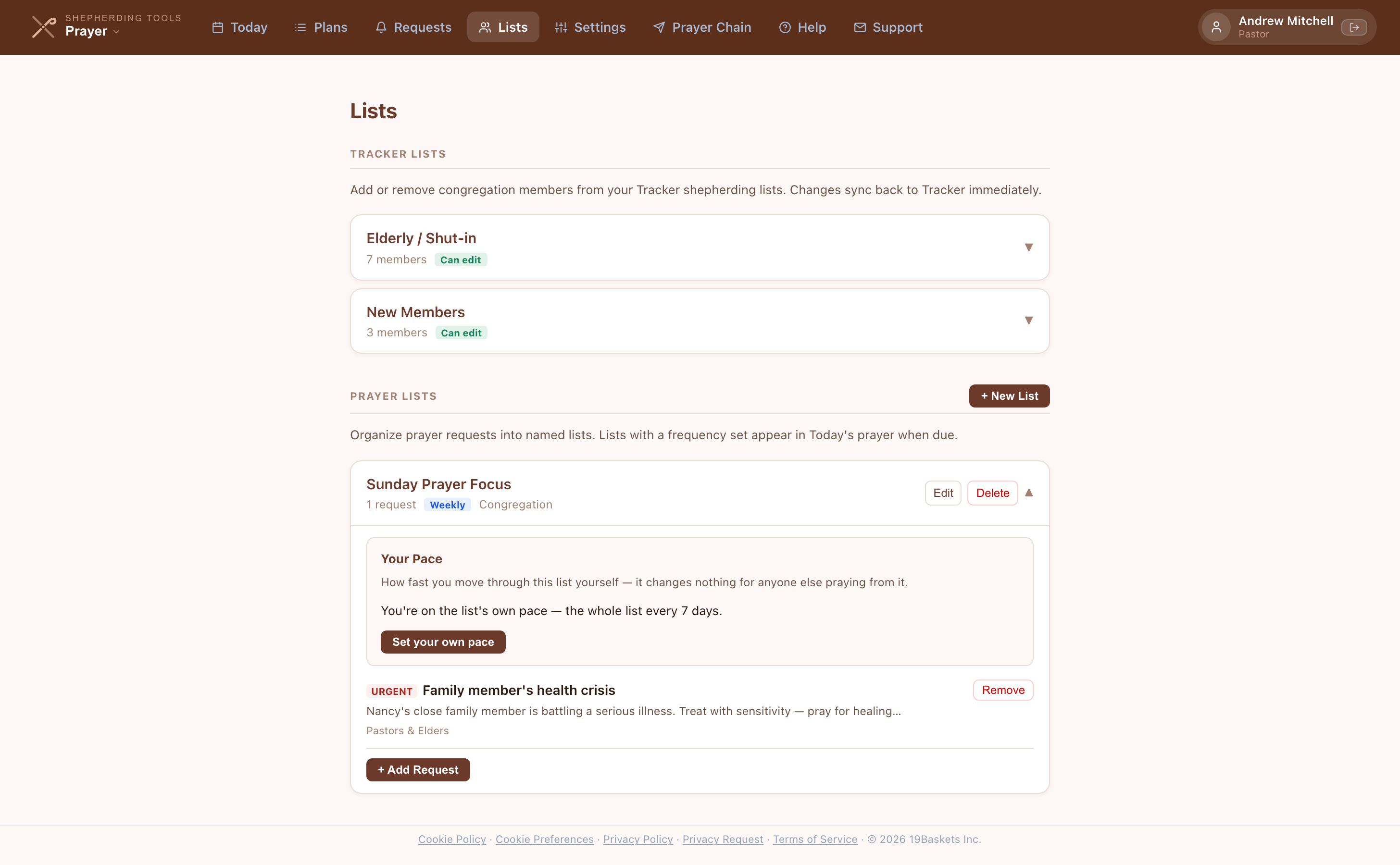
Only offered on a list that has a frequency set and is not private. An unscheduled or private list has no pace card, because it either isn't assembled into a day, or already belongs to one person who sets its frequency directly.
Editing or Deleting a Prayer List
- Go to Lists, find the Prayer List (owner or church admin).
- Click Edit to change Name, Description, Share with, or Pray through this list…
- Click Save.
- Or click Delete to remove the list — requests already in it are unaffected; they simply stop belonging to this list.
You'll know it worked when the updated name or settings show immediately on the list row.
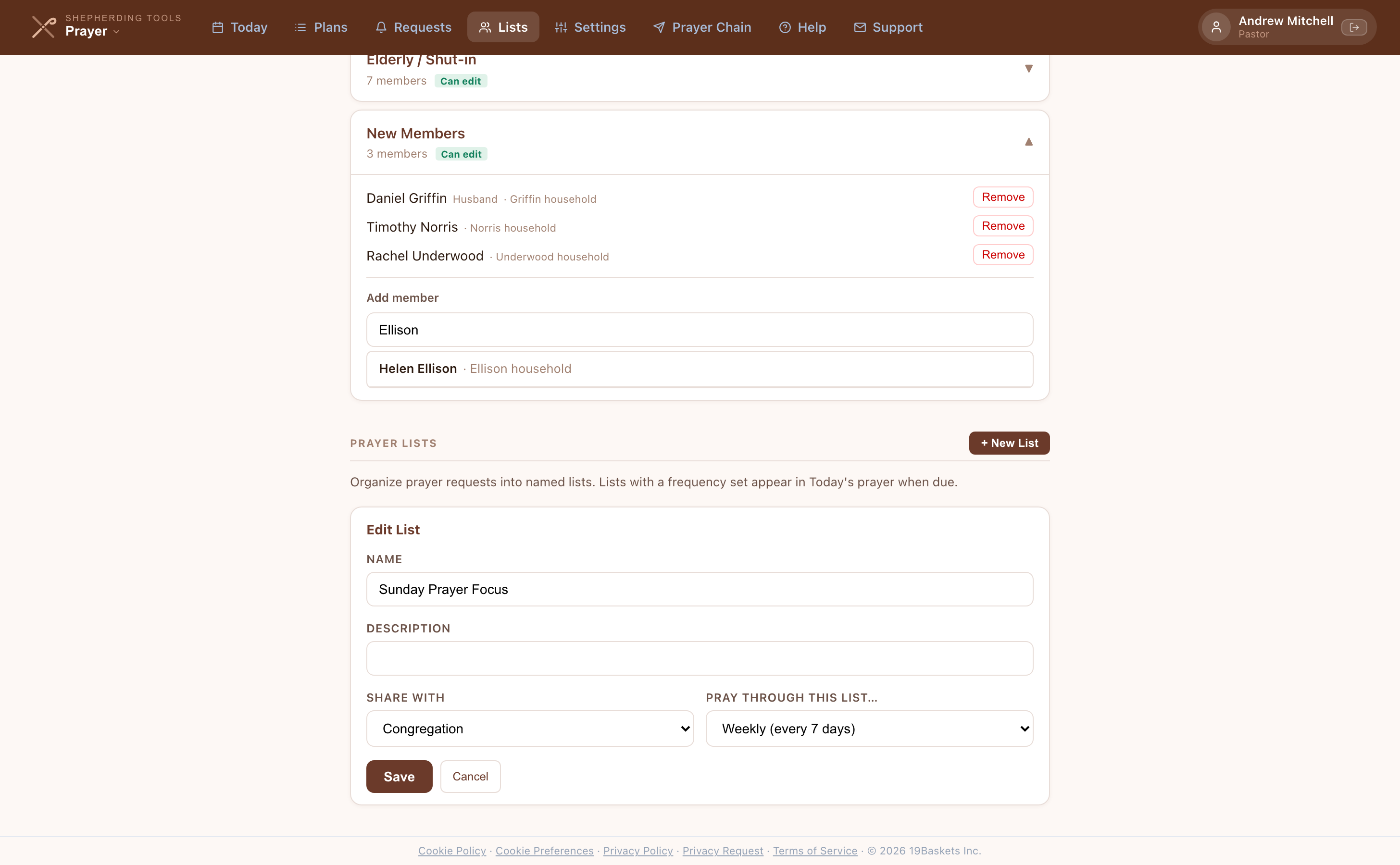
Edit and Delete only appear for the list's owner or a church admin. Everyone else can view and, if it's shared, add requests to it — but not change or remove it.
Scheduled Prayer Lists in Today's View
When a Prayer List has a frequency set, it appears as a group card in Today's view on its scheduled days. Click Prayed for all to mark all requests in the list as prayed at once.
Adding or Removing Someone on a Tracker List
The top section of the Lists page shows your Tracker Lists — the household groupings from Shepherding Tracker. You can add or remove congregation members from Tracker lists directly inside Prayer, without switching apps.
- Click Lists; your church's Tracker lists are at the top.
- Click a list to expand it.
- To add someone, type a last name under Add member, then click their name.
- To remove someone, click Remove next to their name.
You'll know it worked when the member count updates immediately, and the change is visible in Tracker too.
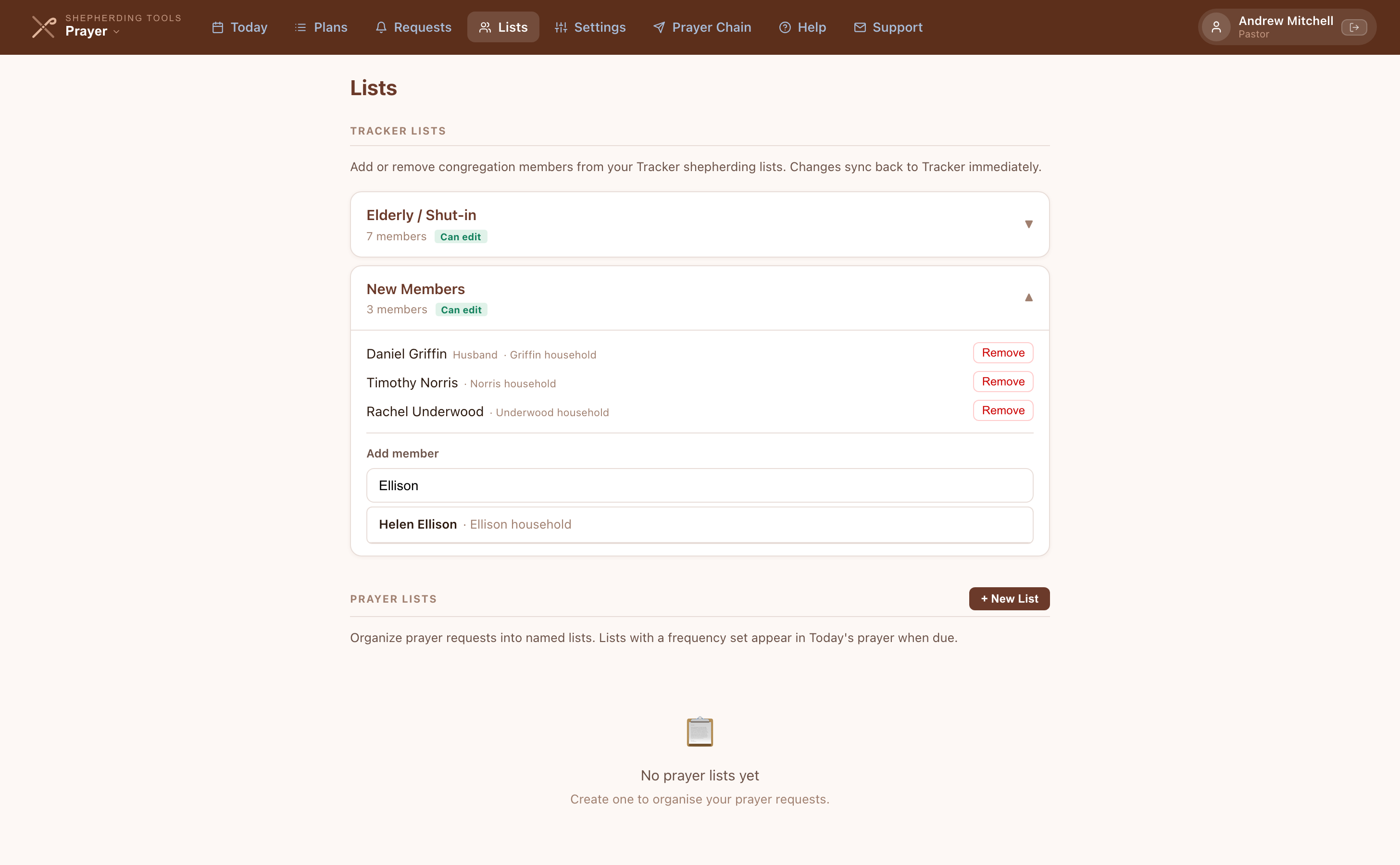
Add and Remove only appear when you have the "Can edit" mark on that list.
6. Daily Email Digest
Each morning, Shepherding Prayer sends you a personalized email with that day's prayer list. The email is customized per user — it includes your households, your prayer requests at their scheduled frequencies, and any urgent items. No two elders receive the exact same email.
What's in the Email
- Urgent Prayer Requests — the first section, when there is one.
- Households for today — from all your active prayer plans, one section per plan, with the last contact date under each family so you can see who you haven't visited recently.
- Inline prayer requests — if a household has active requests, they appear directly beneath the household name in the email.
- Scheduled requests — standalone requests appear under their own heading on the days their schedule falls due.
- Prayer request lists — scheduled lists appear with all their requests listed in full.
- Mark all as prayed — a button at the bottom. One click records the whole list, without logging in.
Configuring the Email
Go to Settings. The Daily Prayer Digest card at the top holds these:
- Send me a daily prayer email — the switch itself. A new account starts with this unticked.
- Delivery email address — send the digest somewhere other than your login email. Leave it blank to use your login email.
- Delivery time — the hour the email arrives each morning.
- Your timezone — controls when the email is delivered. The app auto-detects it on your first visit; correct it here if you move or if the detected value is wrong.
The numbered steps for turning the email on for the first time are under Getting Started. Once the email is on, a Resend Today's Email button appears underneath Save Settings, which is the quickest way to check your settings without waiting for tomorrow.
On a day with nothing to send, nothing is sent. An empty email is never delivered, so silence on a quiet morning is the app working, not failing. If it stays silent for days, check that you have a plan set up and that the email is switched on.
Getting the Daily List as a Phone Notification
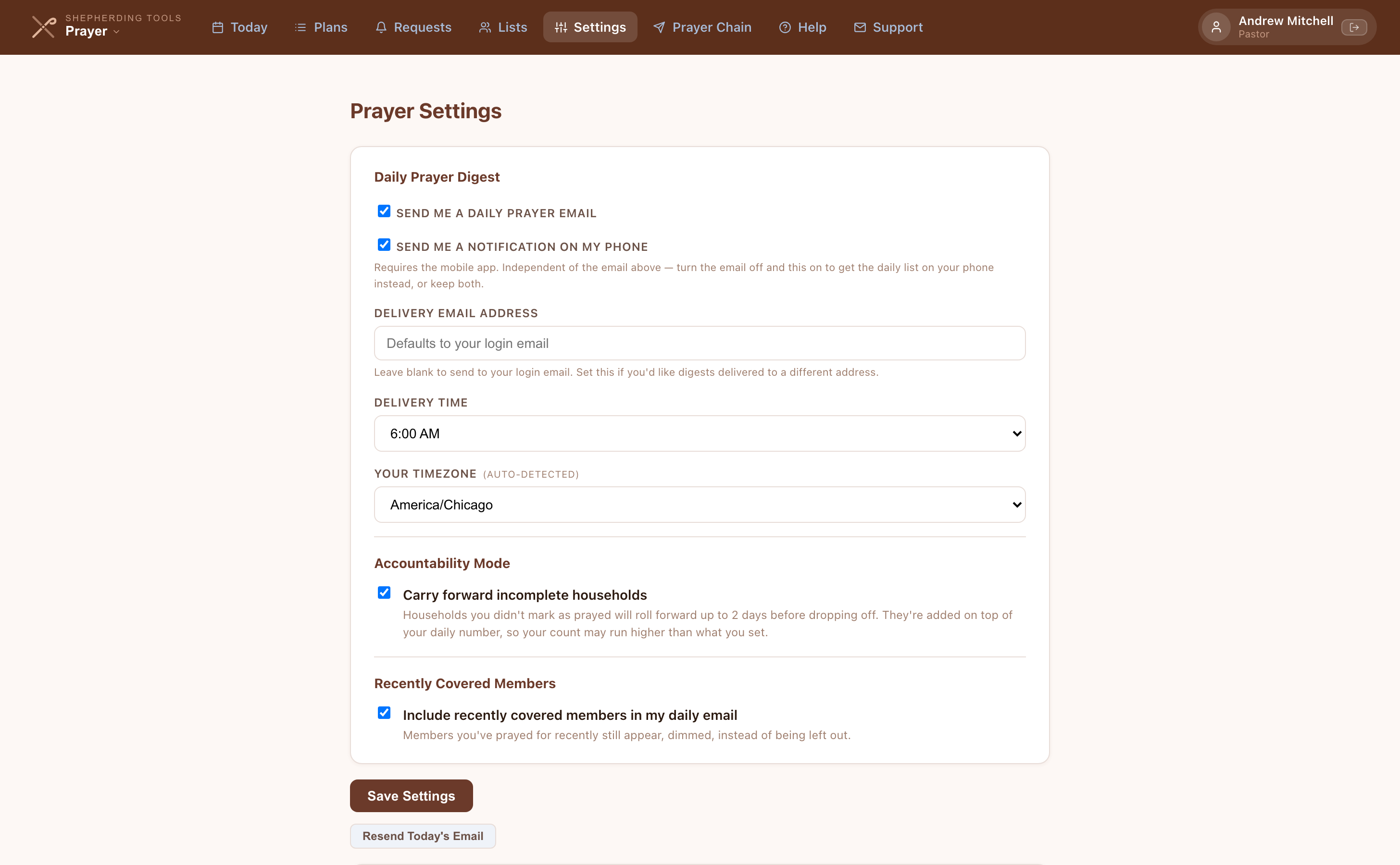
A second delivery channel, independent of the email — turn email off and push on to get the daily list only on your phone, or run both.
- Open the mobile app's Settings.
- Under Daily Prayer Digest, tick Send me a notification on my phone.
- Delivery time and Your timezone drive both the email and the push, so set them once regardless of which channel(s) you use.
- Click Save Settings.
You'll know it worked when a phone notification arrives instead of, or alongside, the email, at the delivery time set above. Requires the mobile app.
Accountability Mode
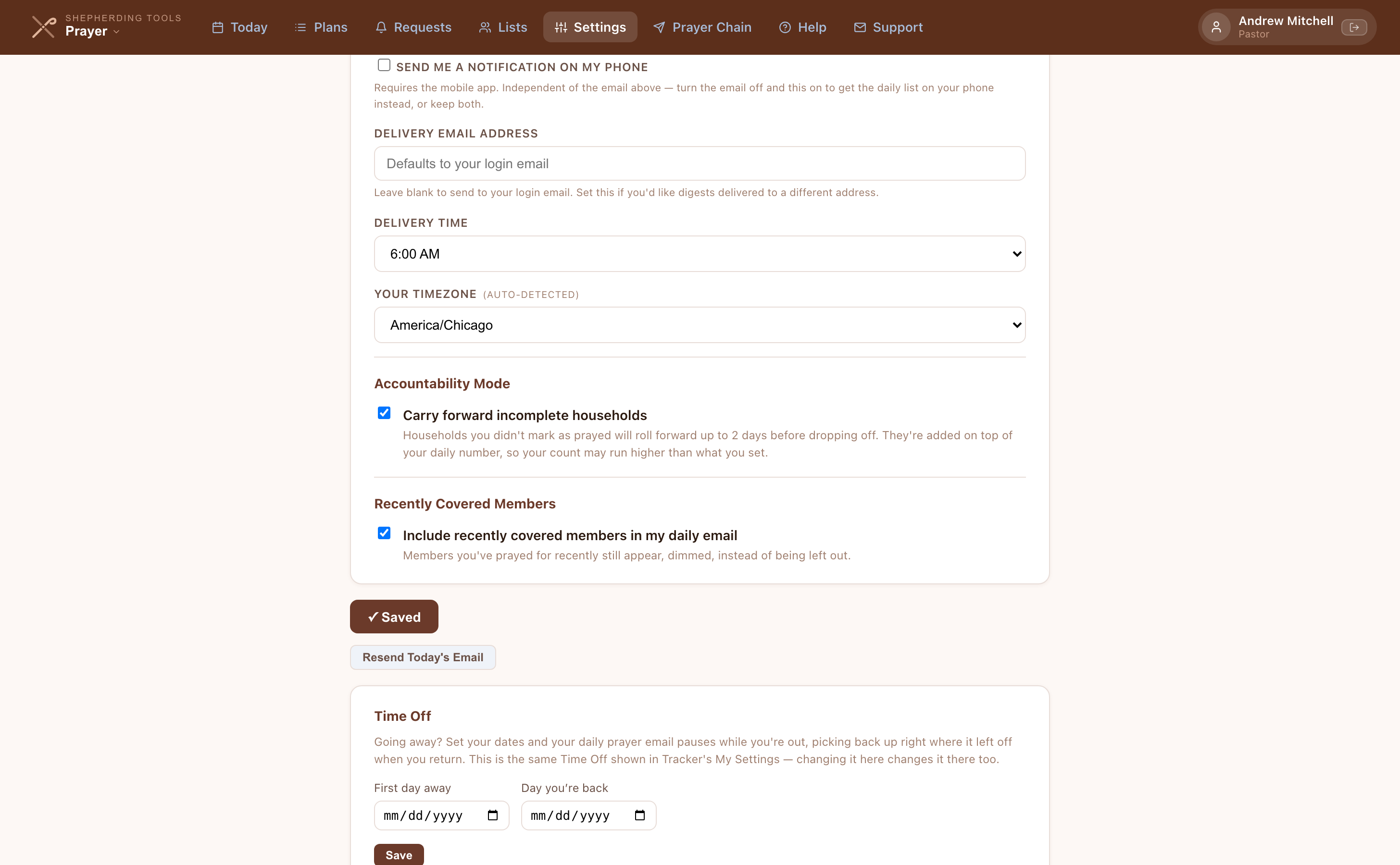
- Click Settings.
- Under Accountability Mode, tick Carry forward incomplete households.
- Click Save Settings.
You'll know it worked when a household you don't mark prayed reappears the next day with a carried badge (see Carried Items above). Carried households are added on top of your daily number, so your count can run higher than the figure you set on the plan. This affects both Today and the email, and it's off unless you turn it on.
Recently Covered Members
- Click Settings.
- Under Recently Covered Members, tick Include recently covered members in my daily email.
- Click Save Settings.
By default the email leaves out anyone you have prayed for recently enough to count as covered. You'll know it worked when covered households appear anyway, dimmed, instead of being left out. One consequence worth knowing: with this on, a day whose only entries are covered families still sends an email, because those rows are now something to show.
Skipping Chosen Weekdays
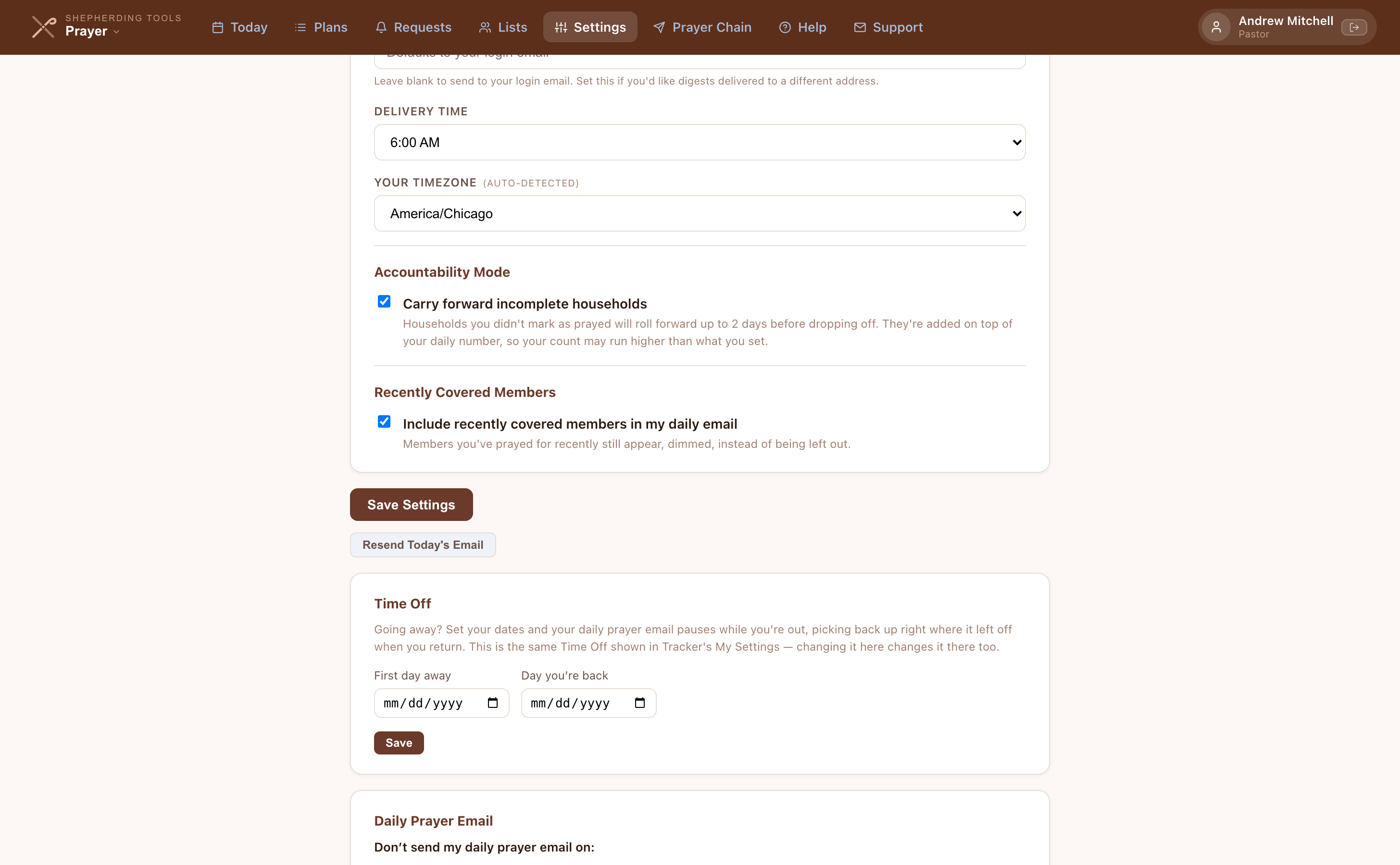
- Click Settings, scroll to the Daily Prayer Email card (separate from the Daily Prayer Digest card above it).
- Under Don't send my daily prayer email on:, click each weekday you want off (e.g. Sun, Sat).
- Click Save.
You'll know it worked when a confirmation reads "Saved. No prayer email on Sun, Sat." Your prayer cycle holds on those days and picks up where it left off, so nobody is skipped over. Selecting all seven days pauses the email indefinitely. Today shows a banner on a skipped day telling you the cycle is frozen.
Time Off
- Click Settings, scroll to Time Off.
- Set First day away.
- Set Day you're back.
- Click Save.
You'll know it worked when a message reads "Time off saved: away [date], back [date]." The daily email pauses for that stretch and resumes where it left off. Your return date must be after your first day away, and you set both or neither. To cancel, click Clear, then Save.
Time Off and the skipped weekdays are the same settings shown in Tracker under My Settings. Change either one in either app and it changes in both, because there is one value rather than two copies.
Email delivery is managed server-side. If you're not receiving emails, check your spam folder first, then contact your administrator to verify that email is configured for your account.
7. Prayer Chain
The Prayer Chain is in limited beta. It runs for a small number of churches while we learn how it behaves with real congregations, and it will not appear in your Prayer app unless your church is one of them. Everything below describes how it works today, so that the people running it have something to read.
Most churches already have a prayer chain. It is usually a phone tree, or a list of addresses in somebody's BCC field, and it is kept by one person who moved house in 2019. This replaces it. The Prayer Chain sends one email a day to a list of people who asked to be on it, carrying whatever your church has chosen to put in front of them.
The important word is chosen. Nothing your members file reaches the chain on its own. A prayer request only goes out if somebody designates it, and that is a deliberate act by a person with the authority to publish it. The chain reaches people who have no login and cannot correct a mistake, so the app never guesses.
Who runs it
Often the church secretary. That is deliberate. Running the prayer chain is its own permission, and it carries no sight of anything else: someone who administers the chain cannot read requests marked Pastors & Elders, cannot open Tracker, and cannot see your directory beyond the names and email addresses she needs to build the list. Ask us to grant it during the beta.
Setting it up
- Open Prayer Chain → Settings tab and tick Send the daily chain email.
- Under Household rotation list, pick a Tracker or Prayer list to rotate through (or leave it "No rotation — designated content only").
- Set Households per day, or leave it and set Or finish the list in (a number of days) instead.
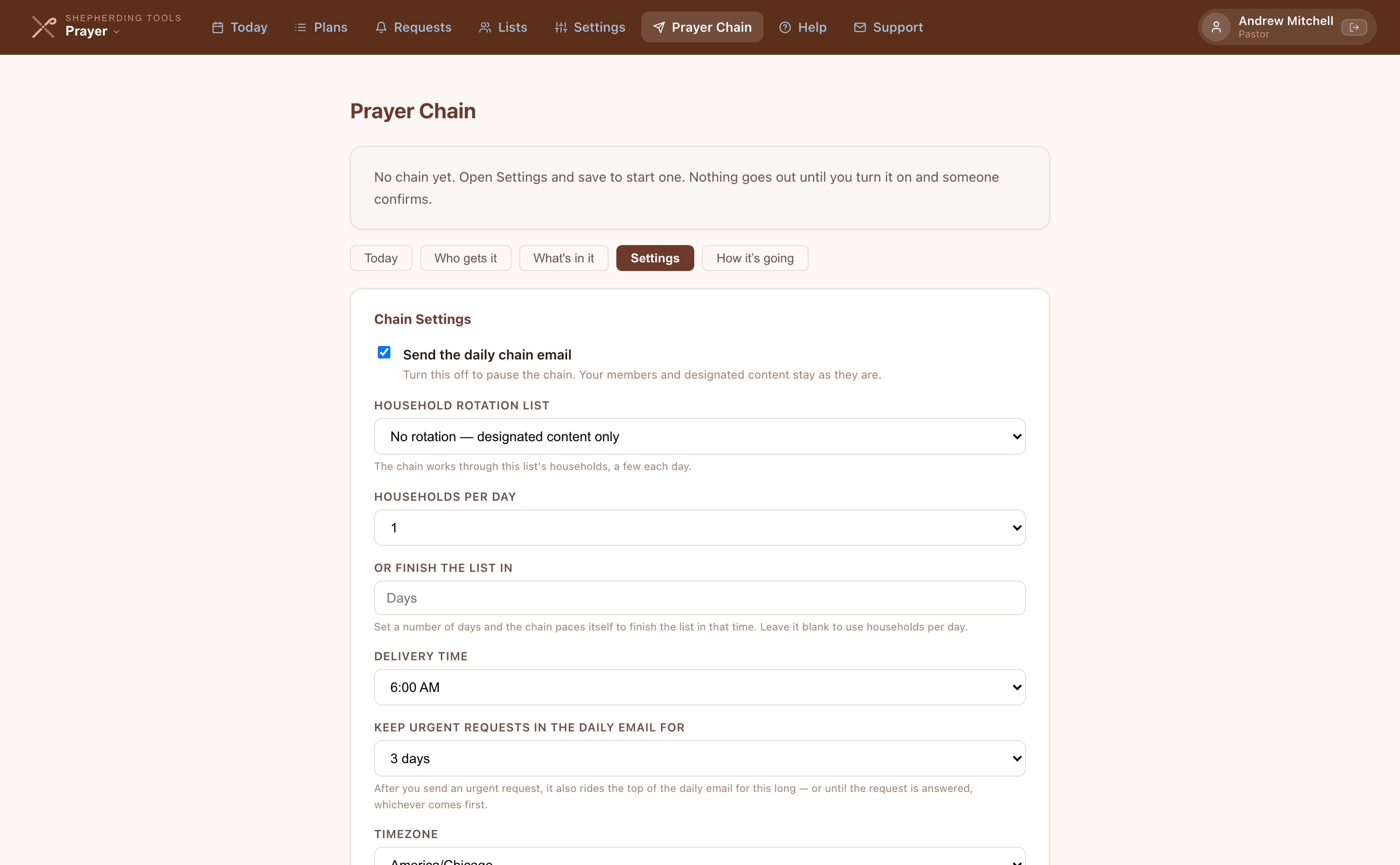
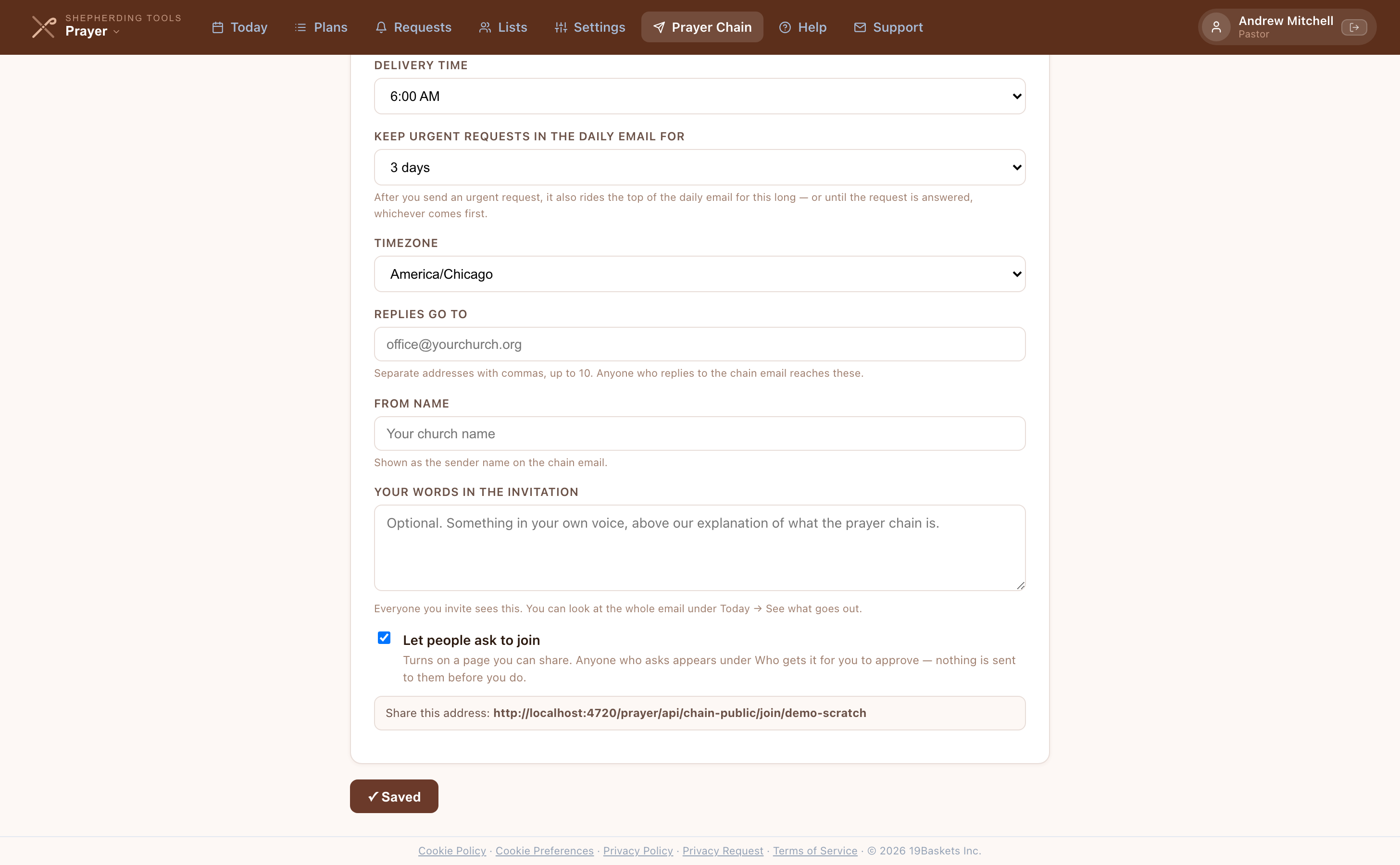
- Set Delivery time, Keep urgent requests in the daily email for, and Timezone.
- Set Replies go to (up to 10 addresses) and From name.
- Optionally add Your words in the invitation — shown to everyone you invite, previewable from Today → See what goes out.
- Click Save chain settings.
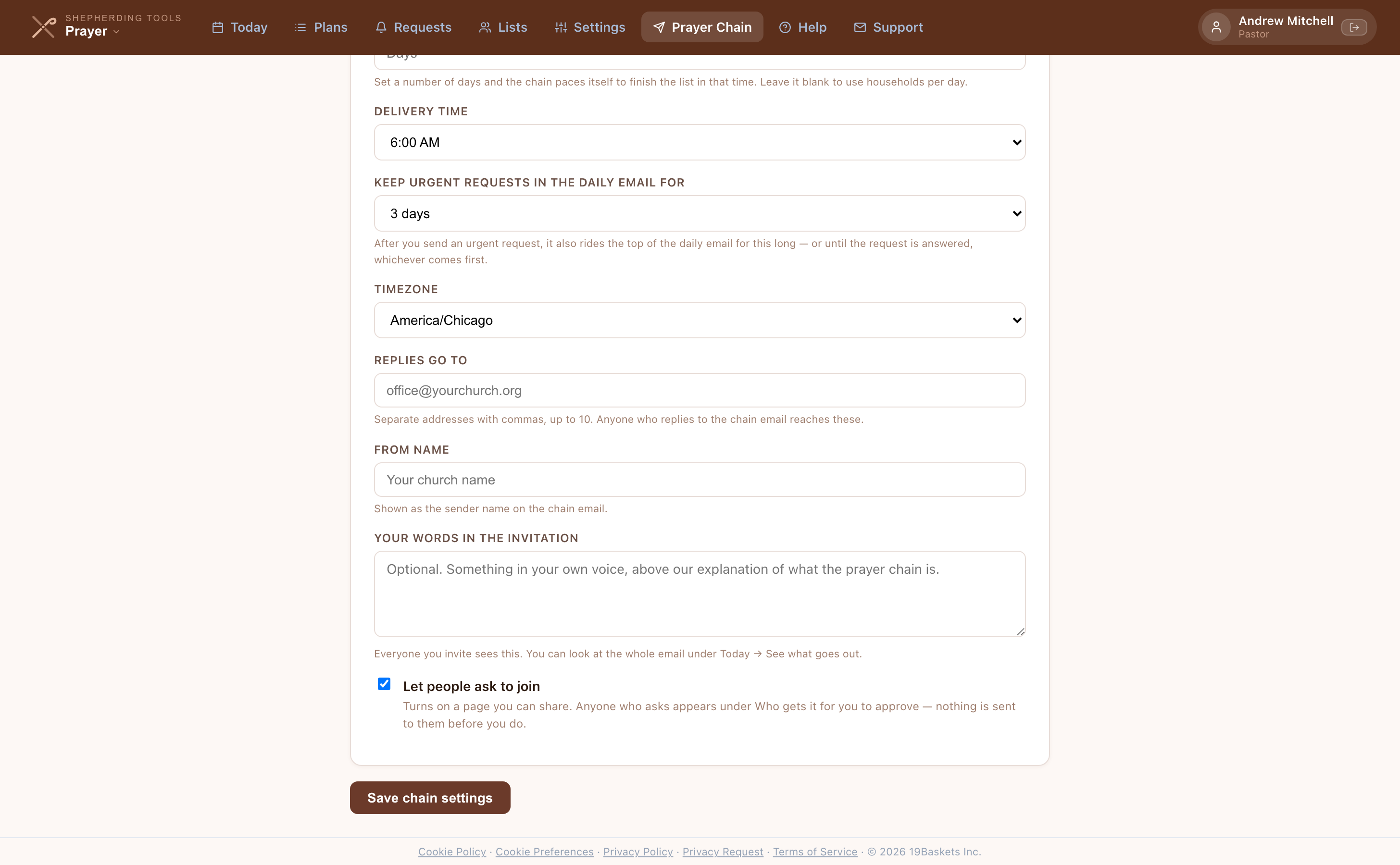
- On Who gets it, add the people who should receive it (see below).
- On What's in it, designate lists or individual requests to go out on top of (or instead of) the household rotation.
You'll know it worked when the Settings tab shows "✓ Saved," and the household rotation list (if any) plus any designated items appear together on the Today tab's preview.
Nothing sends until BOTH "Send the daily chain email" is ticked AND at least one person has confirmed. The public join-page address only appears once Let people ask to join is ticked and saved.
The list, and why everyone has to confirm
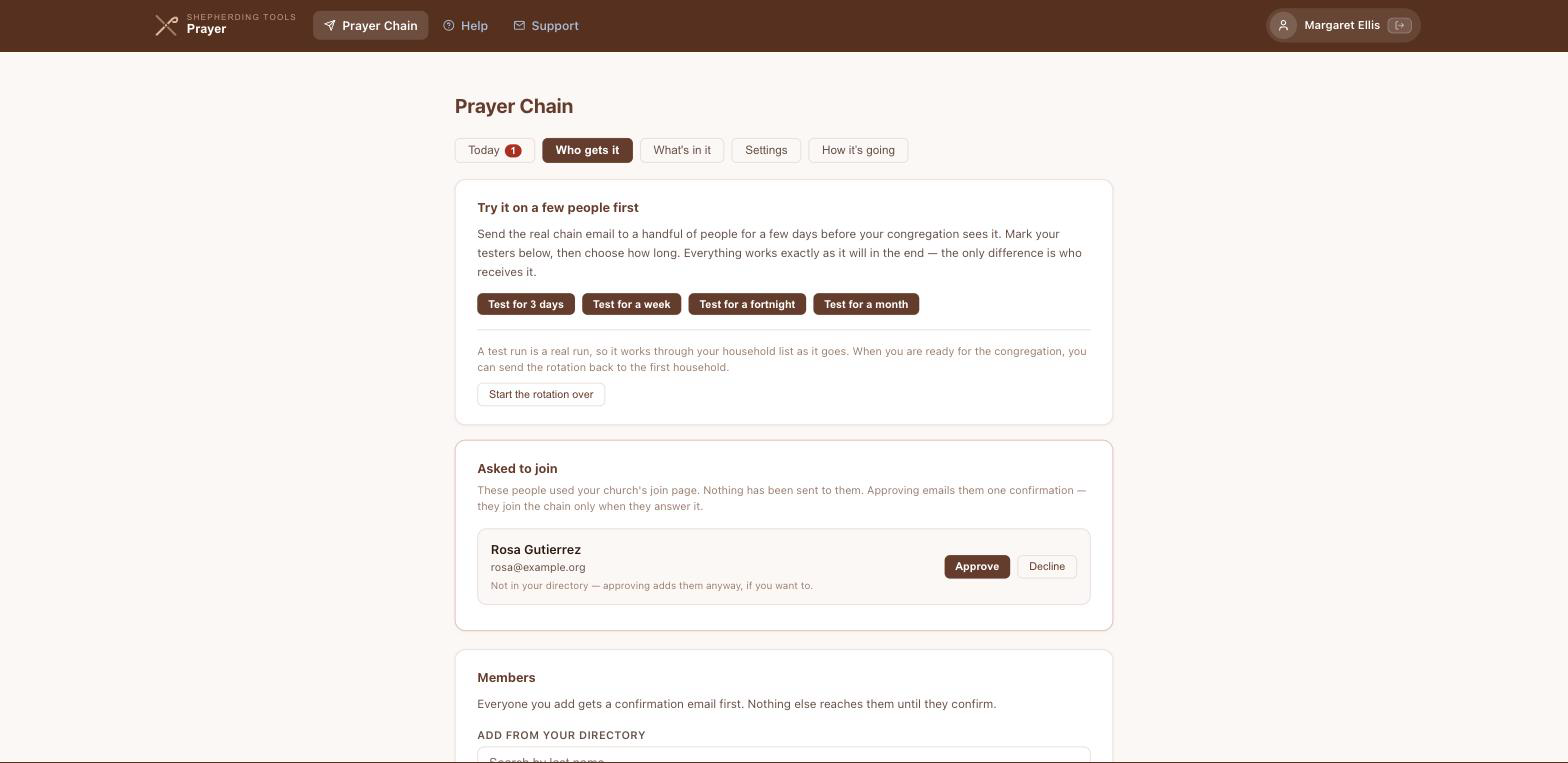
- Open Prayer Chain → Who gets it tab.
- Type a last name under Add from your directory, then click Add next to the person.
- If they have no email on file, type one first, then click Add.
- To add someone outside the directory, fill Add by name and email and click Add.
- To remove someone, click Remove on their row under On the chain (N).
You'll know it worked when a notice reads "Confirmation email sent to [email]," and the person appears under On the chain (N) with a Pending chip until they confirm. Either way the app emails that person and asks him to confirm, and he receives nothing else until he does. There is no way to switch that off, and that is on purpose. A prayer chain carries real names and real situations to people outside your congregation, and an address that never agreed to be on it is the one thing you cannot take back.
Every email carries an unsubscribe link that belongs to that person alone. Somebody who leaves stays on your list marked as having left, so you can see it happened rather than wondering whether you deleted him by accident.
Choosing what goes out
Three things can go on the chain, and you pick each one by hand.
Household rotation — set up, not designated. Chosen on the Settings tab, not here. The chain works through the church a few families at a time and starts again at the beginning, so a congregation of two hundred is prayed for over weeks rather than in one unreadable email.
A prayer list:
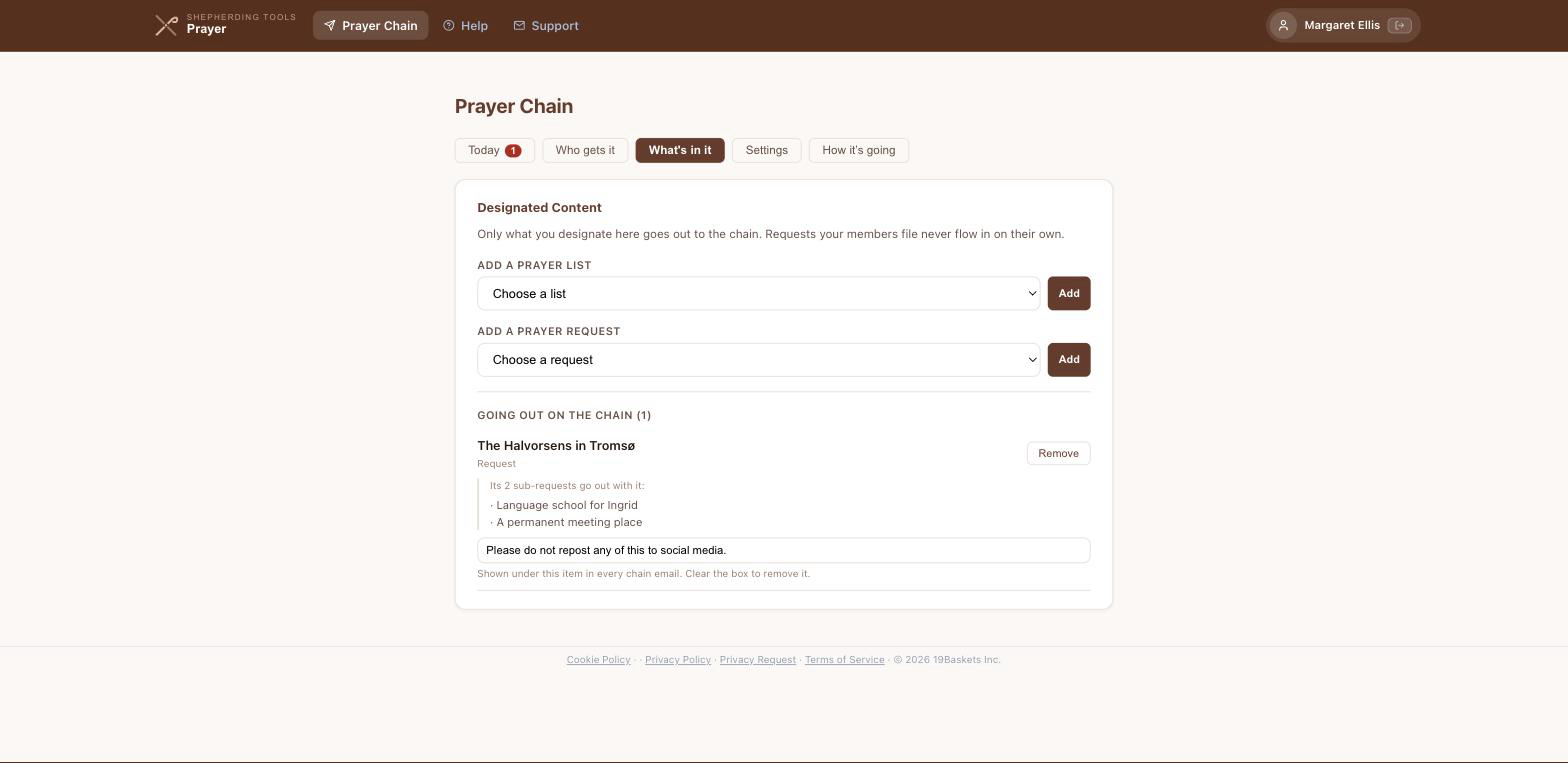
- Open Prayer Chain → What's in it tab.
- Under Add a prayer list, choose a list, click Add.
- Optionally type a number under names per day on that item's row.
The chain sends that many and picks up where it stopped next time. Nobody is dropped; a long list just takes longer.
A single prayer request:
- Same tab, under Add a prayer request, search by title or family name and click Add beside the one you want. Each request shows who it is for and when it was filed.

You choose from the requests you are already allowed to read, which for most chain administrators means the ones shared with the whole congregation. Designating a request sends its sub-requests with it, and the screen lists them underneath so you can see what you are agreeing to. When a request on the chain is marked answered or archived, it stops going out, and Going out on the chain says so. Restore the request and it goes out again.
Either kind — a note that travels with every send:
- Type text in the box under the item, e.g. "Add a note that goes out with this every time."
You'll know it worked when the item appears under Going out on the chain (N), and for a designated request, any active sub-requests are listed beneath it. It was built for missionaries who ask that a particular sentence go out with every update about them, and it stays attached until you remove it.
Trying it before your congregation sees it
Turning test mode on:
- Open Prayer Chain → Who gets it tab.
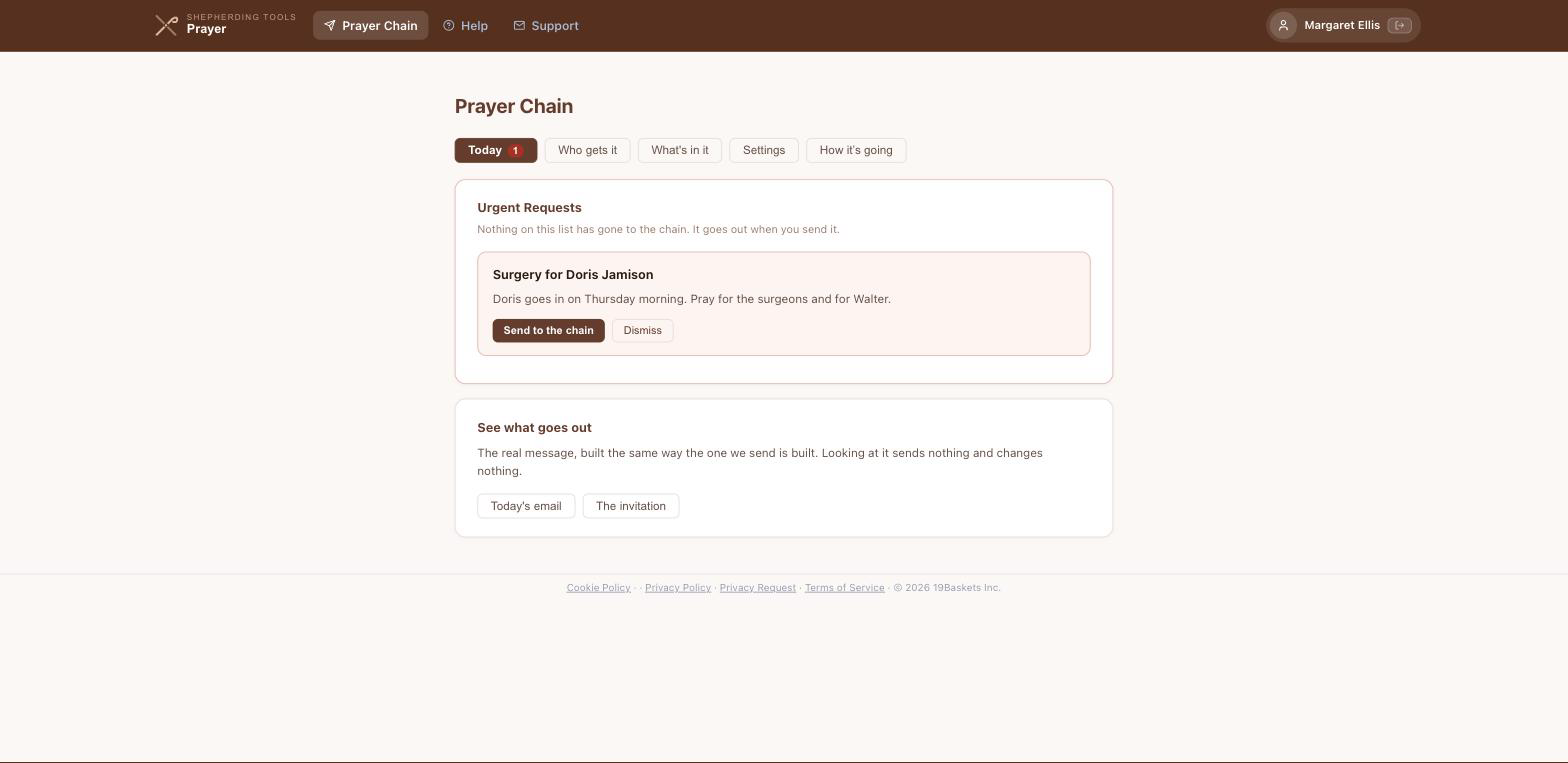
- Click Test for 3 days, a week, a fortnight, or a month.
Marking a tester:
- On a member's row under On the chain (N), tick tester.
Ending it early or changing the date:
- Change the Ends date, or click End the test now.
You'll know it worked when a yellow banner appears on every tab reading "Test mode. The chain is going only to the people marked as testers, until [date]." Every message also says TEST in the subject line so a tester never mistakes one for the real thing. When the date passes, the chain starts sending to everyone, which is what ending a test means.
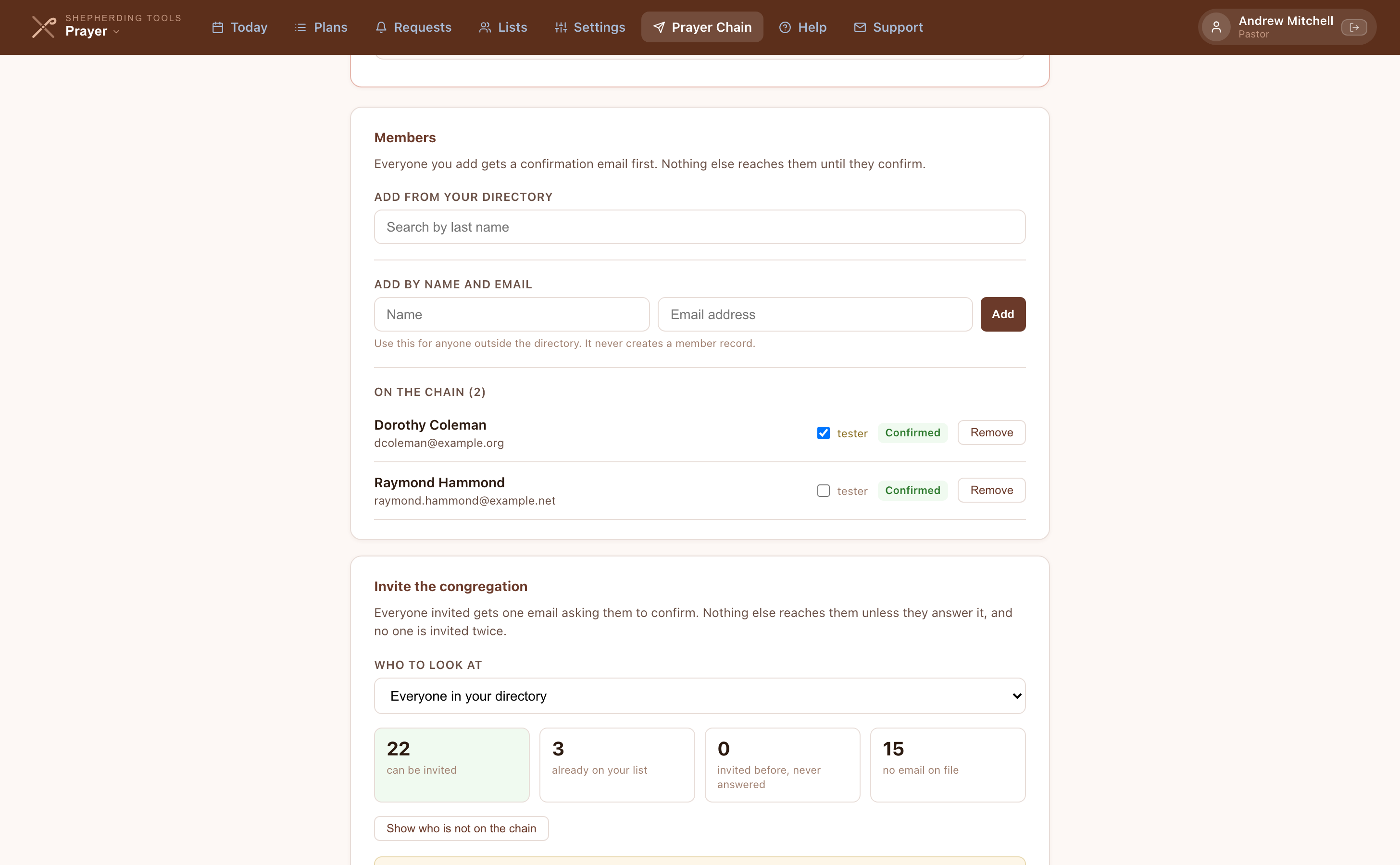
A tester still has to confirm. If you turn on test mode and nothing arrives, that is almost always why: flagging someone as a tester does not put him on the list.
A test run is a real run, so it walks the household rotation forward. When you are finished testing, Start the rotation over begins it again at the first family.
Seeing What Goes Out Before It Sends
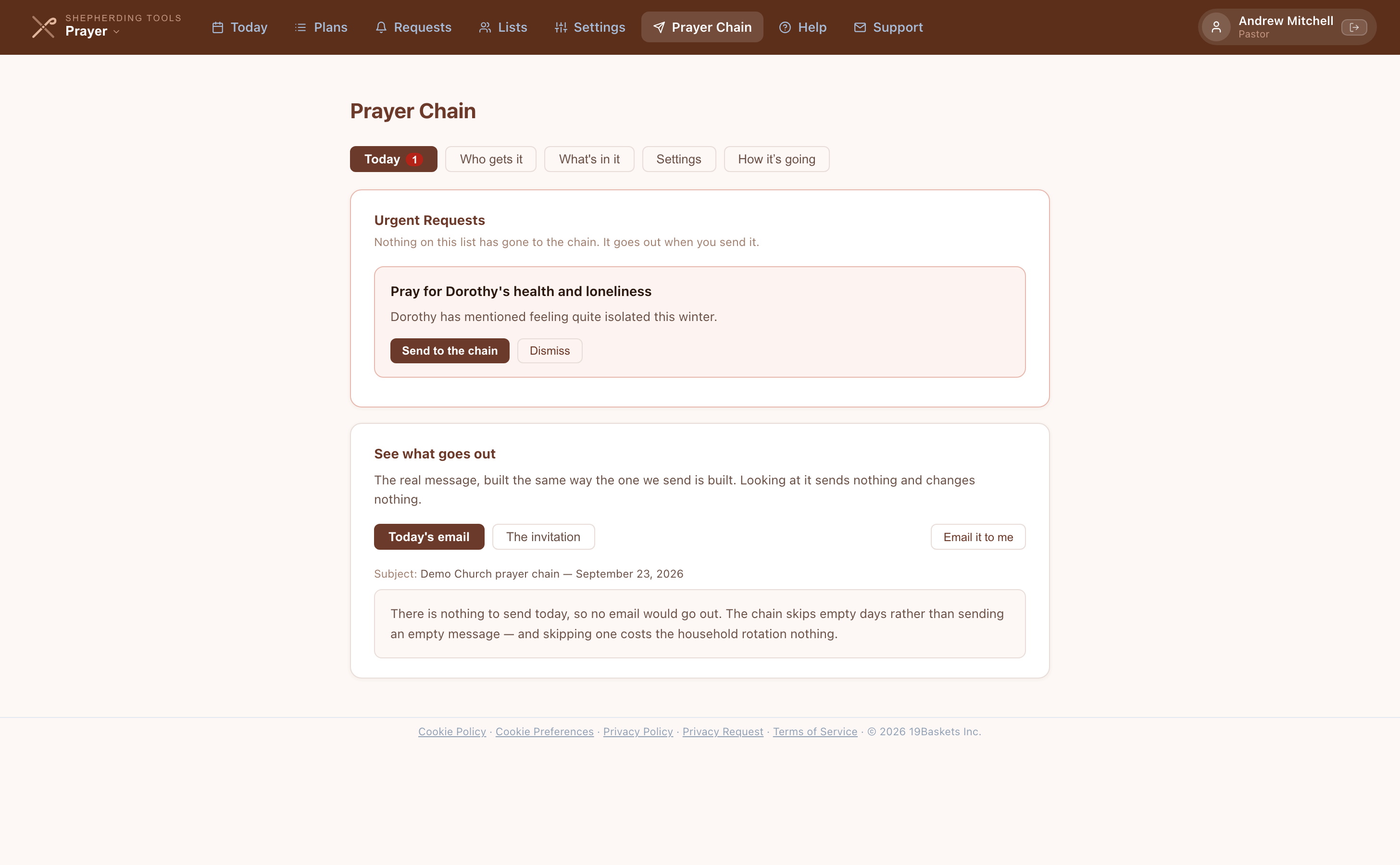
- Open Prayer Chain → Today tab.
- Under See what goes out, click Today's email or The invitation.
- Click Email it to me to send yourself a copy marked as a preview.
You'll know it worked when the real message renders in a frame below the buttons (or "There is nothing to send today" if the day is empty). Looking at it sends nothing and changes nothing.
Inviting the congregation
- Open Prayer Chain → Who gets it tab, scroll to Invite the congregation.
- Optionally choose a list under Who to look at, otherwise it counts your whole directory.
- Review the counts: can be invited, already on your list, invited before, never answered, no email on file.
- Optionally click Show who is not on the chain to see names.
- Type your church's exact name under Type your church's name to send.
- Click Invite N households.
You'll know it worked when a notice reads "Invited N." Each invited person gets one confirmation email and nothing more until they answer it. You have to type your church's name to confirm, it can only be done once a day, and running it twice invites nobody twice.
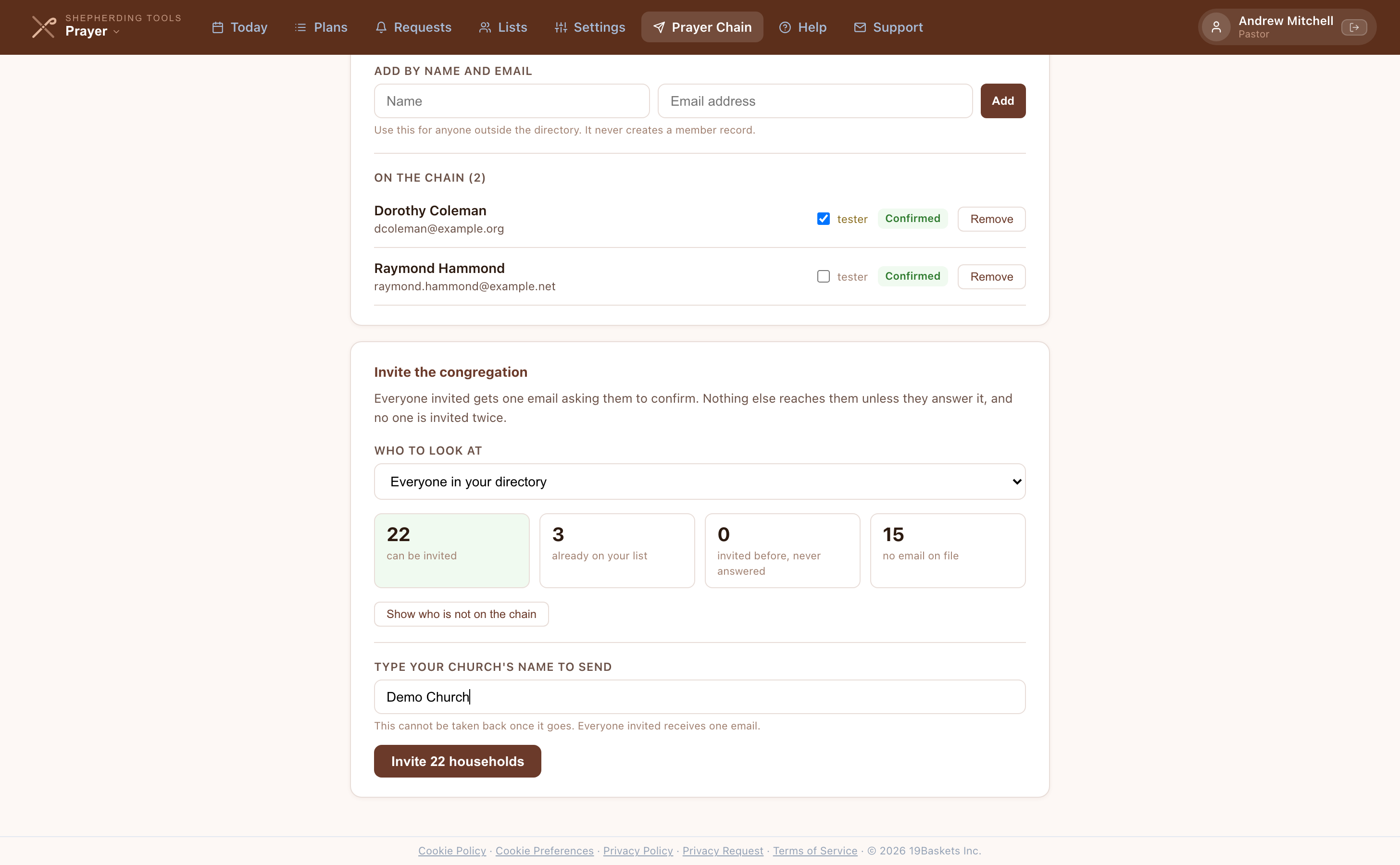
Refused while test mode is on — the button is replaced by an explanation until you end the test.
Letting people ask to join
Turning the page on:
- Open Prayer Chain → Settings tab.
- Tick Let people ask to join.
- Click Save chain settings.
The shareable address appears under the checkbox once saved. Share it from a bulletin or the pulpit.
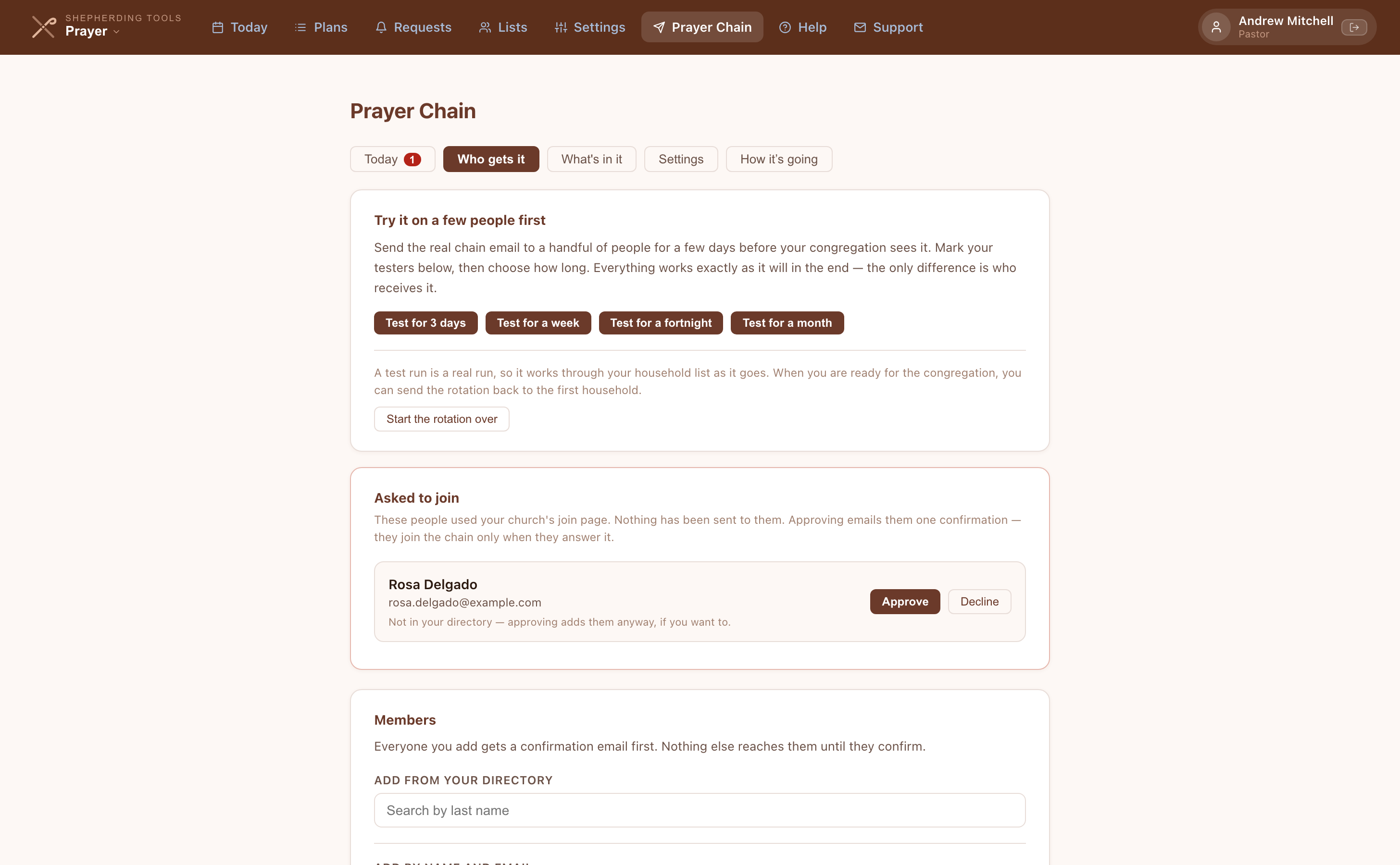
Approving a join request:
- Open Prayer Chain → Who gets it tab; an Asked to join card appears if anyone has used the page.
- Click Approve to email them the standard confirmation, or Decline.
You'll know it worked when approving does not add them to the chain yet — a notice says a confirmation email was sent, and they join only once they answer it. The page tells the person who submitted it nothing about who else is on the list.
Urgent requests
A request marked urgent can go to the chain immediately instead of waiting for tomorrow morning's email, and who marked it decides what happens next.
- Open Prayer Chain — a pending item lands you on the Today tab automatically, and the tab carries a red count badge.
- Under Urgent Requests, read the title and body of the waiting item.
- Click Send to the chain to email it immediately, or Dismiss to drop it with no send.
- Sending asks you to confirm first: "Send "[title]" to the prayer chain now? It goes to [N] people straight away and cannot be taken back. It will also sit at the top of the daily email until the request is answered."
- Dismissing asks a lighter confirm: "Dismiss "[title]"? Nothing goes to the chain. The request itself is untouched."
You'll know it worked when a notice reads "Sent to N people on the chain" (or a partial-failure variant), and the item moves to a "Sent, still going out daily" list showing how long it keeps riding the top of the daily email.
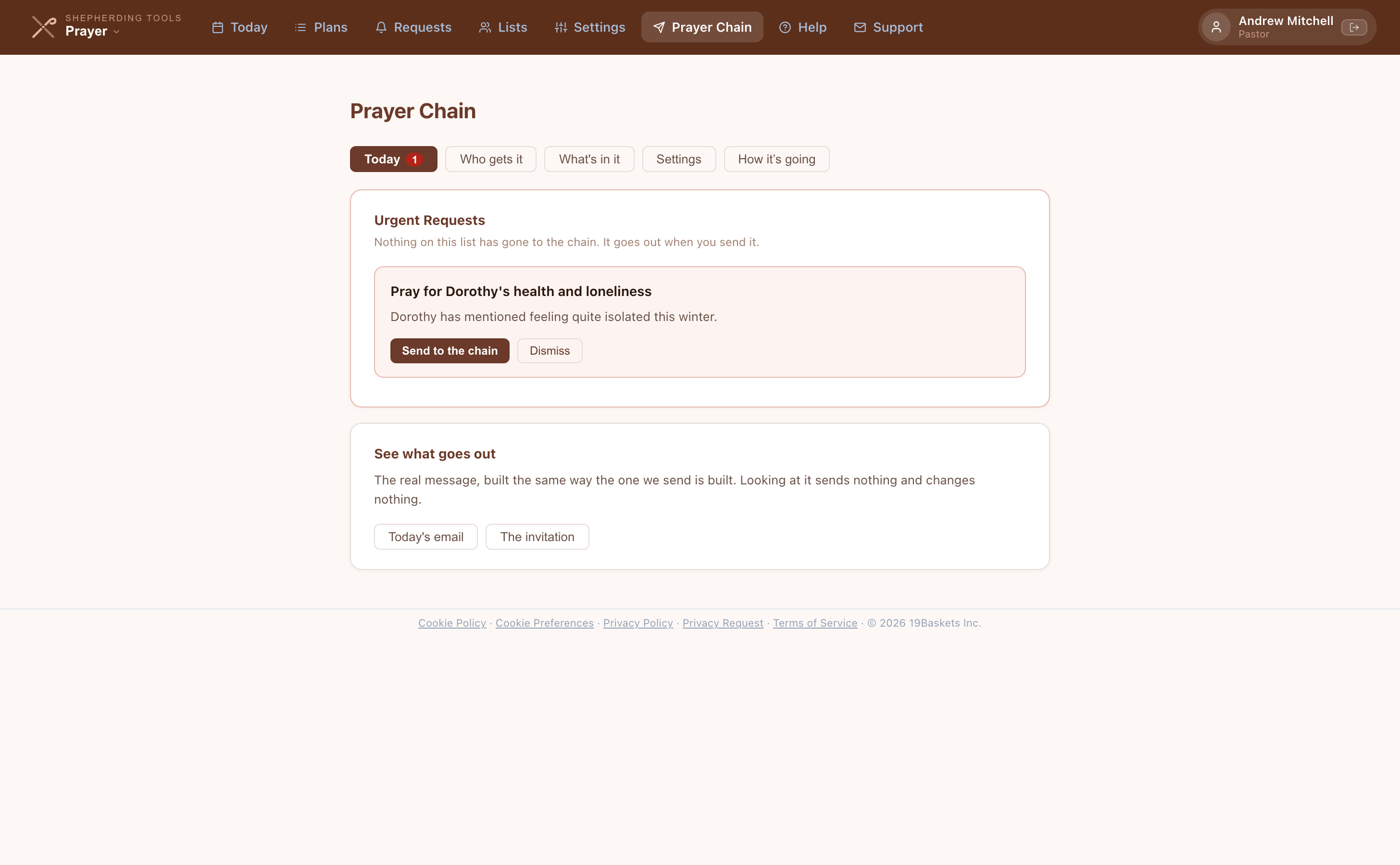
Who marked it urgent decides what happens next:
- A pastor, elder or deacon marks it — it goes out straight away. Your chain administrators are emailed to tell them what was sent.
- Anyone else marks it — nothing is sent yet. Your chain administrators are emailed, and texted if your church uses Connections, and one of them decides whether it goes to the chain. Nothing a member files reaches the chain on its own.
An urgent item keeps riding the top of the daily email for a few days rather than going out once, and stops the moment the request is answered. You choose how many days.
If the fetch itself fails, the card says so explicitly rather than looking empty — "This list could not be loaded... contact support before assuming nothing needs to be sent." An urgent item from a Pastors & Elders or All Officers request is never offered here at all — see the note below.
Only requests shared with the whole congregation are offered to the chain. Marking one urgent that is shared with Pastors & Elders, or with All Officers, raises no chain alert — the chain goes to people outside your church, so those tiers stay inside it. The app tells you on screen when that happens, and you can still put the request on the chain deliberately by designating it.
What you can see, and what you can't
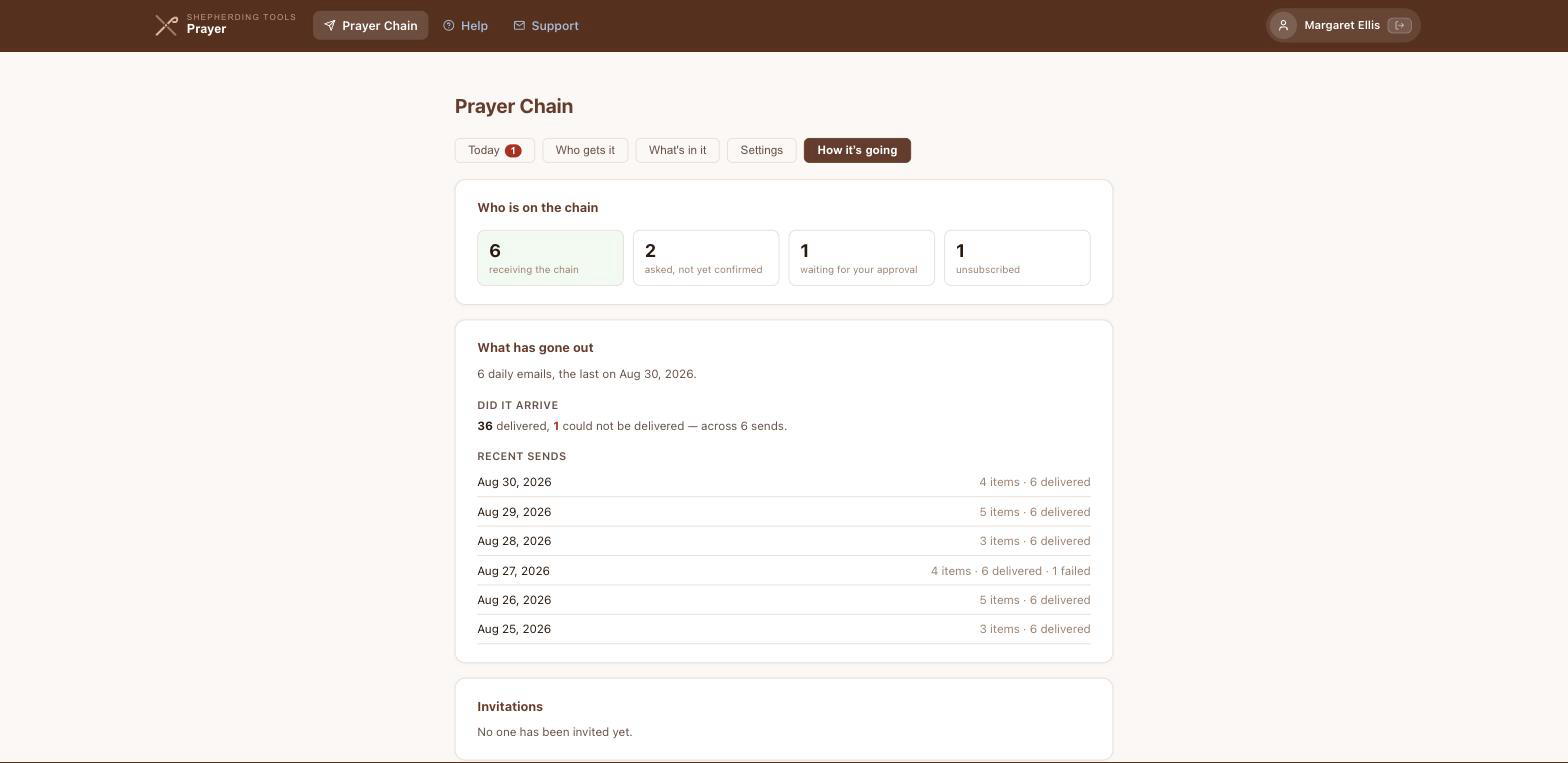
The report shows who is on the list, who never confirmed, who left, what has gone out, how many people each email reached, and who in your directory is not on the chain at all.
It does not show who opened anything. The chain carries no open tracking and no click tracking, and it will not: it goes to people who are not in your app and have not agreed to be measured. We would rather tell you that than show you a number we made up.
If your plan changes
The Prayer Chain is part of a paid plan. If your church moves to a plan that does not include it, the chain stops sending and your administrators are emailed once to say so. Your list, your settings and everything you designated stay exactly where they are, and the chain starts again by itself if the plan is restored. Nothing is deleted.
Tips & Best Practices
- Start with a monthly plan linked to your Tracker district list — it takes 2 minutes to set up and covers your entire flock.
- Link prayer plans to Tracker lists so membership stays in sync automatically — no manual updating needed.
- Use the Urgent flag sparingly — it's most effective when only genuinely critical requests are marked urgent.
- When you pray through Today's list each morning, click Prayed as you go so the app tracks your rhythm and the carry-forward feature works correctly.
- Use prayer request updates to document how situations evolve over time — this becomes a meaningful record of God's provision.
- The Answered tab is worth reviewing periodically in elder meetings as a testimony of answered prayer.
- Set Delivery time to 15–30 minutes before your usual morning prayer time.
- On a shared plan, set Your Pace rather than changing the plan's Frequency — the Frequency card moves everyone.