
Discipleship Documentation
Discipleship is for the long work one man does with another: a plan with stages, books to read, something to do between meetings, and a written record both of them can look back on. It uses the same people and the same sign-in as Tracker. This guide covers what it does today.
Discipleship is in beta. What is described here works, and churches are using it. Two things are worth knowing before you start rather than after. Nothing here notifies anybody: no email goes out when a disciple logs his reading or when a mentor leaves a comment, so the two of you still talk to each other. And almost nothing can be deleted once it is saved. A plan, a journal entry, a meeting, an activity log and a book all stay. Both are covered below in full. Beta means the shape of the product can still change. It does not mean anything you write is at risk.
How do I…?
Getting Started
Plans
Activities
Journal
Who Can See What
Getting Started
Tracker watches a whole congregation. Discipleship is narrow on purpose: one mentor, one or two disciples, one plan that runs for months. The people come out of the same church directory, so nobody is typed in twice.
Sign in
Go to shepherdingtools.com/discipleship and sign in with the same email and password you use for Tracker. Every Shepherding Tools app shares one login.
Turn Discipleship on for a person
Discipleship is included in every plan, the free one included. A brand-new login account gets it automatically, with nobody ticking anything. The steps below are for an older account, or one whose access was later turned off.
- In Tracker, go to Admin > Users.
- Click Edit beside the person's name to open his record.
- Under App Access, tick Discipleship.
- Click Save.

You'll know it worked when: nothing confirms it beyond the form closing. Reopen his record and check the box is still ticked.
- A member with no login account cannot use Discipleship. Give him login access in Tracker first, then set his app access.
- The App Access block only appears on an account that already exists. Create the account and save it, then reopen it to tick the box.
There is no administrator role inside Discipleship, and no settings screen. What you can do is decided entirely by the plans you are on.
What your disciple sees the first time he signs in
- He goes to shepherdingtools.com/discipleship and signs in with the email and password already set up for him in Tracker. There is no separate signup here.
- If nobody at your church has recorded his acceptance of the Terms of Service yet, an overlay covers the screen first: Terms of Service & Privacy Policy, one checkbox, then Agree & Continue. This is a one-time gate, not specific to Discipleship.
- He lands on the Dashboard. If you added him to a plan when you created it, he sees it under Active Plans. If not, the page just says "No active plans yet." with buttons to + New Plan and Journal — both work even before he is on any plan.
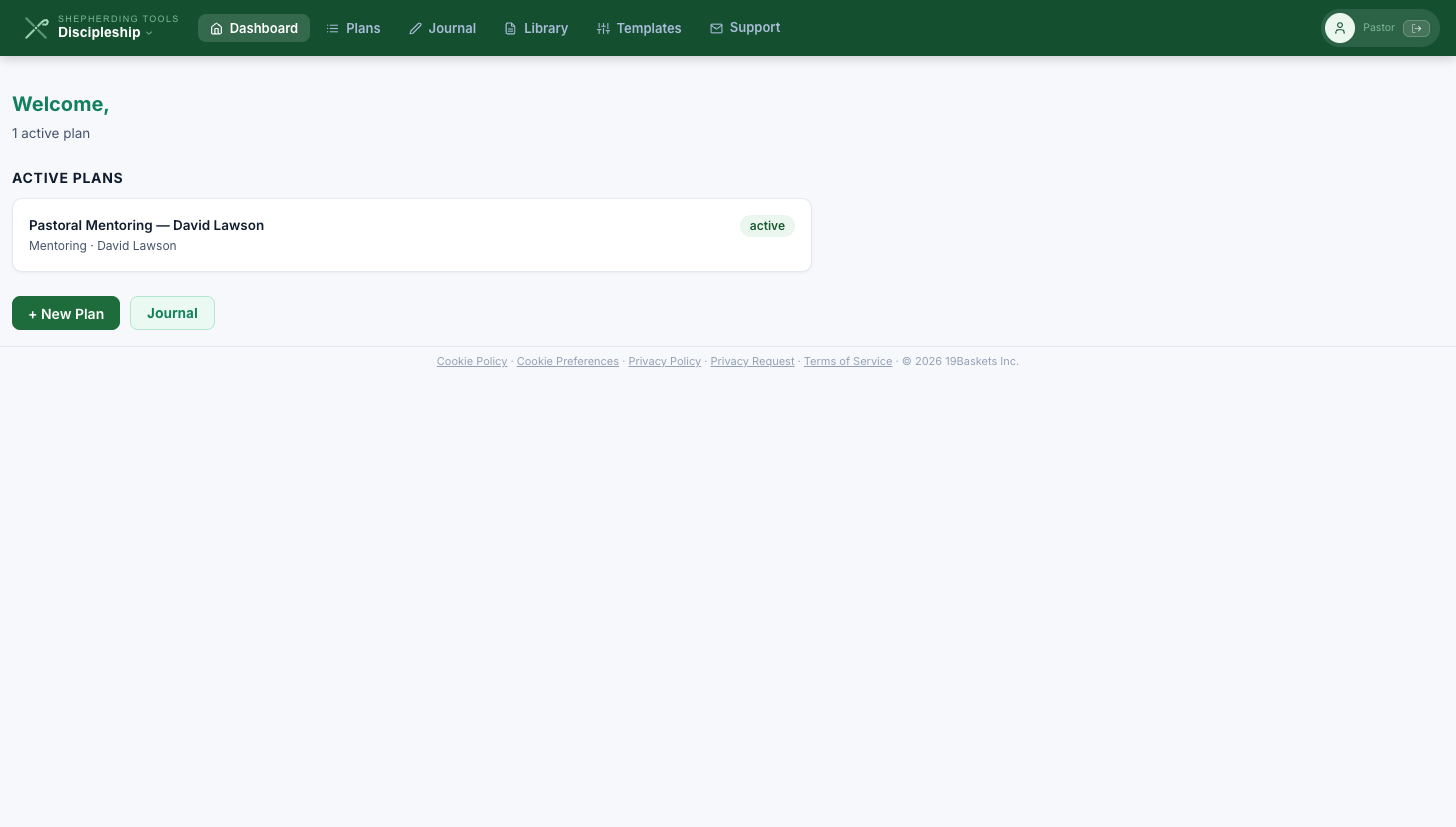
You'll know it worked when: a Welcome line at the top has his name on it, and, if a mentor already built his plan, that plan's card underneath.
A disciple who signs in before any plan exists sees the same "No active plans yet." screen as someone who was never added to anything — nothing on screen tells those two cases apart. Tell him what to expect before he signs in.
Find your way around
The top bar holds five places, plus two links: Help and Support.
- Dashboard — your active plans, and buttons through to Plans and Journal. It is a short page.
- Plans — every plan you are on, grouped under Active, Paused and Complete.
- Journal — everything you have written, in one list.
- Library — the books your church has added.
- Templates — plan outlines you can start a new plan from.
- Help — opens this documentation page in a new tab.
On a phone the same five sit behind the menu button, with Help and Support beneath them. Support opens our contact form in a new tab.
Set up, in order
The pieces depend on each other, so do them in this order:
- Add the books you plan to assign to the Library.
- Build a template, if several people will work through the same outline. Skip this for a one-off.
- Create the plan and add the disciple on the same form.
- Add milestones, assign activities, assign books.
- Add the first meeting.
Add your disciples when you create the plan. There is no way to add somebody to a plan afterwards, and no way to take somebody off one. Decide who is on it before you click Create Plan. A plan with the wrong people on it has to be replaced rather than corrected.
1. Plans
A plan is one piece of work between a mentor and one or more disciples. Milestones, goals, activities, meetings and books all hang off it. The Plans page groups them by status: Active first, then Paused, then Complete. A group with nothing in it is left out, so a church whose plans are all active sees one heading and nothing else.
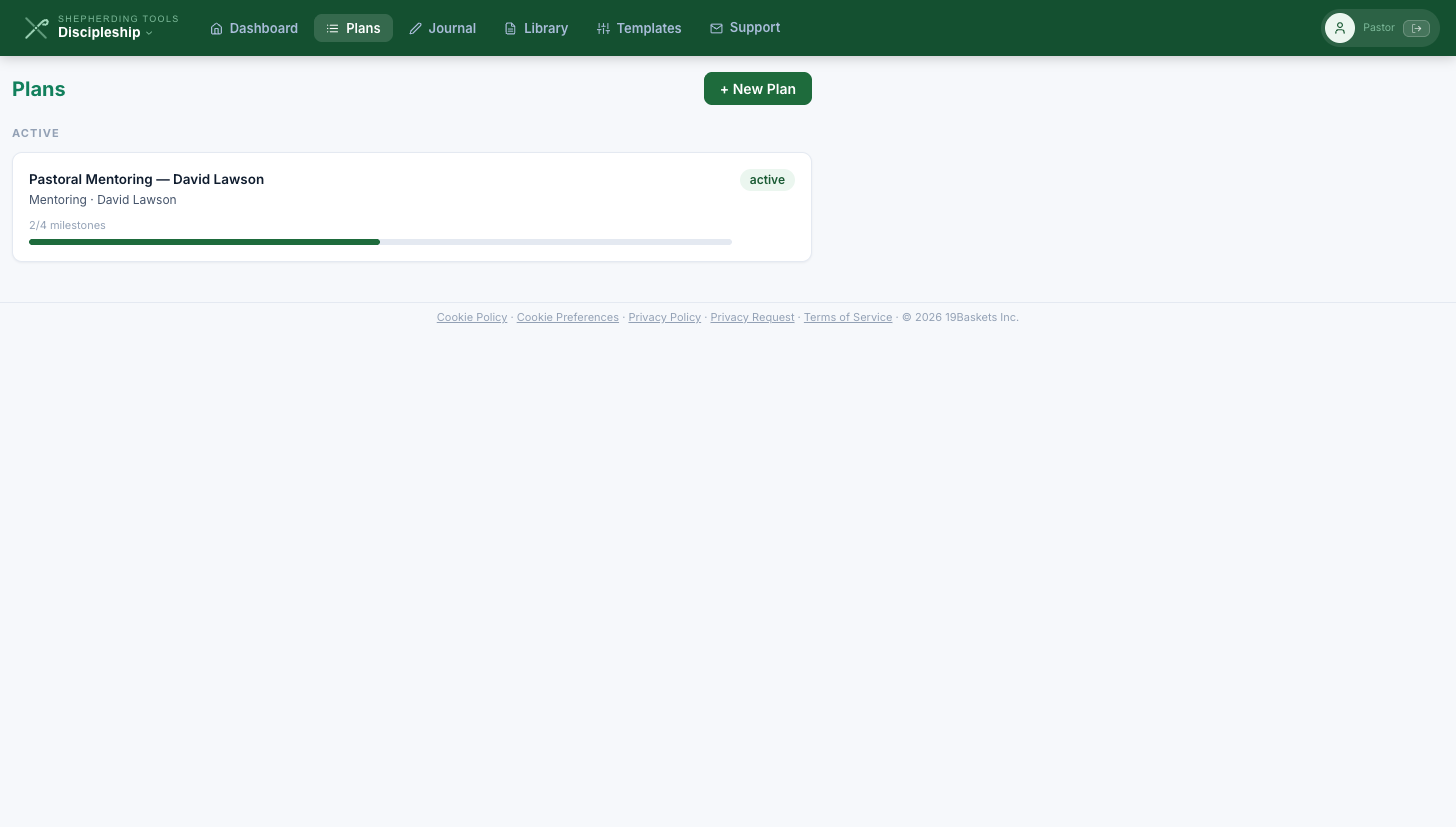
Start a plan, from scratch or from a template
- Click Plans, then + New Plan.
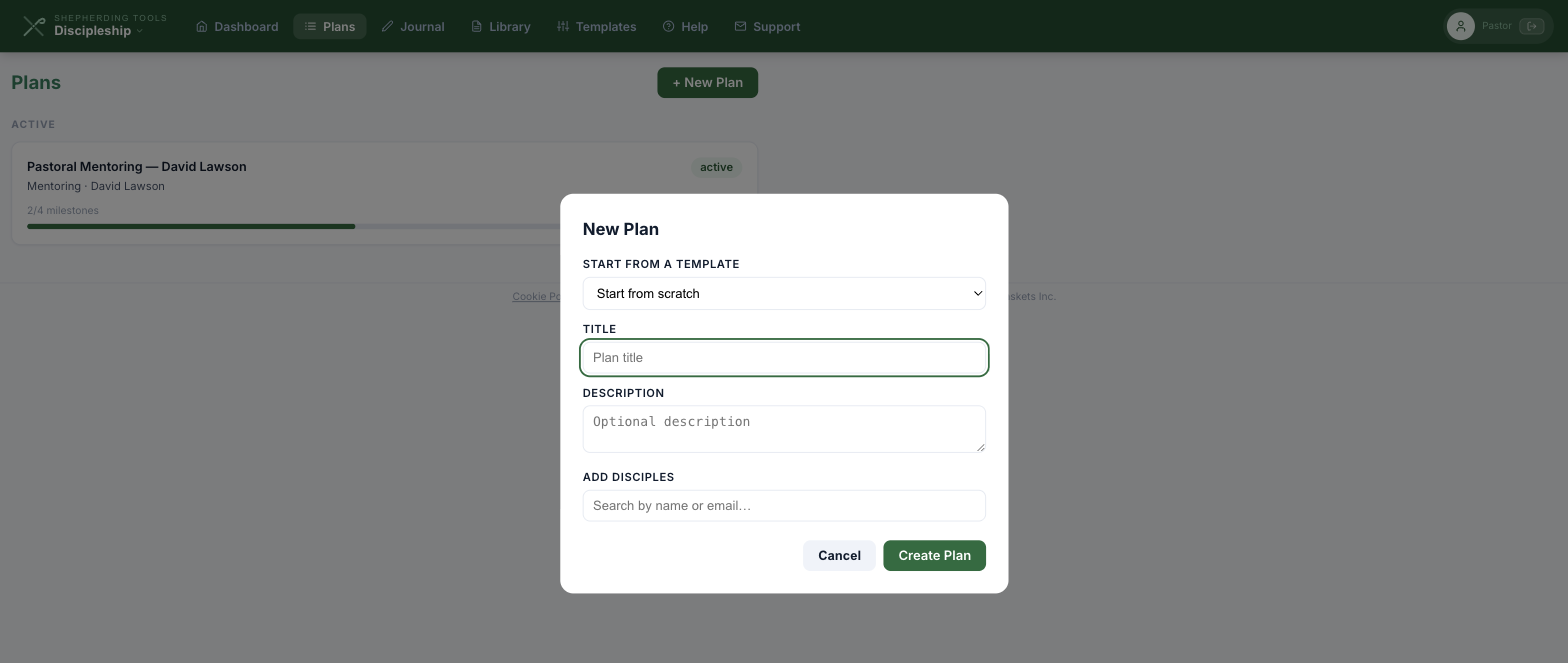
- Optional — pick Start from a template. Doing so fills in Title and Description for you (both stay editable) and shows a one-line summary of what it will copy in, for example "3 milestones · 2 activities copied into this plan." Leave it on Start from scratch to build with nothing.
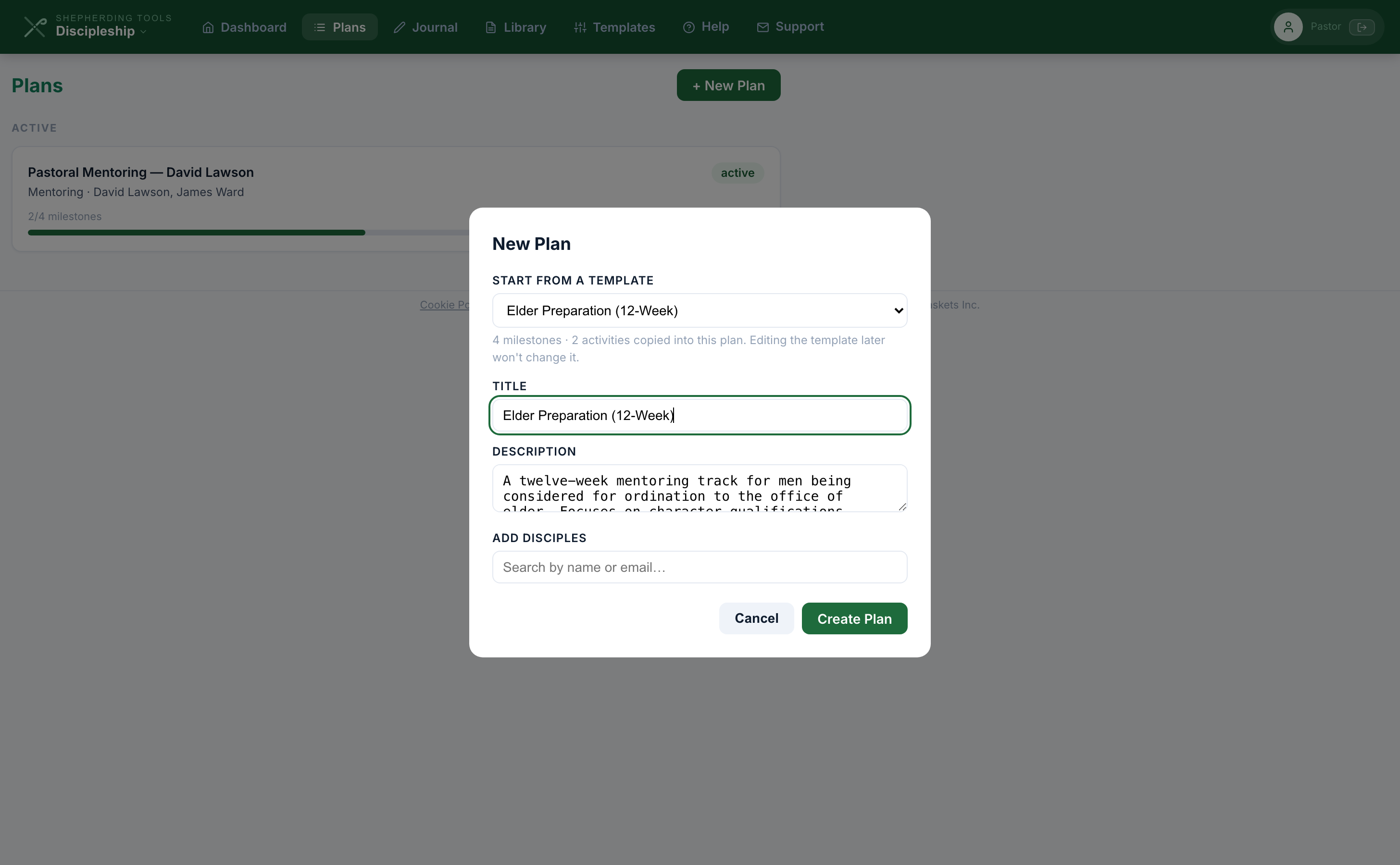
- Fill or confirm Title (required) and Description.
- Search and click to add each person under Add Disciples. Every active member of your church directory is searchable here, whether or not he has a login — add him anyway if he'll get one before he needs to see the plan.
- Click Create Plan.
You'll know it worked when: the modal closes and the new plan appears under Active on the Plans page.
There is no way to add or remove a disciple after this screen. Decide who is on the plan before you click Create Plan.
Mentors and disciples
Whoever creates the plan is its mentor. Everyone he adds is a disciple. The two roles do different jobs, and neither can do the other's.
- The mentor adds and ticks off milestones, assigns activities and books, adds meetings, comments on what a disciple shares, and has a fourth tab called Shared with me.
- A disciple writes his own goals, logs activities, writes journal entries, and keeps his own private notes on a meeting.
A mentor cannot write a goal for his disciple, and a disciple cannot tick a milestone. That is deliberate on both sides.
Visible to church leadership
The New Plan form used to carry a Visible to church leadership box. Ticking it recorded an answer that nothing ever read, so we removed it rather than leave a control that looked like it did something. No screen anywhere shows a plan to somebody who is not on it, so a plan is visible to its own mentor and disciples and to nobody else.
Rename a plan, or pause or complete it
- Open the plan. Click Edit beside the title (mentor-only).
- Change the title, and/or pick Active, Paused, or Complete from the status dropdown.
- Click Save.
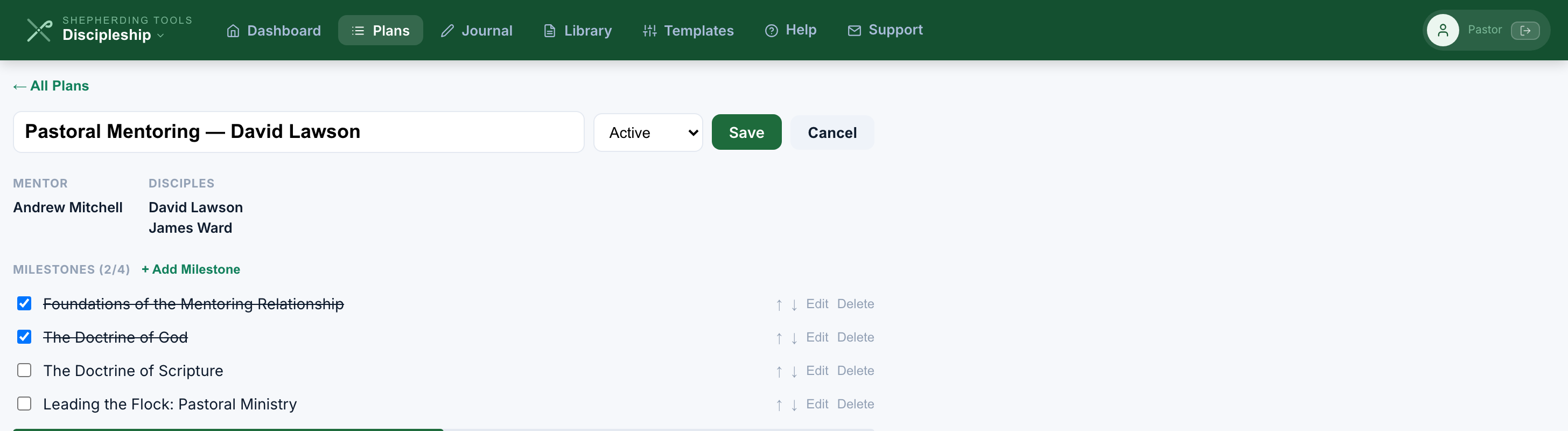
You'll know it worked when: the header shows the new title and a status badge, and the plan moves to the matching group — Active, Paused or Complete — on the Plans list.
A plan cannot be deleted. Mark it Complete when it is finished, or Paused if it has stalled and you expect to pick it up again.
Add, reorder and complete milestones
Milestones are the stages a plan works through, in order. They sit above the tabs with a count and a bar, like MILESTONES (2/4).
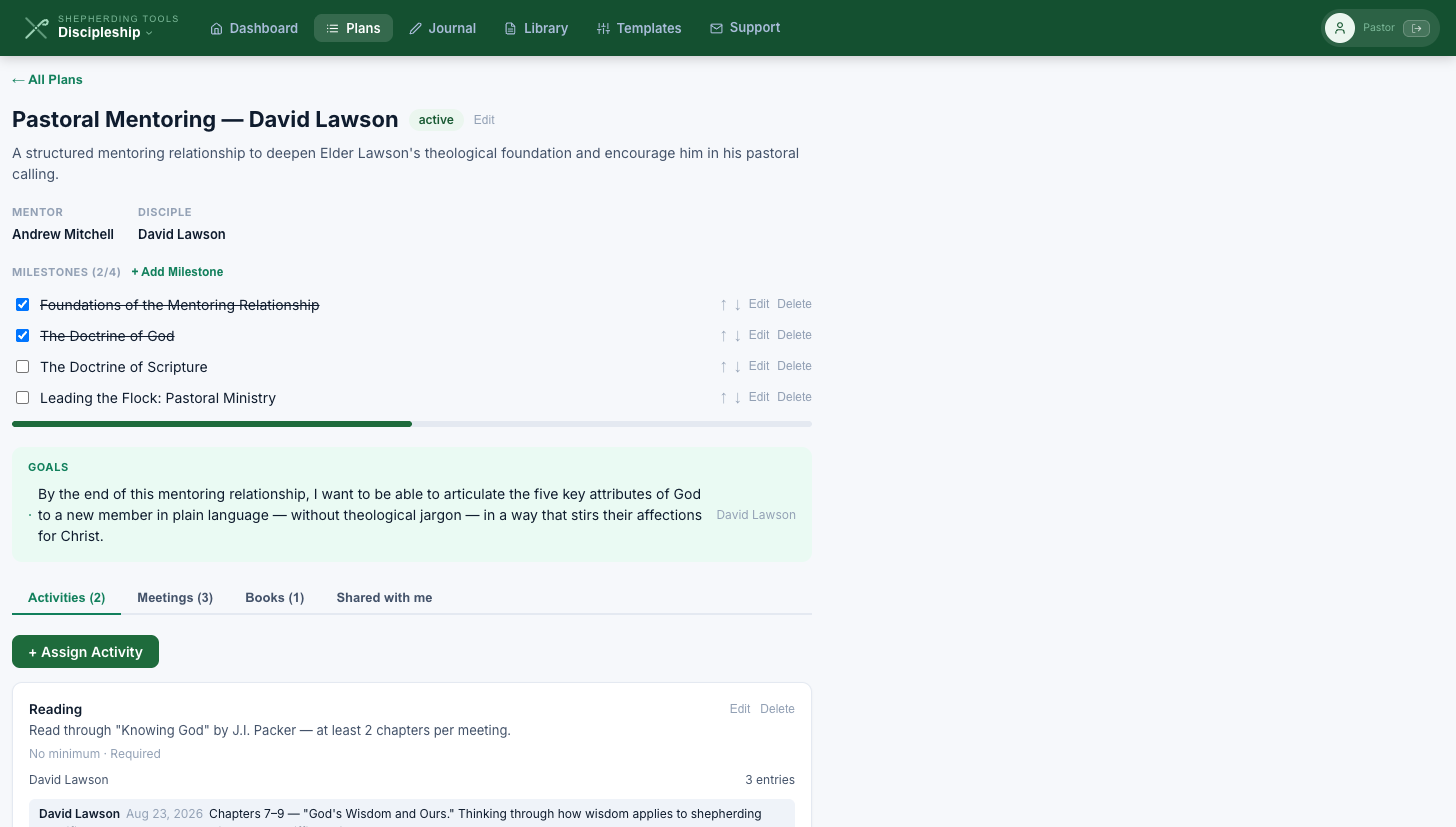
Adding one:
- Open the plan. Under MILESTONES, click + Add Milestone (mentor-only).
- Type the title and click Add.
Marking one complete:
- Tick the checkbox beside its title. A disciple sees the checkbox, but it is disabled — only a mentor can tick it.
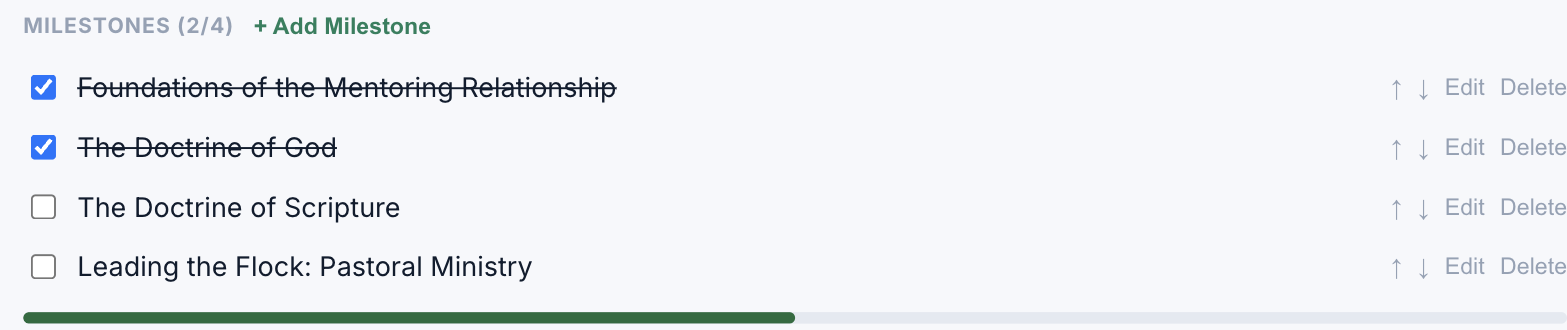
You'll know it worked when: the title gets a strikethrough, the count in the header ticks up, and the bar underneath fills.
↑/↓ reorder, Edit (rename) and Delete are mentor-only and sit beside every row. A disciple sees the list and the bar and nothing else — no add, edit or reorder controls render for him at all.
Add a goal
- Open the plan. In the green Goals box, click + Add Goal (disciple-only — a mentor never sees this button).
- Type what you want to work on and click Add.
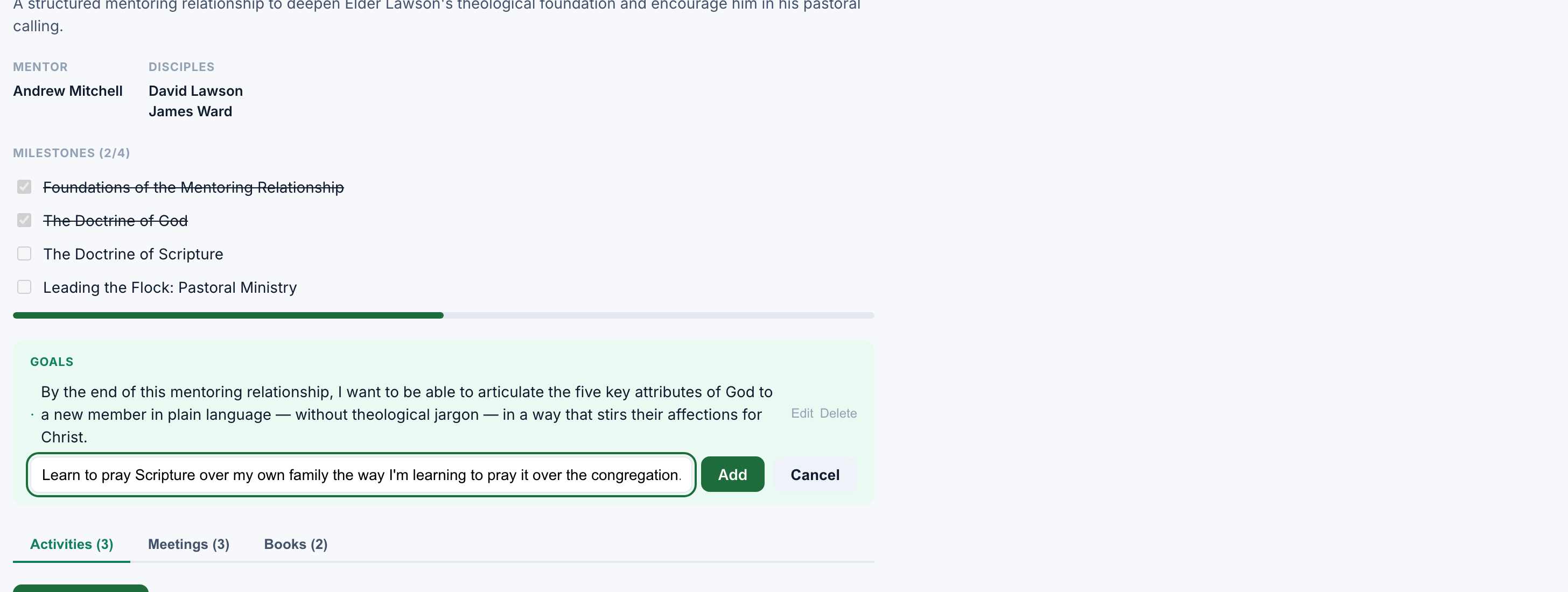
You'll know it worked when: the goal appears in the list with a bullet. On a plan with more than one disciple, a mentor sees whose goal it is beside it.
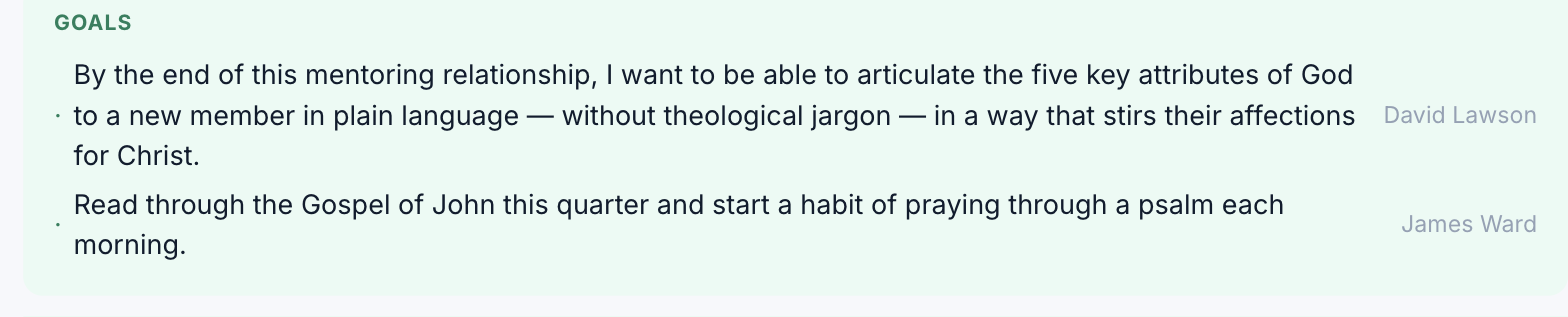
No hint on screen says who reads a goal — it is, in fact, shared with your mentor and not with other disciples on the plan, the same as the journal's shared box. Only the disciple who wrote a goal can edit or delete it.
2. Activities
An activity is something a disciple does again and again and records each time: reading, memory work, prayer, service. The mentor assigns it once. The disciple logs it as often as he does it.
Assign an activity
The picker starts from seven built-in types: Reading, Scripture Memory, Prayer, Journaling, Book Study, Service and Report. There is no way to add your own from any screen, so what you see is what you have.
- Open the plan, stay on the Activities tab, and click + Assign Activity (mentor-only).
- Pick the Activity type.
- Write the Description — what you actually want done, for example "Read two chapters before each meeting."
- Set Minimum entries, or leave it blank for no minimum. Without one, no progress bar appears.
- Tick Required if it is not optional. It is a label for the two of you — nothing is enforced and nothing is blocked.
- Choose Assign to — everyone on the plan, or people you pick.
- Click Assign Activity.
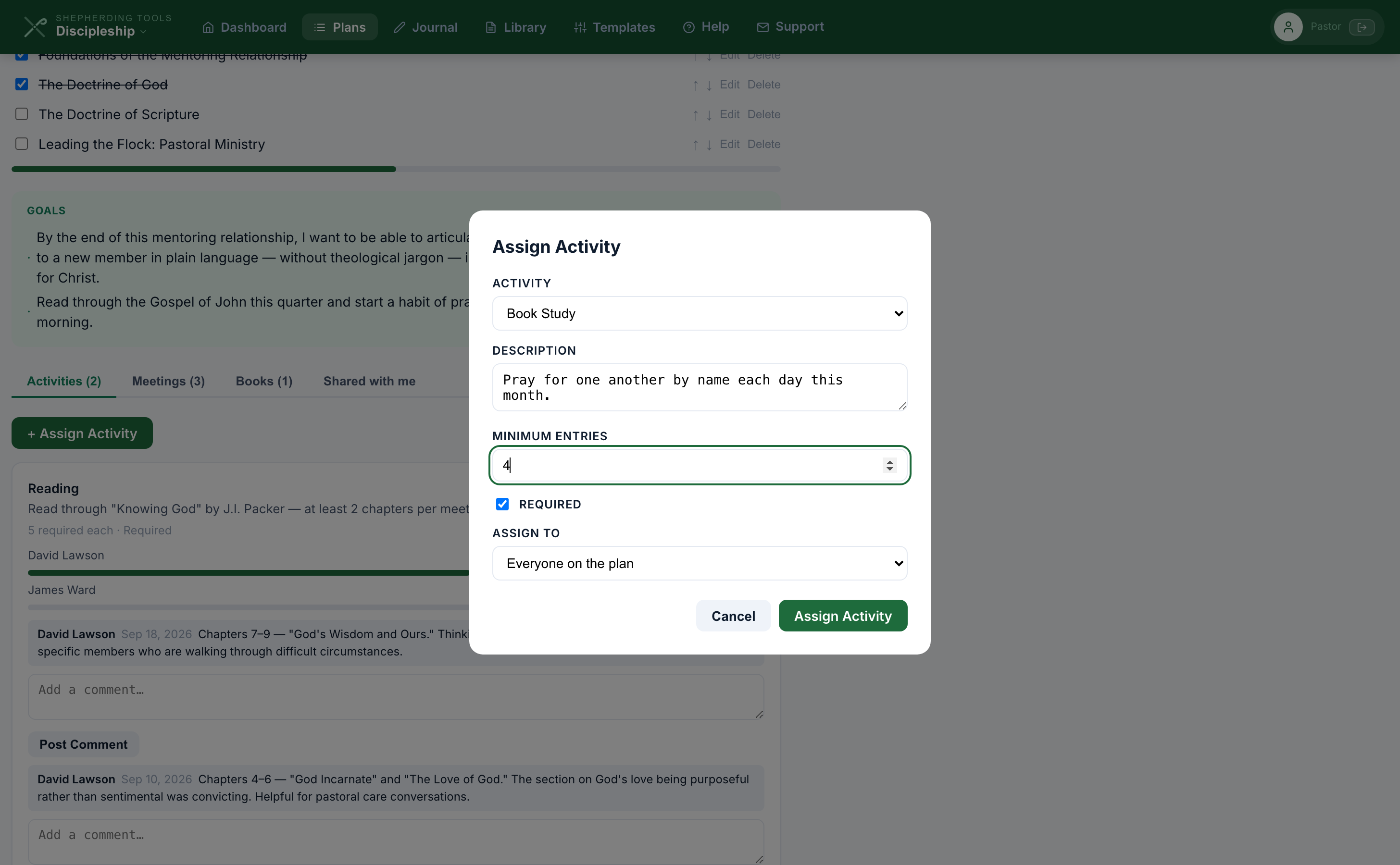
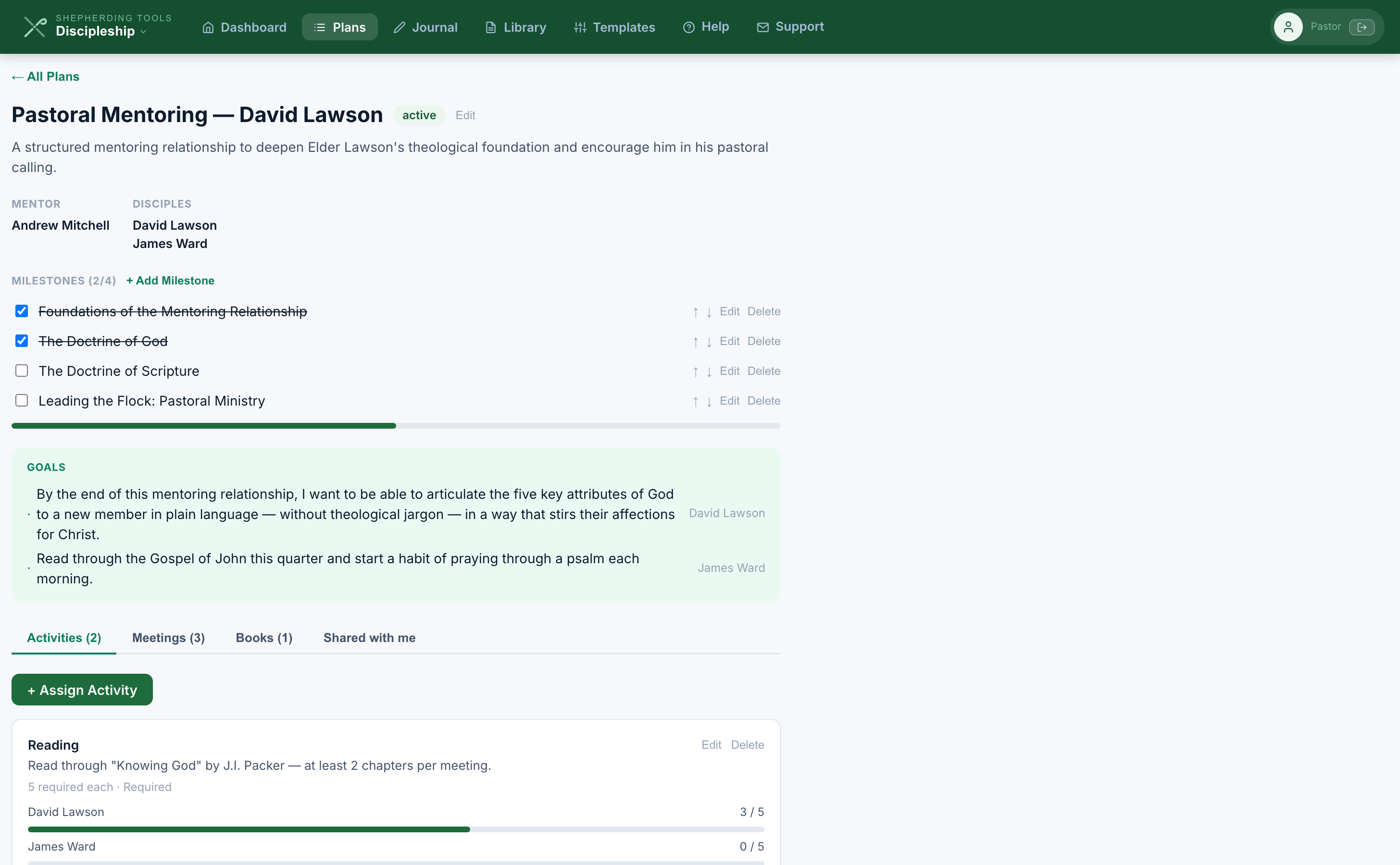
You'll know it worked when: the activity appears on the Activities tab with its description and either "No minimum" or "X required each" beneath it.
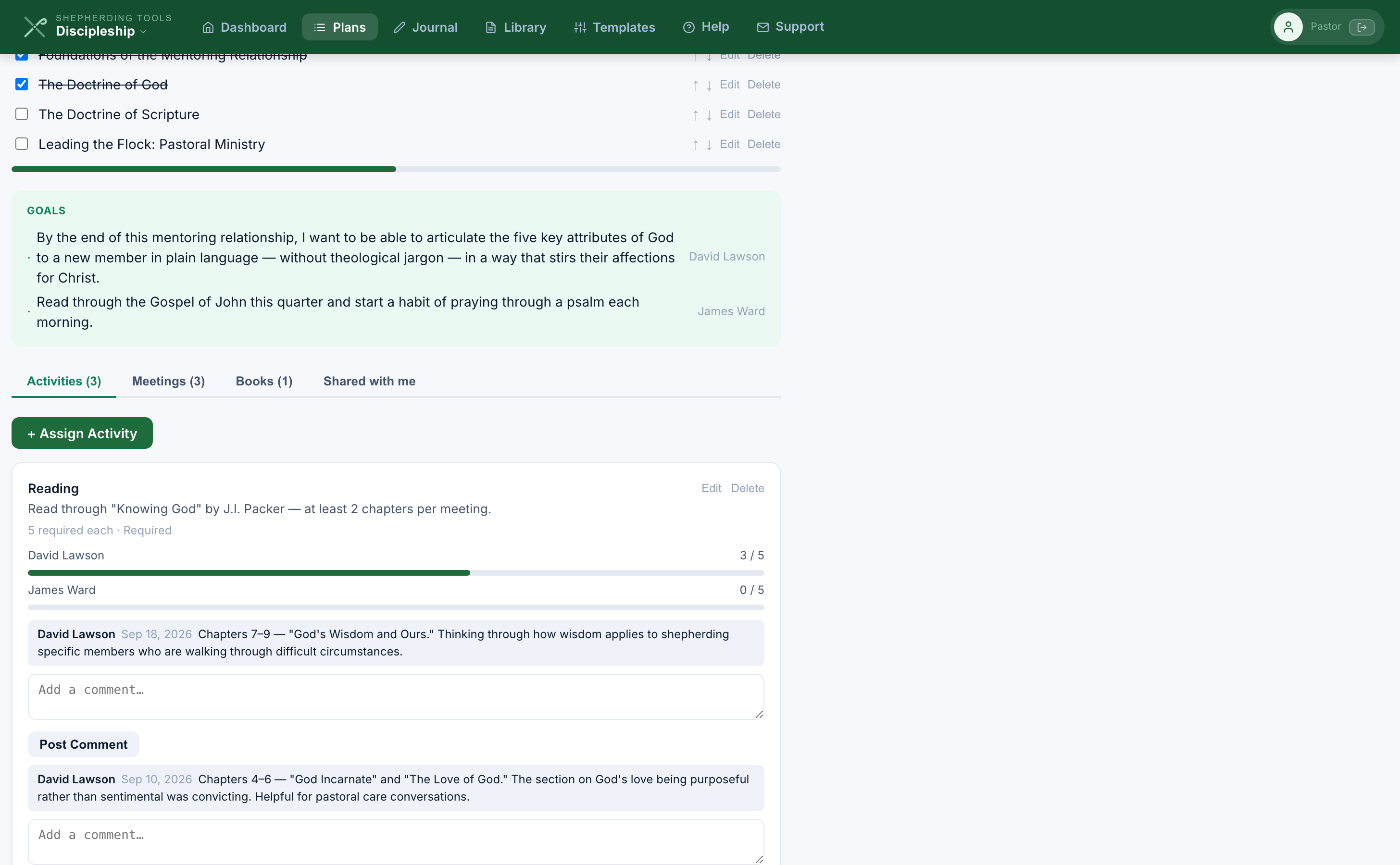
A disciple only ever sees the activities that are actually his.
Log an activity
- Open the plan (Plans → the plan card) and stay on the Activities tab.
- Click + Log Activity. It only shows once something is assigned to you.
- Pick the activity from the dropdown.
- Set the Date — it defaults to today.
- Write in Shared with mentor, in Private notes, or in neither. Both are optional; the hint under the shared box names your mentor.
- Click Log Activity.
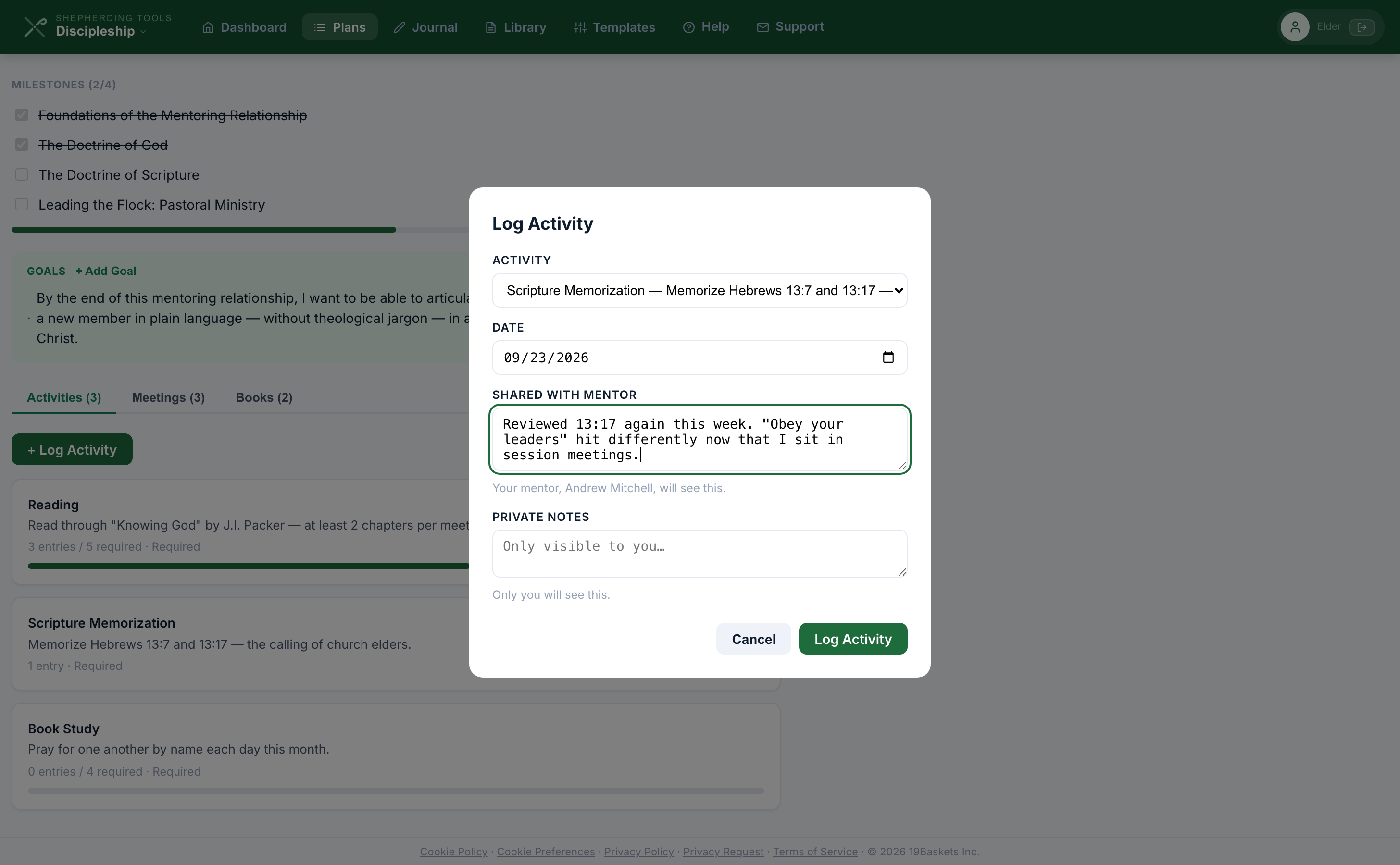
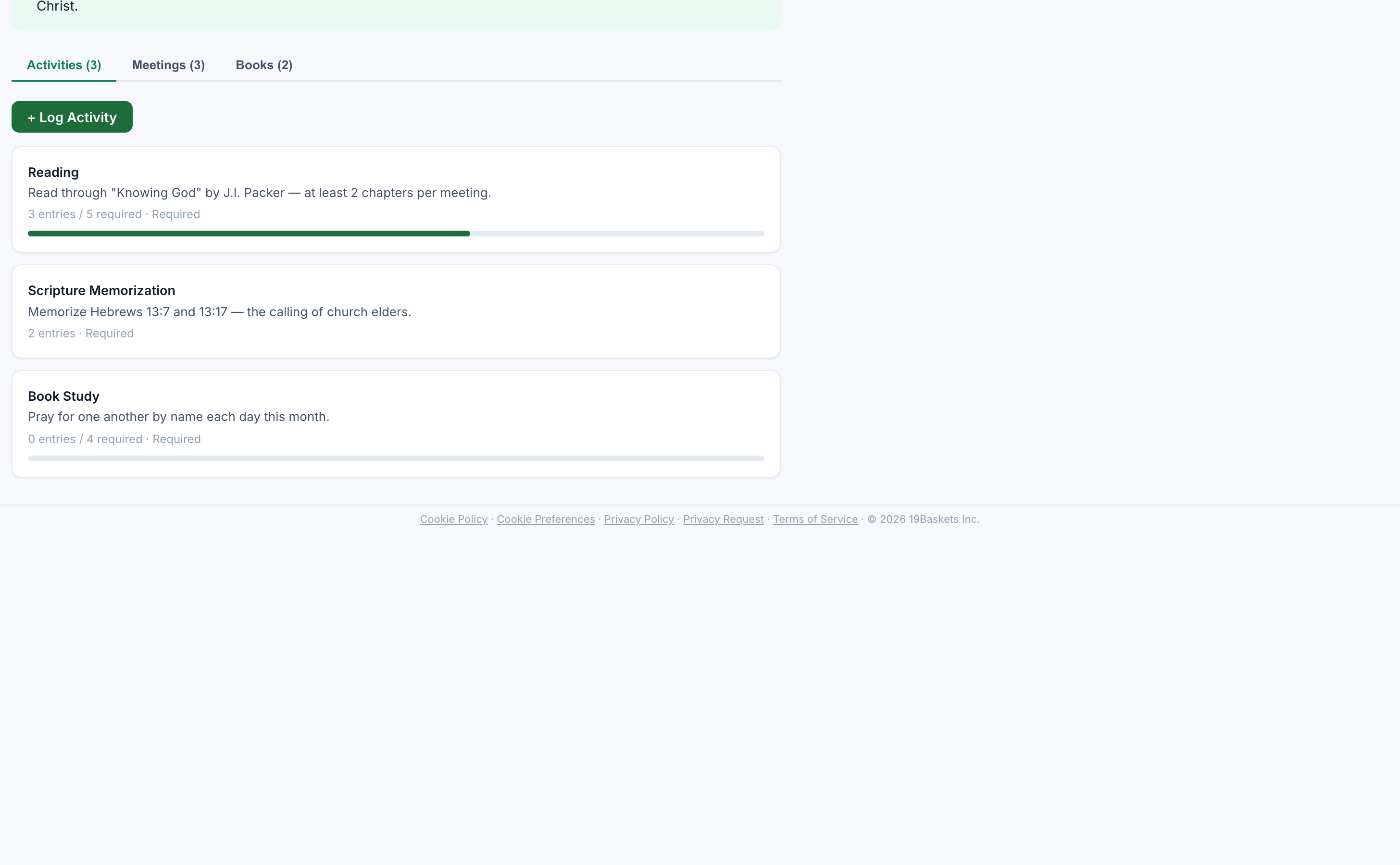
You'll know it worked when: the modal closes, and on the Activities tab your entry count goes up — for example "3 entries / 5 required" — and the progress bar fills accordingly.
An entry cannot be edited or deleted afterwards.
See progress, and comment on it
A mentor commenting on an entry:
- Open the plan → Activities tab. Under an activity with entries, a mentor sees the three most recent.
- Under an entry, type in the comment box.
- Click Post Comment.
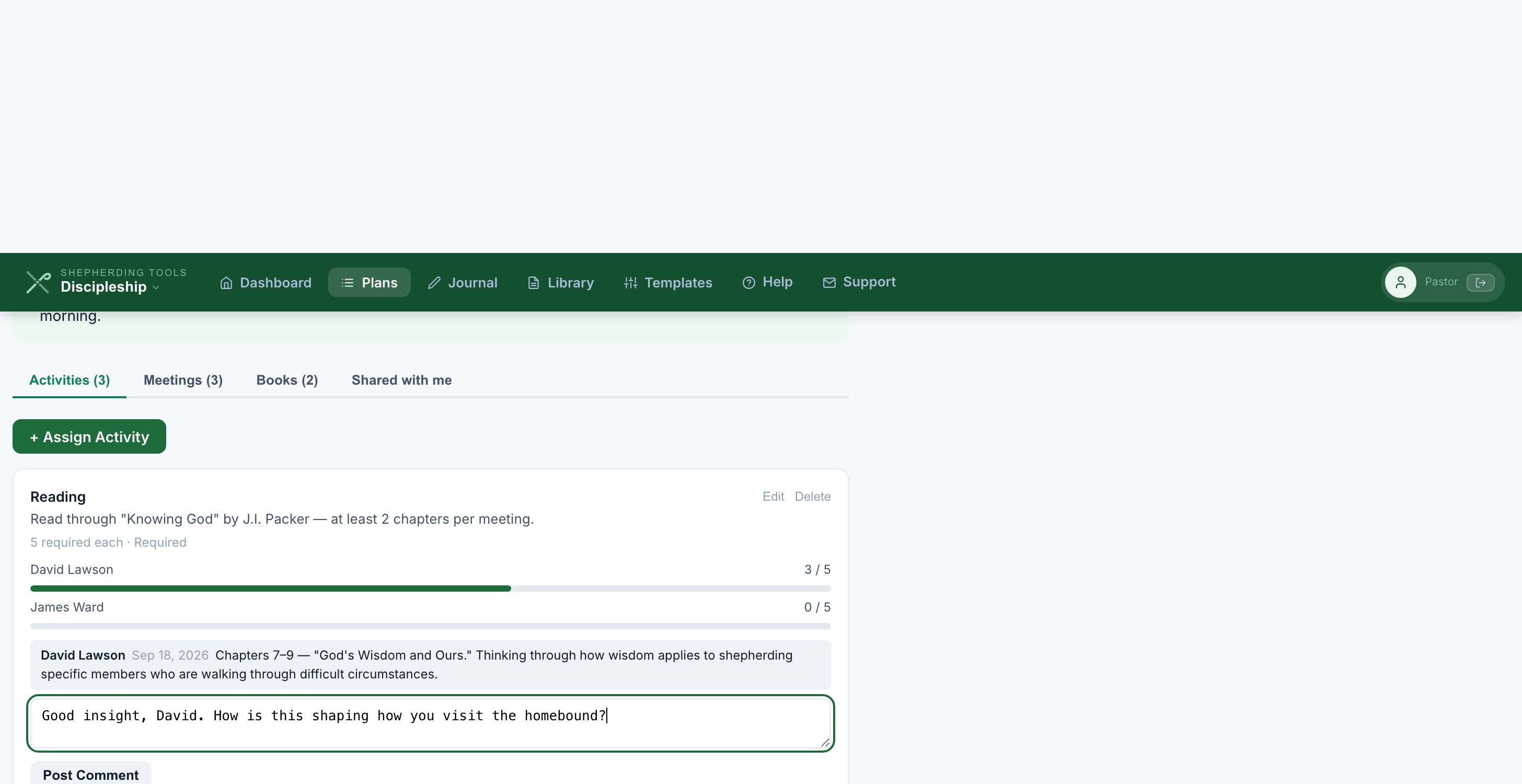
You'll know it worked when: the comment appears immediately under that entry, labelled Mentor — and the disciple sees it later under that same activity log in his own Journal feed.
A disciple sees his own count, and a bar where there is a minimum: 3 entries / 5 required.
A mentor sees one line per disciple instead, each with his own count against the same minimum. A man who has logged nothing shows as zero rather than dropping off the list, because a zero is the number a mentor most needs.
A mentor only sees the three most recent entries per activity, with a "+N more" line and no way to see the rest. A disciple's own view shows only his own logs, never a per-disciple breakdown of anyone else's.
An activity with entries cannot be removed
Delete on an assigned activity refuses once anybody has logged against it, and says so: This activity has logged entries, so it can't be deleted. Removing it would take his written record with it, which is not a thing to do by accident. Edit the description instead, or leave it and stop logging against it.
3. Meetings
A meeting is a date, an agenda, and what came out of it. Everyone on the plan is a participant.
Add a meeting
- Open the plan, click the Meetings tab, then + Add Meeting (mentor-only).
- Set the Date — it defaults to today.
- Write the Agenda. The hint underneath says "Everyone in this plan will see this."
- Click Add Meeting.
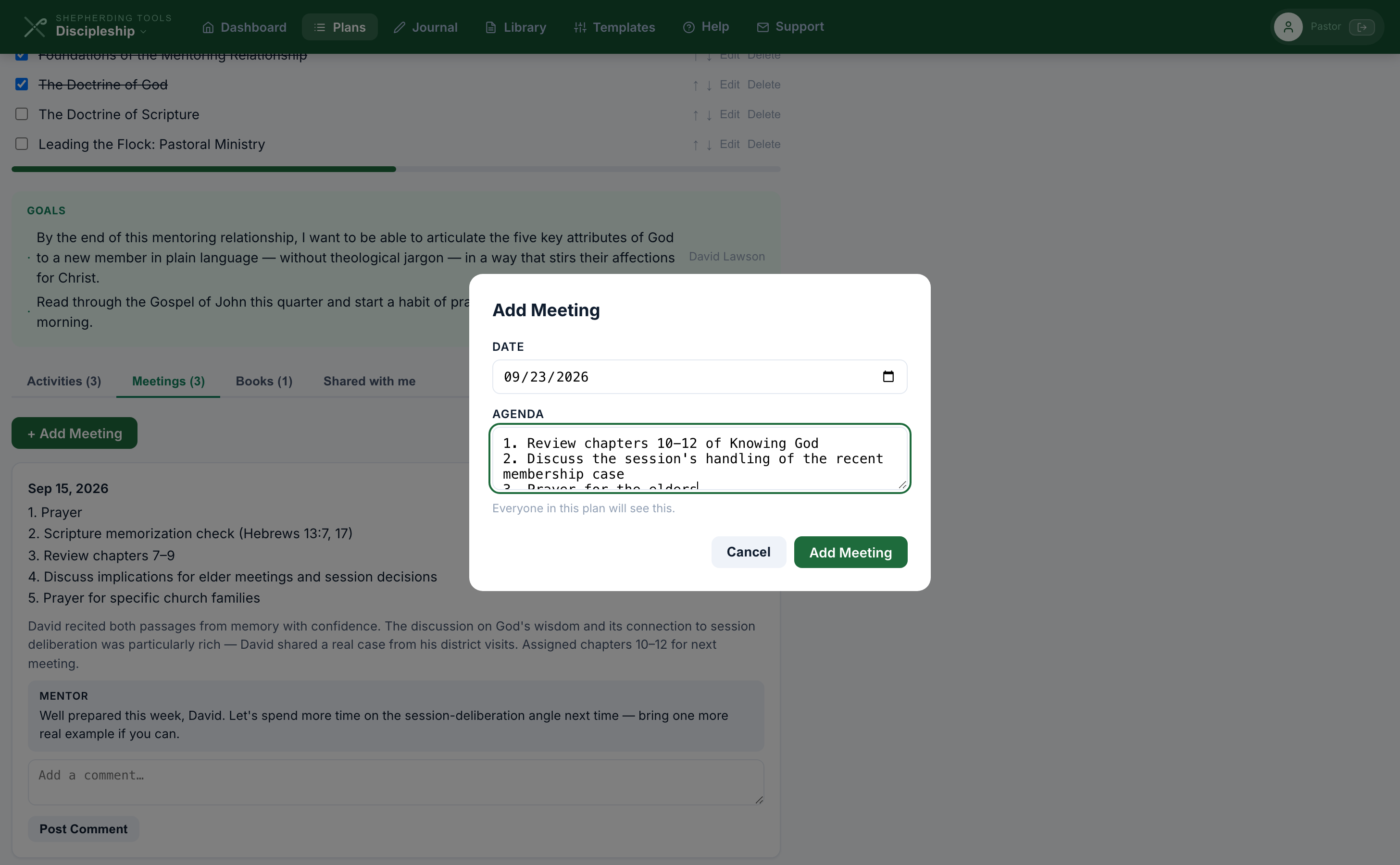
You'll know it worked when: the meeting appears at the top of the Meetings tab, newest first, showing its date.
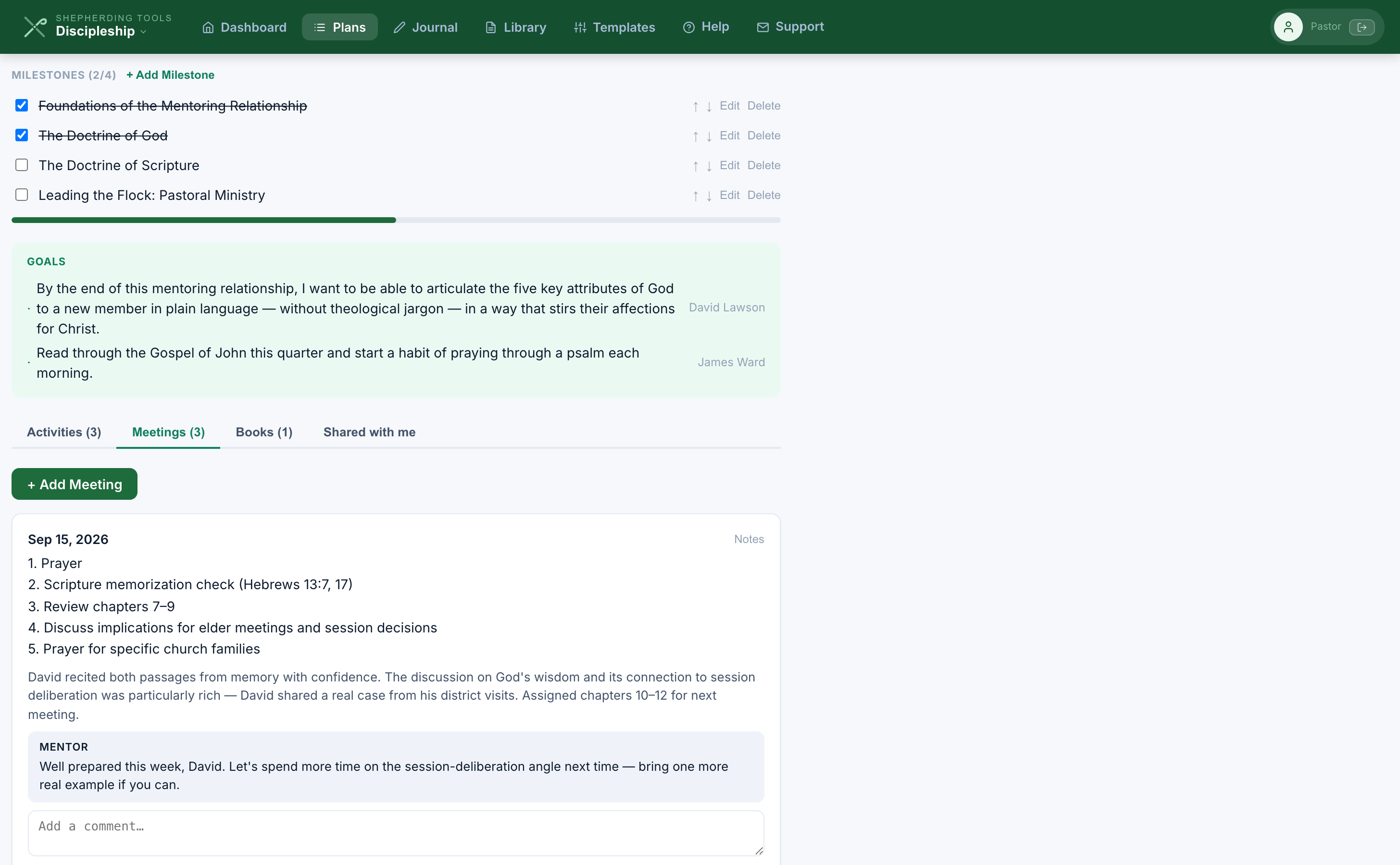
Each meeting is a one-off entry. There is no recurring meeting and no calendar.
Open a meeting — agenda, shared notes and private notes
Opening and editing:
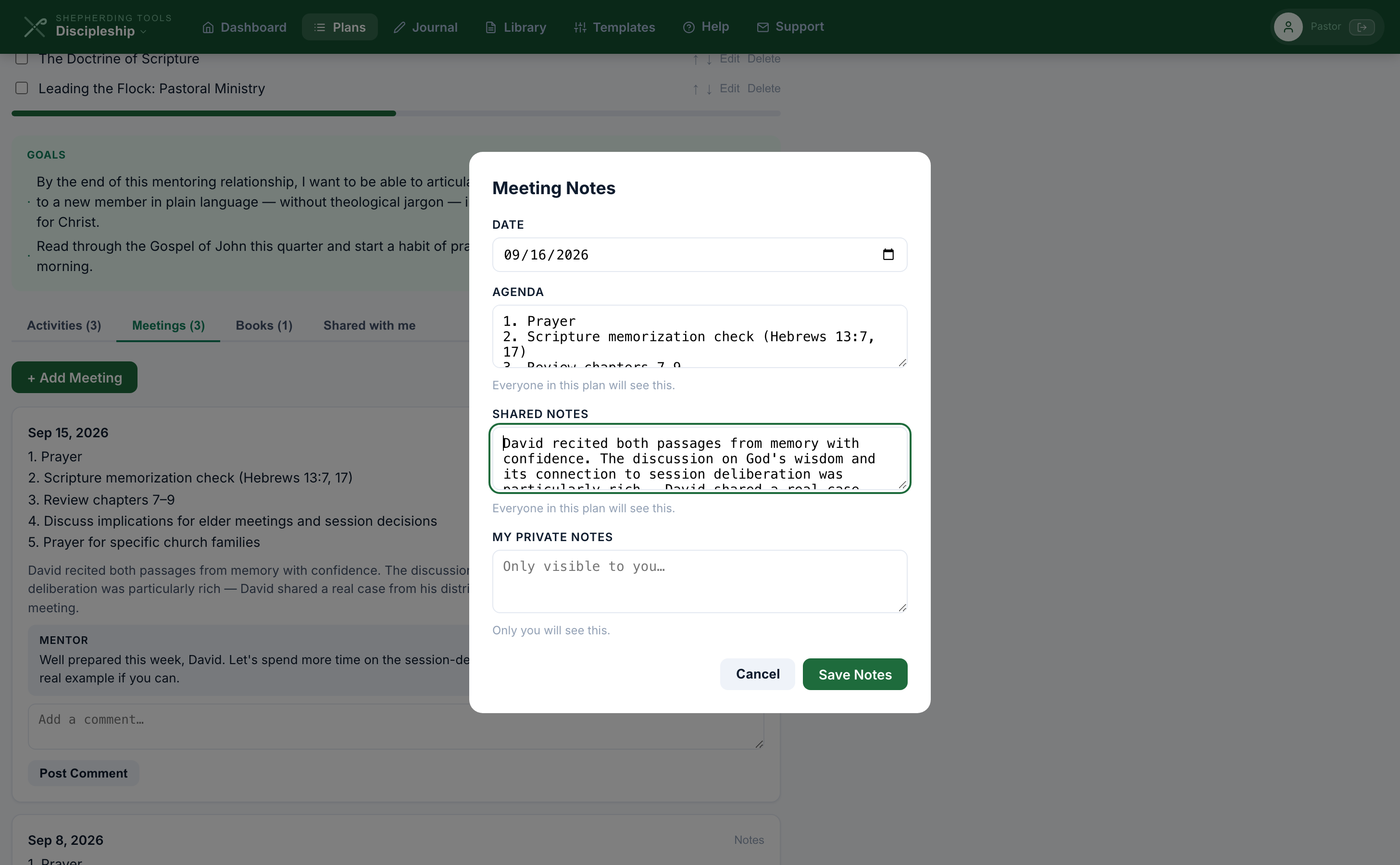
- Click Notes on any meeting.
- Edit Agenda (everyone on the plan reads it), Shared notes (same audience), and My private notes (only you — each participant has his own, unshared even with the other side).
- Click Save Notes.
A mentor leaving a comment:
- Under the meeting card, type in the comment box (mentor-only).
- Click Post Comment.
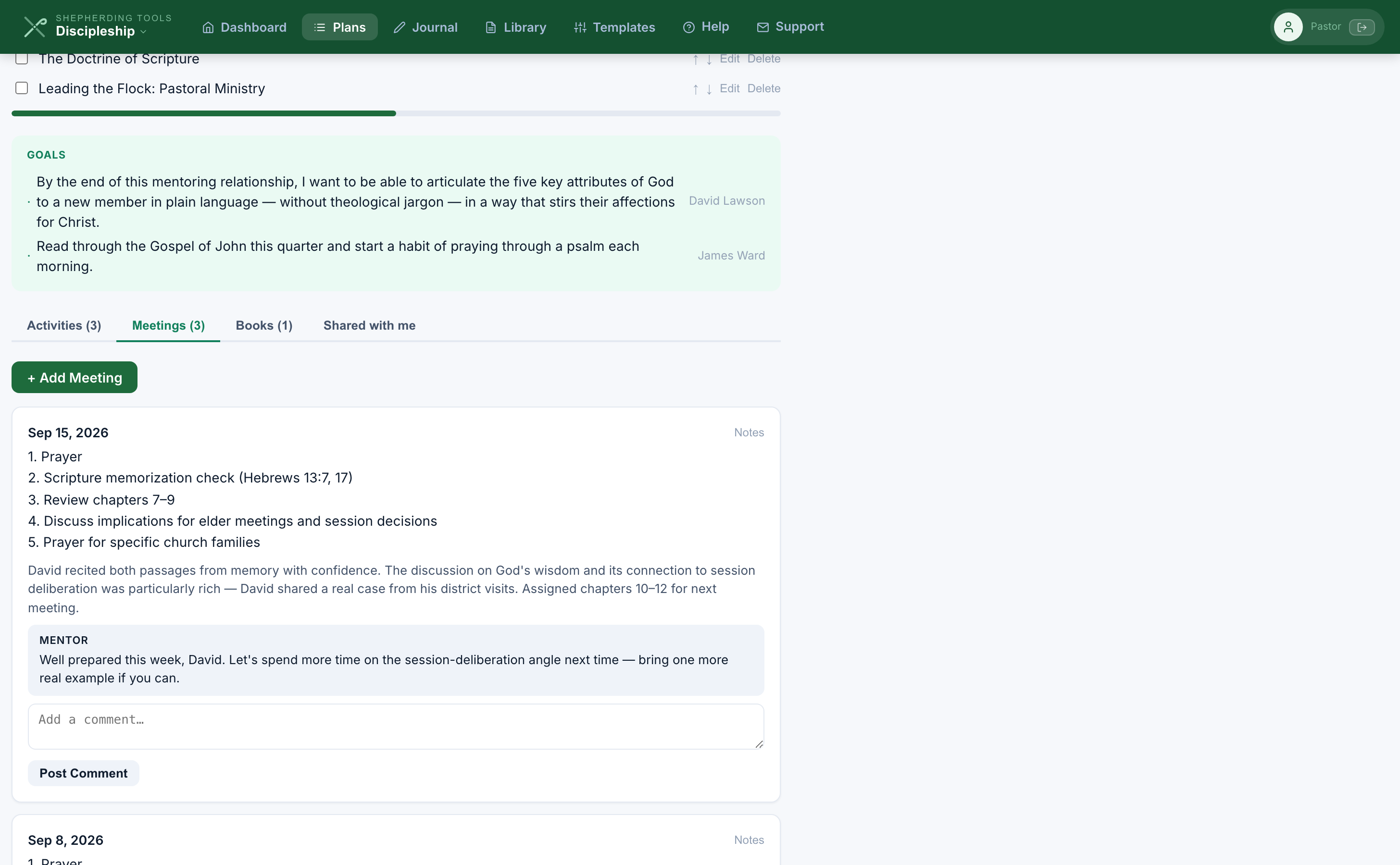
You'll know it worked when: the shared fields update for both sides immediately, and a posted comment appears under the meeting labelled Mentor, visible to every participant.
Anyone on the plan can open a meeting and edit it, mentor and disciple alike. That is on purpose: the private note is what keeps each man's own thoughts his.
Any participant — mentor or disciple — can open and edit the shared fields. A meeting cannot be deleted. Correct the date or clear the notes instead.
4. Books and the Library
The Library is your church's shelf. A book assignment is a portion of one book given to somebody on a plan. They are two different things, and the Library comes first.
Add a book to the Library
From Open Library:
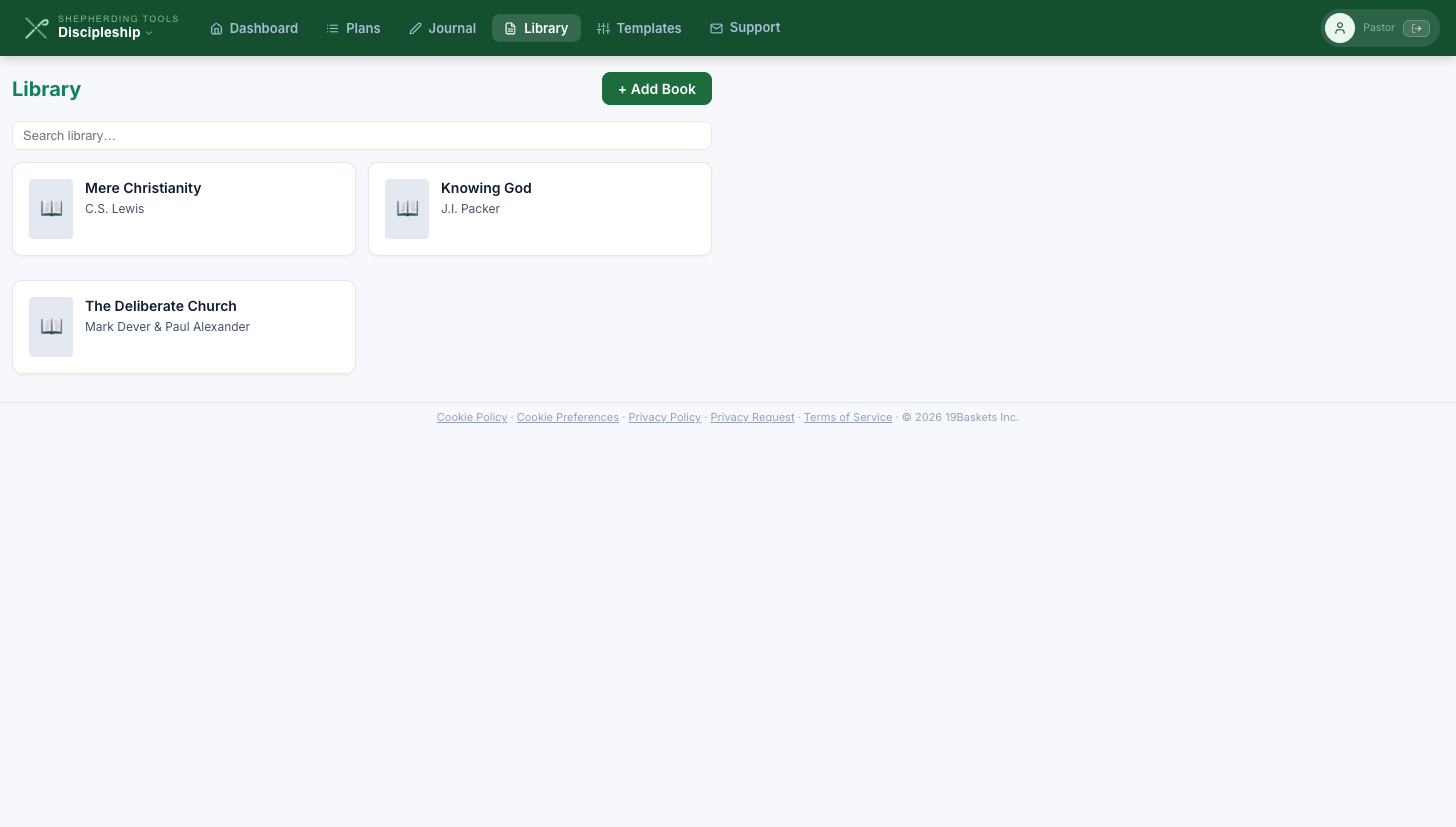
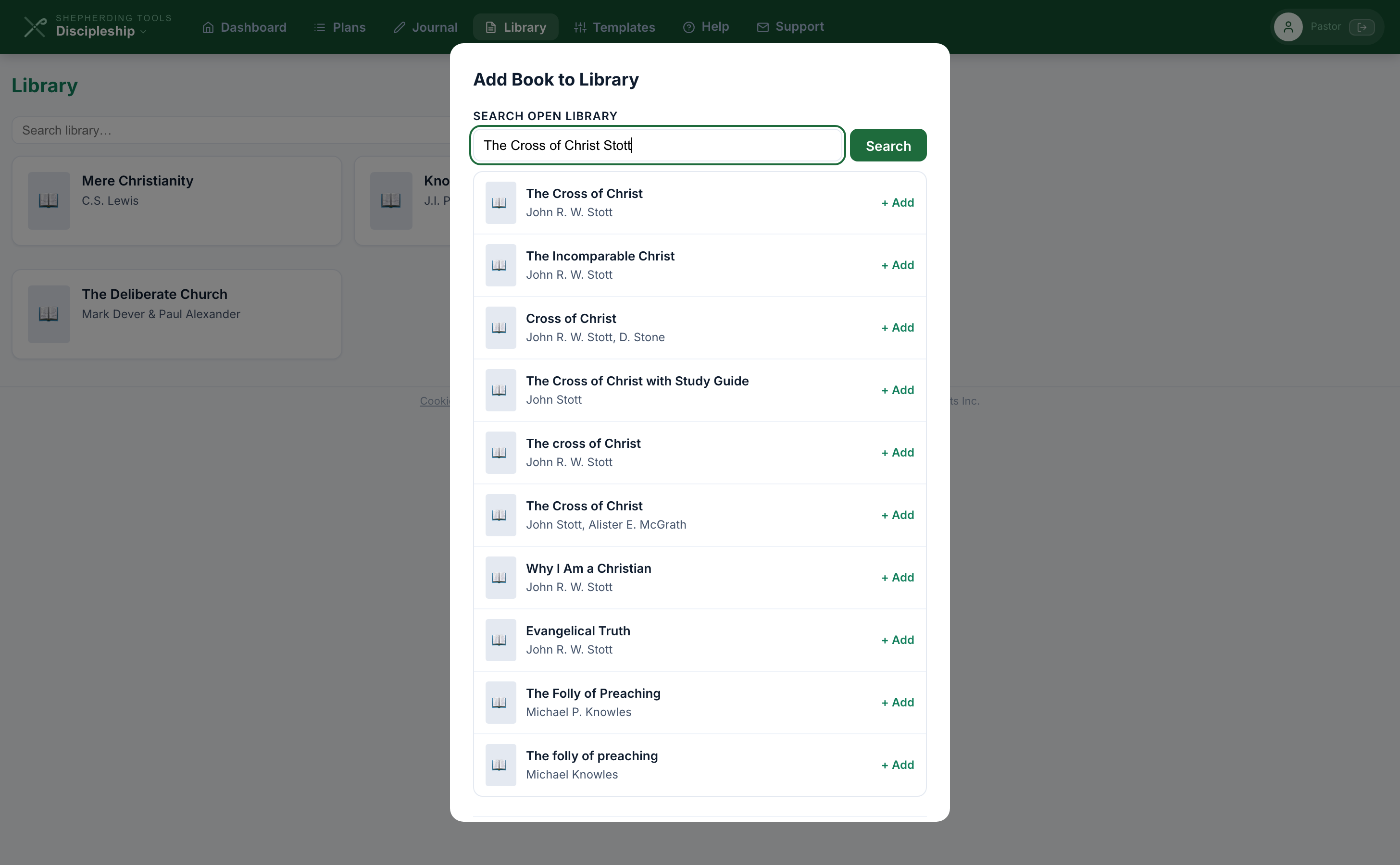
- Click Library, then + Add Book.
- Type a title, author, or ISBN in Search Open Library and click Search (or press Enter).
- Click a result to add it. The cover comes with it.
A book Open Library does not have:
- Same modal, scroll to Add manually.
- Fill Title (required) and Author.
- Click Add Book.
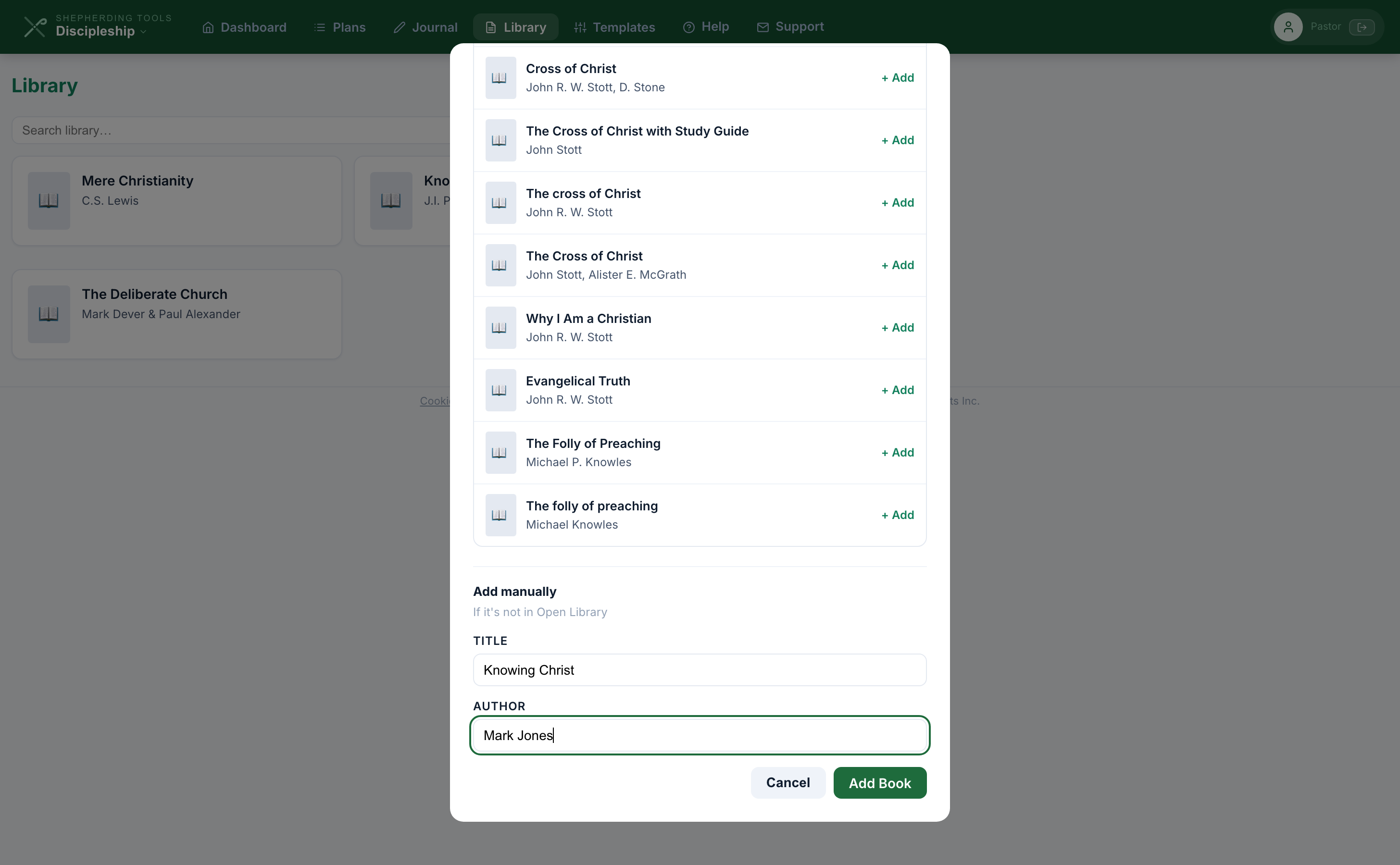
You'll know it worked when: the modal closes and the book appears on the Library grid with its cover, or the book icon if it has none.
The Library belongs to the church, not to you: everyone in your church who uses Discipleship sees the same shelf and can add to it. Search the shelf with the box at the top.
A book cannot be removed from the Library once it is added.
Write a note on a book
- Click any book on the Library grid to open it.
- Optionally name the page, chapter, or section.
- Write Your note….
- Click Add Note.
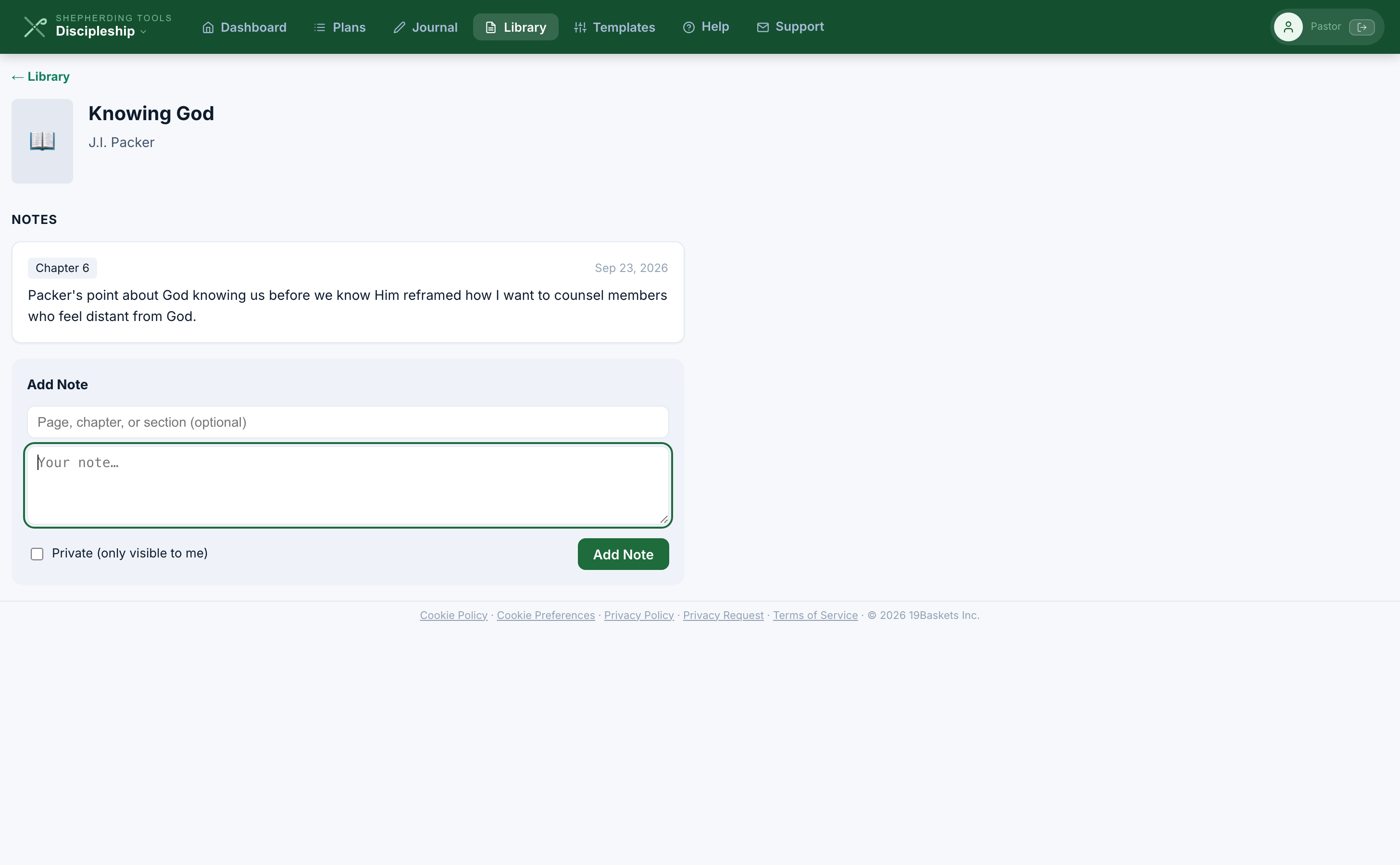
You'll know it worked when: the note appears above the form, oldest first, with its portion tag and date, and in your Journal.
Book notes are yours alone. Nobody else reads them, your mentor included, and they never appear on a plan. A note cannot be edited or deleted once it is saved.
The form has a Private box. Today it changes nothing, because every book note is already private to you regardless.
Assign a book on a plan
- Open the plan, click the Books tab, then + Assign a Book (mentor-only).
- Pick a book. The picker offers only what is already in the Library.
- Name the Portion, like Chapters 1–4.
- Choose Assign to — everyone on the plan, or people you pick.
- Click Assign Book.
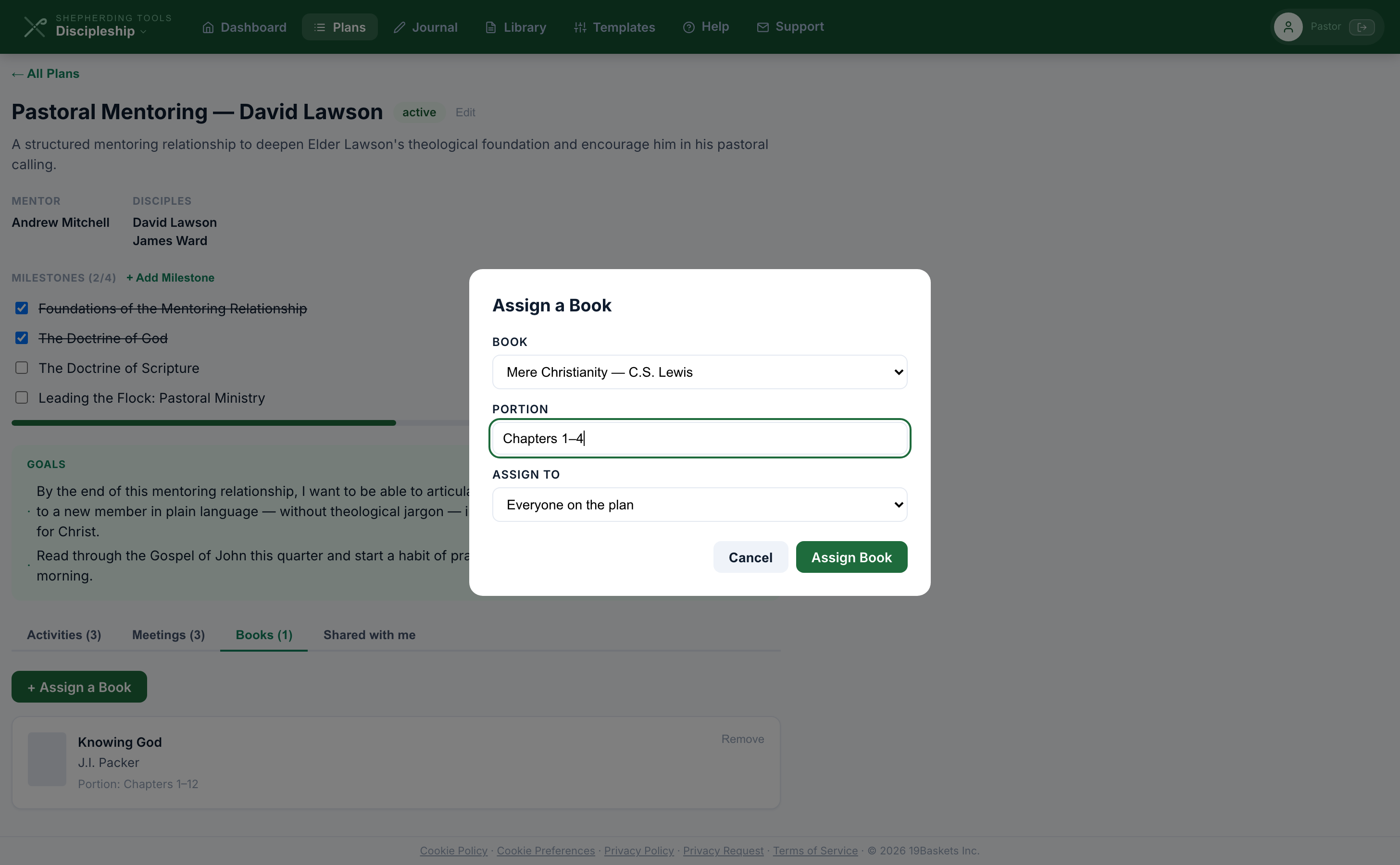
You'll know it worked when: the book's cover, title, author and portion appear on the Books tab.
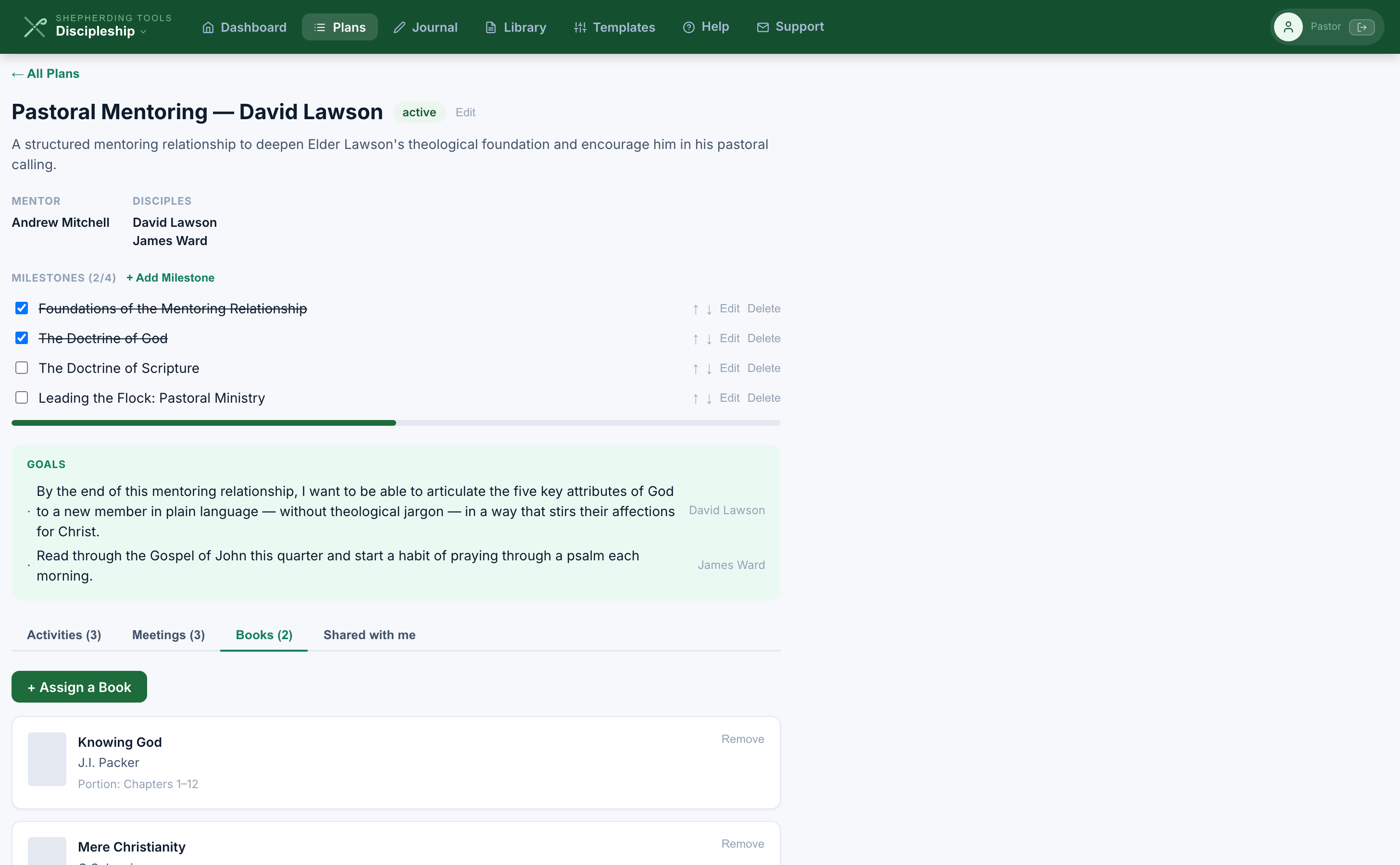
Remove takes the assignment off the plan and leaves the book on the shelf. Only the mentor assigns and removes.
Add the whole reading list to the Library in one sitting before you build the plan. The assign form has no way to add a new book, so a missing title means backing out to the Library and starting the plan work again.
5. Journal
The Journal is your own writing, gathered in one place and sorted newest first.
What shows up in the feed
Four kinds of thing land here, each with a coloured label saying which:
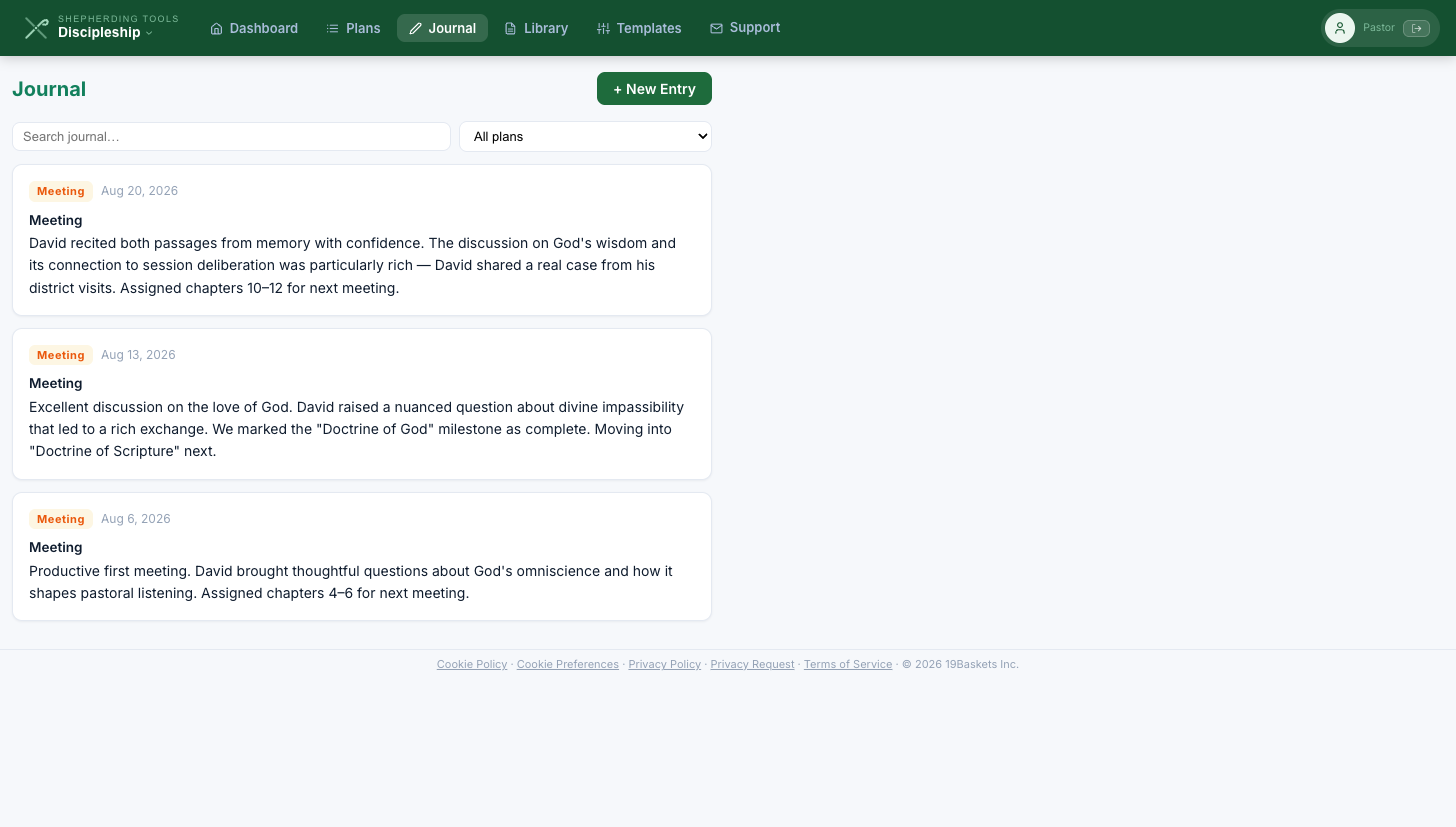
- Journal — entries you wrote here.
- Activity — activities you logged, if you wrote something with them.
- Book — notes you made on a book.
- Meeting — meetings on your plans that have an agenda or shared notes.
Search the box at the top, or narrow to one plan with the dropdown beside it. Search looks at what you wrote, shared and private alike. An activity you logged without writing anything in either box does not appear, because there is nothing to show.
Write a journal entry
- Click Journal in the top bar.
- Click + New Entry.
- Choose a plan, or leave it on No plan.
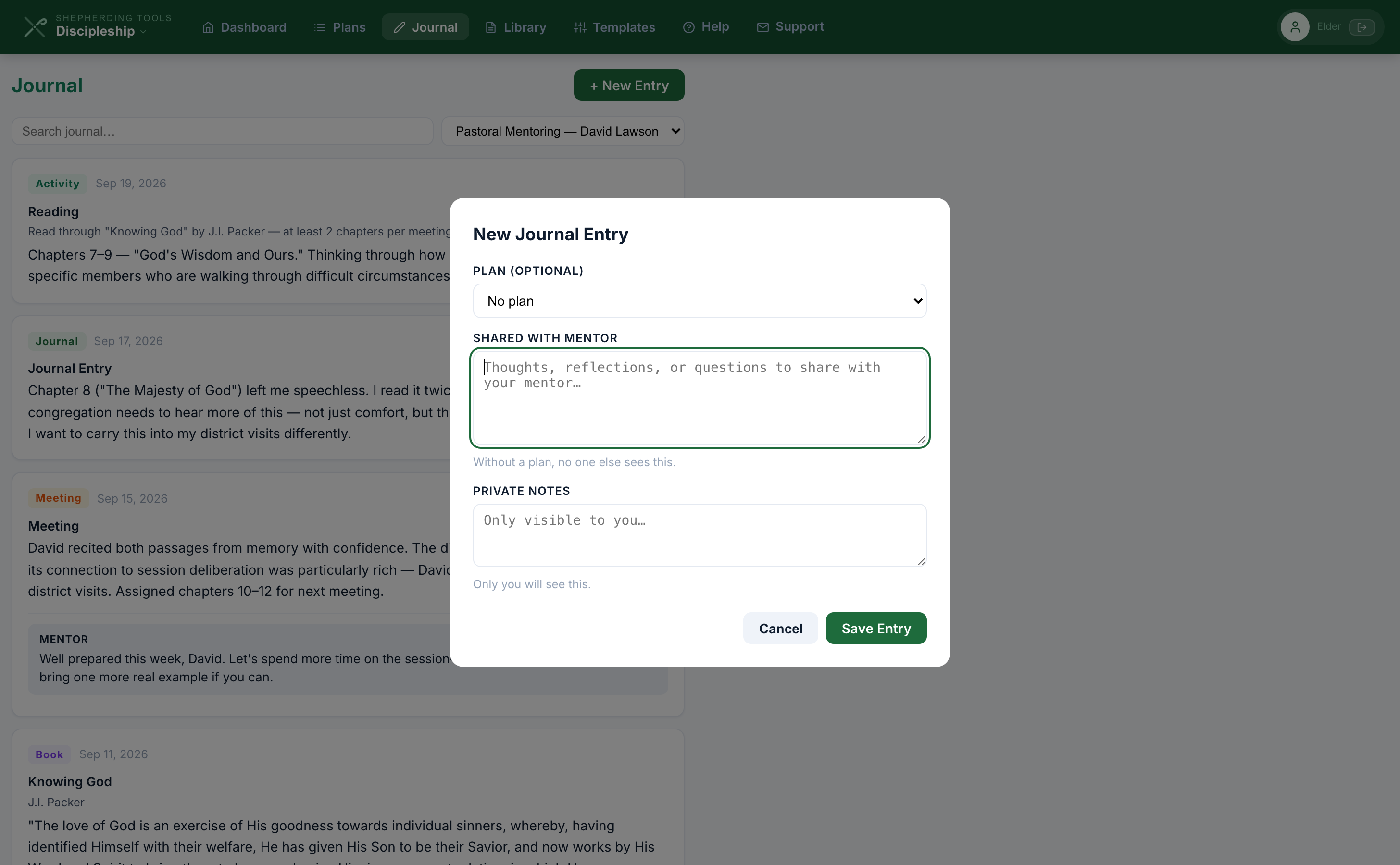
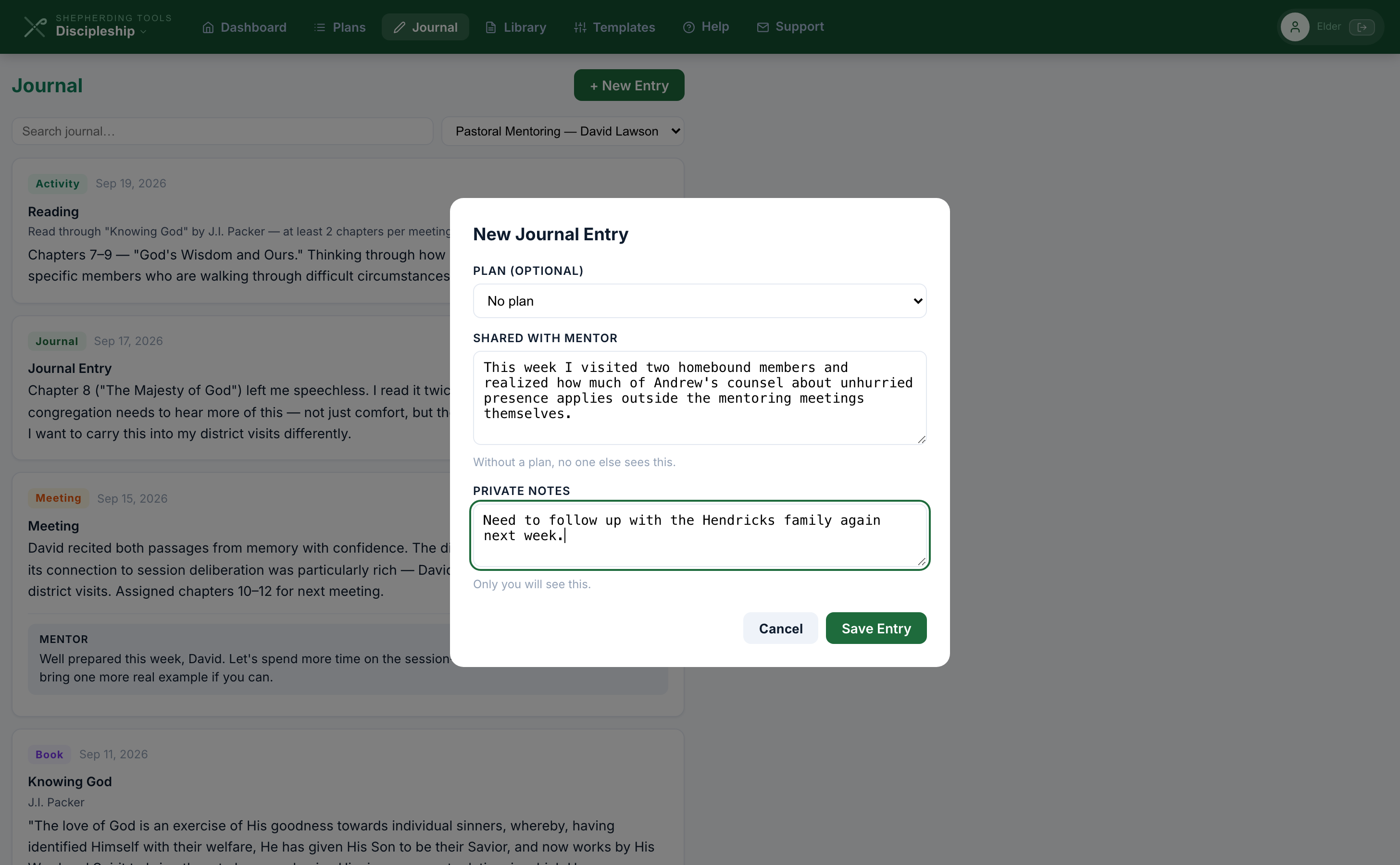
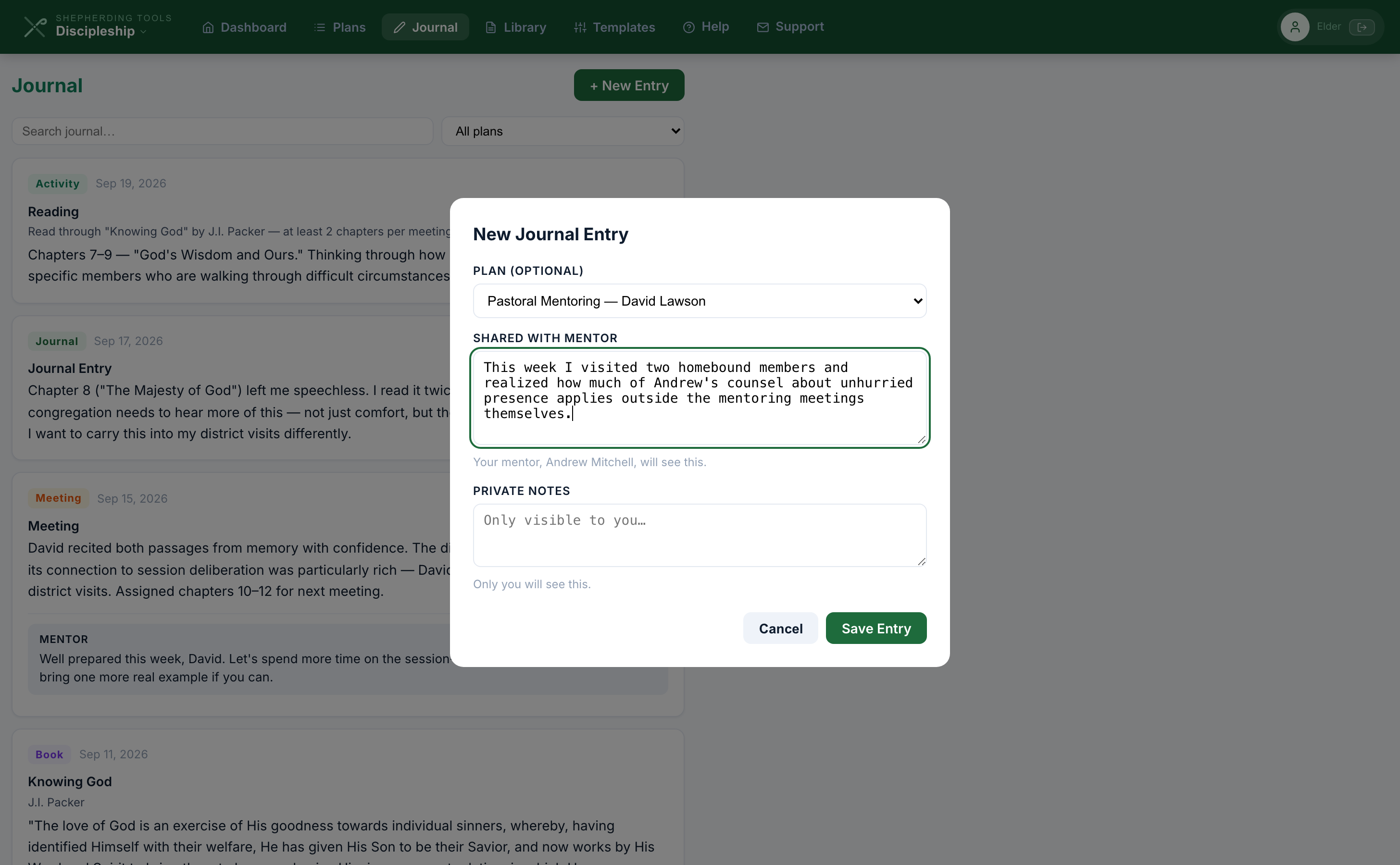
- Write in Shared with mentor. The line underneath names who reads it: your mentor by name if you chose a plan, or "Without a plan, no one else sees this" if you did not.
- Write in Private notes, or leave it blank.
- Click Save Entry.
You'll know it worked when: the modal closes and the new entry appears at the top of the Journal feed, newest first, labelled Journal.
An entry saved with No plan reaches nobody — no mentor, no read path exists for it. Cannot be edited or deleted once saved.
Where you read your mentor's comments
- Click Journal in the top bar.
- Find the entry, activity log, or meeting the comment was left on.
- A comment on a journal entry or an activity log appears underneath that entry in your Journal feed, labelled Mentor.
- A comment on a meeting is the one exception — it sits on that plan's Meetings tab instead, visible to everyone on the plan.
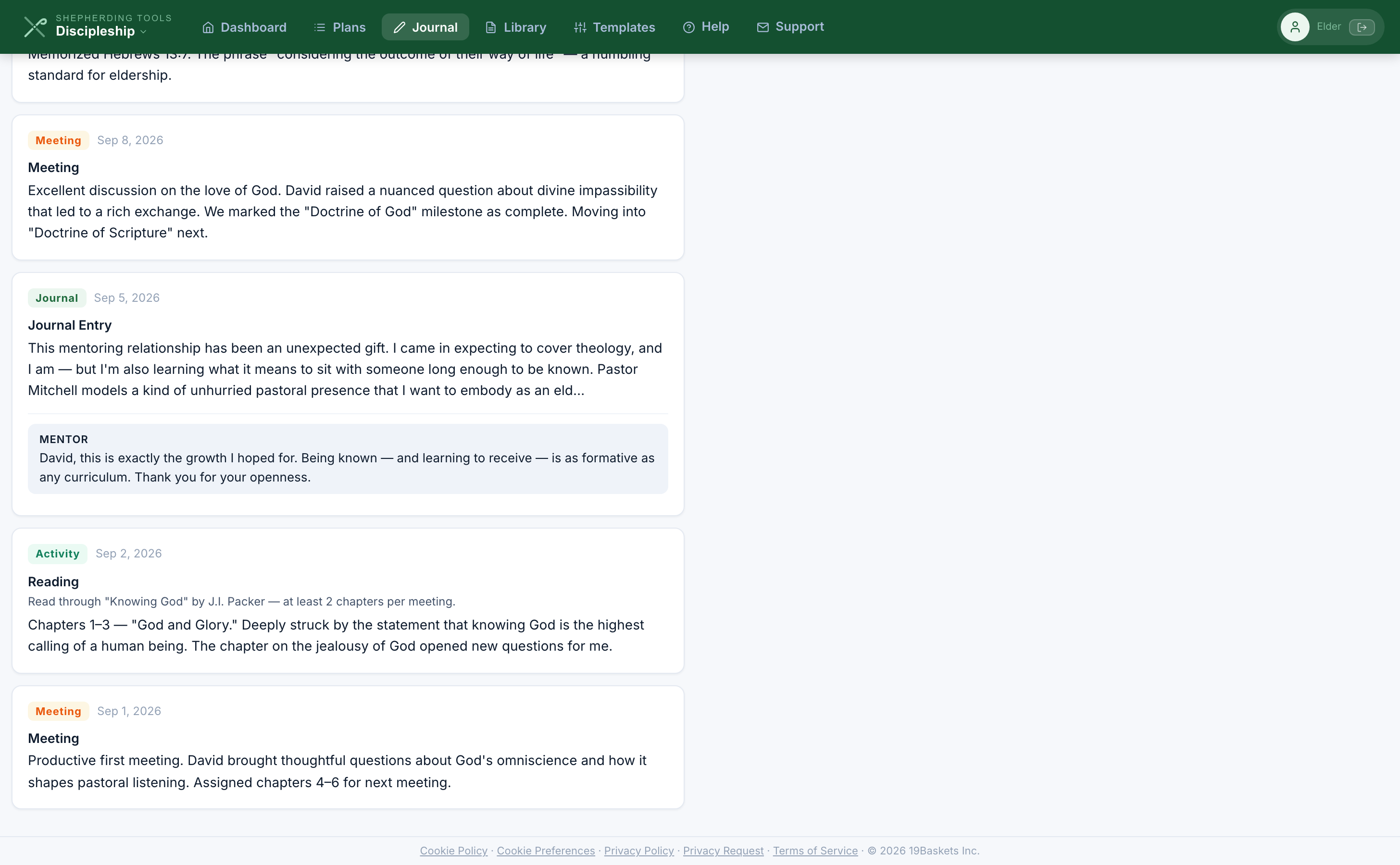
You'll know it worked when: you see the comment text, under the entry it was left on, with the word Mentor above it in small caps. A comment on your journal entry or an activity you logged shows up in your Journal; a comment on a meeting sits on the plan's Meetings tab instead, where everybody on the plan can read it.
Mentor: read and reply to what your disciples share
- Open any plan you mentor. Click the fourth tab, Shared with me (mentor-only).
- Read the entry, shown with its author's name.
- Type a reply in the box under it and click Post Comment.
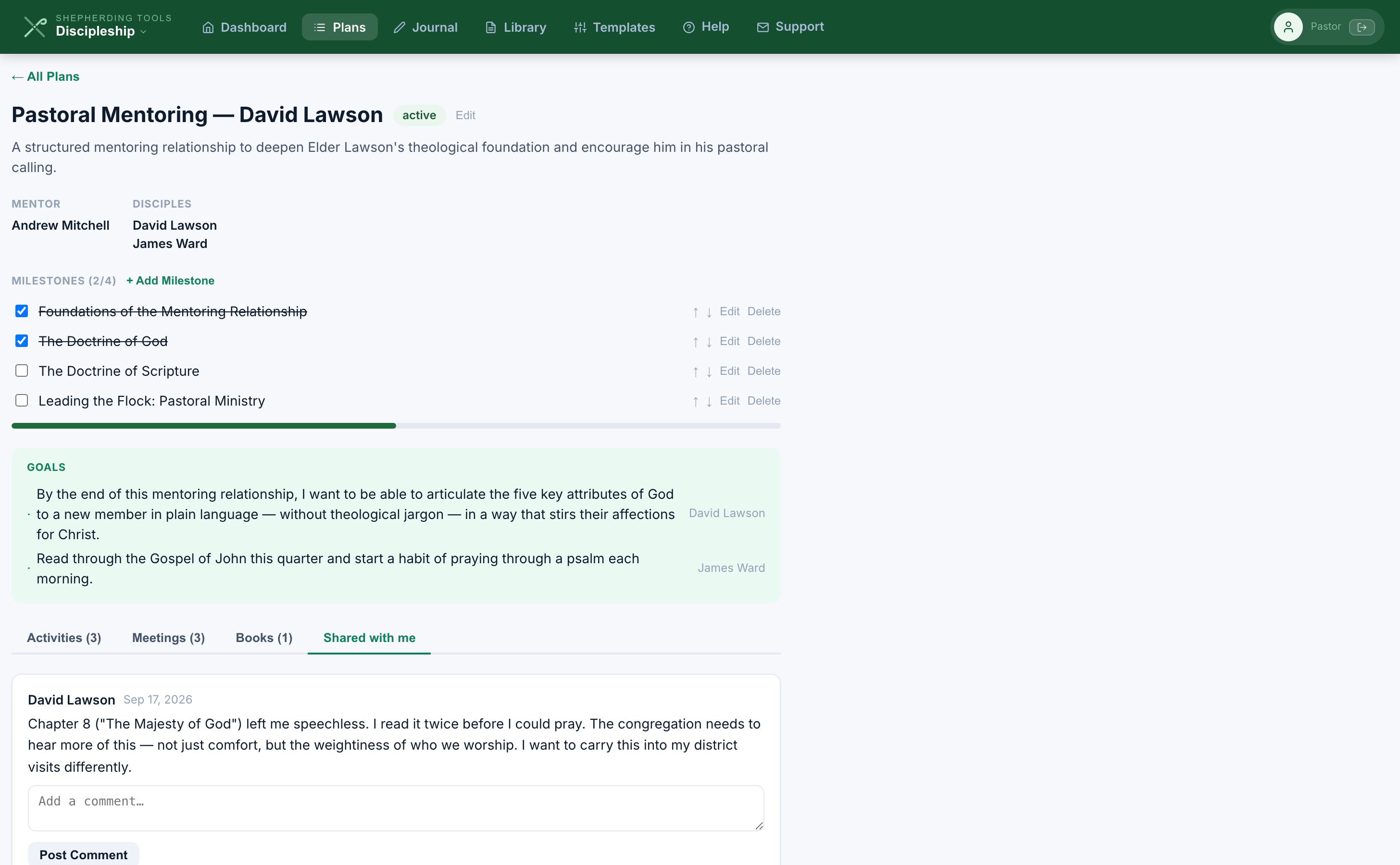
You'll know it worked when: your reply appears under that entry, and the disciple sees it in his own Journal feed.
It holds journal entries and nothing else. Activity notes are on the Activities tab and meeting notes are on the Meetings tab. The tab is named that way rather than "Journal" because the Journal in the top bar is your own writing, which is a different thing.
An entry a disciple wrote entirely in the private box does not appear on this tab at all. Not the text, not the date, not an empty row. The fact that he wrote something is itself something he did not share.
6. Who Can See What
A man will not write honestly if he is unsure who is reading. Three boxes carry a hint that says who reads them, right underneath, the moment he types: the journal entry's shared and private boxes, an activity log's shared and private boxes, and a meeting's agenda, shared and private boxes.
The three kinds of box
- Shared with your mentor. The journal entry's shared box, the shared notes on an activity log, and your goals. Your mentor reads them. Another disciple on the same plan does not.
- Everyone on the plan. Meeting agendas, meeting shared notes, milestones, and comments left on a meeting.
- Private to you. The journal entry's private box, the private notes on an activity log, your own private notes on a meeting, and every book note.
A comment your mentor leaves on your journal entry or on something you logged goes to you, not to the rest of the plan. A comment on a meeting is the one everybody reads, which is why meetings are the place to put anything the whole plan should have.
Goals and milestones follow the same rule above — a goal is shared with your mentor, a milestone is everyone on the plan — and now show the same line under the box that the journal, activity-log and meeting boxes do.
What a mentor cannot see
A disciple's private writing is not merely hidden on the mentor's screen. It is never sent to his browser: the plan he loads does not carry it. A journal entry with an empty shared box is not listed for him either. His own private note on a meeting is his; the disciple's is the disciple's; and neither can reach the other.
Nobody outside the plan
A plan is visible to its own mentor and disciples, and to no one else in the church. A pastor who is not on the plan does not see it. Neither does a sysadmin. There is no oversight screen and no church-wide report of who is being discipled. See Visible to church leadership for a box we once had that claimed otherwise and has since been removed.
7. Templates
A template is a plan outline you can use again: the milestones, the activities, and a sentence about how often to meet. Officer training and a new members' course are the obvious candidates.
Build a template
- Click Templates, then + New Template.
- Fill Title and Description.
- Under Milestones, click + Add Milestone for each stage, in order. Use the ↑/↓ arrows to reorder, Remove to drop one.
- Under Activities, click + Add Activity. For each one, choose the activity type, write a description, tick Required if applicable, and set Minimum entries.
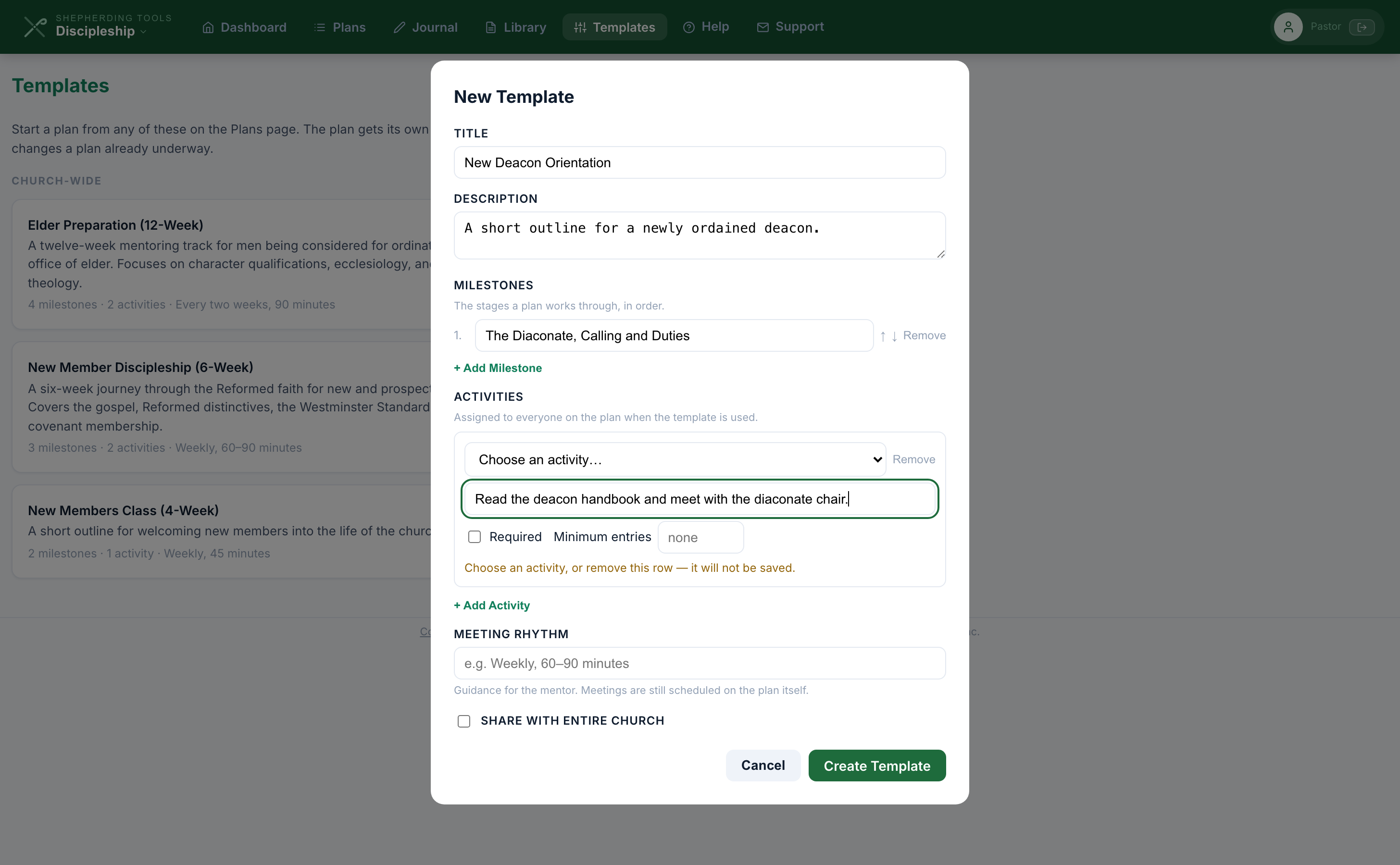
- Write a Meeting rhythm sentence, for example "Weekly, 60–90 minutes." This creates no meetings; it is guidance shown to the mentor.
- Tick Share with entire church if others should be able to start a plan from it.
- Click Create Template.
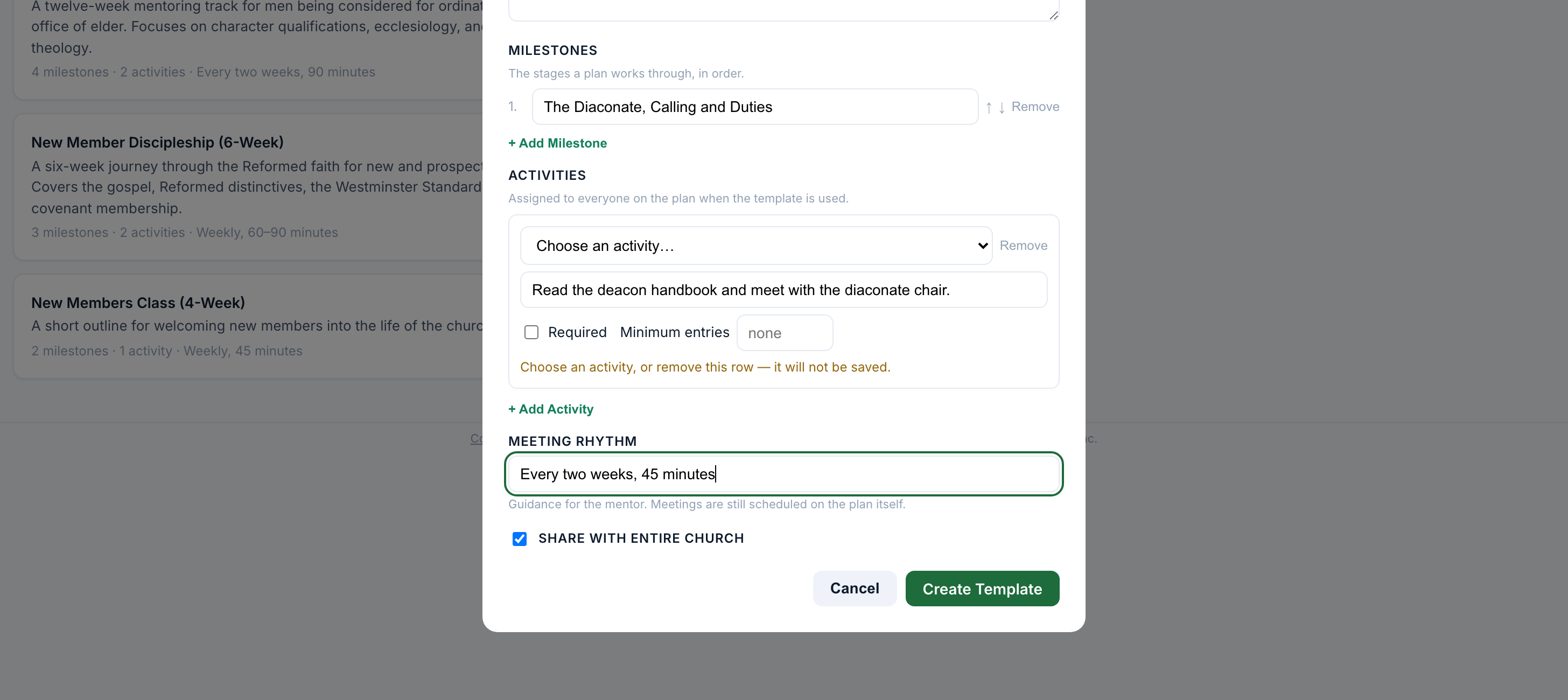
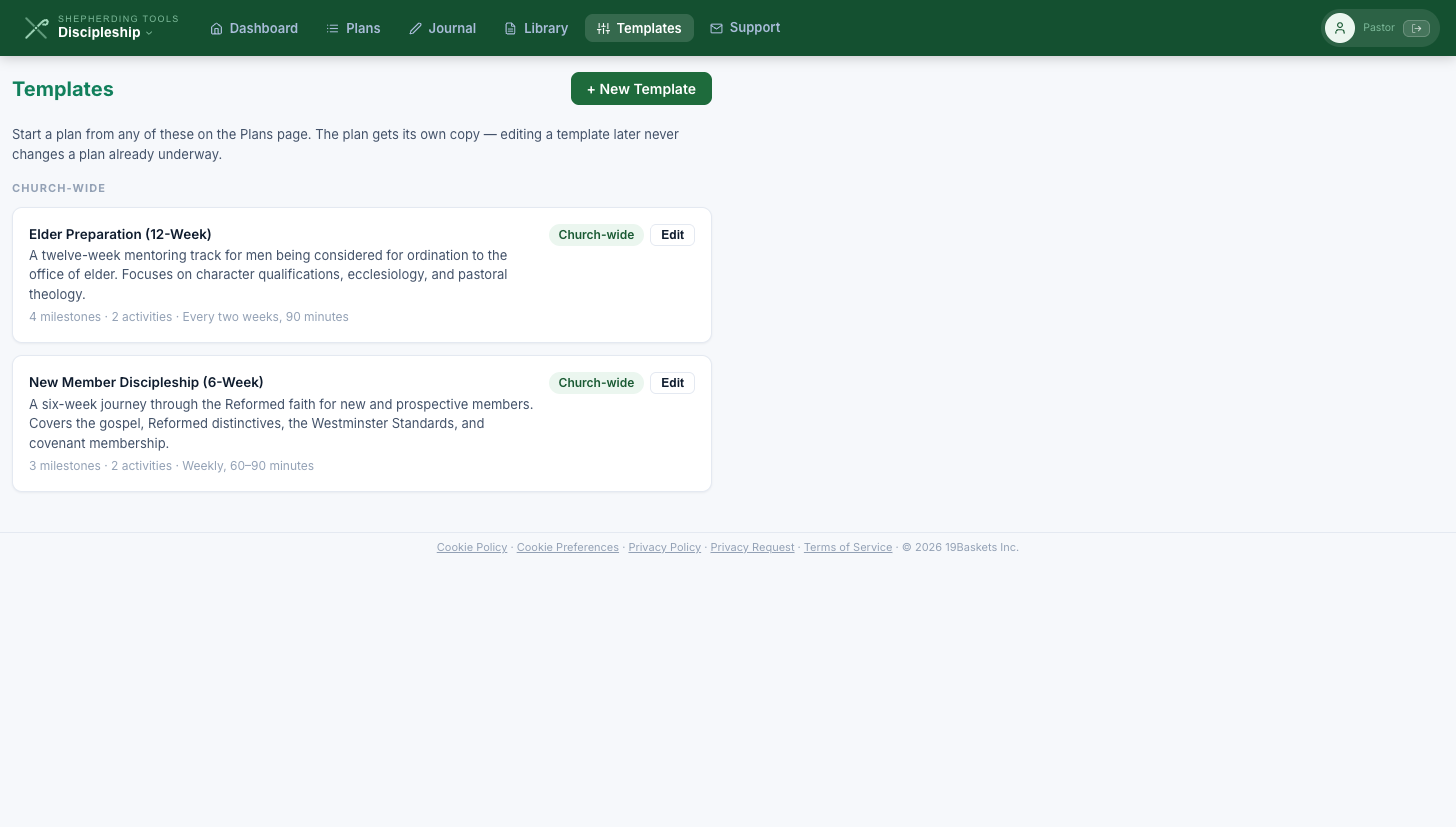
You'll know it worked when: the template appears under My Templates (or Church-Wide, if shared) on the Templates page, with a summary line like "3 milestones · 2 activities."
An activity row with no type picked shows a warning and is silently dropped on save, never sent to the server — "Choose an activity, or remove this row — it will not be saved."
Share a template with the whole church
- When building or editing a template, tick Share with entire church.
- Click Save Changes (editing) or Create Template.
You'll know it worked when: the template moves from My Templates into the Church-Wide group on the Templates page for everyone in the church, with a Church-wide badge.
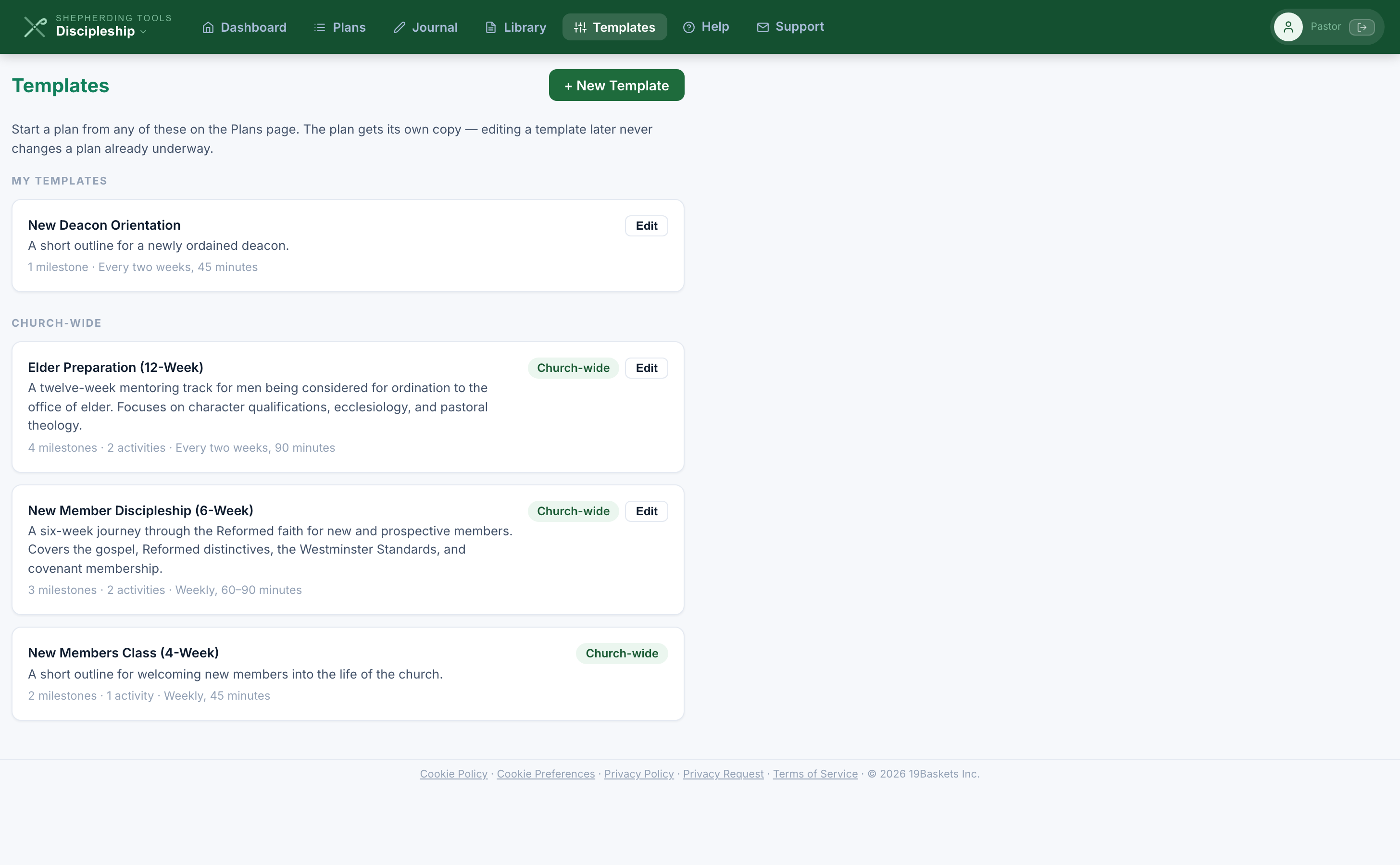
Only the man who made a template can edit it, church-wide or not. Everyone else sees an Edit button on his own and none on anybody else's. A template cannot be deleted.
A plan gets its own copy
Choosing a template on the New Plan form copies its milestones and activities into the plan. It does not link them. Editing the template a month later changes nothing on a plan already running, and changing that plan changes nothing on the template. This is why you can improve a template between cohorts without disturbing the men already partway through.
If a template names an activity type your church cannot see, creating the plan is refused and the message names the type at fault. It is not quietly dropped, because a plan silently missing part of its outline is the kind of thing nobody notices for months.
8. How This Fits With Tracker
One directory. The people you put on a plan are the members already in Tracker. The search reads that directory, and the names shown on a plan come from our records rather than from whatever was typed into the form.
One sign-in. Same email, same password. The switcher at the top left moves you between the apps you have access to.
Access is set in Tracker. Under Admin > Users, each person's row carries an App Access block with a Discipleship box. There is nothing to configure inside Discipleship itself.
Nothing flows back yet. A meeting recorded here does not become a contact in Tracker, and a plan does not appear on a household profile. The two products share your people and nothing else today. If you want a discipleship meeting counted as pastoral contact, log it in Tracker as well.
9. What It Does Not Do Yet
An honest list, so you can plan around these rather than discover them. None of them need reporting; we already know.
- No notifications at all. Nothing in Discipleship sends email. A disciple who logs his reading is relied on to mention it, and a mentor's comment waits until the disciple next opens his Journal.
- Nobody joins or leaves a plan after it starts. Membership is fixed at the moment you click Create Plan.
- Almost nothing can be deleted. Plans, journal entries, activity logs, meetings, book notes, library books and templates all stay once saved. Milestones, goals, book assignments and an activity nobody has logged against can be removed.
- Nothing can be edited after saving except a plan's title and status, a milestone, a goal, an activity assignment, a template, and a meeting. Anything you wrote as a record is a record.
- No activity types of your own. The picker offers the seven built-in ones and no screen adds to them.
- No export and no printable report. Nothing gathers a plan's record into a document to hand to a session or a presbytery.
- One mentor per plan. The man who creates it. There is no way to add a second.
If one of these is blocking something your church needs to do, tell us. During a beta, what churches actually run into decides what gets built next.
Tips & Best Practices
- Check the disciple can sign in before you build the plan around him. A member without a login account will never see it.
- Set a Minimum entries on the activities that matter. Without one there is no progress bar, and a mentor is left counting entries by eye.
- Write the description as an instruction. "Two chapters before each meeting" is checkable; "Reading" is not.
- Tell your disciples that the private box really is private, once, at the start. Most men assume the mentor can see everything and write accordingly.
- Turn a plan you have run twice into a template. The third one takes a minute.
- Put the meeting agenda in before the meeting rather than after. It is the one field both of you can read in advance.
- Because nothing here sends email, agree on a rhythm out loud: he logs by Saturday, you read and comment on Monday.